Although Wyze Camera devices are great, some of the instructions for their setup aren’t so clear. Connecting a Wyze Camera to a new Wi-Fi network is one of those gray areas. There isn’t much info about this common problem.
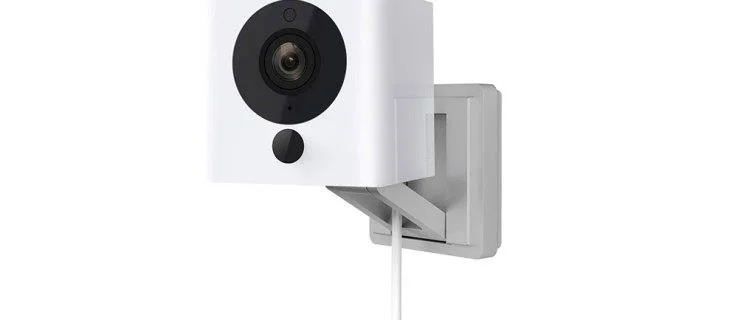
When you move or change your ISP, you change your Wi-Fi connection, and Wyze should have thought of that at some point. However, this process isn’t as tricky as it sounds. Regardless, it’s pretty unintuitive and takes more time than it should.
Read on to find out how to properly connect your Wyze Camera to a new Wi-Fi connection, despite the hiccups that may occur while doing so.
Switching Wi-Fi Connections on Your Wyze Camera
The best way to connect a Wyze camera to a new Wi-Fi network or connection is to treat the situation as if you’re setting up a brand new Wyze Camera. You shouldn’t delete any of the previous settings or try to adjust your old Wyze Cam. Although you’ll use the same device, treat it as a new one when setting up a new Wi-Fi connection.
This scenario means that you need to follow the standard setup process for your Wyze Cam. If you established a connection with your camera a long time ago or forgot the steps, you’re in luck.
Remember, a Wyze Camera requires a power source (power outlet or USB port), a smartphone app from the App Store or Google Play Store, and an internet connection. Since you already have a Wyze Camera, you already know the drill, and you probably already have the app.
Make sure your app is updated, and if there are any available firmware updates, do that as well. Finally, let’s move on with the Wi-Fi setup for your Wyze cam. Here’s what to do.
- Launch the Wyze app on your Android or iPhone.
- Log in if you haven’t set the app to remember you.
- Connect your Wyze camera to the USB port or a power outlet. Wait until it flashes yellow (about thirty seconds).
- Hold the Setup button on the back of the camera until you hear the automated message Ready to Connect.
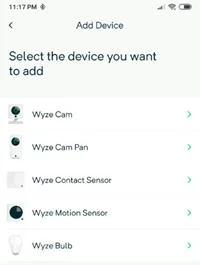
- Go back to the Phone app and click on the ellipsis (three dots) in the top right corner of your screen. Tap on Add a Product and add your device using the correct name (Wyze Cam, Pan, Sensor, Bulb).

- The setup window will appear; follow the instructions and give it time if necessary.
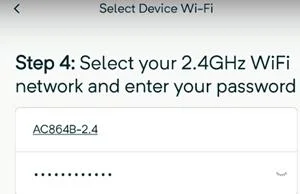
- You’ll get prompted to choose a 2.4 GHz Wi-Fi network and enter your password. Wyze Cams don’t work on 5 GHz networks, so keep that in mind. Connect to your new Wi-Fi using the current password.

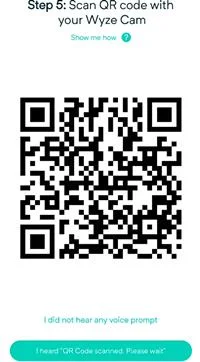
- Next, scan the QR code on the app with your Wyze Cam. When it scans the QR code, you’ll hear a voice command, QR code scanner. Tap on the I heard the voice command button.

You can now choose a new label for your Wyze Cam using the device settings (gear icon) after you have selected it from the device listing. Just tap on the name and enter a new one.
If you have more than one Wyze Camera that you need to connect to a new Wi-Fi network, repeat these steps for each one until you set up all of them. You can do further customizations on your own, choosing motion and sound detection, etc.
Updating Firmware on a Wyze Camera
Depending on whether or not you were able to connect your device to a network, the way to update your firmware will differ. That’s why we’re going to cover them both.
Updating Firmware on a Wyze Camera Using the App
If you were able to connect to your Wi-Fi network, then follow along.
- Open up the Wyze app on your phone and tap on Wyze Camera.
- Now, click on the Settings icon in the top right of the screen.
- Next, tap on Device Info.
- Finally, tap on Firmware Version and look for the upgrade option.
- If you don’t see the upgrade option, then you’re up-to-date and ready to go. If you do, then install it.
Updating Firmware on a Wyze Camera Manually
Unfortunately, if you aren’t connected to the internet on your Wyze camera, then you’ll have to upgrade the firmware manually. Let’s get started.
- Go to the Wyze Release Notes & Firmware page and locate the firmware for your camera and download it.
- If you haven’t already, insert the microSD card for your camera into your computer.
- Now, extract the files to the root directory, the first folder, on the SD card.
- With the camera off, reinsert the microSD card into the camera.
- Then, hold the setup button on your camera, plug in the USB cable, and keep holding the setup button until the light turns purple (Wyze Cam v3) or blue (Wyze Cam v2 and Wyze Cam Pan).
- Next, wait up to 4 minutes for the device to restart.
- Your camera should now have updated firmware.
Frequently Asked Questions
How do you reconnect a Wyze Camera?
1. Within the Wyze app, tap the + icon and select Add Device.
2. Select your camera as the device and go through the setup steps.
It’s annoying when Wyze Cameras disconnect from Wi-Fi, such as when updates happen, but it’s a problem that’ll hopefully be resolved by the company.
Does a Wyze Camera work without Wi-Fi?
For the initial setup of a Wyze Camera, you have to have internet access. From there, it will record offline, but only if you installed a microSD card in it and local recording is enabled.
Enjoy Your New Wyze Camera Setup
It’s unfortunate that you have to go through the entire installation process again when you’re only changing your Wi-Fi network, but as of October 2019, that’s your only option.
Maybe in the future, Wyze will introduce a new innovative system that recognizes a new network and allows you to connect to it more easily. Until then, use this tutorial, and you’ll be able to switch to new networks on as many cameras as you want.