Telegram channels can be a great way to keep up with the latest updates on politics, sports, business, or any other topics that interest you. As a channel subscriber, you can participate in discussions, share multimedia content, and meet new people with similar interests. For these reasons, it may be frustrating to realize you can’t locate a beloved channel anymore.

If you’re wondering what the “This channel can’t be displayed” message is all about, you’ve come to the right place. Keep reading to learn why you can no longer see a Telegram channel and how you can fix this issue.
This Channel Can’t Be Displayed
Telegram channels can be a great platform to share content on a large scale, as there’s no limit to how many subscribers there can be. The sheer volume of potential channel members makes it difficult to keep track of all the shared content to ensure it’s legal and appropriate.
As a result, some members may spread illegal or explicit content, pirated media, or messages inciting hate and violence. If Telegram discovers a channel is used for such activities, it may hide it from general view or ban it altogether.
If a Telegram channel is taken down, you’ll see the “This channel cannot be displayed” message when you open it. Depending on the reason, you might be able to tweak some settings and go back to see the channel’s content.
Telegram Channel Can’t Be Displayed Because of Sensitive Content
When a channel is used for exchanging sensitive content, Telegram might take it down. Sensitive content primarily refers to images and videos that are not safe for work.
However, suppose no illegal activities are taking place within the channel. It may still be active, just hidden from the general view. If that’s the case, you’re probably seeing the “This channel can’t be displayed” message because your sensitive content filter is enabled.
If you’re over 18, you can turn the filter off, after which you should be able to view and join the desired channel.
Telegram This Channel Can’t Be Displayed Because It Was Used to Spread – Android
A message warning you about explicit subject matter shared in a Telegram channel will block you from being able to view its content. You can disable your sensitive content filter if you’re adamant about accessing that channel.
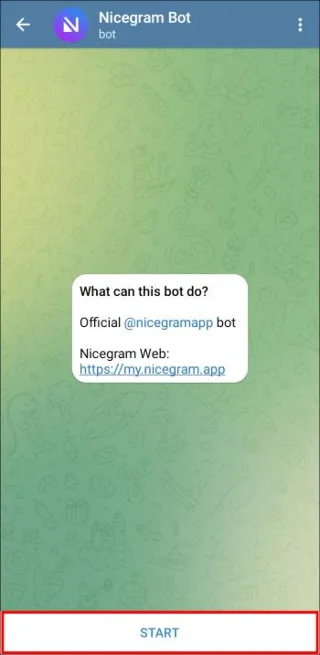
A feature called the Nicegram Bot might be able to help you in your endeavor. You can contact this bot a couple of ways.
- By typing “Nicegram bot” in the Telegram search bar and tapping the option with “bot” written under its name
- Following this link
Once the Nicegram Bot chat has launched, follow these steps to turn off your sensitivity filter.
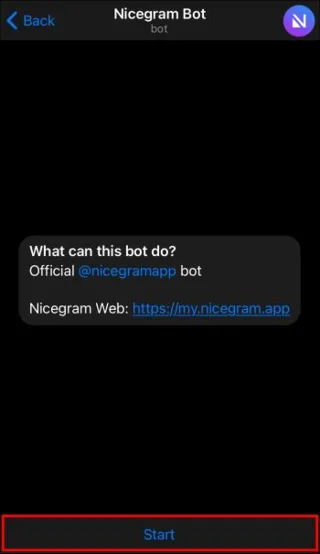
- Tap the “Start” button at the bottom of your screen.

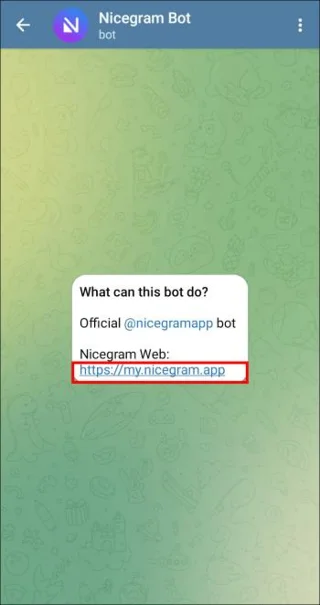
- If you don’t see any options at the bottom, click on the link under “Nicegram Web.”

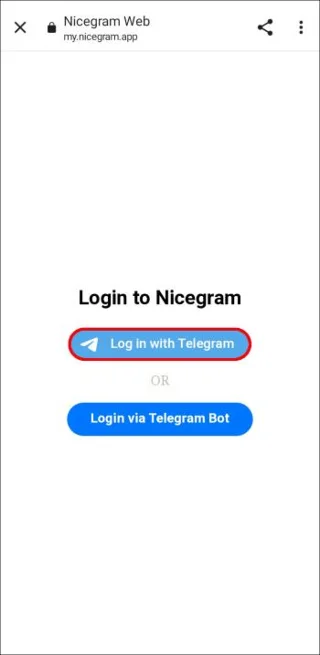
- Select the “Log in with Telegram” option.

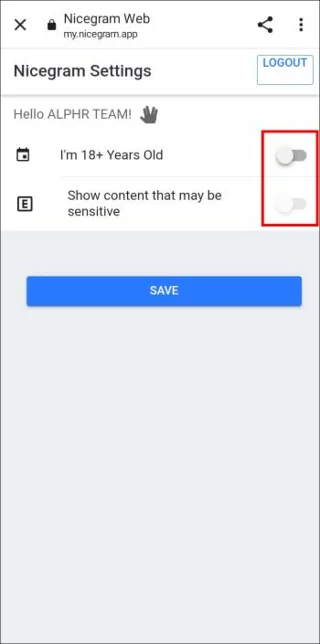
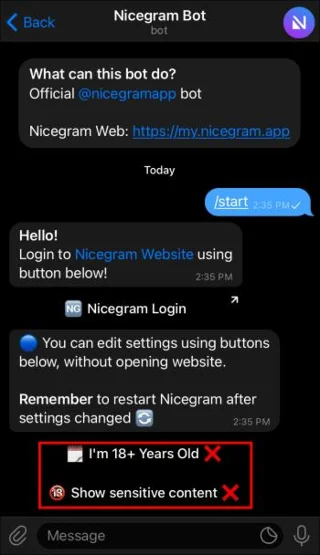
- Toggle both the “I’m 18+ years old” and “Show content that may be sensitive” options on.

- Hit “Save” to complete the process.

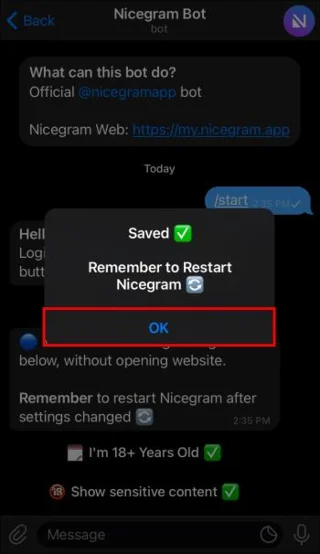
A pop-up message will then prompt you to restart the Nicegram Bot. For the changes to take effect, you should restart the Telegram app by force-closing it.
If this is the first time you’re using Telegram Widgets, you’ll have to authorize the log-in before turning the filter off.
After successfully completing the process and relaunching the app, check if the previously inaccessible content is now visible. If not, you can try the alternative approach to disabling the filter.
Unfortunately, this can’t be done using your Android device. Instead, you’ll need to access the Telegram web or desktop client.
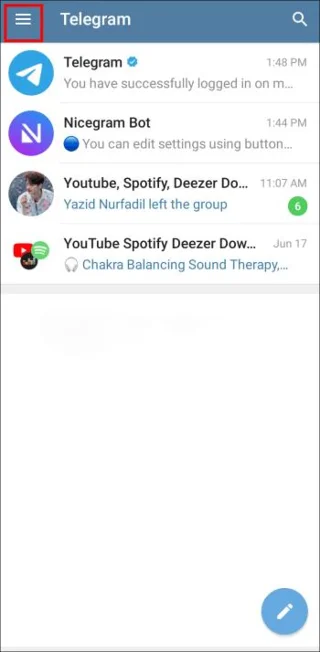
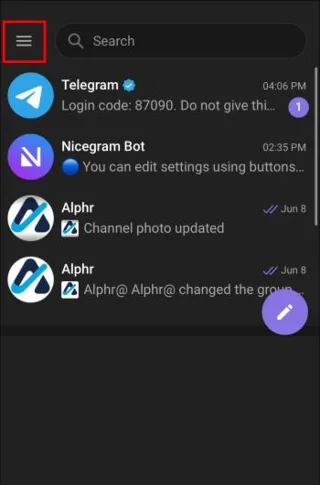
- Click the three horizontal icon in the upper-left corner.

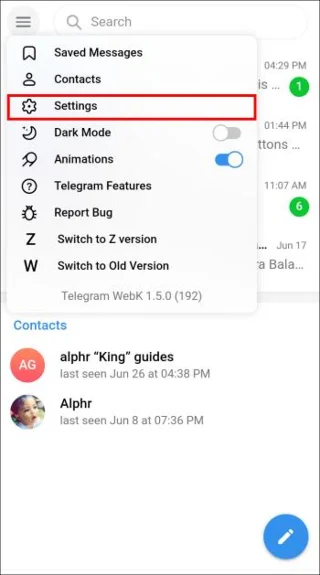
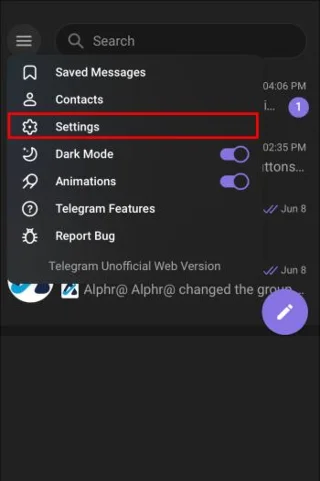
- Select “Settings” from the overflow menu.

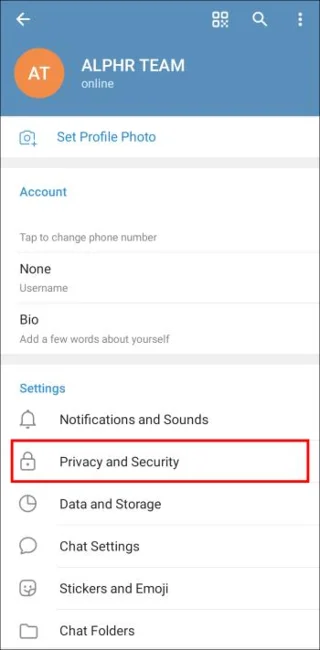
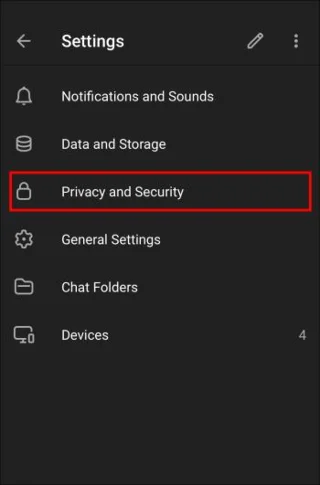
- Press the “Privacy and Security” icon.

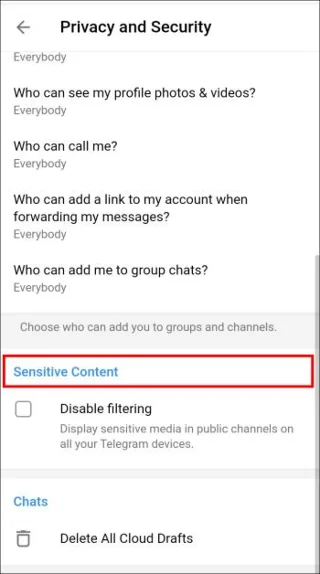
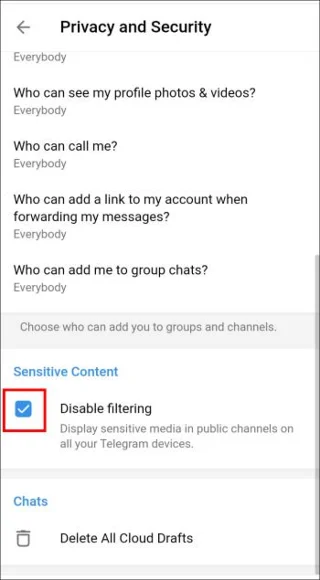
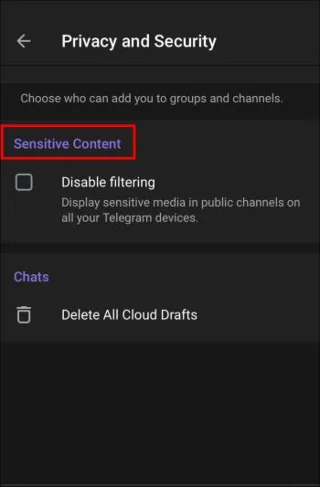
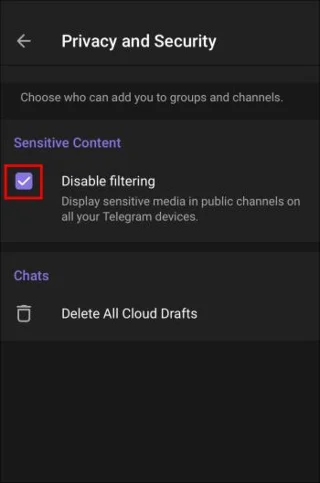
- Scroll down to the “Sensitive content” section.

- Tap the “Disable filtering” box to turn it on.

Now go back to your smartphone and check if the channel is there. If you still can’t access it, the channel has probably been banned completely, deleted by the creator, or restricted in your country.
Telegram This Channel Can’t Be Displayed Because It Was Used to Spread – iPhone
When a Telegram channel is used to spread explicit content, the app will inform you with a message and stop you from seeing the subject matter. If the explicit content isn’t illegal, the channel is probably hidden rather than banned. In that case, your sensitive content filter is most likely in the way.
You can turn off this filter on your iOS device using the Nicegram Bot.
The first step is to contact the bot. You can do this in two ways.
- Type “Nicegram bot” in the Telegram search bar and click on the option with “bot” written under its name
- Follow this link
When a chat window appears, follow these steps to get rid of the sensitivity filter.
- Press the “Start” button at the bottom of your screen.

- Tap both the “I’m 18+ years old” and “Show content that may be sensitive” buttons to enable them.

- Press “Ok” in the pop up menu, then restart telegram.

The final step is to go back to the desired Telegram channel and check if you can access its content now. If it’s still unavailable, it’s time to try an alternative method.
There is another way to switch off the sensitivity filter, but it requires the Telegram web or desktop client.
- Press the three horizontal icon at the bottom-left corner.

- Select “Settings.”

- Tap the “Privacy and Security” button.

- Scroll down to the “Sensitive content” section.

- Click on the “Disable filtering” box.

The channel’s content should now be visible on your iPhone or iPad. If the issue persists, the channel will likely be deleted, either by Telegram or the creator. Alternatively, it may be unavailable due to country limitations.
Telegram Channel Can’t Be Displayed Due to Country Limitations
Telegram might apply content restrictions to channels originating in countries where content is heavily filtered. As a result, you won’t be able to access the channel unless you’re in that particular country.
A VPN app is most commonly used to sidestep such restrictions. The app allows you to set your location almost anywhere in the world, so you can set it to the channel’s country of origin. Give it a few hours if you can’t access the channel right away. After Telegram registers the changed IP address, you should be able to join the desired channel.
This Channel Can’t Be Displayed Because It Violated Local Laws
Some country limitations Telegram imposes can be avoided by using a trustworthy VPN. However, a channel welcoming you with a “This channel can’t be displayed because it violated local laws” message is probably a lost cause.
Such channels are usually terminated for spreading hateful, inflammatory, or otherwise illegal content. Although you might still be able to see the channel, its content will remain inaccessible forever.
Change the Channel
Most mainstream online platforms do their best to moderate the posted content. Since some Telegram channels aren’t created with the best intentions, it’s not surprising they aren’t allowed to stay active.
If the methods outlined in this article haven’t helped you access the desired channel again, the channel is probably gone for a good reason. In that case, it’s best to steer clear of similar channels moving forward.
Has a Telegram channel you visited ever disappeared? Did you manage to get it back? Let us know in the comments section below.