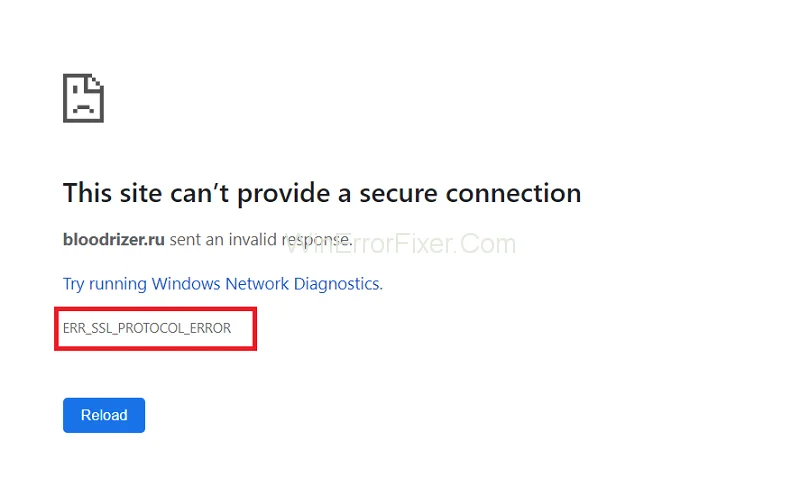
Google Chrome is the most preferred web browser among users, owing to its speed, efficiency, and security. However, Chrome users do face occasional problems while browsing. A recurring error encountered by many on Chrome is the SSL protocol error. This error leads to a web page loading failure, and the error message “ERR_SSL_PROTOCOL_ERROR” is displayed. In case you have encountered this issue, this article is intended to help.
The SSL protocol error occurs with SSL protected websites and is one of many SSL errors. SSL or Secure Sockets Layer is a standard technology aimed at securing any communication between a browser and a server. It serves to protect potentially sensitive information of any organization or individual. SSL protocol error indicates an error while establishing a secure connection. Thus, the error message also mentions the following:
Unable to make a secure connection to the server. This may be a problem with the server, or it may be requiring a client authentication certificatethat you don't have.
It is difficult to identify the exact cause of the SSL protocol error when it occurs, but there are many possible causes. If it is due to a server problem, there is no option but to wait for it to get resolved.
Contents
How to Fix Err_SSL_Protocol_Error in Google Chrome
There are other possible factors that can cause ERR_SSL_PROTOCOL_ERROR, and based on each of the various solutions exist. Thus, the solutions described below are worth trying in order to fix the error.
Solution 1: Correct Date & Time
Incorrect date and time settings of your system may cause this error. Incorrect date and time of the system may create complications regarding the authentication process of the SSL certificate. This is because certificates have expiration dates.
Thus, the correct date and time should be set in the system. You can check and change it directly from the taskbar, or through the Control Panel.
Solution 2: Clear Browsing Data
Accumulation of browsing data like cookies and cache is responsible for various problems. Clearing browsing data may thus fix the SSL protocol error. Following are the steps to do so:
Step 1: Open Chrome, and press Ctrl + Shift + Del.
Step 2: In the time range category, select “All Time.”
Step 3: Check the boxes next to the options “Cookies and other site data” and “Cached images and files.”
Step 4: Click “Clear Data.”
Solution 3: Check Your Antivirus Settings
The antivirus or Antimalware software in your computer regularly checks every online content for any threat. While it is intended to protect the system, it may often block websites even if they pose no threat.
In case the server is using an outdated version of SSL protocol, the system’s antivirus software or Firewall may block the SSL connection. Momentarily disabling the software may thus allow you to access the website. This, however, is not a permanent solution, as disabling your antivirus will put your system at risk.
Solution 4: Clear Your SSL State
Another way to fix the Err_SSL_Protocol_Error is to clear the SSL state, which may be blocking the connection. To implement this method, proceed as follows:
Step 1: Navigate to the Control Panel. Then, choose “Network and Internet.”
Step 2: Select “Network and Sharing Centre”.
Step 3: In the bottom left portion, click “Internet Options.”
Step 4: In the new window that will appear, go to the Content tab.
Step 5: Look for the “Clear SSL State” button and click on it. Then, press on OK
Alternatively, you can use this method through Chrome. Follow the steps below:
Step 1: Click the three-dot menu icon of Chrome and select Settings.
Step 2: In the Settings window, select the “Advanced” option in the left panel, followed by “System.”
Step 3: Select the option “Open proxy settings,” after which the Internet Properties window should open. Then proceed as per Steps 4 and 5 in the previous way of clearing the SSL State.
Solution 5: Disable QUIC Protocol
Quick UDP Internet Connections (QUIC) is a counterpart of the SSL Protocol and is in the developing process. Still, in the experimental phase, QUIC is usually set as default in Chrome. Disabling QUIC may resolve the issue of SSL protocol error. Following are the steps to disable it:
Step 1: In the Chrome address bar, copy and paste “chrome://flags/#enable-quic,” then press Enter.
Step 2: Go to the Experimental QUIC Protocol section, and selected Disabled option.
Step 3: Relaunch Chrome, and see if the Err_SSL_Protocol_Error has been rectified.
Solution 6: Enable All SSL/TLS Versions
There are different versions of SSL or TLS protocols. Out of this, many are obsolete, and thus, the browser not recognized by the browser. If any website is using an outdated SSL or TLS version, the connection will face authentication issues, and the error will occur, blocking the website.
However, enabling all versions of SSL and TLS in the browser may help to bypass the issue and establish a successful connection. To try this method, the following are the steps:
Step 1: Go to Internet Properties by navigating to Control Panel → Network and Internet → Network and Sharing Centre → Internet Options.
Alternatively, open the Chrome menu and select Settings. Then navigate to Advanced option → System → Open proxy settings.
Step 2: In the Internet Properties window, go to the Advanced tab.
Step 3: Scroll down until you find the Security category. Under it, check the boxes next to all SSL and TLS versions listed. Then click Apply.
Step 4: Finally, relaunch Chrome and check if the Err_SSL_Protocol_Error has been rectified.
Just as the previous method, we recommend this also as a last resort, and momentarily if at all. Outdated SSL or TLS versions do not guarantee the safety of the connection.
Similar Posts:
Conclusion
Thus, the different means of resolving the Err_SSL_Protocol_Error have been discussed. Depending on the cause of the error, any one of the given techniques should work. In case none of the methods yield any result, the problem might be with the server, which leaves no option but to wait.
Among the given methods, the simpler ones mentioned towards the beginning should ideally work. Other methods, such as disabling Chrome extensions, may also work. Disabling the antivirus or enabling all versions of SSL, including outdated ones, are not safe options. So, use them as a last resort.