When manipulating images with Procreate, you’ll sometimes want to remove the background. You might have one of the various reasons for wanting to do this: the image would look better with a different background, you want to isolate an element to make it pop out more or you want to use it in another project.

Whatever the reason, removing the background in Procreate is relatively easy, although it may require some tinkering. This article will show you the essential steps for background removal using the app on both an iPad and with the Procreate Pocket version on iPhone.
How to Remove the Background of a Picture in Procreate on an iPhone
The methods for removing the background of a picture in Procreate Pocket will differ depending on the picture itself. In particular, the level of detail in the background, the size of the element you wish to isolate, and the contrast with the foreground will be crucial.
You’ll be able to apply one technique for photos with simple or blank backgrounds and larger, well-defined foreground elements that sharply contrast the background. However, the same technique won’t be good for pictures with complex backgrounds where elements blend in and have relatively low contrast.
An example of the former would be certain art, particularly drawings. For the latter, it would be photos, especially landscapes or nature pictures.
Let’s start with the method for simpler backgrounds.
Removing the Background Using Automatic Selection
To prepare your image for background removal, you’ll first need to create a new canvas. This is the most straightforward way to avoid complications with additional layers. Of course, after that, you’ll import the desired image to Procreate Pocket.
Once those basics are done, proceed onto these steps:
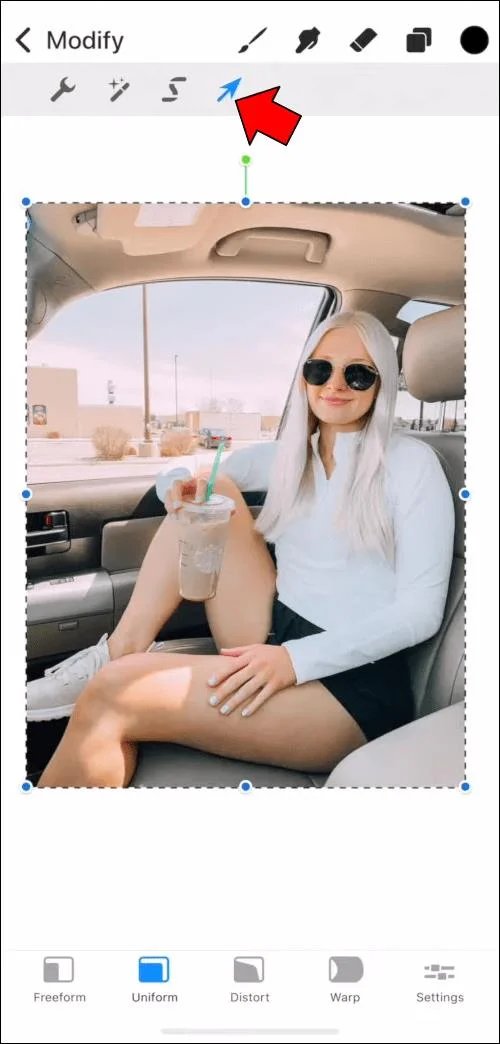
- Stretch the image over the entire canvas or as much as possible. This will make the rest of the process much easier. You can stretch images with the “Transform” tool, using the “Uniform” setting to avoid distortion.

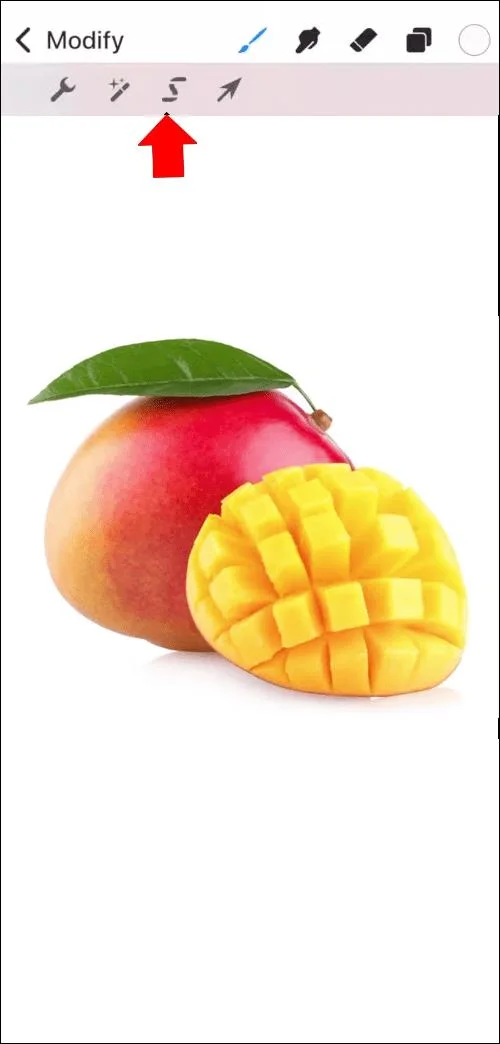
- Select the “Selection” tool from the upper menu.

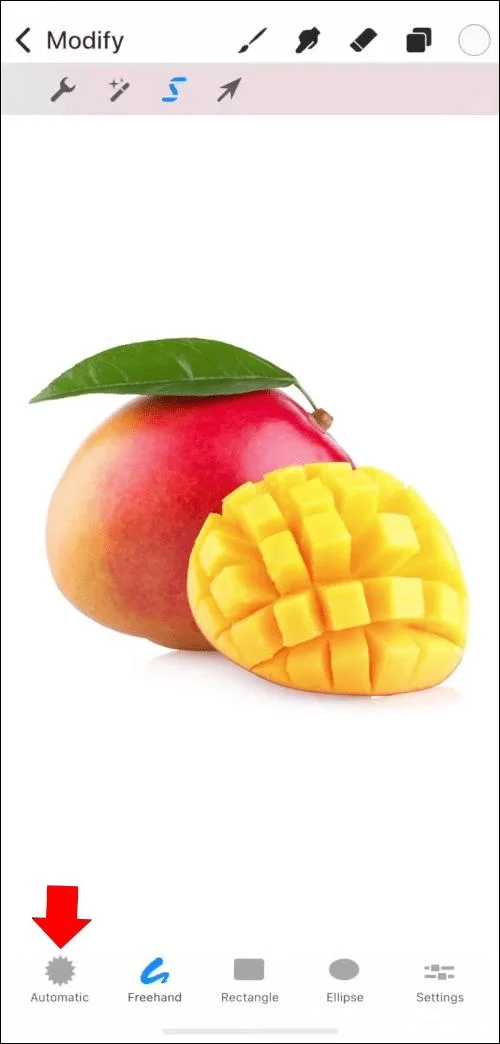
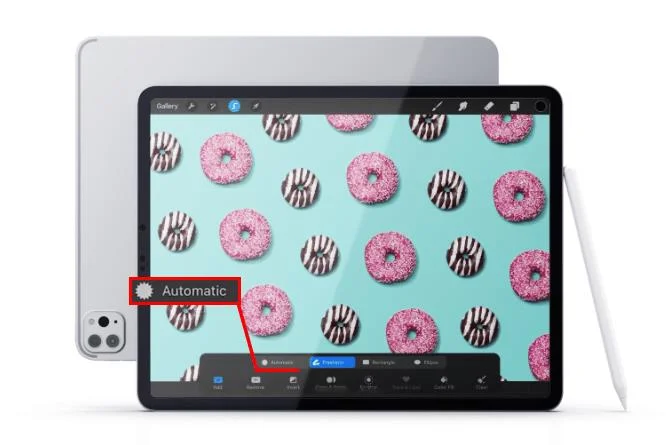
- Selection options will appear at the bottom. Tap on “Automatic.”

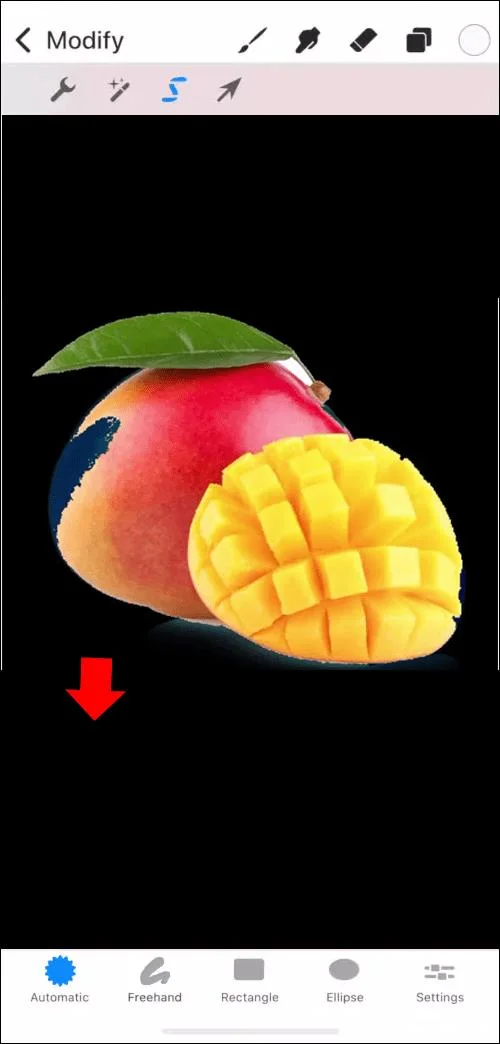
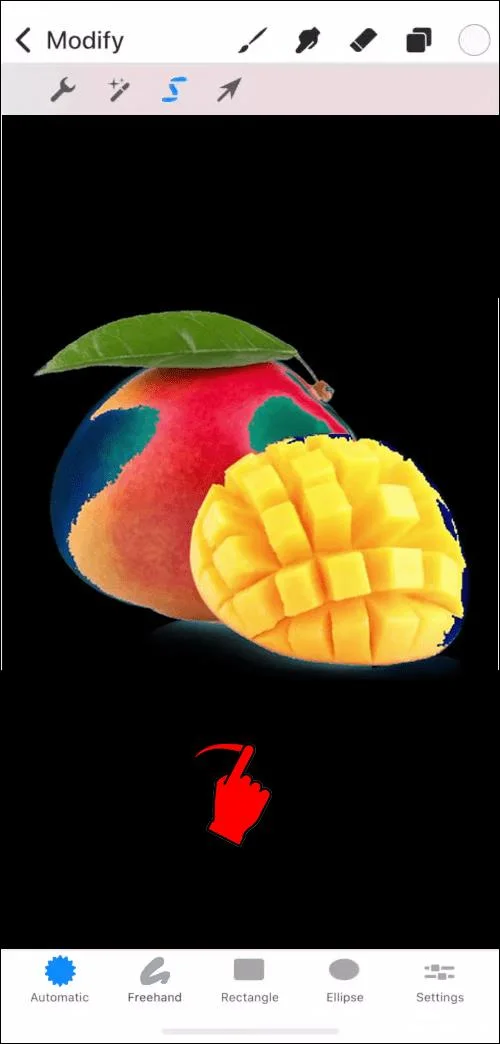
- With the automatic selection active, tap on the background. The background should change color, indicating it’s been selected. At this point, you’ll know whether automatic selection is the way to go. Note; If some of the foreground elements change color as well, you should opt for another technique.

- Adjust the selection sensitivity by dragging your finger right to increase it or left to decrease it. This will modify the selection threshold, i.e., what the automatic tool takes into consideration as background when selecting.

- Keep raising the threshold until the changed color starts seeping into the element you want to isolate. Then, reduce the threshold until the foreground object is completely clear. Don’t worry if the entire background isn’t selected at this point, as you can fix the remaining points later.

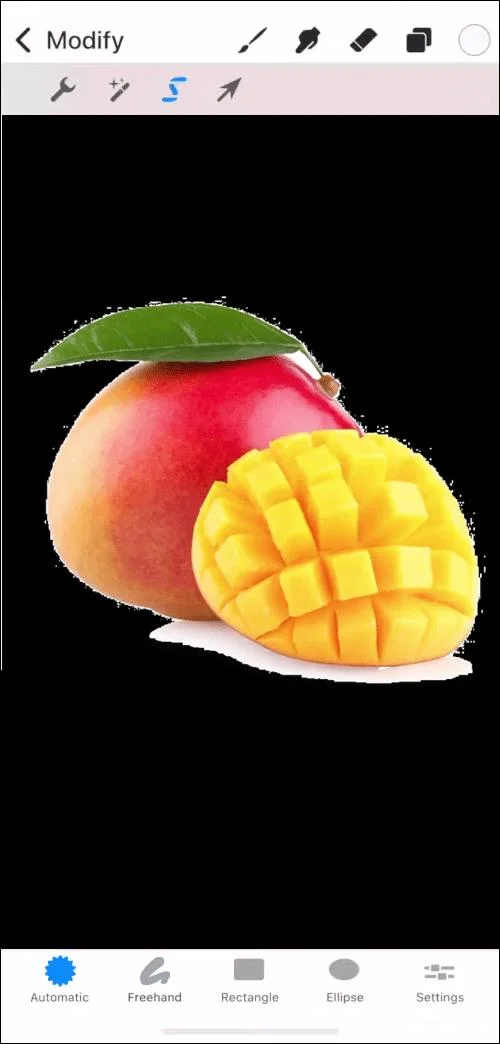
- Once you’re done adjusting the selection, go to the settings – located at the bottom – and tap “Invert.” As the name says, this will invert the selection to the foreground instead of the background.
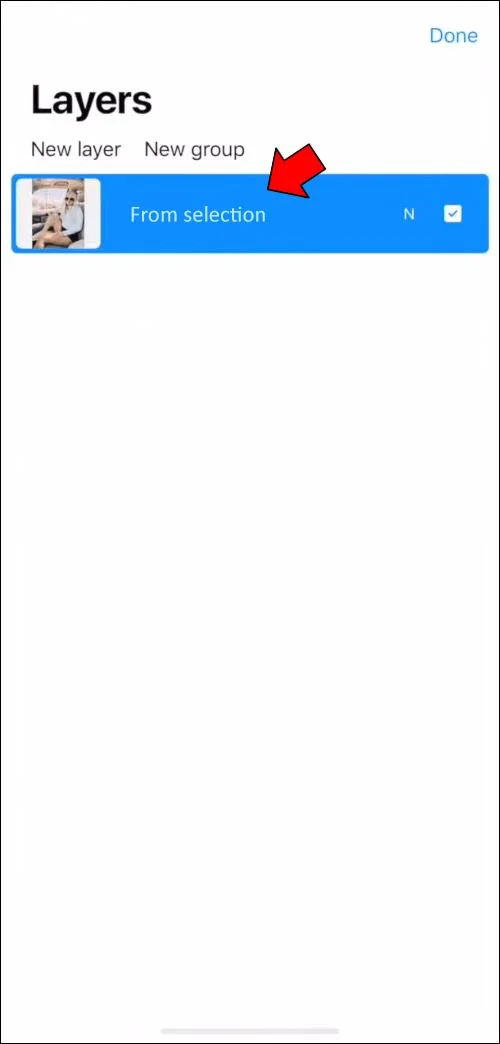
- Copy and paste the selected element. It will be pasted automatically onto a new layer named “From selection.”
- In “Layers,” leave only the “From selection” layer checked to see the result. If all the foreground object is there, you can remove the original layer.

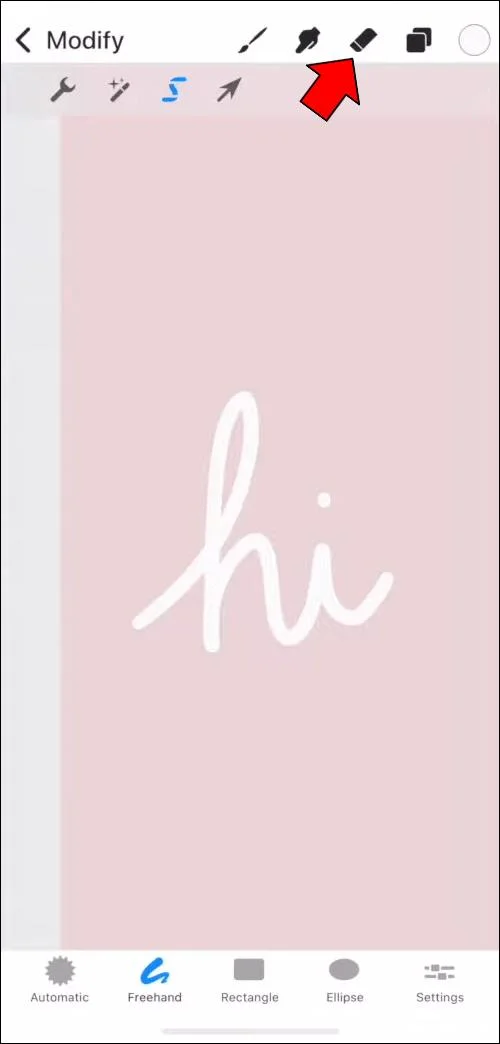
- Inspect the new image for leftovers of the original background. If there are any, use the eraser tool to simply delete those areas.
Once you complete these steps, the background from the picture will be gone, and you’ll only have the main foreground element on a blank background.
However, if during step 4 you saw that parts of the foreground were selected alongside the background, that probably means the picture is too complex or doesn’t have enough contrast. In that case, automatic selection won’t work, and you’ll need to use the manual method.
Removing the Background Using Freehand Selection
The freehand method will be more labor-intensive than the automatic selection approach. However, if automation fails, you’ll have no other choice than to separate the background and foreground by hand.
The same preparations will be needed here as for the automatic method. This will include creating a new canvas and importing a picture into it. Here’s how to proceed:
- As in the first method, stretch the image across the entire canvas.

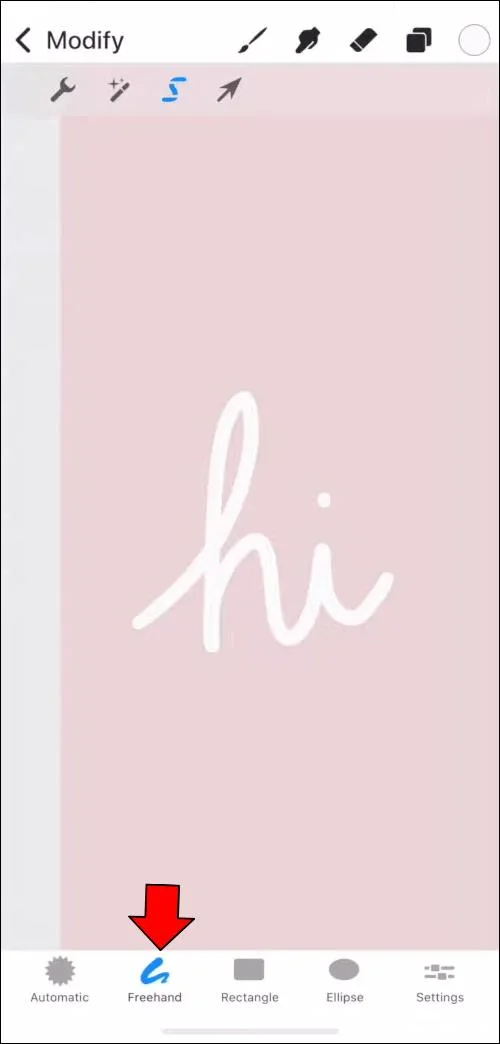
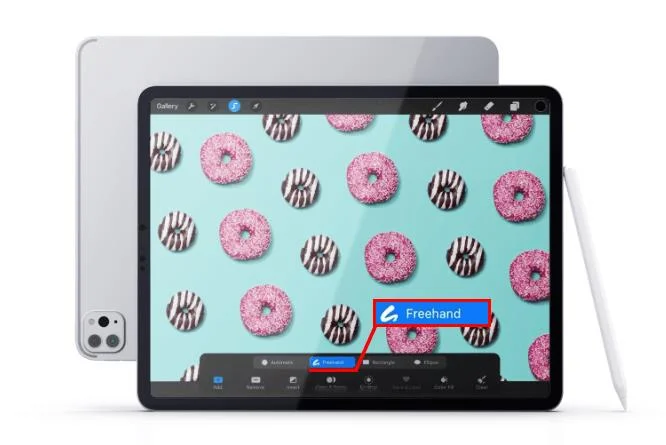
- Tap on the “Selection” tool and choose “Freehand” from the bottom menu.

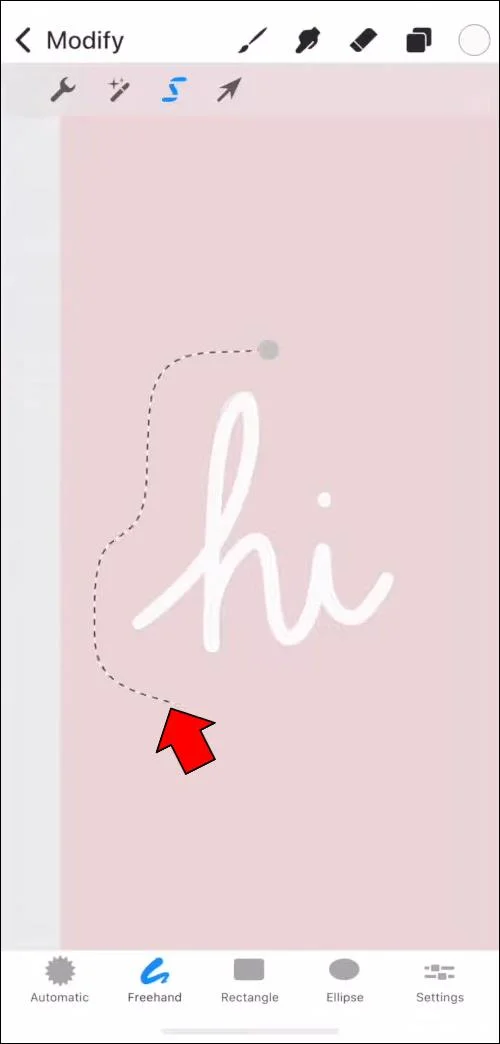
- Now the real work begins. You’ll need to trace the edges of the element you want to single out. As you draw around the shape, you’ll leave a dotted line behind. This line must be as close to the element edges as possible. If you can’t achieve pinpoint accuracy, it’s better to leave small parts of the background included with the selected area than to accidentally cut out pieces of the foreground element.

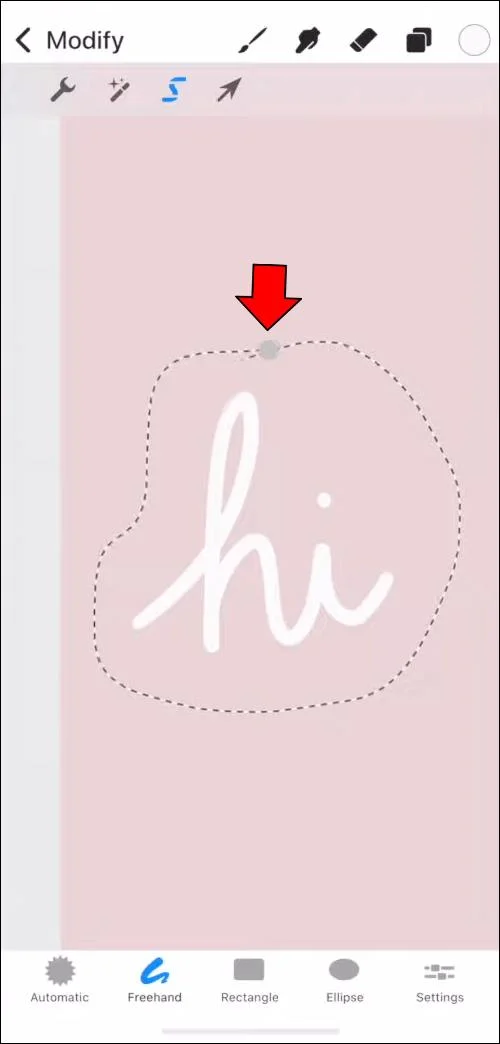
- Once you go all around the object, ensure that the final line is closed, i.e., that its start and end points touch.

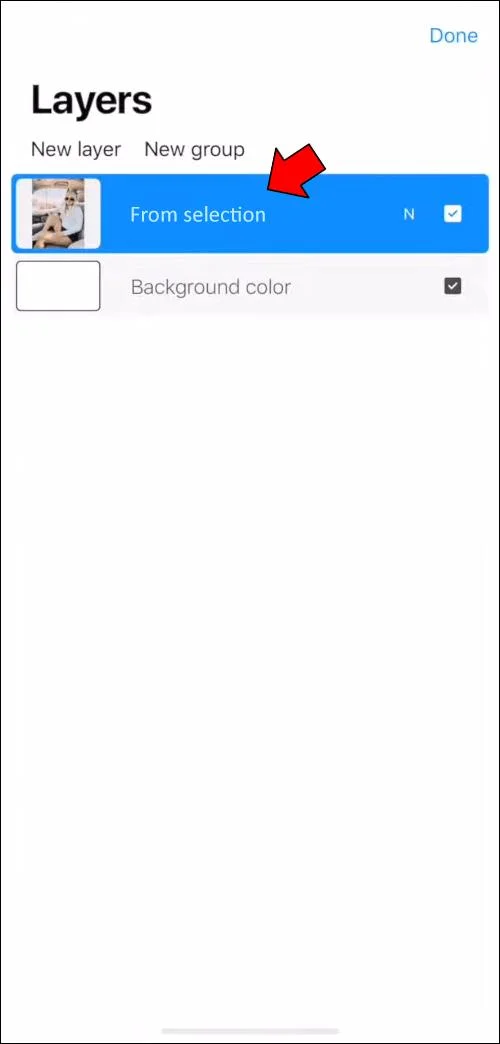
- Copy and paste the selection to transport it to a new layer. This layer will be called “From selection.”

- Disable the original layer to see the result of your work. Ideally, the only thing present in the picture should be the selected foreground object.
- If there are parts of the background left, use the eraser to remove them from the final picture.

The aforementioned two methods will allow you to remove the background automatically. Note that the selection process might be manual, but the actual deletion will be automatic in either case. You can also use a third option that will include manual deletion.
Removing the Background Using Manual Deletion
Sometimes neither automatic nor freehand selection will be detailed enough to single out the tiniest parts of the picture element you want to remove. In that case, you could opt for a method that utilizes the “Eraser” tool.
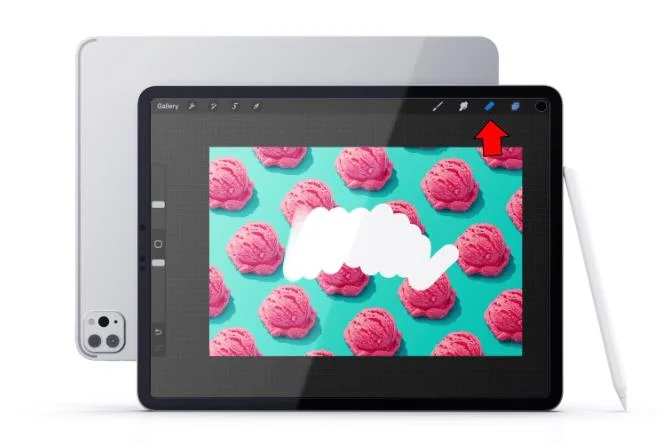
This method doesn’t include particularly elaborate steps. You’ll simply need to select the eraser, resize it to fit the smallest detail, and get to work. It would be best to start with the smallest eraser size right at the edges of the object. Then, as you outline the foreground element, you can increase the size to cover a greater area to get rid of more of the background quickly.
When there’s no background directly around the element you want to use, you can also utilize the selection tools to get rid of the rest of the background.
How to Remove the Background of a Picture in Procreate on an iPad
Removing the background of a picture on an iPad will function much the same as on an iPhone. The methods will be identical, so we’ll use this section to reiterate the techniques:
- Automatic selection will help you select the entire background. You can then invert the selection to leave only the wanted element on a new layer. This method will work best for pictures with high contrast and relatively simple backgrounds.

- Freehand selection will require you to outline the object manually, creating a selection area. Once you do that, you can copy the selected element (no inversion required here) and paste it onto a new layer. This is a better approach for complex backgrounds or low-contrast pictures.

- Manual deletion means you’ll take the eraser tool and carefully delete the background around the element. Then, you can remove the rest of the background either by using a larger eraser size or by selecting, copying, and pasting. You should use this technique if the first two don’t produce satisfying results.

Single Out the Details You Want
Depending on the complexity of the picture, removing the background could be a very brief or quite long process. Either way, if you do it right, you’ll get the results you want.
Now that you know how to remove the background in Procreate, you can unleash your talent and pick and choose any elements you wish to remove from your pictures.
Did you manage to remove the background from your pictures? Which method did you use? Let us know in the comments below.