How to Configure a WireGuard Point-to-Site VPN on Debian 12
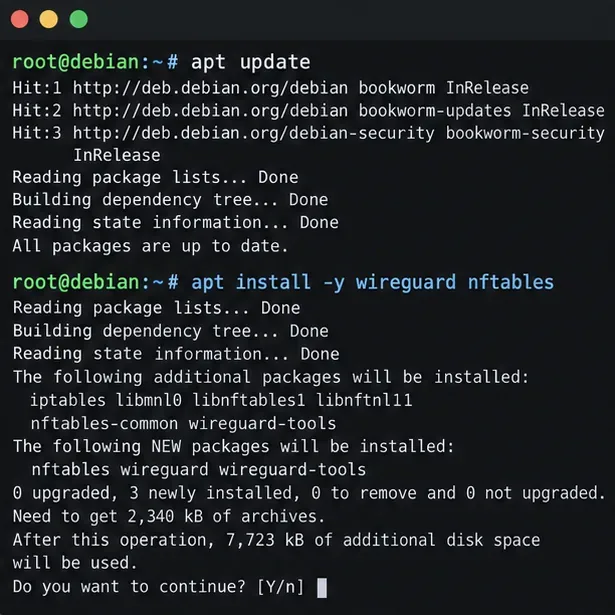
Set up a Debian 12 WireGuard VPN server for one remote client. Configure keys, IPv4 forwarding, nftables NAT, firewall access, and connection checks.
Encountering the dreaded Microsoft Edge "400 Bad Request" Header Error? 😩 This common HTTP error means the server can't process your request due to invalid headers, often triggered by corrupted data or settings in Edge. Don't worry – you're not alone, and we have straightforward fixes to get you back online in minutes. Follow these proven steps, and say goodbye to frustration!
Understanding the root issues helps you target fixes effectively. Here's a quick breakdown:
| 🚨 Common Cause | Why It Happens | Quick Indicator |
|---|---|---|
| Corrupted Cache/Cookies | Outdated or oversized data blocks requests | Error on specific sites only |
| Problematic Extensions | Extensions modify headers incorrectly | Happens after installing add-ons |
| Outdated Edge Version | Bugs in older builds mishandle headers | Widespread across sites |
| Network/Proxy Issues | VPNs or firewalls alter headers | Intermittent on secure sites |
| Site-Specific Glitches | Server rejects Edge's user-agent | Only one website affected |
Ready to dive in? Start with the simplest fixes – most users resolve it here! ⭐
Corrupted cache is the #1 culprit for 400 Bad Request Header Error. Here's how to wipe it clean:
Restart Edge and test the site. Fixed? Great! If not, proceed. Pro tip: Do this weekly to prevent buildup.
Extensions like ad blockers or VPNs can tamper with headers, triggering Edge 400 error. Disable them:
edge://extensions/ in the address bar.Still stuck? Extensions aren't the issue – let's reset deeper.
For stubborn cases, reset restores defaults without losing bookmarks:
edge://settings/reset.This nukes custom configs causing header mismatches. 👍 80% of users report success here!
Edge's latest builds (Chromium-based) patch header bugs. Check now:
Bonus: Enable automatic updates in settings for future-proofing.
If it's network-related:
ipconfig /flushdns.Test in Incognito mode (Ctrl + Shift + N) to rule out profile issues.
Rarely, tweak headers manually:
edge://flags/, search "user-agent", reset if altered.C:\Windows\System32\drivers\etc\hosts (admin) – remove suspicious entries.For site-specific woes, try another browser temporarily or contact the site admin.
Voila! Your Microsoft Edge "400 Bad Request" Header Error should be history. If issues persist, visit Microsoft Edge Support for personalized help. Share your success in comments below – happy browsing! 🎉
Set up a Debian 12 WireGuard VPN server for one remote client. Configure keys, IPv4 forwarding, nftables NAT, firewall access, and connection checks.
Harden a Debian 12 workstation with a careful CIS Benchmark workflow: select the right profile, patch safely, review services and access, configure nftables, and document evidence.
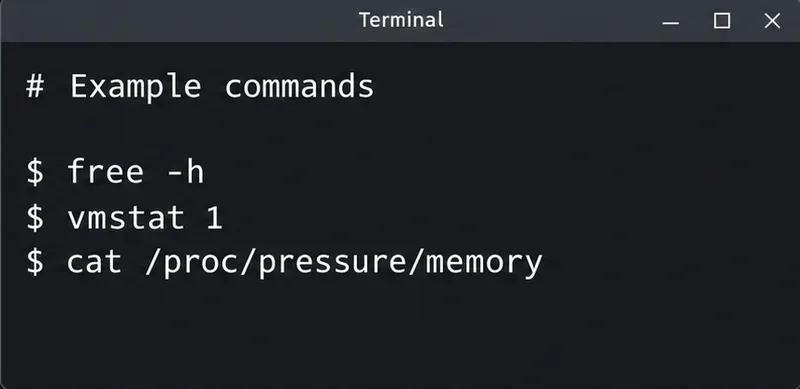
Diagnose MySQL OOM kills on Debian 12, check VPS memory limits, configure swap, and tune database memory and concurrency without promising a universal fix.
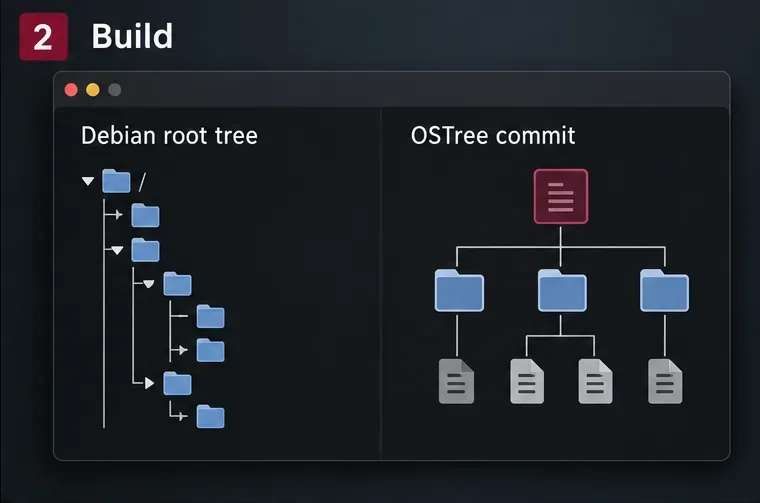
Learn how to create and test a Debian-derived OSTree desktop in a VM, including system-tree preparation, boot integration, deployment checks, and rollback.
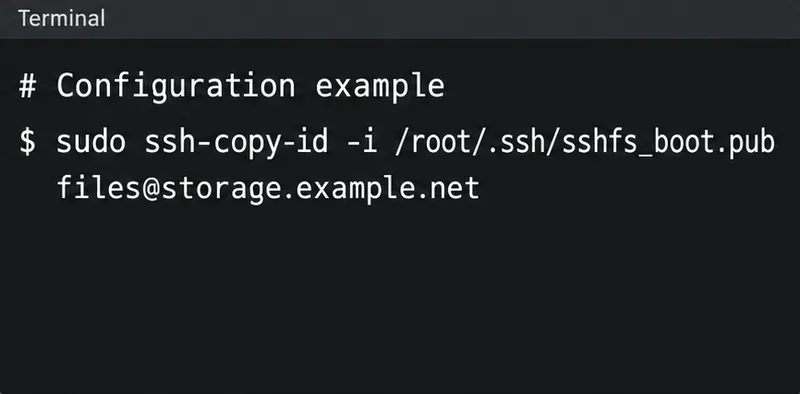
Configure an SSHFS boot mount in Debian with SSH keys, fstab, and systemd automount. Includes reboot checks, permissions, timeouts, and troubleshooting.
A practical October 2026 Chicago and Illinois home-maintenance checklist covering first frost, heating safety, gutters, leaves, pipes, renters, and winter-storm preparation.
Plan Chicago’s October garden with Illinois Extension advice on garlic, bulbs, indoor herbs, microgreens, frost protection, and a week-by-week checklist—using climate normals separately from the live forecast.
National Voter Registration Day is September 15, 2026. Learn how to register online, by mail, or in person and verify your voter status.
New to podcasting? Learn the 2026 trends shaping video, discovery, transcripts, AI, analytics, monetization, and a practical launch plan.
A practical UGC masterclass for sourcing, permissioning, briefing, publishing, and measuring customer and creator content without losing authenticity.