Remote desktop program AnyDesk can be used to connect a mobile device to a computer from pretty much anywhere. When the program is running on both devices, a function started on one device – such as a right-click – will trigger a corresponding action on the other.
If you need to know how to right-click your remote computer mouse from your mobile device, you’ve found the right page. In addition to right clicks, we’ll discuss other actions you can initiate from your mobile device to operate your computer mouse and help get you comfortable using AnyDesk.
How To Right Click in AnyDesk on a Mobile Device
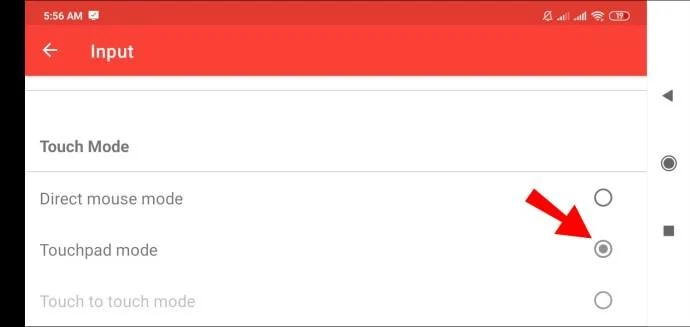
When using AnyDesk, your mobile device’s screen will become a touchpad and act as your remote mouse. Typically, this is set up by default for both Android and iOS devices. To right-click, you’ll have to ensure you’re in “Touchpad Mode.” Follow these steps:
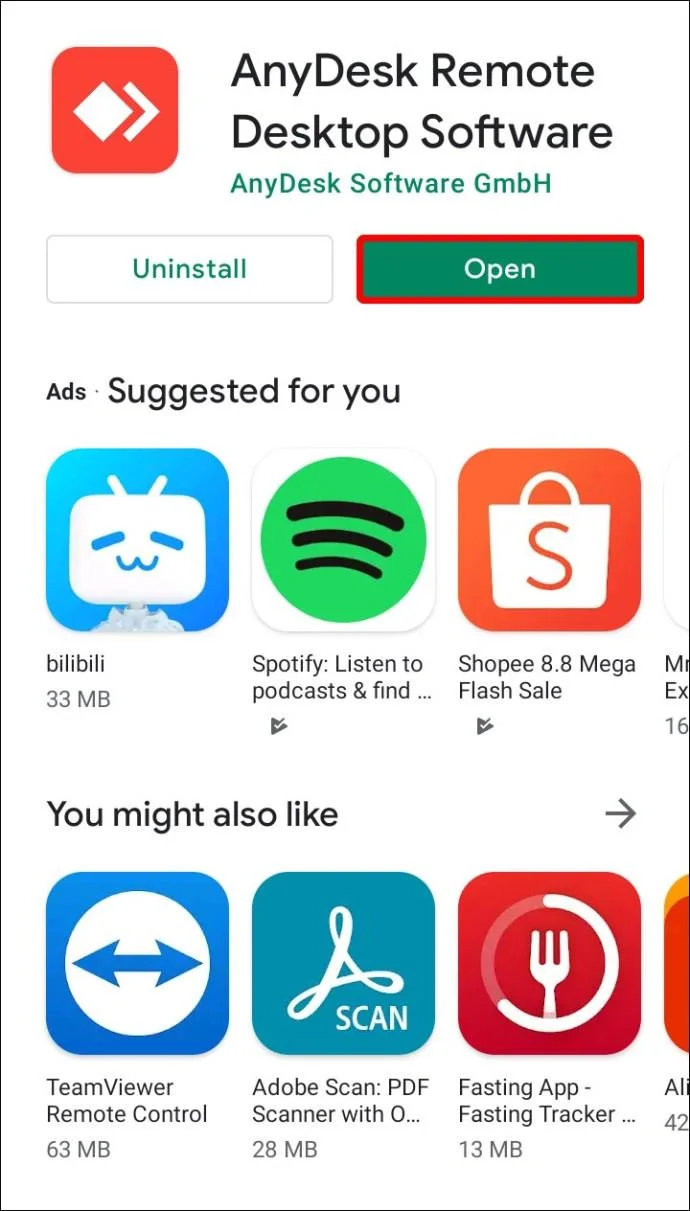
- From your mobile device, launch AnyDesk.

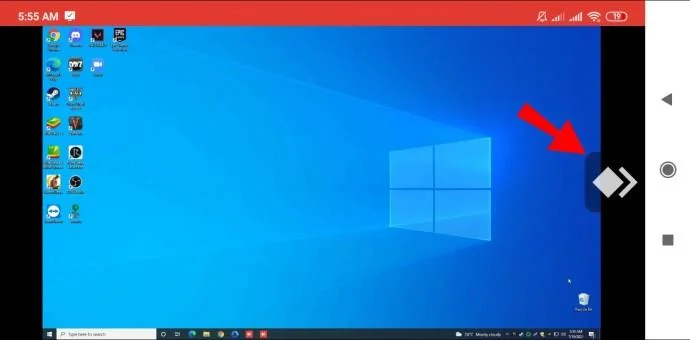
- Tap on the logo on the right to access the pie menu.

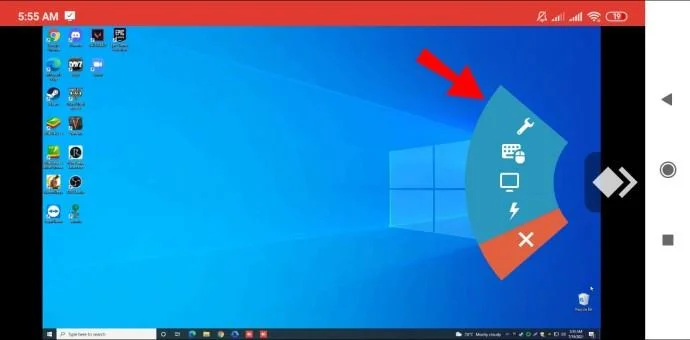
- Tap the first option in the menu (the spanner icon) to access the “Session settings.”

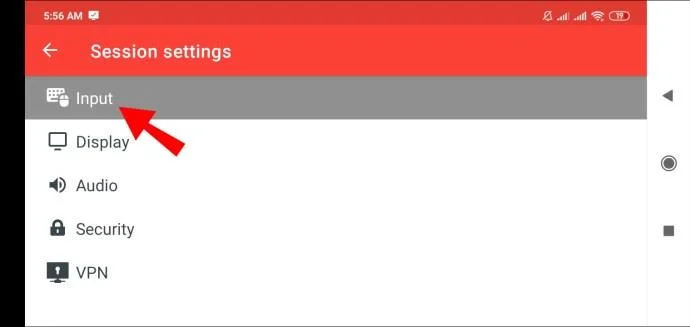
- Select the “Input” option.

- Scroll down a little to the “Touch Mode” section.
- Ensure the “Touchpad Mode” checkbox is checked.

Right Click on Android
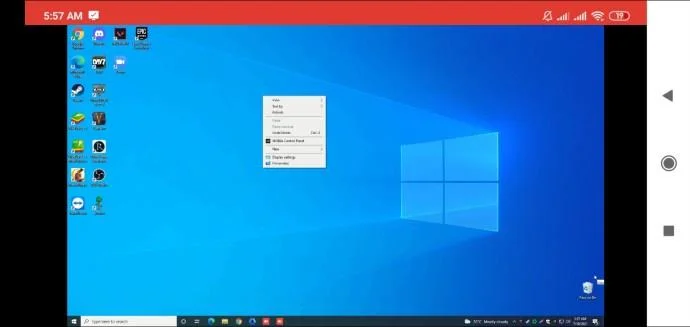
- Once you have connected successfully to the remote machine. To right-click the mouse, use your mobile device screen as a touchpad and press and hold down on it.

Right Click on iOS
- This is done exactly the same way as with Android. Use your mobile device screen as a touchpad, and press and hold down on it to right-click the remote mouse.
AnyDesk Mouse Actions
Here are the actions you can perform from your device to use your remote mouse. In “Touchpad Mode:”
- To move the mouse, swipe your finger across your screen.
- To left-click the mouse, single tap your screen.
- To right-click the mouse, tap and hold on your screen.
- To middle-click the mouse, tap your screen using three fingers.
- To scroll down on your screen, swipe across your screen using three fingers.
- To hold the left mouse button and move the mouse, double-tap and hold on the second tap. You can drag and drop and select an area with this action.
Additional FAQs
How Do I Enable CTRL+Alt+Del in AnyDesk?
To activate the “Send CTRL+ALT+DEL” function in AnyDesk on a remote Windows-based device, from your connected device, hold down the “CTRL+ALT+SHIFT” then press the “DEL” key.
AnyDesk Keyboard Shortcuts
You can control the remote Windows-based computer using hotkeys. To use a command, long-press the CTRL+ALT+SHIFT keys together, then one of the following keys:
• Any number between 1 to 9 to select a tab
• “Return” or “F11” to switch to full-screen mode
• “C” to launch the chat options
• “S” to toggle the sound transmission
• “I” to toggle the input state (disallow/allow input)
• “P” to save a screenshot
• “M” to show or hide the mouse pointer
• “F2” for the default “View Mode”
• “F3” to choose “View Mode shrink”
• “F4” to choose “View Mode stretch”
• “Del” to “Send CTRL+ALT+DEL”
• Left or right arrow to iterate between the remote monitors
• Any number on the Numpad between 1 to 9 to change to a particular remote monitor
Access to Your AnyDesk, Anytime, From Anywhere
As the name suggests, AnyDesk allows you to remote connect to machines and devices located anywhere, whenever you need to. It’s available for Windows, macOS, and other popular operating systems. It’s perfect should you need to connect to a user’s machine to offer IT support, or if you’re away from the office and need to access something residing on a computer there.
Now that we have shown you the actions to perform on your mobile device to operate your remote mouse, do you find operating a remote machine from elsewhere straightforward or tricky? We’d love to hear your thoughts on using AnyDesk, tell us in the comments section below.