Google Docs is known as the online version of Microsoft Word. It doesn’t have all the handy features and formatting tools that Microsoft Word has to offer, but it’s the next best thing. Since these two word-processing platforms are compatible, you can open Microsoft Word files (or DOCX files) with Google Docs and save Google Docs files as DOCX files.
In this guide, we’ll show you how to open a DOCX file with Google Docs. In addition, you will learn how to open DOCX files from Google Drive with the Google Docs mobile app.
Opening a DOCX File With Google Docs
A DOCX file is a Microsoft Word document, which used to be formatted as DOC files. It basically indicates that the file is in a text format. Since most software programs are compatible with DOCX files, it’s one of the most common XML formats, used for documents, cover letters, resumes, essays, and other important types of documentation. Among other word processing platforms, DOCX files can also be opened by Google Docs.
The reason why you should know how to open DOCX files with Google Docs is that this online word-processing platform is cloud-based. In other words, your DOCX files will be saved forever, that is, as long as you have enough room on your Google account. The good news is that Google Docs doesn’t differentiate DOCX and DOC files, so you can use this useful feature to convert DOC files into DOCX files.
If you want to open a DOCX file with Google Docs, this is what you need to do:
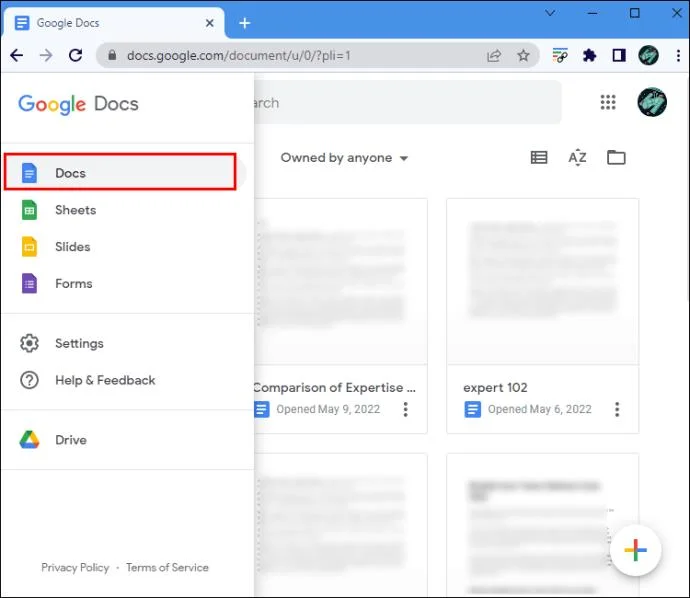
- Go to Google Docs on your preferred browser.

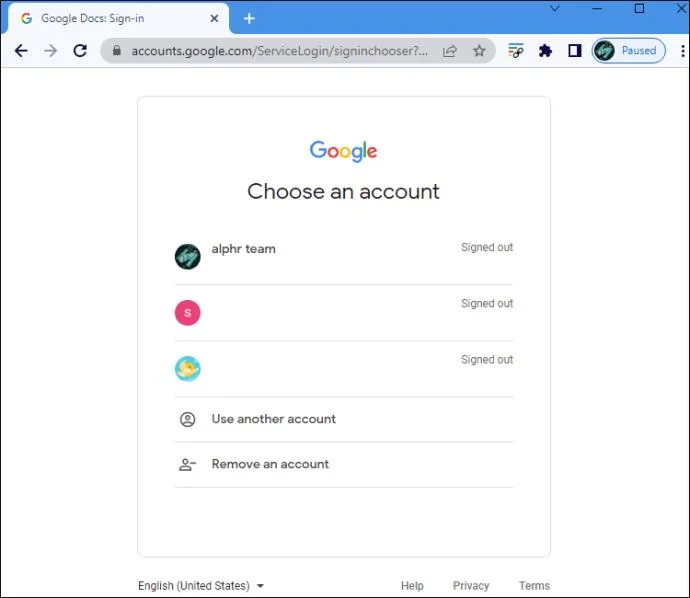
- Log in to your Google account if you haven’t already.

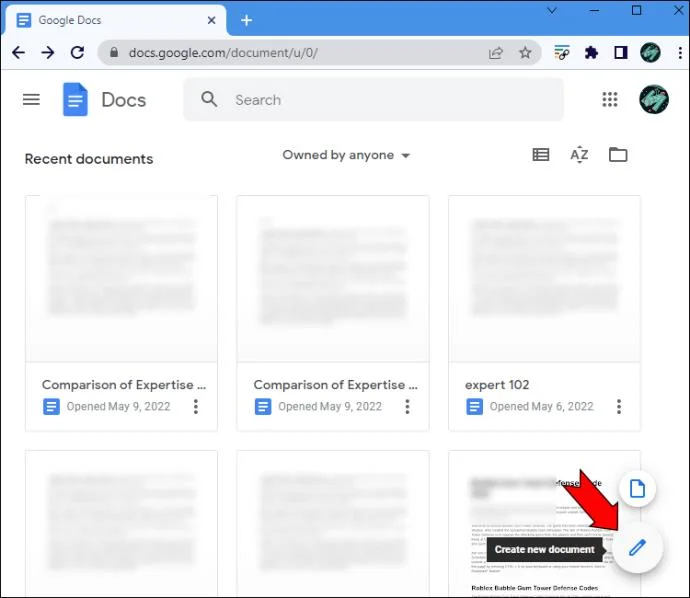
- Click on “Create a new document.” at the bottom-right corner.

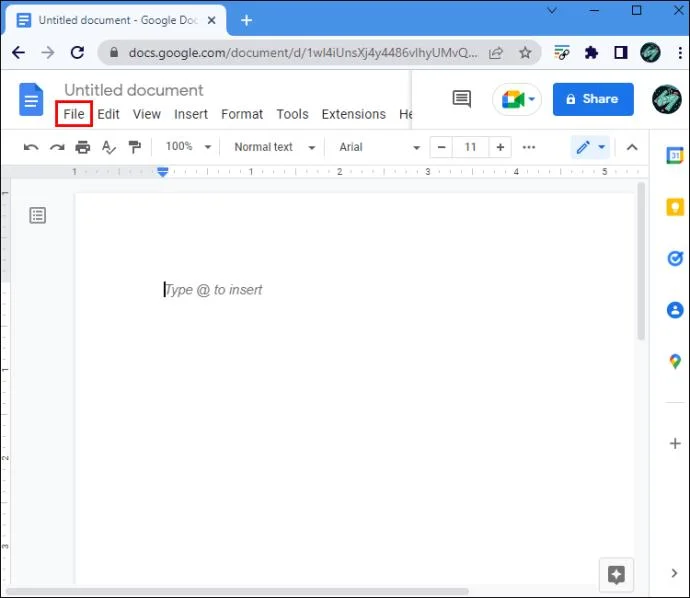
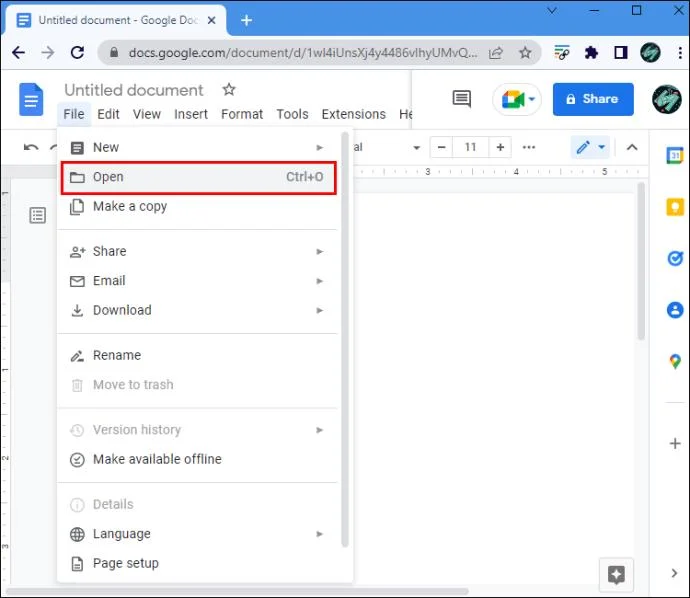
- Navigate to the “File” tab on the menu in the upper-left corner of the page.

- Select “Open” from the list of options.
Note: To do this faster, use the “Ctrl + O” shortcut.

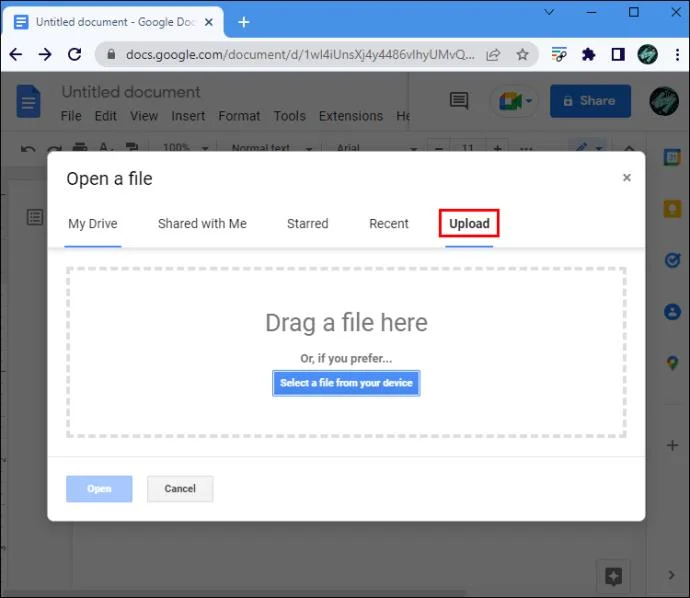
- Choose the “Upload” option.

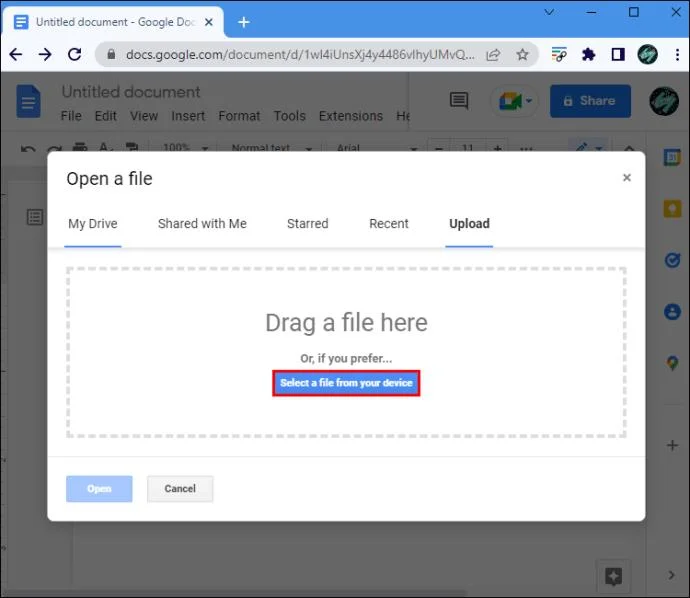
- Drag a file from a different window or select a file from your device.

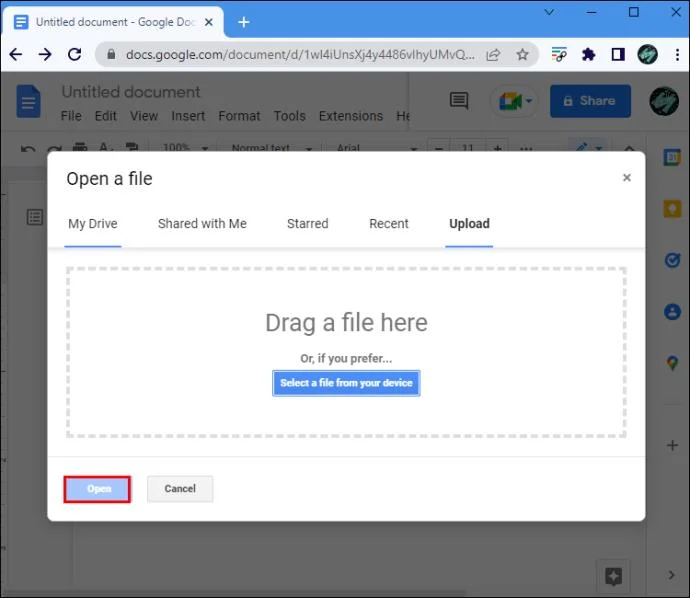
- Locate the file on your device and choose “Open.”

The DOCX file will be immediately uploaded to your Google Docs, and it will also be automatically saved. If you edit the text and wish to download it back onto your device, go back to the “File” tab and click on “Download.” Then, choose the “Microsoft Word (.docx)” option from the drop-down menu.
The DOCX file you open with Google Docs doesn’t have to be saved on your device. You can also upload it from your Google Drive. This is how it’s done:
- Open Google Docs and log in to your Google account.

- Open a blank document.

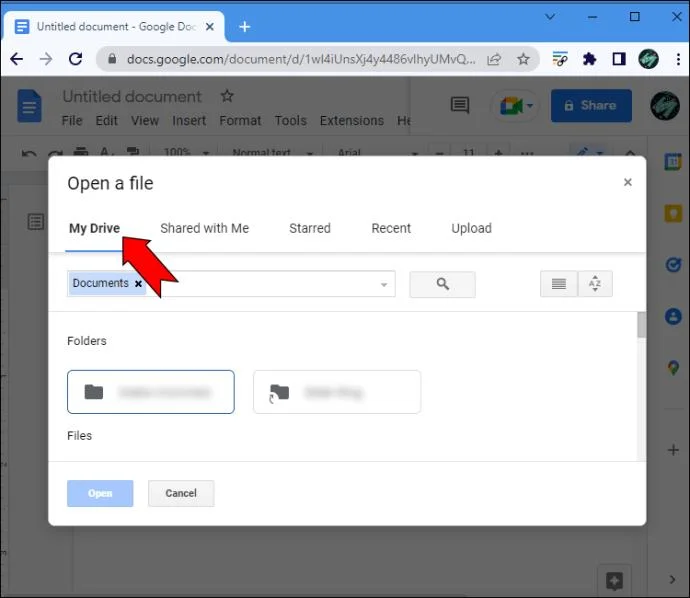
- Proceed to the “File” tab in the upper-right corner and choose “Open.”


- Go to the “My Drive” tab on the new window.

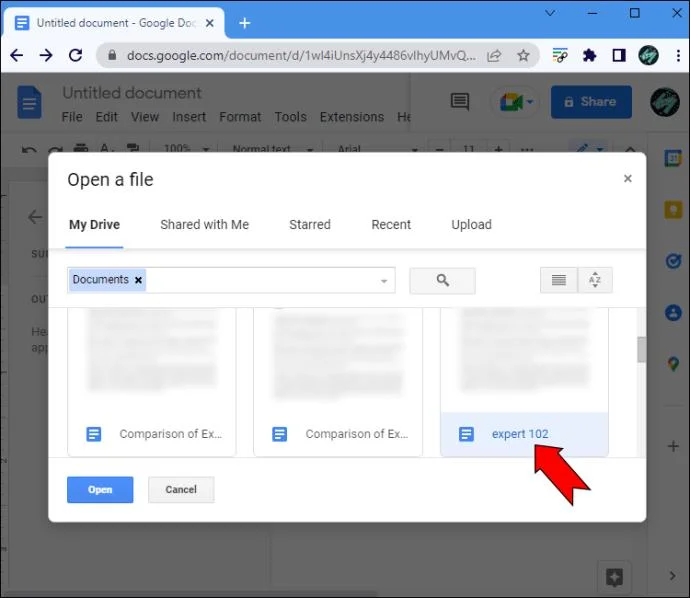
- Locate the DOCX file you want to open.

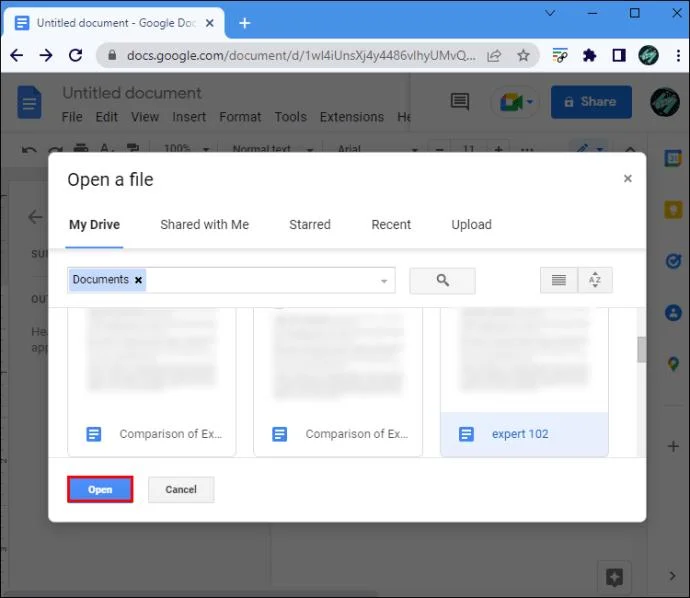
- Click on the “Open” button in the bottom-left corner of the window.

That’s all there is to it. The DOCX file will be opened in a new window. You can also choose between “Shared with Me,” “Starred,” and “Recent” folders to find a document faster. The process of opening the document with Google Docs is identical.
Opening a DOCX File With the Google Docs Mobile App
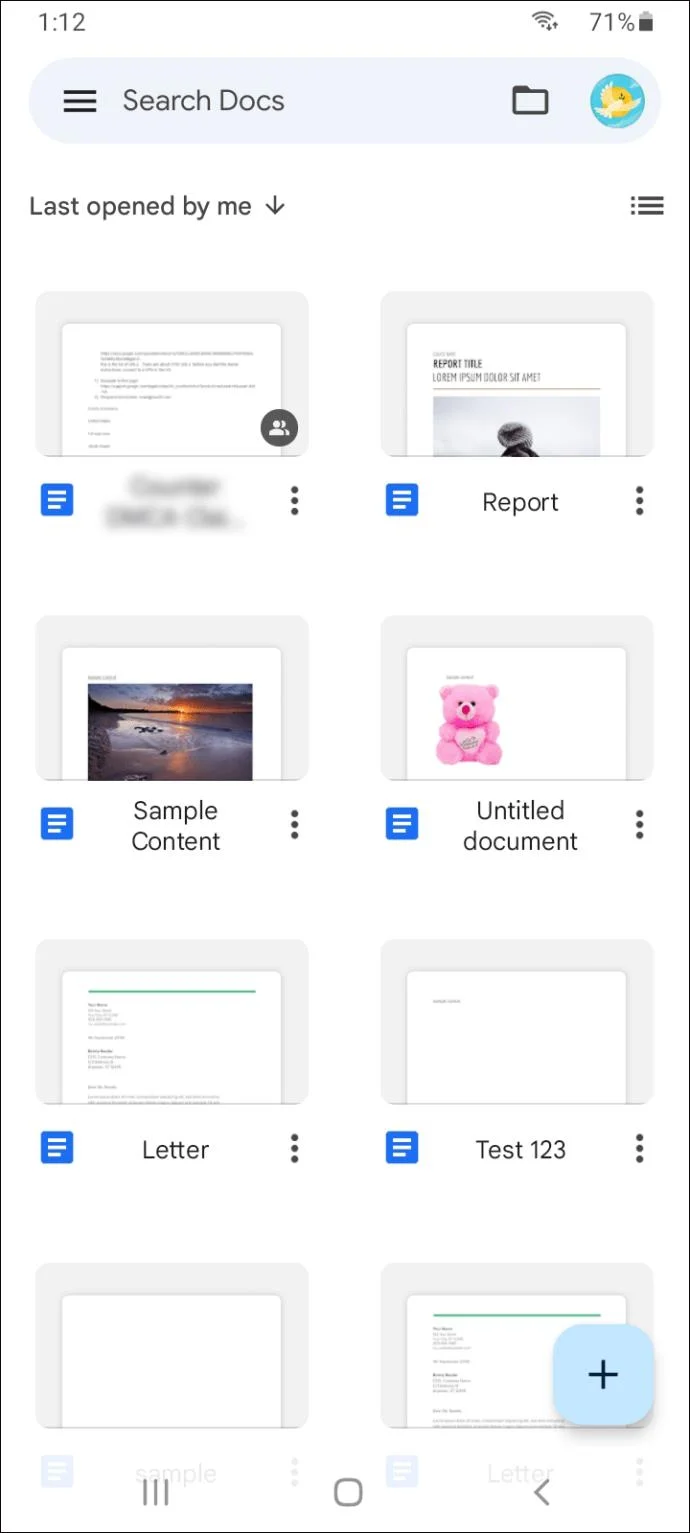
You can also open DOCX files with Google Docs on your mobile device. You need the Google Docs app to do this. However, you won’t be able to open a DOCX file stored on your phone, but only from your Google Drive. Follow the steps below to find out how it’s done:
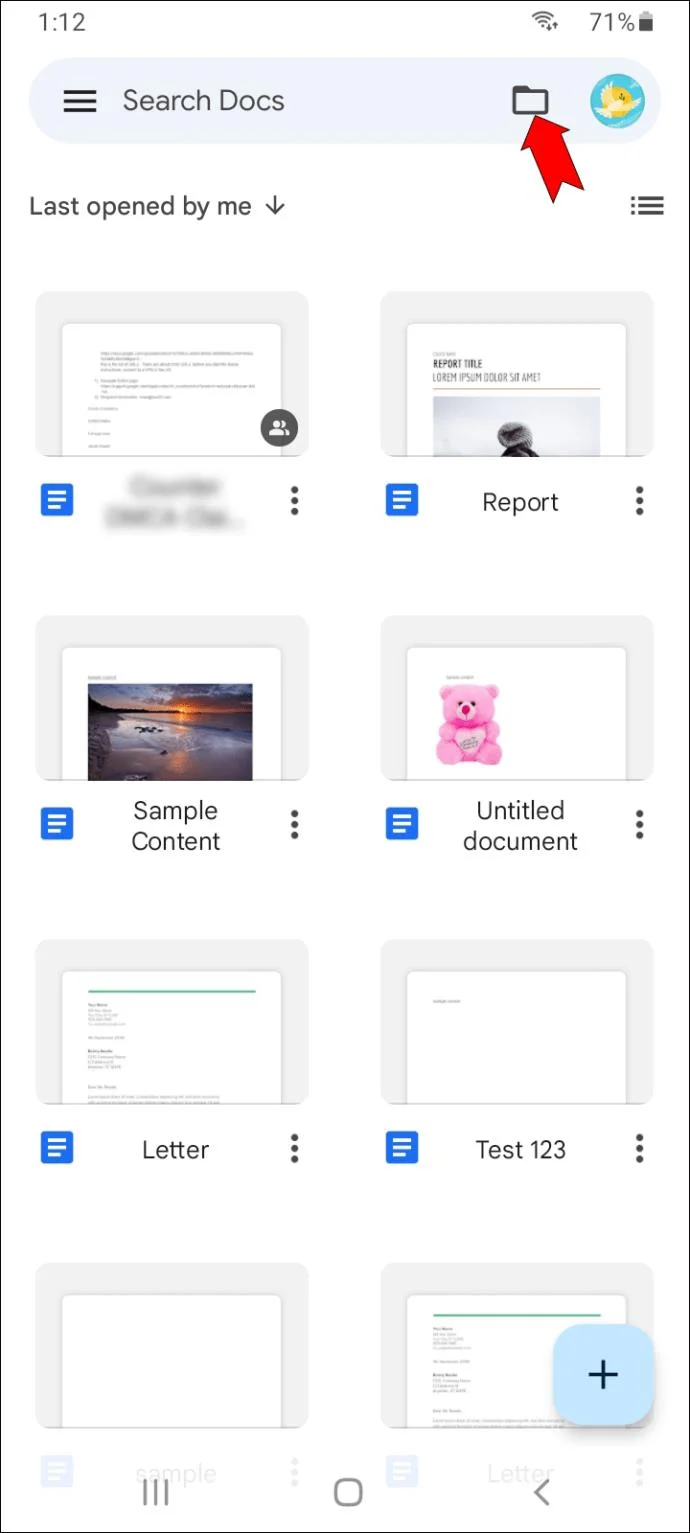
- Open the Google Docs app on your mobile device.

- Tap on the folder icon in the upper-right corner of the screen.

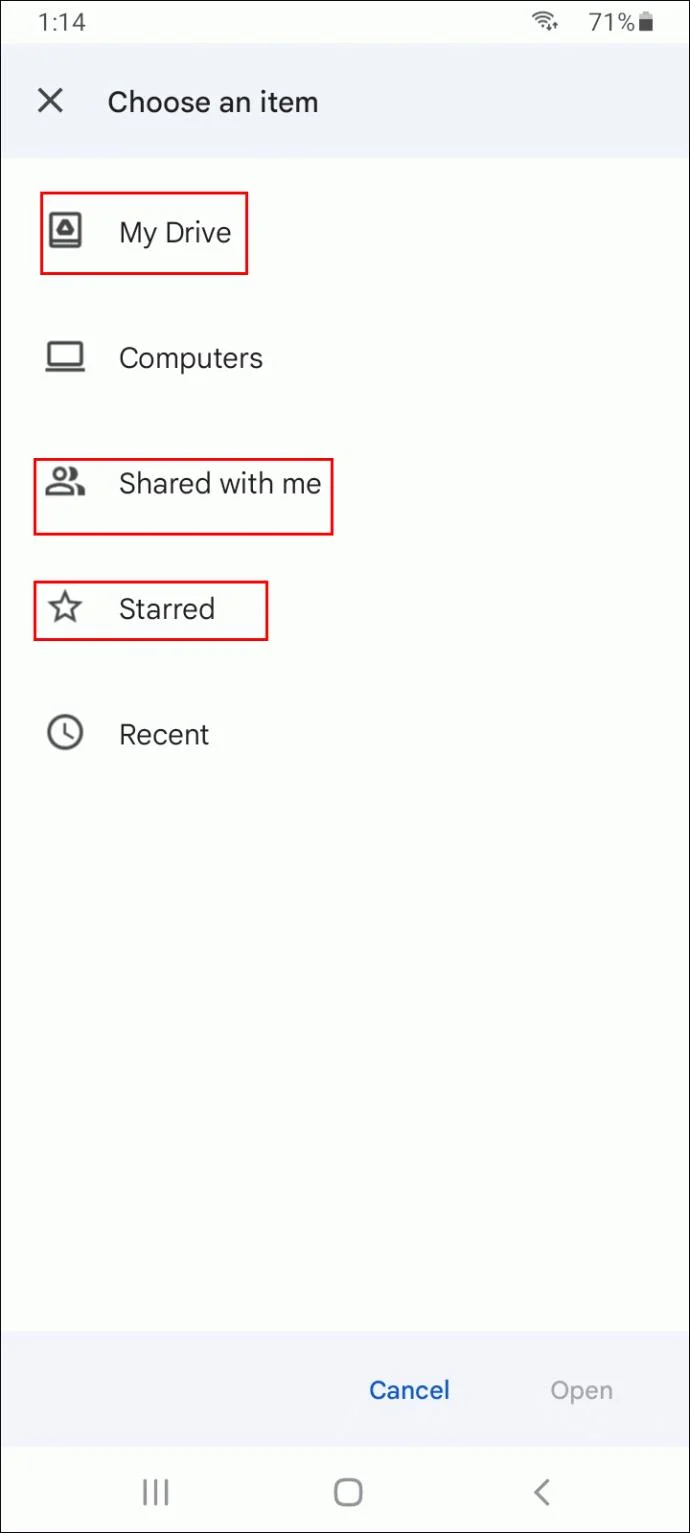
- Choose “My Drive,” “Shared with me,” or “Starred.”

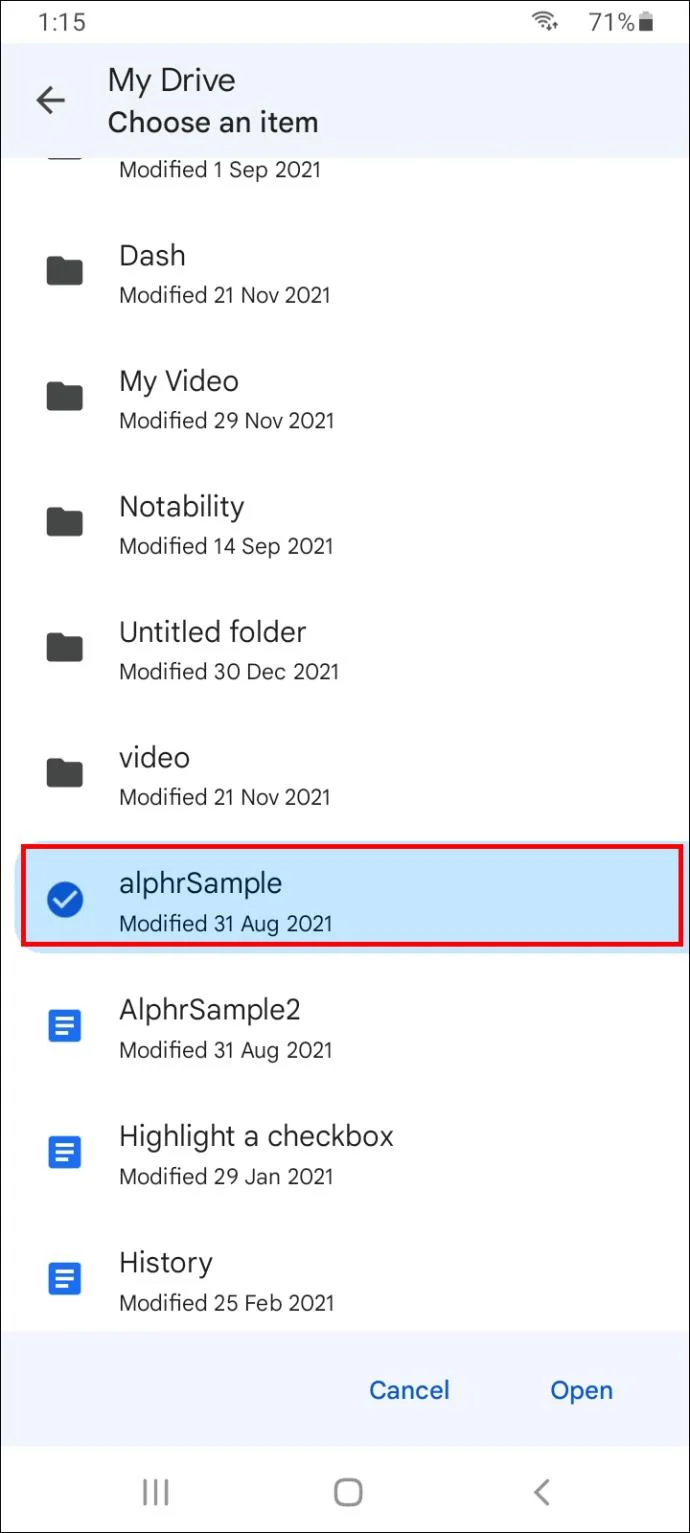
- Locate the DOCX file you want to open.

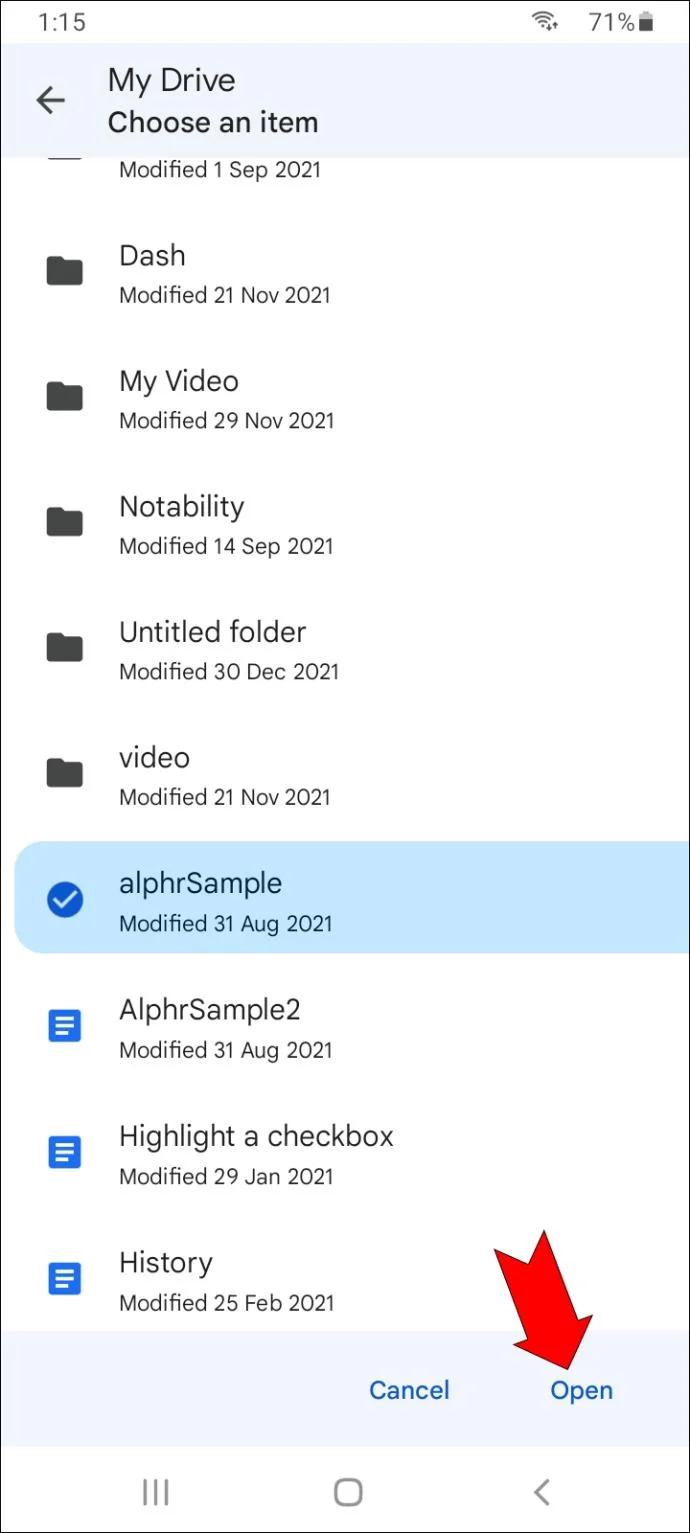
- Tap “Open”.

The DOCX file will immediately be opened in Google Docs. After editing this file, you can share it, print it, or save it as a Google Docs file. You won’t be able to download it to your device.
Keep All Your DOCX Files Online
Once you upload a DOCX file from your computer, it will be automatically saved in your Google storage. Not only can Google Docs open DOCX files, but you can also use it to convert DOC files into DOCX files and download them back on your device.
Have you ever opened a DOCX file with Google Docs before? Did you upload it from your device or Google Drive? Let us know in the comments section below.