Since you’re reading this article, chances are you are really into creating cool-looking photos and videos. It would also be safe to assume that you are looking for a piece of software that can get the job done quickly and easily.

InShot is among the most popular mobile photo and video manipulation software tools that allows you to create like-worthy videos in no time. However, despite the popularity, there is no dedicated app from InShot Inc. that you can directly install to your PC.
You shouldn’t worry, though, because there is a straightforward hack that will allow you to install the InShot app on your computer.
How to Get InShot on Your PC?

A few third-party applications/emulators allow you to run InShot without any hassle on your PC. Take a look at some of the tried and tested methods to install the app on your PC via third-party programs:
Use BlueStacks to Run InShot on Your PC
BlueStacks is one of the most popular emulators for Android applications and games. Using this application is also one of the best ways to get InShot running on your PC. Here is what you need to do:
1. Download BlueStacks
- Follow the link to the official website and download, then install the app.

- After the installation, access BlueStacks and link your Google account so that you can use Google Play with the app.
2. Search for InShot
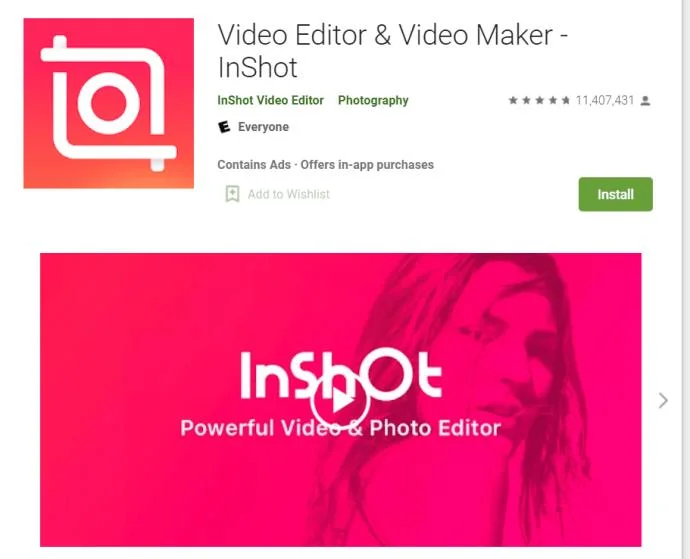
- When you link the Google account, go to the app’s main screen and type “InShot Photo & Video Editor” in the search bar.
- Select the application developed by InShot Inc. and install it.
- A pop-up window will appear, asking you to allow the app access to your system. You need to confirm by clicking on Accept.
3. Finish the Installation
- Once the installation is complete, you will get a notification like the one you receive on your Android device.
- At that point, you can go to BlueStacks’ main window, where you will find the InShot app under your applications. Click on the app to launch it and start making some cool videos.
You can also download and run this on your Mac.
Use Nox App Player to Run InShot on Your PC
Nox App Player is another great emulator that lets you use InShot or any other Android video-manipulation software on your PC. This application is installed in much the same way as BlueStacks and it allows you to have InShot up and running in no time.

These are the steps you need to take:
1. Get Nox App Player
- Install Nox App Player on your PC and download the InShot Photo & Video Editor APK.
2. Install InShot
- After the download of the InShot Photo & Video Editor APK is complete, double-click on it to initiate the installation via Nox App Player. It might take a minute or so before InShot is installed.
- Once the process is over, the InShot app will show up on the Nox home screen.
3. Launch InShot
- When the InShot installation is over, you can click on the app within Nox to launch it.
- At this point, you need to download the application data and follow the instructions that appear on the screen.
- Upon completion, you can run the app and create some amazing photos and videos.

If you need it, Nox Player also has a Mac version.
Use Andy to Run InShot on Your PC
Also for both Windows and Mac users, you should consider the Andy emulator as an excellent option to have InShot up and running on your Macbook, iMac, or other device. This neat piece of software operates in much the same way as the previously mentioned applications. Here is how you can get the app on your Mac:
1. Install Andy

- Download the .dmg Andy file and run the installation on your Mac. You then need to follow all the instructions until the installation is complete. Some patience is required because the installation process might take a while.
2. Launch Andy
- Once the installation is done, go to Launchpad and access Andy.
- Select your preferred language and sign in with your Google account.
- After a few minutes, the app will set up your virtual Android device. At that point, you need to unlock it and use the Google Play Store.
3. Search for InShot
- Type InShot in the Play Store search bar and install the application developed by InShot Inc.

- When the InShot installation is complete, access the Andy application section to launch the app. If InShot does not appear in the application section, you should be able to find it under the Uncategorized tab.
4. Finish Up
- Open the app by clicking on it and follow the instructions before you start using InShot.
Final Word
Despite the fact that InShot is not natively designed to run on PCs, it doesn’t mean that you cannot get it on your computer. Installing one of the above-mentioned emulators is quite straightforward and you shouldn’t have any problem using InShot after the installation. What’s more, you might consider getting other Android software to further enhance the quality of your videos.
Share your thoughts in the comments below.