The DPI (dots per inch) is one of the most important characteristics of your mouse. The higher it is, the faster your marker will move on the screen. Changing this metric to your preference can improve your performance, but you’ll first need to determine your current DPI.

In this article, we’ll provide an in-depth guide on how to check your mouse DPI. This knowledge will tell you whether your device uses the recommended DPI range or you need to adjust it.
How to Check Mouse DPI in Windows 10
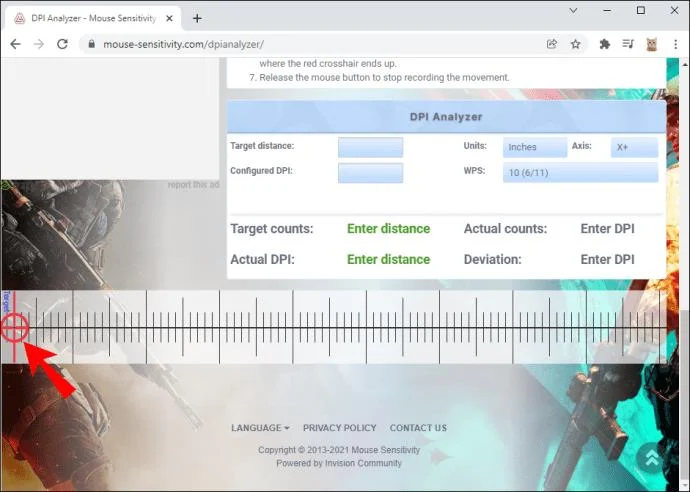
One of the easiest ways to check your mouse DPI in Windows 10 is to use an online tool called DPI Analyzer. Take the following steps to obtain accurate measurements:
- Draw inch or centimeter lines on a piece of paper that will serve as your mousepad.
- Move your mouse over your mousepad and enter the distance in the appropriate field in the DPI Analyzer.

- Click the red crosshair in the lower part of the window and hold your mouse button down.

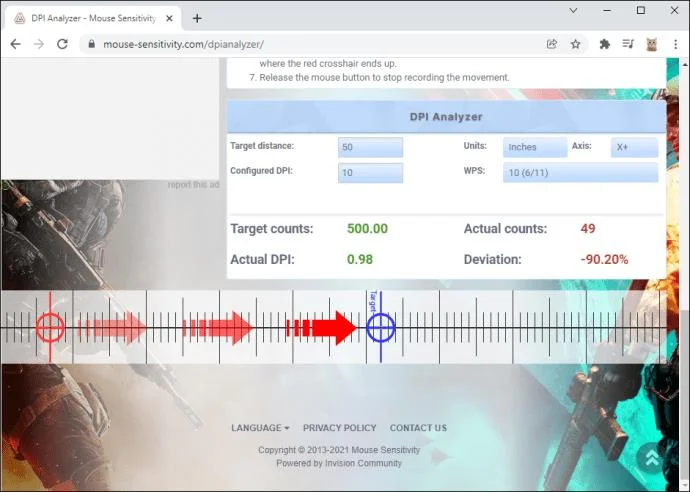
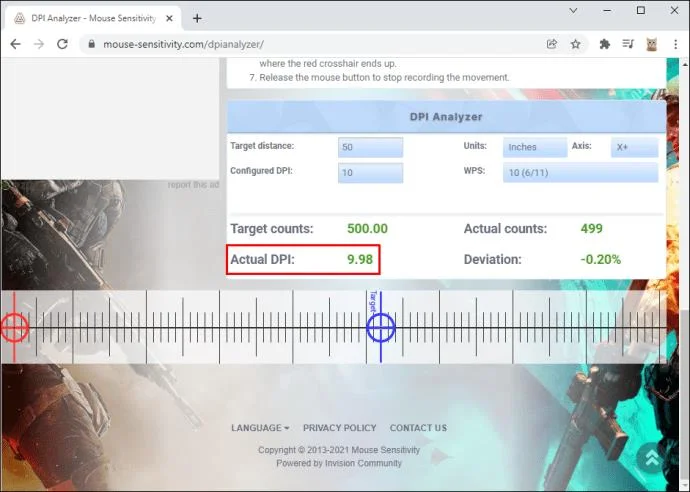
- Move the mouse several inches or centimeters according to the previous measurement and check where the crosshair ends. Make sure not to move the red crosshair over the blue one since this only indicates the position of the 0% deviation.

- Release your mouse button to complete the recording, and the DPI Analyzer should tell you your DPI.

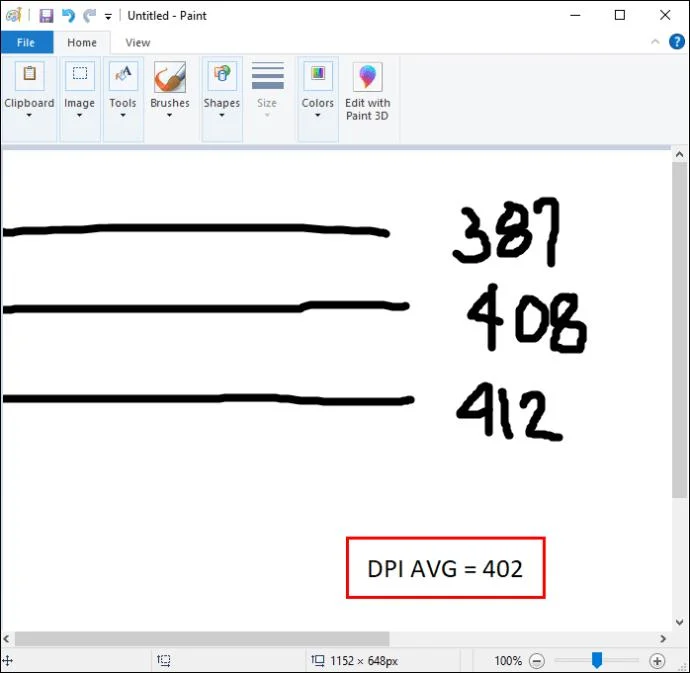
Another way to check your DPI on Windows 10 is to use Paint. The pointer on this program can indicate pixel movements on your screen, allowing you to gauge your DPI accurately. Here’s what you’ll need to do.
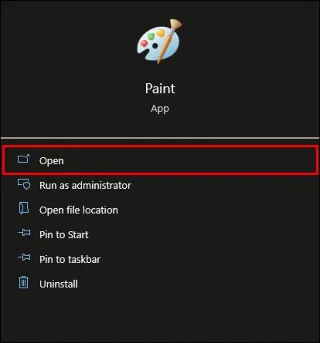
- Launch Paint.

- Hover over the new window and move your pointer to the left section of your display where the footer is zero. Make sure your zoom settings are at 100%.

- From this position, make three 2-3-inch lines and note down the first value of the footer.

- Do the same for all three lines and calculate the average to determine your mouse DPI.

How to Check Mouse DPI on a Mac
Mac users can also employ several methods when figuring out the DPI of their mouse. One of the quickest ways to do so is to run an online search:
- Launch your browser.

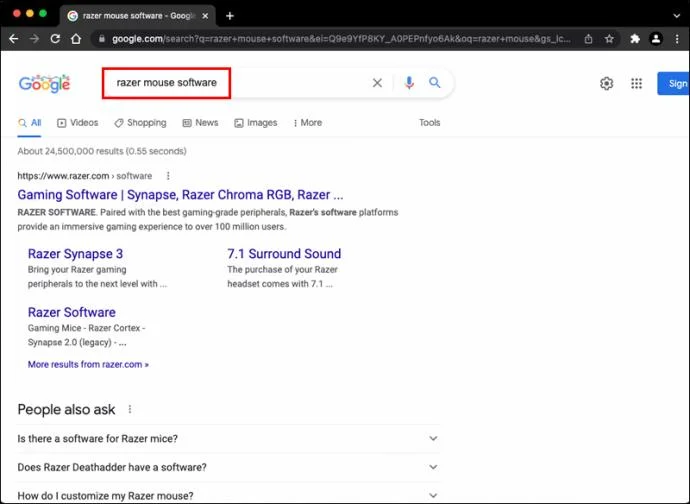
- Enter the make and model of your mouse in the search bar.

- Unless your mouse is unbranded, the search results should contain a website that lists your DPI figures. Many manufacturers provide the highest DPI possible for your mouse, but Logitech and some others specify the range of your mouse.

Alternatively, you can install appropriate drivers. Again, this option is available if you have a branded mouse. These products allow you to download the necessary software from the provider’s website.
This is what you’ll need to do to check your DPI with drivers:
- Open your browser.

- Go to your mouse manufacturer’s website.

- Download and install the drivers. The location of your DPI settings may vary by manufacturer. For example, Logitech’s software requires you to click the icon with a cog and pointer. You might need to do some digging, but your platform should contain your DPI measurements.

Many users opt for this approach because it gives them more freedom than their PC’s built-in components. Besides changing their DPI settings, installing drivers allows the owner to designate a specific action for each button.
How to Check Mouse DPI on a Chromebook
You shouldn’t have too much trouble checking your Mouse DPI on a Chromebook. It’ll only take a handful of clicks:
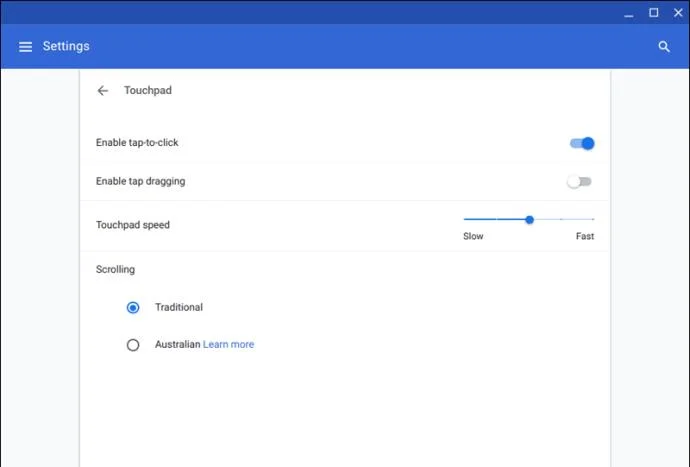
- Navigate to the Status section in the lower-right part of your screen.

- Choose the Settings option, followed by Devices.

- You should now see a touchpad slider that determines your DPI. Move it to the right if you wish your cursor to travel faster. Move it to the left if you want your cursor to slow down.

How to Check Mouse DPI Without Software
We’ve mentioned several easy ways to check your DPI, but most of them involved downloading drivers or software. There’s a faster method to determine your DPI, and it entails using the built-in buttons of your peripheral:
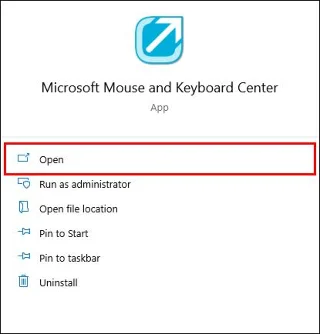
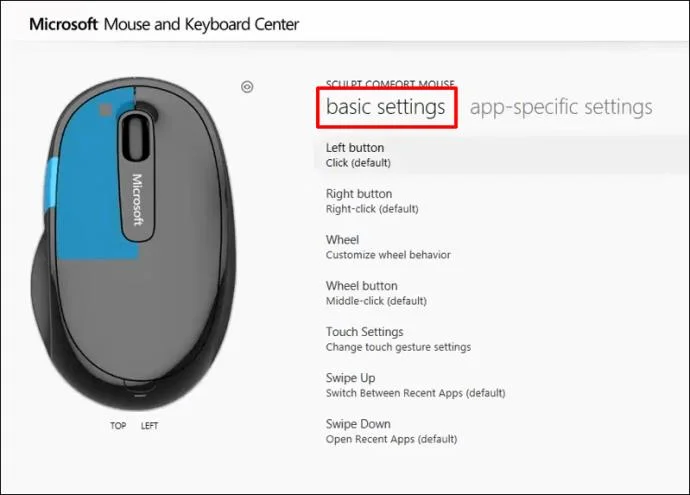
- Head to the Microsoft Mouse and Keyboard Center.

- Choose the mouse you want to check.
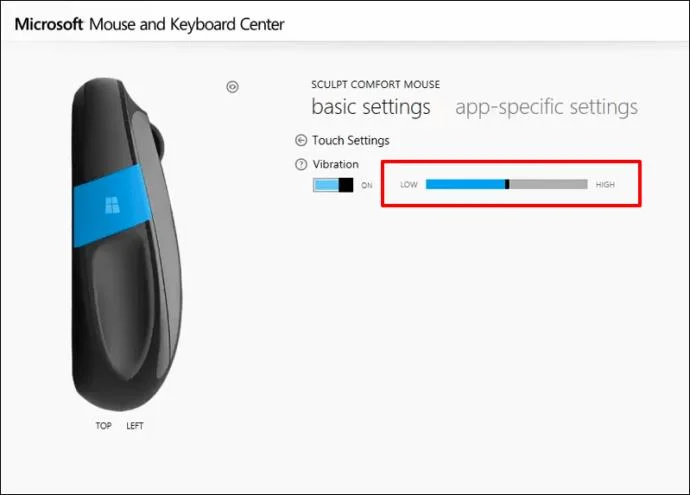
- Select Basic Settings.

- Find the Sensitivity section, and it should provide your mouse DPI. It should also allow you to change this setting.

How to Check Mouse DPI with a Logitech Mouse
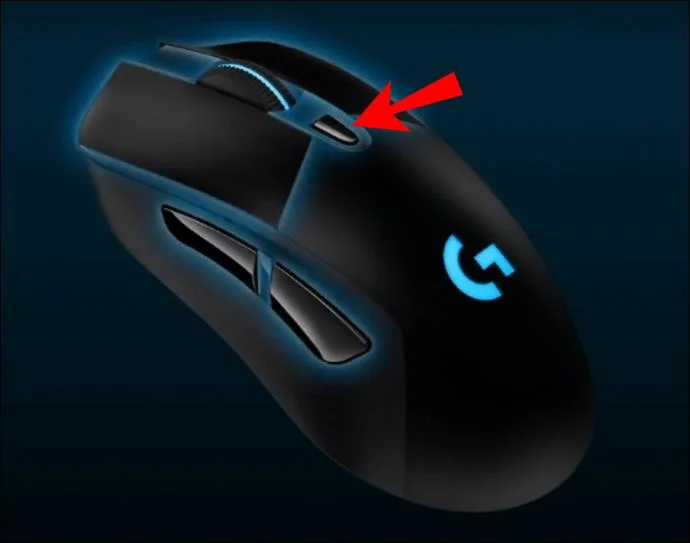
Logitech is an exceedingly popular mouse brand. Many models come with DPI buttons that allow you to check their settings. If you have a Logitech mouse, follow these steps to check and change your DPI:
- Look for the DPI button at the side or top of your device.
- Slide or press the button to change your DPI, depending on the model.

- The DPI setting will briefly appear on your screen, and you should be notified about the change.

Many Logitech models offer a DPI shift button that helps you temporarily switch to low settings for improved accuracy. The device reverts to your current DPI level after releasing the button.
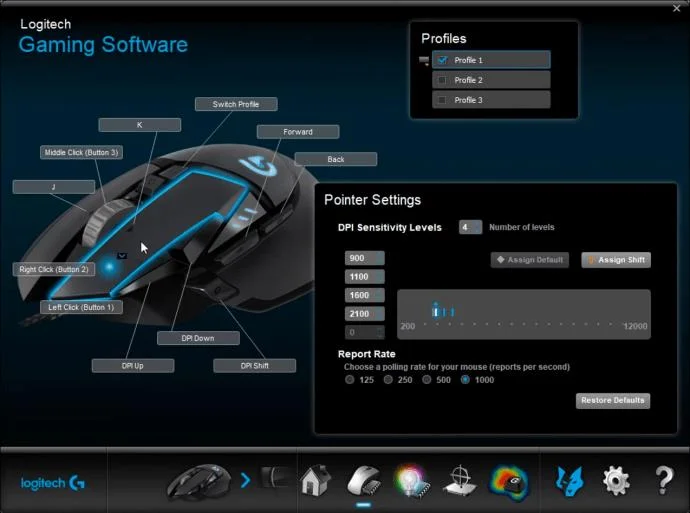
If your device doesn’t have a DPI button, you can download the Logitech Gaming Software. Most peripherals are sold with installation CDs that contain the software, but you can also download it.
Once you’ve set up your gaming software, it’s time to check your DPI:
- Navigate to your home screen and find the Automatic Game Detection option.

- Activate the option by pressing the On button and clicking the pointer-gear symbol to open a new window.
- You should now see your current DPI. Depending on your model, you should see varying ranges of settings. For instance, G305 and G304 mice feature a 200-12000 DPI across five levels and 50-DPI increments.

How to Check Mouse DPI on a Razer Mouse
Razer is another widely-used mouse brand that lets you check DPI with buttons. That said, not every model comes with DPI buttons, meaning you’ll need to take a different approach. Downloading Razer Synapse might be your best option.
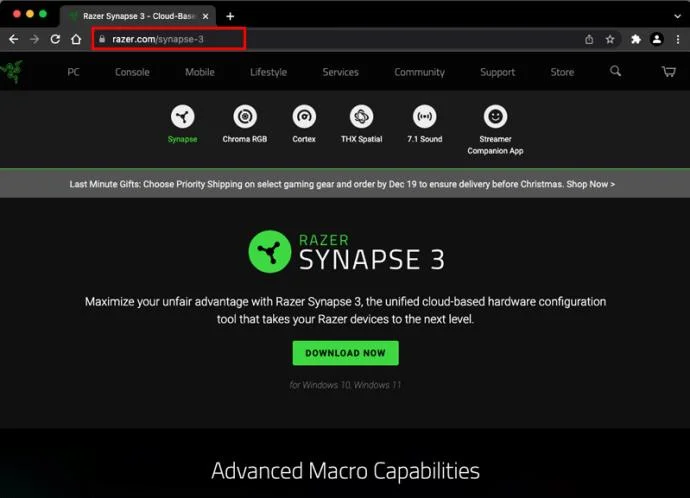
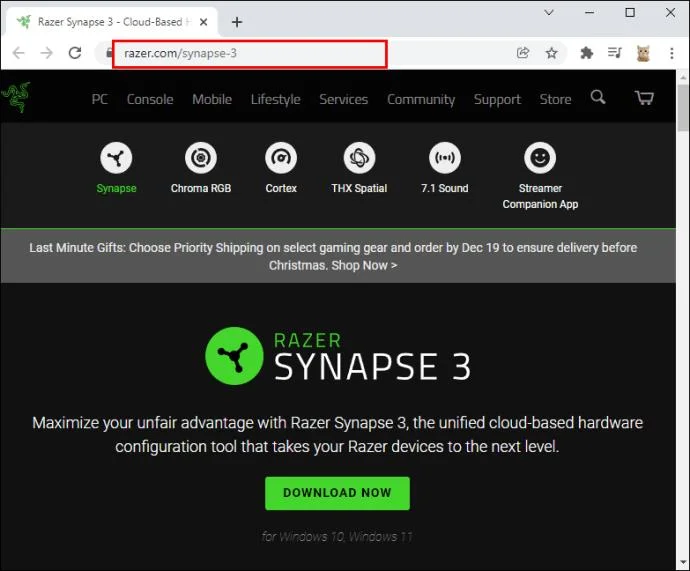
- Open your browser and navigate to the Razer Synapse website.

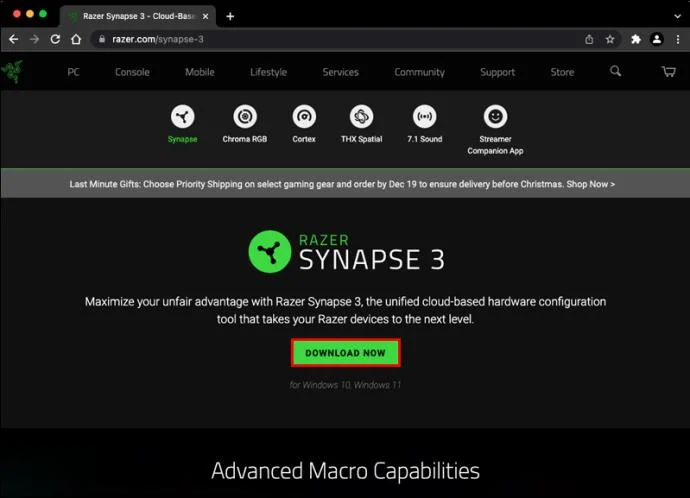
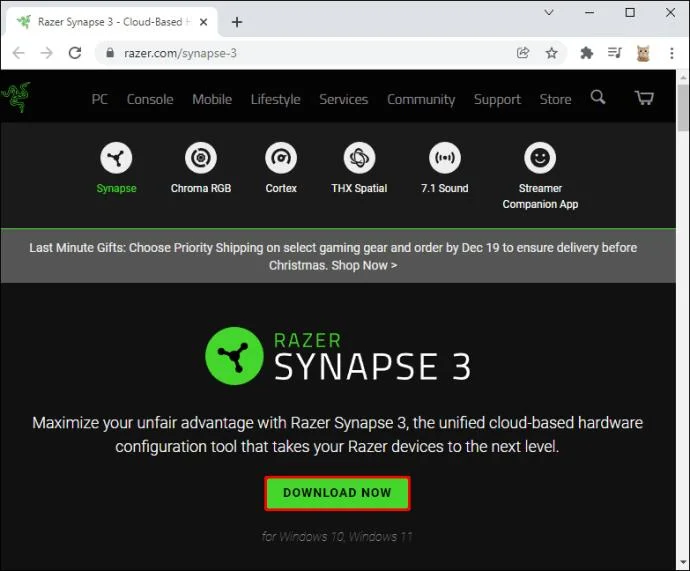
- Hit the Download Now button and wait for the download to complete.

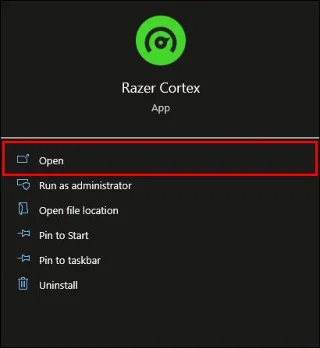
- Install and launch the software.

- Click on your mouse and navigate to the Performance tab.

- This window should give you insight into your mouse DPI.

If you wish to change it, activate “Sensitivity Stages” and decide the number of stages you need. Apply the desired stage, and you’ll be good to go.
Additional FAQ
What Is the Average Mouse DPI?
The average mouse DPI is 1600. This setting is perfect for casual users who don’t require high-speed devices. However, the best DPI value for you depends on your intended tasks.
For example, if you need quick reflexes in your video games, you’re better off with a higher DPI. Some gamers even use 16,000-DPI mice since they specialize in situations that require fast reflexes and responses rather than accurate aiming.
By contrast, mouses with a lower DPI are superior if you require slow movements and precise aiming.
Tweak Your Settings for a First-Rate Computer Experience
Knowing your mouse DPI goes a long way toward improving your workplace and gaming performance. It tells you if you’re using the wrong setting, keeping you from completing your projects faster or taking down enemies efficiently. If your DPI value isn’t in the recommended range, change it with buttons or appropriate software.
What’s your preferred DPI range? How often do you change it, and which method do you usually take? Let us know in the comments section below.