On Windows 10, Microsoft has integrated a new application called Settings . This Settings application is a Metro application created by Microsoft to replace the classic Control Panel application. The option to change Windows password is no longer available on Control Panel like previous versions, and if you want to change Windows password, you will have to do it through the Settings application.
Quickly access the Settings app on Windows 10
In the article below, WebTech360 will guide you through some ways to quickly access the Settings application on Windows 10.
1. Use shortcut keys

To open the Settings app on Windows 10 quickly, just press the Windows + I key combination.
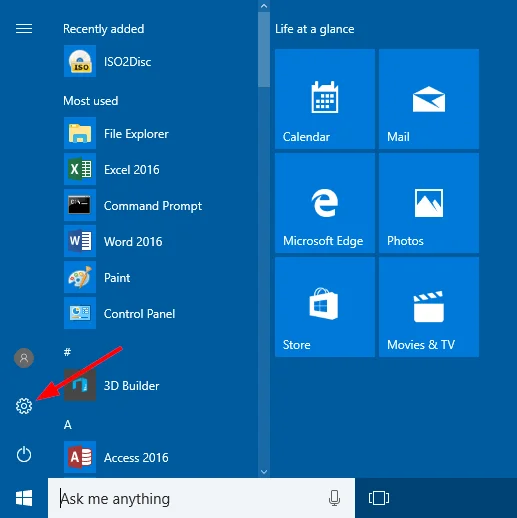
2. Open the Settings app from the Start Menu

Click the Start button . The Start Menu window will appear on the screen. Find and click the Settings icon (a small gear icon) located near the bottom left corner. The Settings application will launch immediately.
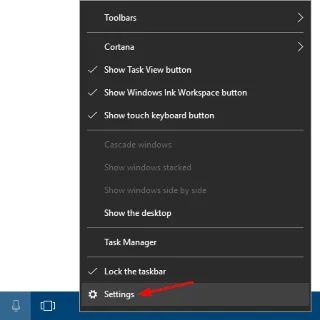
3. Through Power User Menu

Right-click the Start button in the lower-left corner of the screen, then click Settings .
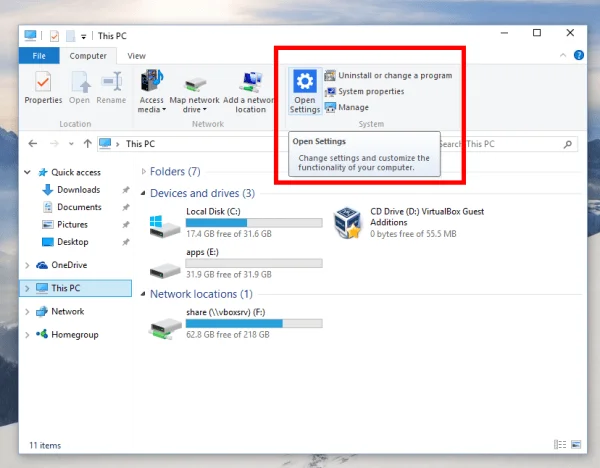
4. Open the Settings app from This PC

Windows 10 includes a This PC folder that contains an Open Settings icon on the Ribbon. In previous versions of Windows, there was a command to open the Control Panel. In Windows 10, Microsoft has included a Settings app to completely replace the classic Control Panel. Open This PC , and you can open Settings from the Ribbon.
5. Search for the Settings app with Windows Search
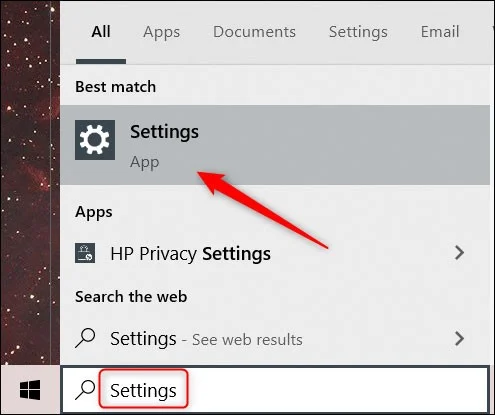
You can search for any app installed on your Windows 10 PC from Windows' default Search tool—including the Settings app.
Just type the keyword “ Settings ” into the Windows Search bar and click on the “ Settings ” application from the search results.

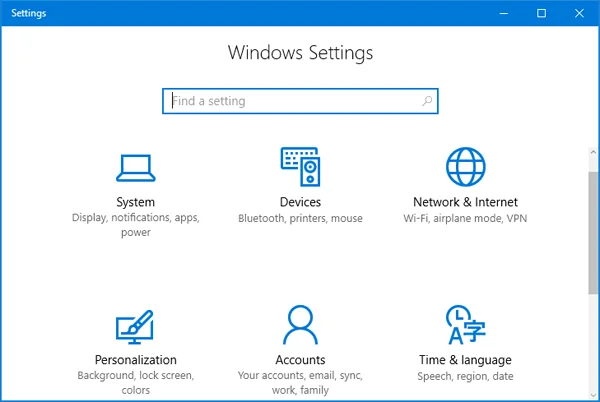
The Settings interface will open immediately.
6. Access the Settings app from the on-screen context menu
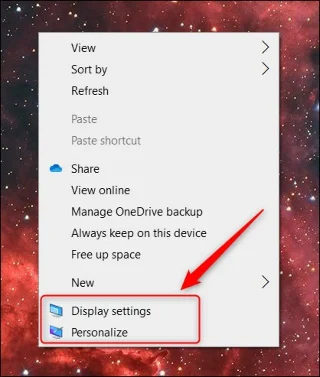
Another quick way to access the Settings app is from the desktop context menu. First, right-click anywhere on the home screen and a context menu will appear. At the bottom of this menu, click “ Display Settings ” or “ Personalize .”

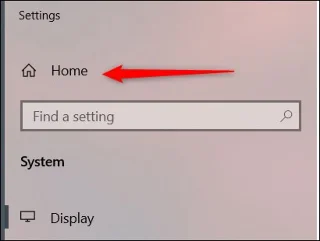
The corresponding option will immediately open in the Settings application. From here, you just need to click “ Home ” to go to the main interface of the Settings application.

7. Ask Cortana to open Settings
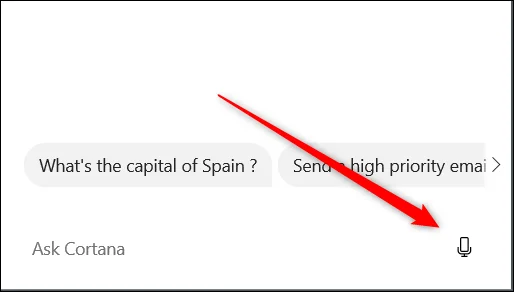
You can also ask Cortana to open the Settings app for you. First, click the Cortana icon on the Taskbar (or search for it in the Windows Search bar) to launch the virtual assistant app.

Next, click on the microphone icon in the bottom right corner of the application window.

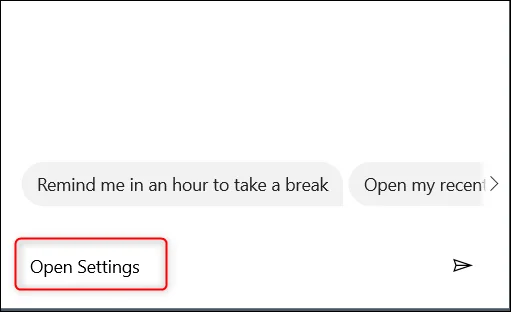
Now, just say “ Open Settings ” and Cortana will do the rest. Or if your computer doesn’t have a microphone, just type “ Open Settings ” into the text box and press “ Enter ”.

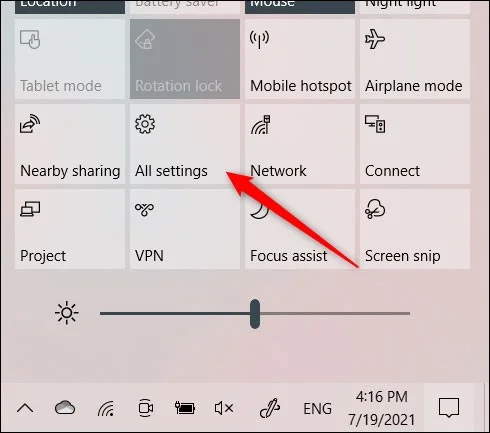
8. Using Action Center
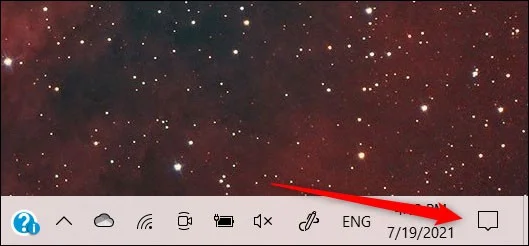
There is also another way to launch the Settings app from the Action Center. First, tap the text icon in the bottom right corner of the screen to open the Action Center.

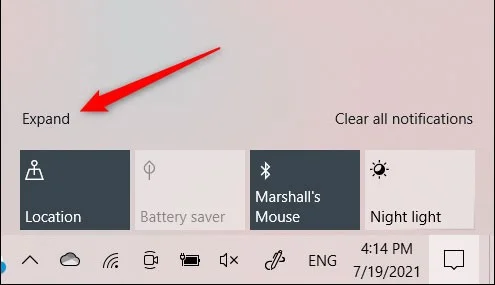
Next, click “ Expand ” in the bottom left corner of the Action Center interface.

The list of options will expand. Click “ All Settings ”.

9. Use Task Manager
You can open all kinds of apps on Windows from Task Manager—including the Settings app.
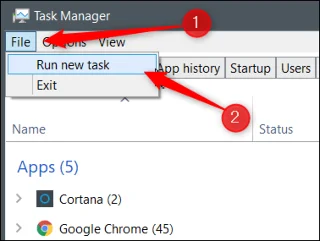
First, open Task Manager using the keyboard shortcut Ctrl + Shift + Esc . In the Task Manager interface, click on the “ File ” tab and then select “ Run New Task ” from the drop-down menu.

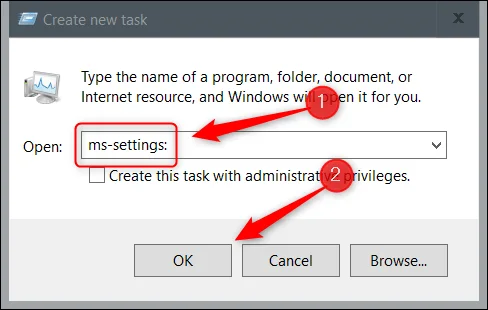
The Create New Task window will appear. In the text box, type “ ms-settings: ” and then press “ OK ”.

10. Open Settings via Windows PowerShell
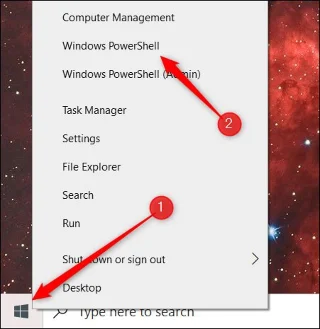
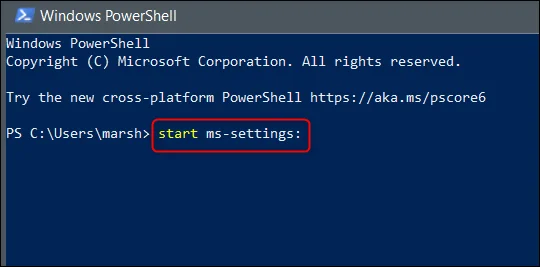
If you prefer using Windows PowerShell over Command Prompt, you can still open the Settings app by running a simple command. First, open Windows PowerShell by right-clicking on the Windows icon in the lower-left corner of your screen. This will open the Power User menu. Here, click “ Windows PowerShell .”

In the Windows PowerShell window that opens, run this command:
start ms-settings:

11. Open the Settings app via Command Prompt
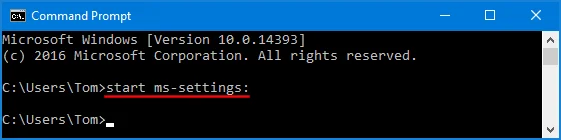
On your Windows 10 computer, open Command Prompt (or PowerShell). Then type the following command into the Command Prompt window:
start ms-settings:
Press Enter and Windows 10 will open the Settings app immediately.

12. Open Settings via the Run command window
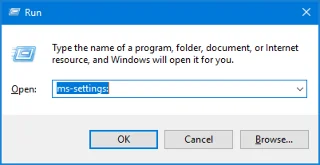
Press the Windows + R key combination to open the Run command window. Then type the following command into the Run window and press Enter:
ms-settings:
Immediately the Settings application window will appear on the screen.

See more articles below:
Good luck!