Device Links
In many instances, Excel spreadsheets are used to organize financial information into a logical format. And often the source data used to populate a spreadsheet comes from PDFs of financial statements and invoices.

If you want to make the information in your spreadsheet more comprehensive, you can embed the PDF source file. In this article, we’ll cover how to embed a PDF into your Excel spreadsheet. In addition, you’ll discover how to link the PDF to the original file so that any updates made to the original are reflected in the embedded copy.
Note: Excel for Mac DOES NOT allow objects such as PDFs, so we found a limited workaround you can use.
How to Embed a PDF in Excel on a Mac
As previously mentioned, due to security issues and Apple’s policies, you cannot “directly” embed a PDF in Excel for Mac like you can with Windows. However, we discovered an alternative solution that may work for you. Normally, you add an “object” which is the PDF file, and you can double-click on the image to open the file or right-click and choose “Open.” When creating the embedded PDF, Mac displays the “Cannot insert object” error instead. Mac still allows you to insert Office file objects because it can scan the file’s app (Word, Excel, etc.) and perform a security check, but everything else is null and void.
The option we discovered lets you insert a picture or icon as a file and then add a link to it, essentially doing the same thing as inserting the PDF object but with limitations. One difference is that you must include the source in the spreadsheet (as another tab) or use a URL going to the shared PDF in the cloud. Otherwise, the receiver won’t have access to it. In addition, you have to create a thumbnail (generic creation or a screenshot), choose to use a picture in Excel obtained from the file, or browse for a generic image in Office’s library. Follow the steps below to add a PDF file to an Excel spreadsheet on macOS.
Adding PDFs to Excel Mac using Spreadsheet Tabs
This method converts PDFs to images you can paste into new Excel tabs on your Mac Excel spreadsheet or place them in new ones and link them. You’ll create thumbnail images of each PDF or use icons to save time, then you’ll add hyperlinks that go to the corresponding PDF tabs or sheets.
- Create PDF image: Convert the PDF to an image using third-party software or a PDF-to-image website.
- Create a thumbnail image: Create your thumbnail for the PDF to use in the Excel spreadsheet. Snap a screenshot, shrink the PDF image, or use a generic image in Office’s library.
- Add the PDF image: Copy/paste it into a new tab in the main Excel spreadsheet.
- Open “Excel” and the workbook to which you want to embed the PDF.

- Click on the “+” icon next to the tabs at the bottom to create a new tab for the PDF image you created in “Step 1.”
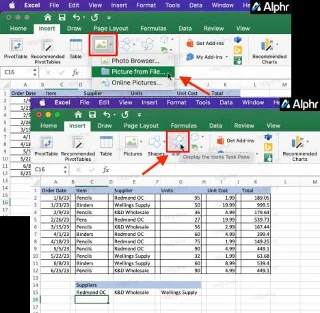
- Choose the cell in the new tab where you want to paste the PDF image, then select “Insert -> Pictures -> Picture from File…”
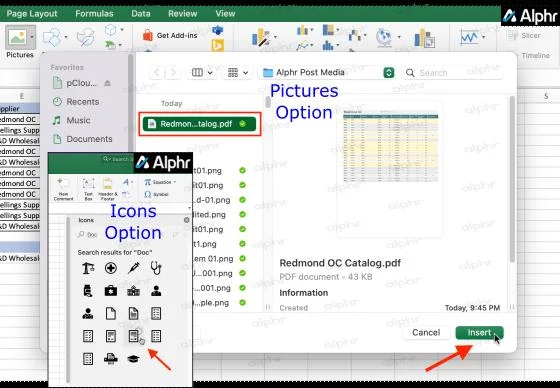
- Browse and select the PDF image, then click “Insert.”
- Review the PDF image placement to ensure it appears the way you want.
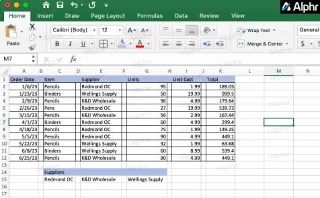
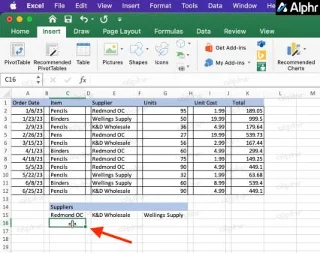
- Return to the main spreadsheet page/tab. Select the cell where you want to place the PDF thumbnail—it won’t technically reside in the cell but doing so acts as a placeholder for inserting it.

- Click on the “Insert” tab at the top and choose “Photo -> Picture from File..” or “Icons” depending on your preference.

- Browse for the picture or icon you want to use as your PDF image link and select it.

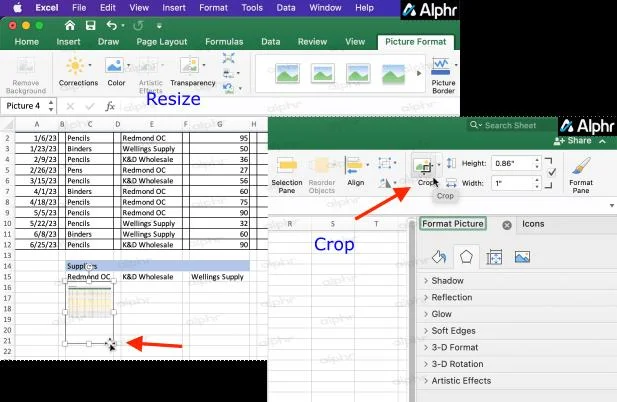
- Resize the image to fit your spreadsheet. You can also crop it to remove whitespace.

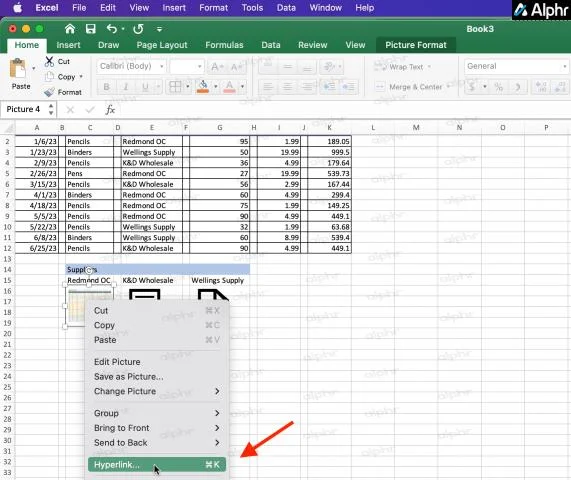
- Now that you have your thumbnail, right-click (or two-finger tap) over the image/icon and select “Hyperlink.”

- Select the “This Document” menu tab, choose the PDF tab’s name, then click on “OK.” to link it.
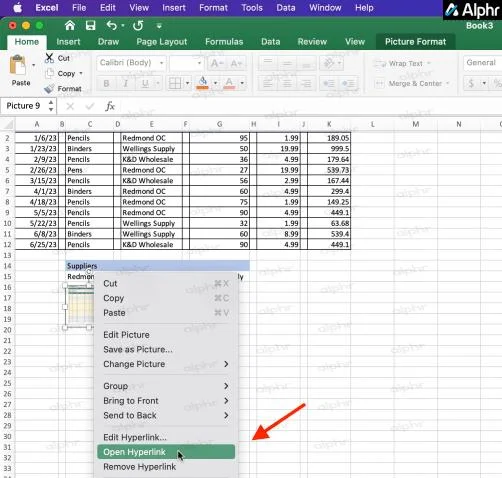
- Test the link by right-clicking or two-finger tapping the image and choosing “Open Hyperlink.”
-
-
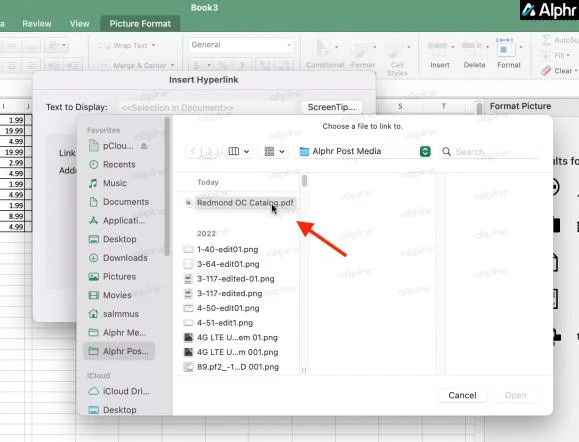
- and click on “Select” to open the file browser. Choose the PDF image you and click on “OK” to insert it.
-
-
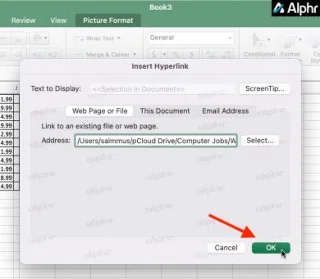
- For hosted sources (the cloud or a website), ensure you have selected the “Web Page or File” tab and then copy/paste the URL for the PDF into the box provided. Click “OK” to save the link for the image.
- For PDFs you converted to images, insert the image into a new tab (bottom of the spreadsheet), then select the “This Document” menu tab and click on “Select” to open the file browser. Choose the PDF image and click on “OK” to insert it.
- Find and select the PDF file you want to link to the thumbnail on the spreadsheet.

- Click the “OK” button.

- To open the PDF, double-click the icon or right-click (or two-finger tap) on the thumbnail and choose “Open Hyperlink.”

After following the steps above, you get an embedded PDF file in your Excel for Mac spreadsheet. Double-click on the image to open the PDF file or right-click it and select “Open Hyperlink.” It’s as easy as that!
Adding PDFs to Excel Mac using a Zipped Folder
Since you cannot embed a PDF in Excel for Mac, you can at least create a folder that includes the main spreadsheet and all PDFs. Once you have that, you can zip the folder and send it in an email or share it however you need. All files will reside in that folder, so linking to PDFs should work fine.
Compatibility: This process works for Windows and macOS, but it may not work for iOS devices (iPhone, iPad) unless they include a way to view PDFs.
- Create a folder: Make a new folder and give it a name related to the spreadsheet.
- Add the files: Add the Excel spreadsheet to the folder and all required PDFs.
- Create PDF thumbnails: Snap screenshots of the PDFs and reduce the size to use them as thumbnail links in the main spreadsheet. You can also use generic icons from Office’s library if desired.
- Open “Excel” and the workbook to which you want to embed the PDF.

- Select the cell where you want to place the PDF thumbnail. The image won’t technically reside in the cell but doing so acts as a placeholder for inserting it.

- Click on the “Insert” tab at the top and choose “Photo -> Picture from File…” or “Icons” if using generic Office images as your thumbnails.

- Browse for the created thumbnail image or the icon you want to use as your PDF link.

- Resize the image to fit your spreadsheet. You can also crop it to remove whitespace.

- Right-click (or two-finger tap) over the image/icon and select “Hyperlink…”

-
- , or create a new one with the PDF and store it in a folder that you can zip with the current spreadsheet.
- For PDFs you converted to images, insert the image into a new tab (bottom of the spreadsheet), then select the “This Document” menu tab and click on “Select” to open the file browser. Choose the PDF image and click on “OK” to insert it.
-
- Find and select the PDF file you want to link to the thumbnail on the spreadsheet.

- Click the “OK” button.

- To open the PDF, double-click the icon or right-click (or two-finger tap) on the thumbnail and choose “Open Hyperlink.”

Following the steps to link a PDF in Excel on Mac, you get a spreadsheet that works for both Mac and Windows, as long as you also include the linked file.
How to Embed a PDF in Excel on a Windows PC
Embedding a PDF into your Excel spreadsheet in Windows is much easier than doing it on a Mac. Windows 7, 8, 8.1, 10, 11, etc. allow OLE objects, so you can use the “Insert -> Object” option. Unlike on Mac, you can allow the image to update as the file does if preferred. However, that option has security risks, so most leave a thumbnail in place and call it the day. Here’s how to embed a PDF into Excel on Windows.
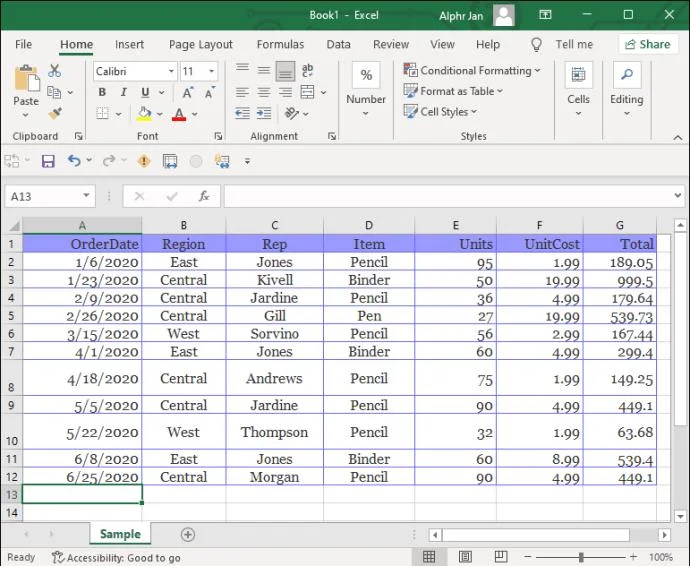
- Launch “Excel” and then the spreadsheet you want to work in.

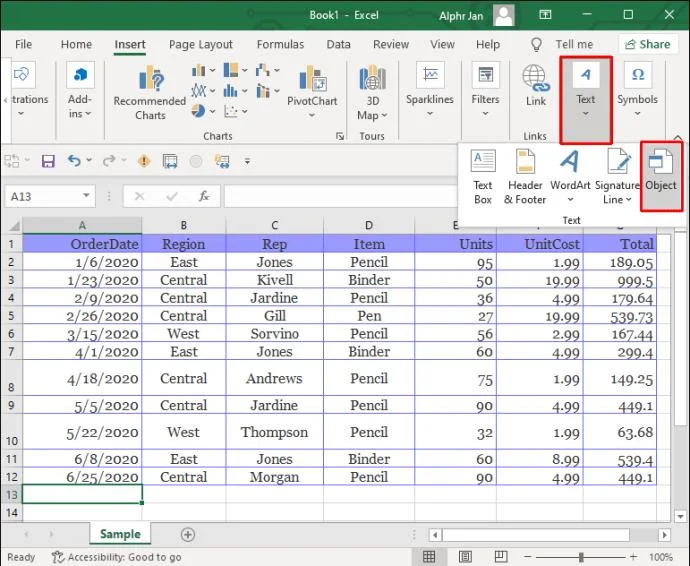
- Via the ribbon, select the “Insert” tab.

- Click “Text,” then “Object.”

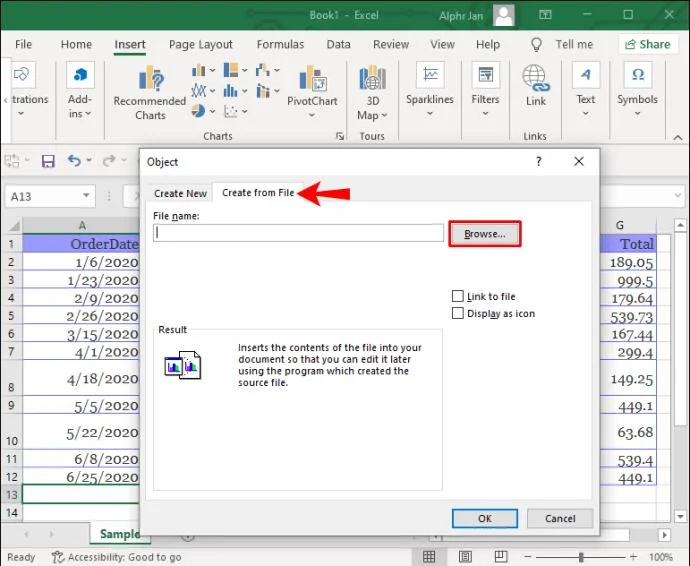
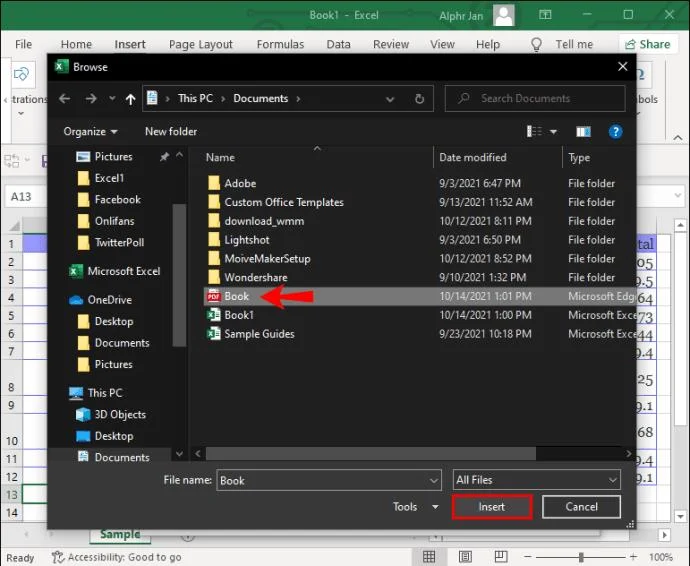
- Choose the “Create from file” tab, then click “Browse” to find your file.

- Select the PDF, then choose “Insert.”

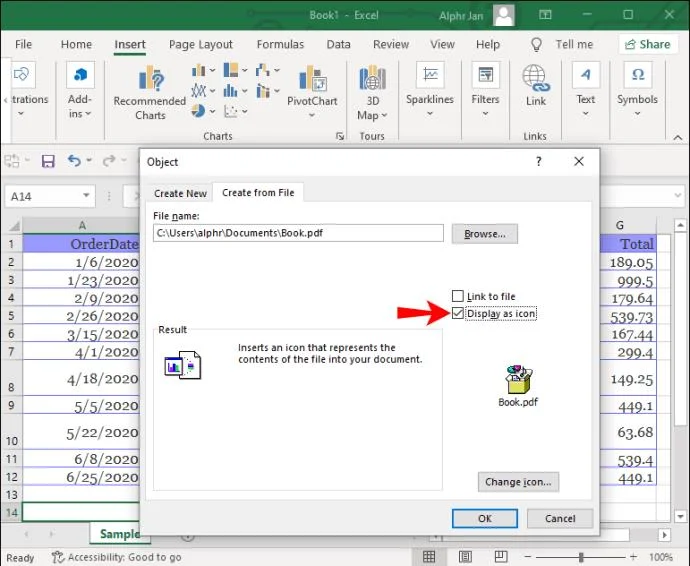
- In the “Object” window, if you prefer the file to display as an icon instead of a preview, check the “Display as icon” option.

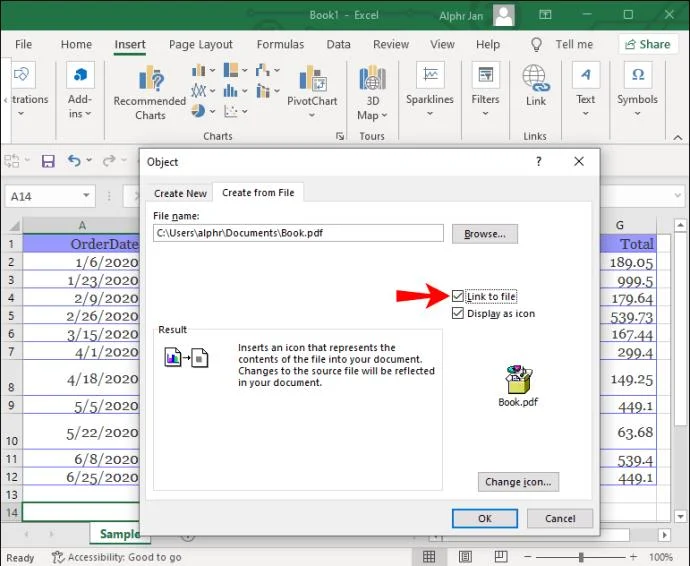
- To create a link to the original PDF, so that changes made are replicated in the embedded file, add a checkmark to the “Link to file” box. You’ll also need to permit the updated images in Settings.

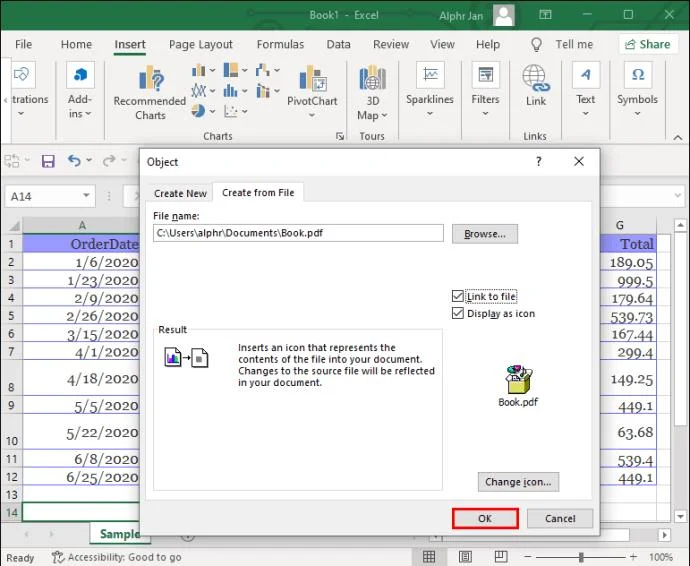
- Click “OK” to save the changes.

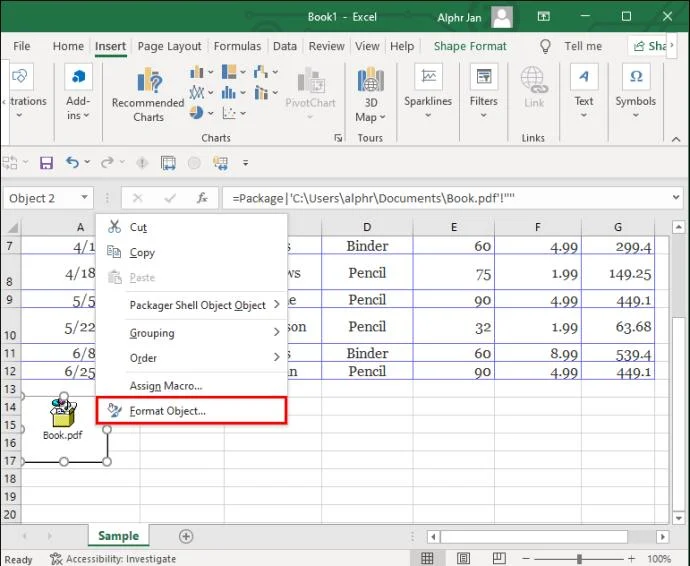
- Right-click on the embedded object (PDF), then choose “Format Object…”

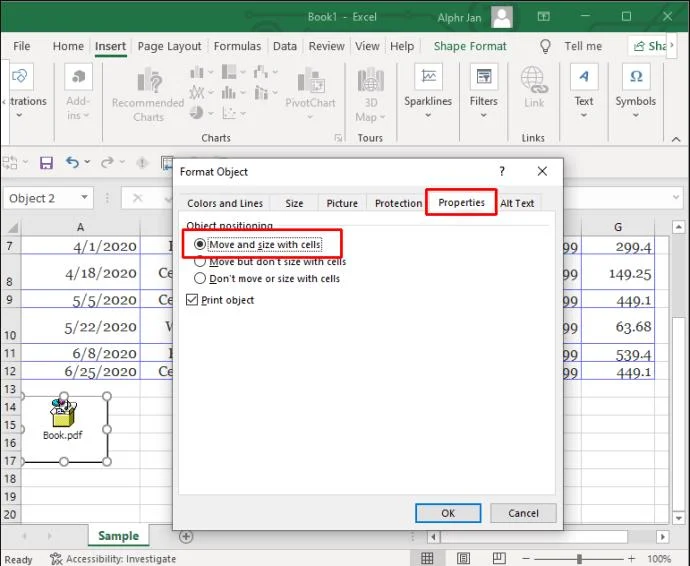
- Click the “Properties” tab and select the “Move and size with cells” option.

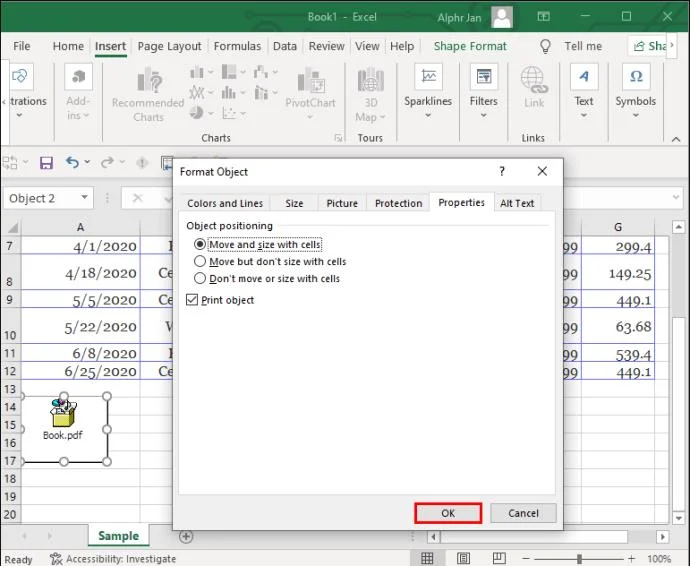
- Click “OK” to save the changes. The icon will now stretch if you change the size of the cells.

How to Embed a PDF in Excel on an iPad
Excel has an iOS app offering desktop functionality. Follow these steps to embed your PDF file into a spreadsheet.
- Open the “Excel” app, then the spreadsheet you want to embed the PDF file into.

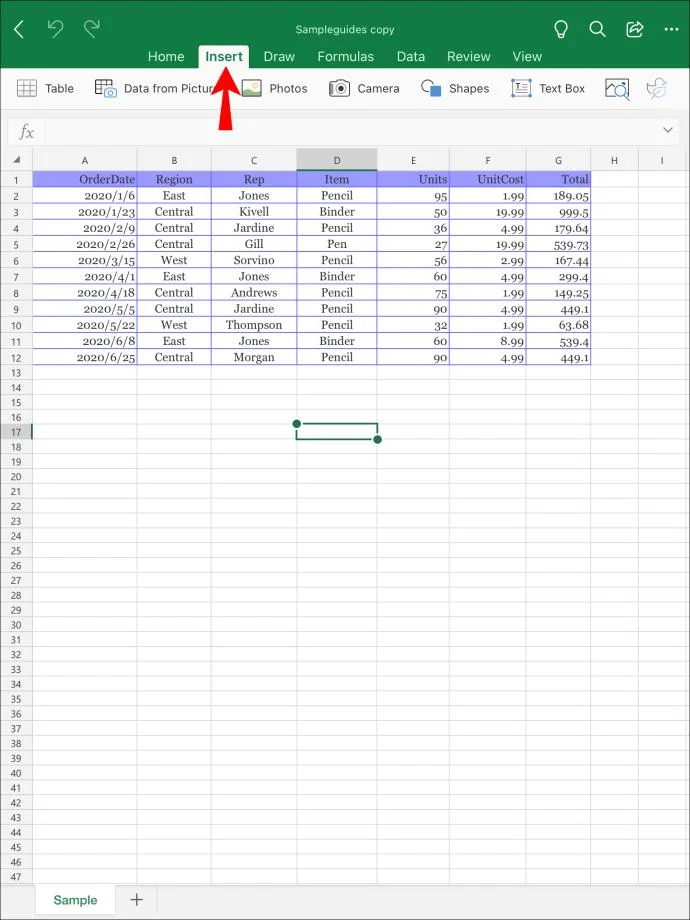
- From the ribbon, select the “Insert” tab.

- Tap on the “Text,” then “Object” options.
- Click on the “Create from file” tab, then select “Browse.”
- Choose the file location, e.g., “iCloud,” select the PDF, then “Open.”
- In the “Object” window, select the “Display as icon” checkbox to display the file as an icon. If not, a preview of the PDF will display.
- To link to the original PDF file, so changes made to the original will update to the embedded file, select the “Link to file” option.
- Tap “OK” to apply the changes.
The file icon will display on top of the cells by default. Do the following so the icon autofits if you change the size of the cells:
- Press and hold the PDF file, then choose “Format Object… .”
- Tap on the “Properties” tab and select the “Move and size with cells” option.
- Tap “OK.”
How to Embed a PDF in Excel on an iPhone
Follow these steps to embed a PDF file into your spreadsheet via the Excel for iOS app:
- Open the “Excel” app.

- Open the spreadsheet you want to embed the PDF file into.

- Via the ribbon, tap the “Insert” tab.

- Tap on “Text,” then “Object.”
- Choose the “Create from file” tab, then “Browse.”
- Choose the file’s location, e.g., “Dropbox.”
- Select the PDF, then “Open.”
- From the “Object” window, to display the file as an icon, select the “Display as icon” checkbox; otherwise, a preview of the PDF will display.
- If you want changes made to the original PDF file to update in the embedded version, choose the “Link to file” option.
- Tap “OK” to save the changes.
The icon will display on top of the cells by default. For an autofit that adapts if you change the column sizes, do the following:
- Long-press the PDF, then select “Format Object… .”
- Choose the “Properties” tab and select the “Move and size with cells” option.
- Tap “OK.”
How to Embed a PDF in Excel on an Android Device
Follow these steps via the Excel for Android app to embed a PDF file into your spreadsheet:
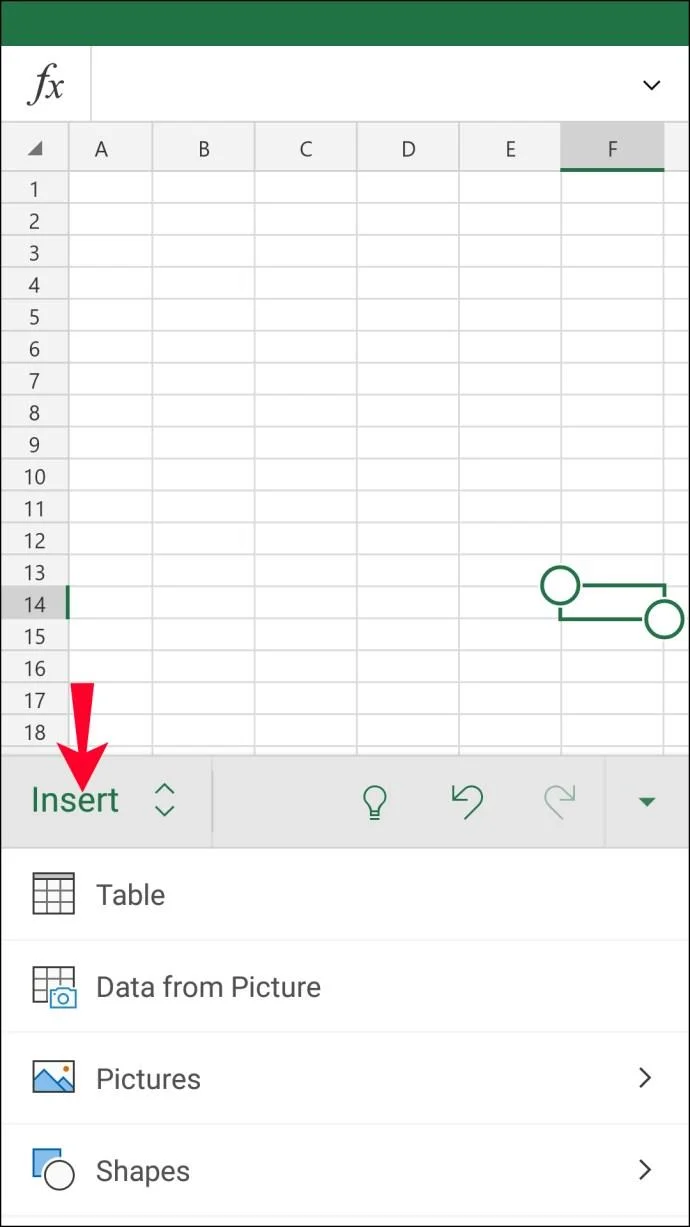
- Launch the “Excel” app.

- Open the workbook you want to work in.

- Via the ribbon, choose the “Insert” tab.

- Tap on the “Text,” then “Object” options.
- Tap the “Create from file” tab, then “Browse.”
- Choose the file’s location, e.g., “Google Drive.”
- Tap on the PDF, then “Open.”
- From the “Object” window, you can display the PDF as an icon by checking the “Display as icon” option. Otherwise, it will display a preview.
- To create a live link to the original PDF so that any changes made to the original updates in the embedded version, check the “Link to file” checkbox.
- Tap “OK” to save the changes.
By default, the icon will display on top of your Excel cells. To ensure it autofits and adapts to any column re-sizing, do the following:
- Press and hold the PDF file, then select “Format Object… .”
- Choose the “Properties” tab and check the “Move and size with cells” option.
- Tap “OK” to apply the changes.
Comprehensive Reporting in Excel
Excel spreadsheets are excellent for storing, organizing, and analyzing financial data. Its features offer convenience and help to make reports as complete as possible.
Excel allows for the inclusion of source files for reference, with the additional option to embed files. It supports popular file types including PDFs. You’ll have the option to display the file as an icon or preview. You can also create a link to the original file so any changes made are reflected in the embed version.
What other Excel features do you use for comprehensive reporting? Tell us in the comments section below.