Device Links
Are you curious about what makes up a web page? Want to know how to change the font size or color on your website? By viewing the HTML code of a webpage, you can do all these things and more.

In this tutorial, we’ll show you how to view the HTML code of a webpage in Chrome.
Viewing HTML Code in Chrome
When writing in HTML, the source code is the series of tags and attributes used to define the structure and content of a web page.
The source code is read by web browsers and translated into the graphical web page you see on-screen. In addition to defining the look and feel of a web page, the source code can also be used to add interactivity, such as pop-up windows, forms, and drop-down menus.
While the average internet user may never need to view a web page’s HTML source code, there are several reasons some might want to do so.
For developers, viewing the source code can be a helpful way to understand how a page is structured and determine which styling and scripting elements are being used. For designers, it can be beneficial to see how other designers have used HTML to create effective layouts.
In some cases, users may also want to view the source code to troubleshoot errors or learn more about how a particular website or web application works. Whatever the reason, viewing the HTML source code is a relatively simple process in Chrome.
How to View the HTML Code of a Webpage in Chrome on a Windows PC
The Windows operating system is one of Chrome’s most compatible systems. Chrome is built on top of the open-source Chromium project, to which Microsoft is a major contributor. This compatibility extends to the HTML realm, where the popular browser allows users to view the HTML code of any website.
You can view the HTML code in two ways.
Using View Page Source
This method is straightforward:
- Open Chrome and navigate to the page where you want to view the HTML source code.

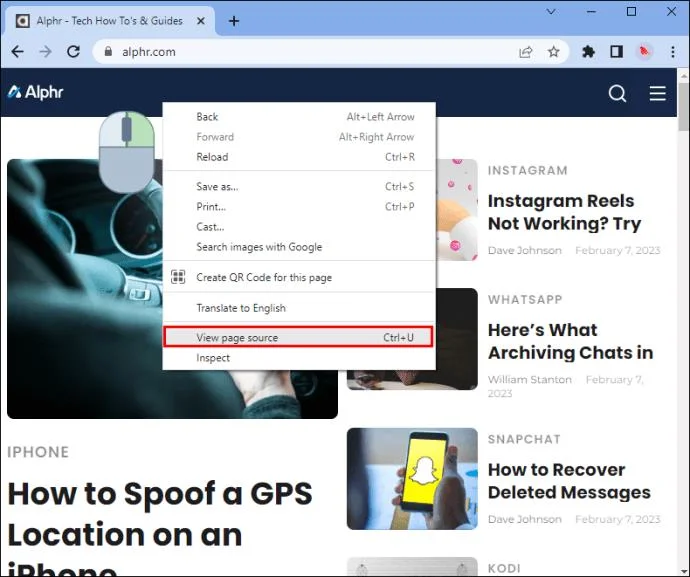
- Right-click on the page and select View Page Source, or press Ctrl + U on your keyboard to open the source code in a new tab.

The source code will appear in the new tab, and you can scroll through it to view the HTML markup for that page.
Using Developer Tools
To inspect the source code of a web page using Developer Tools in Google Chrome, follow the steps below.
- Open Google Chrome and navigate to the web page you want to inspect.

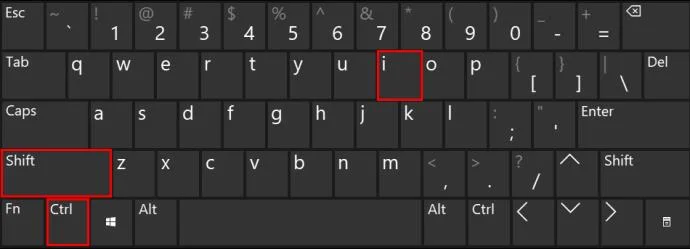
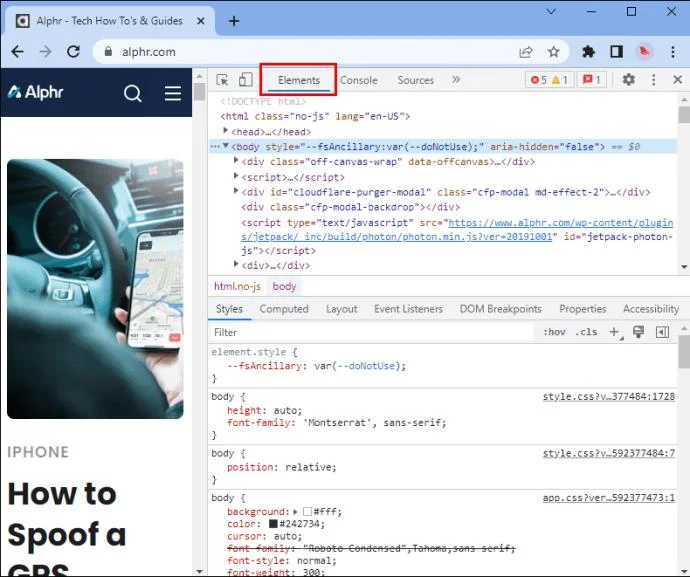
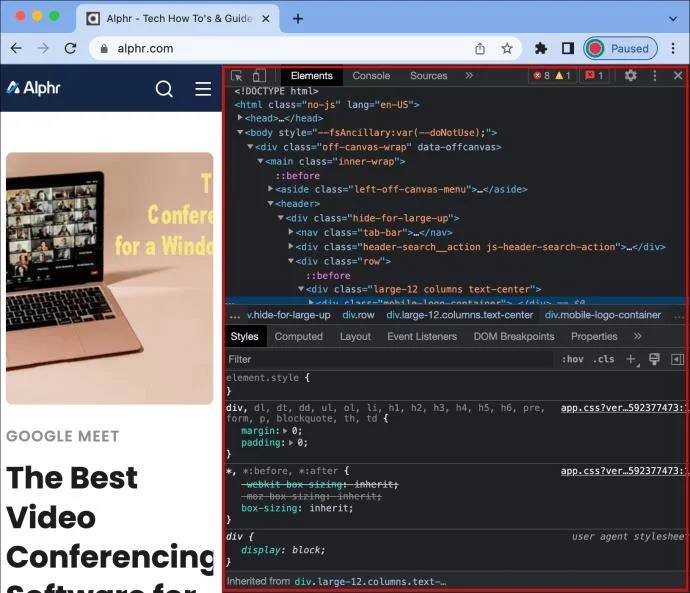
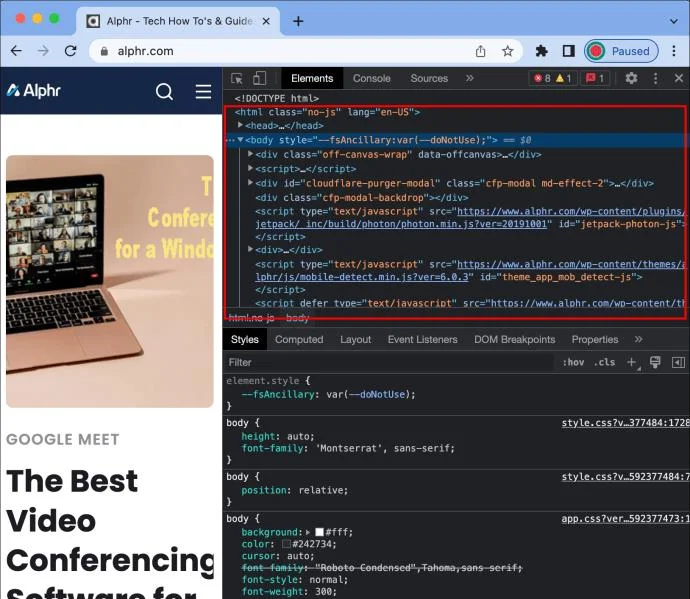
- Press Ctrl + Shift + I on your keyboard. The Developer Tools pane will open in a dock alongside the webpage you’re viewing.

- Click on the “Elements” tab at the top of the pane. This will display the HTML source code for the web page.

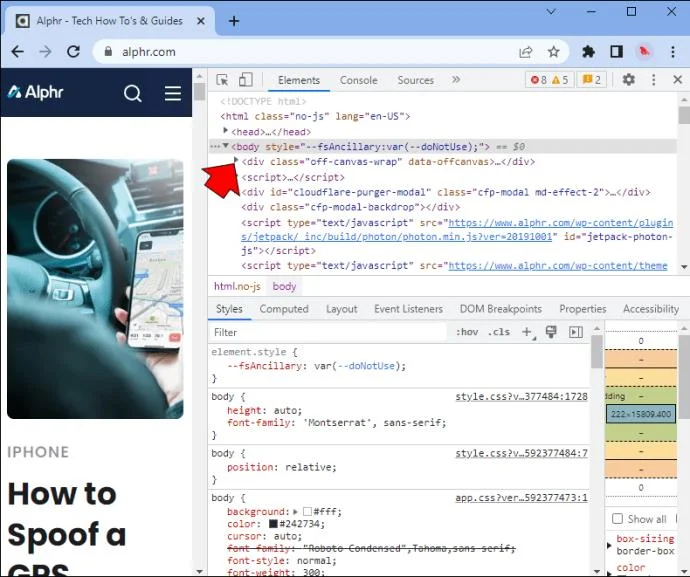
- You can now review the source code for the page. To collapse an element, click on the triangle next to its tag name. To view more information about a component, right-click on it and select “Inspect.”

Keep in mind that this method is best for HTML pages; it is possible to view the source code of other types of web pages, but the formatting may be more challenging to read.
How to View the HTML Code of a Webpage in Chrome on a Mac
If you’re a web developer, it’s important to be able to view the HTML code of a webpage. This lets you see how the page is structured and troubleshoot any issues that may arise. Fortunately, it’s easy to do in Chrome on a Mac. Simply follow these steps:
- Open Chrome and navigate to the webpage where you want to view the HTML code.

- Right-click on the page and select “Inspect.”

- A new pane will open at the bottom of the screen displaying the HTML code.

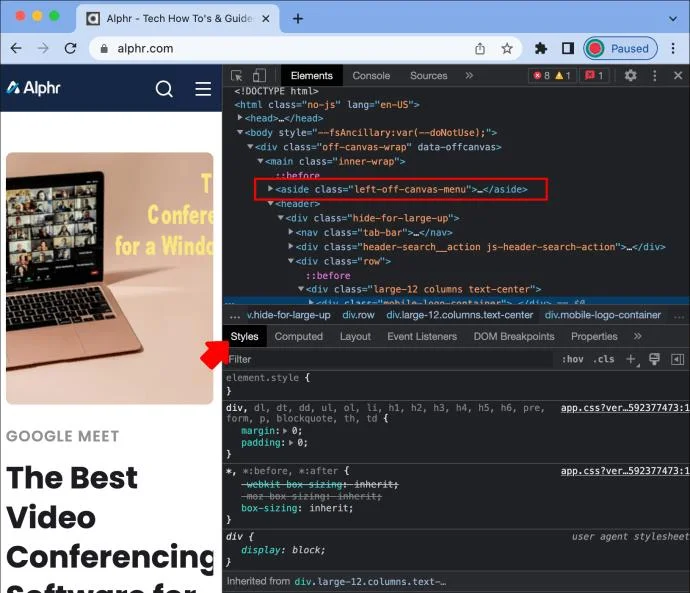
- You can also click on specific elements in the HTML code to see how they are styled on the page. For instance, you can see which CSS styles are being applied to an element by selecting it and then clicking on the “Styles” tab in the pane that opens up.

- To close the pane, click on the “X” in the top-right corner.

Alternatively, you can use Chrome Developer Tools to view the source code.
- Open Google Chrome and navigate to the webpage that you want to inspect.

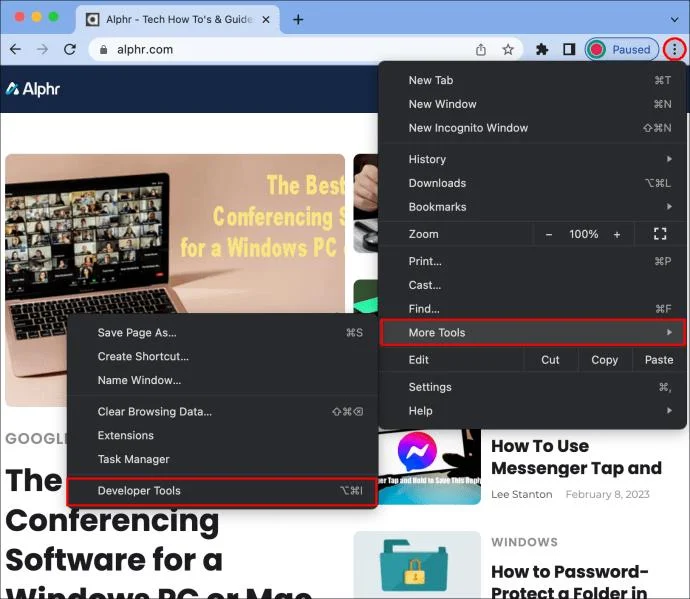
- Click the menu icon (three dots) in the browser’s top-right corner and select More Tools and Developer Tools from the drop-down menu.

- The Developer Tools panel will open at the bottom of the screen. Select the “Elements” at the top of the pane.

- You will now see the HTML code for the current page displayed in the Elements panel. You can use the different options in the panel to inspect and debug the code as needed.

With just a few clicks, you can easily view the HTML code for any webpage in Chrome on a Mac. This can be helpful when you’re trying to troubleshoot web development issues or want to take a closer look at how a particular website is constructed.
How to View the HTML Code of a Webpage in Chrome on the iPhone App
If you’re using an iPhone, you can view the HTML code of any page in Chrome in two ways:
Tweaking the URL
You can easily view the HTML code of any page by making a small adjustment to the URL:
- Open Chrome and navigate to the webpage whose HTML code you want to view.

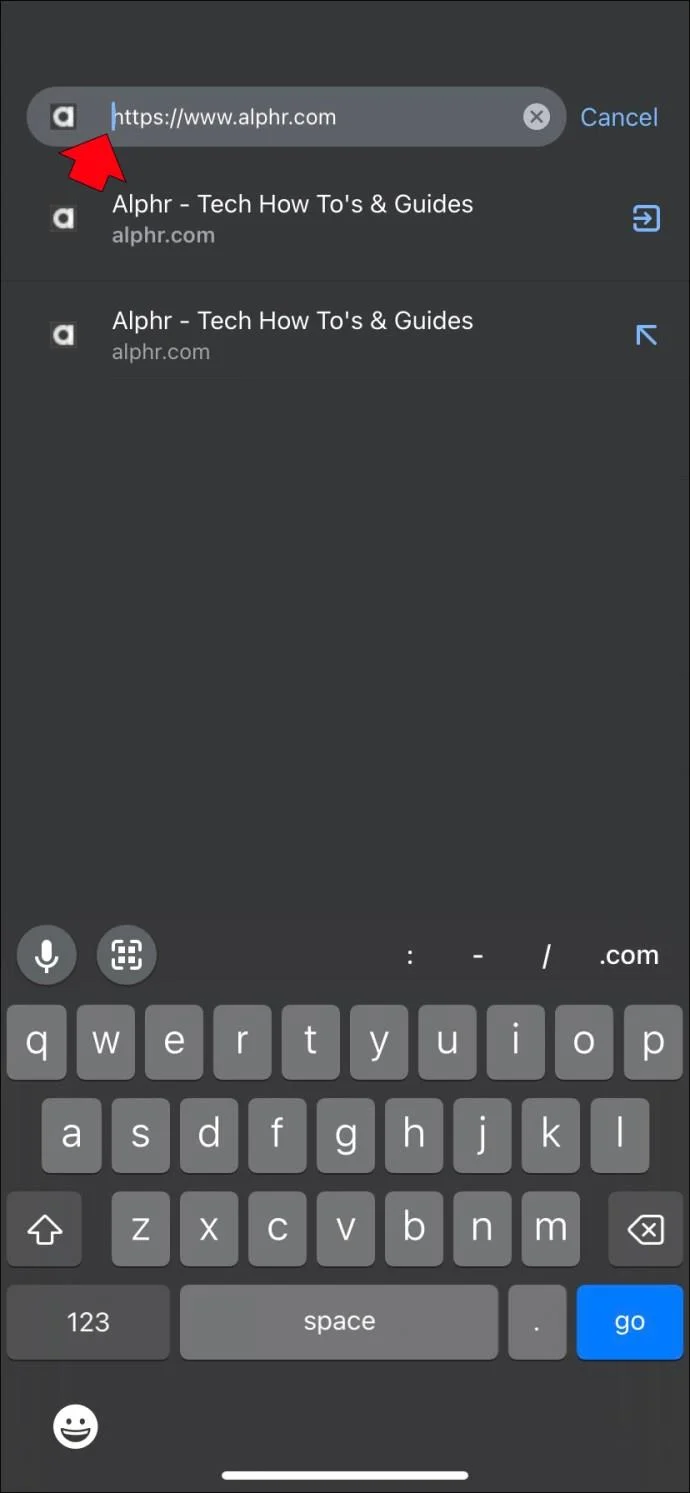
- Tap once in the address bar to initiate the edit mode.

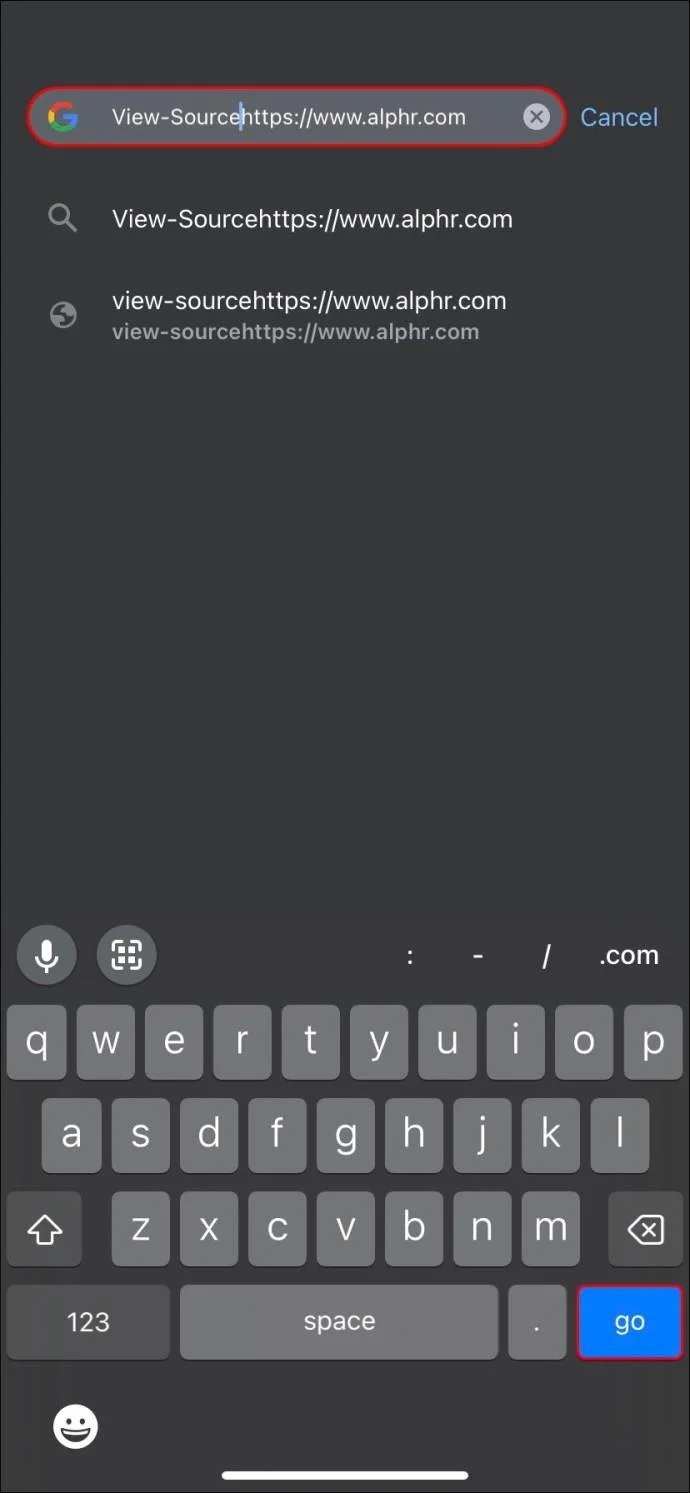
- Move the cursor to the front of the URL.

- Type “View-source” and then hit the “Go” button. The HTML code for the web page will be displayed in Chrome.

Using Developer Tools
Chrome Developer Tools are also available on iOS, but a different set of steps are required to launch it compared to PCs.
- Tap the three dots in the top-right corner of the screen and select “Settings.”
- Scroll down and tap “Advanced,” then enable the toggle next to “Developer tools.”
- Tap and hold an empty area of the page, then select “Inspect Element.” This will open up a side panel with the HTML code for that page.
How to View the HTML Code of a Webpage in Chrome on the Android App
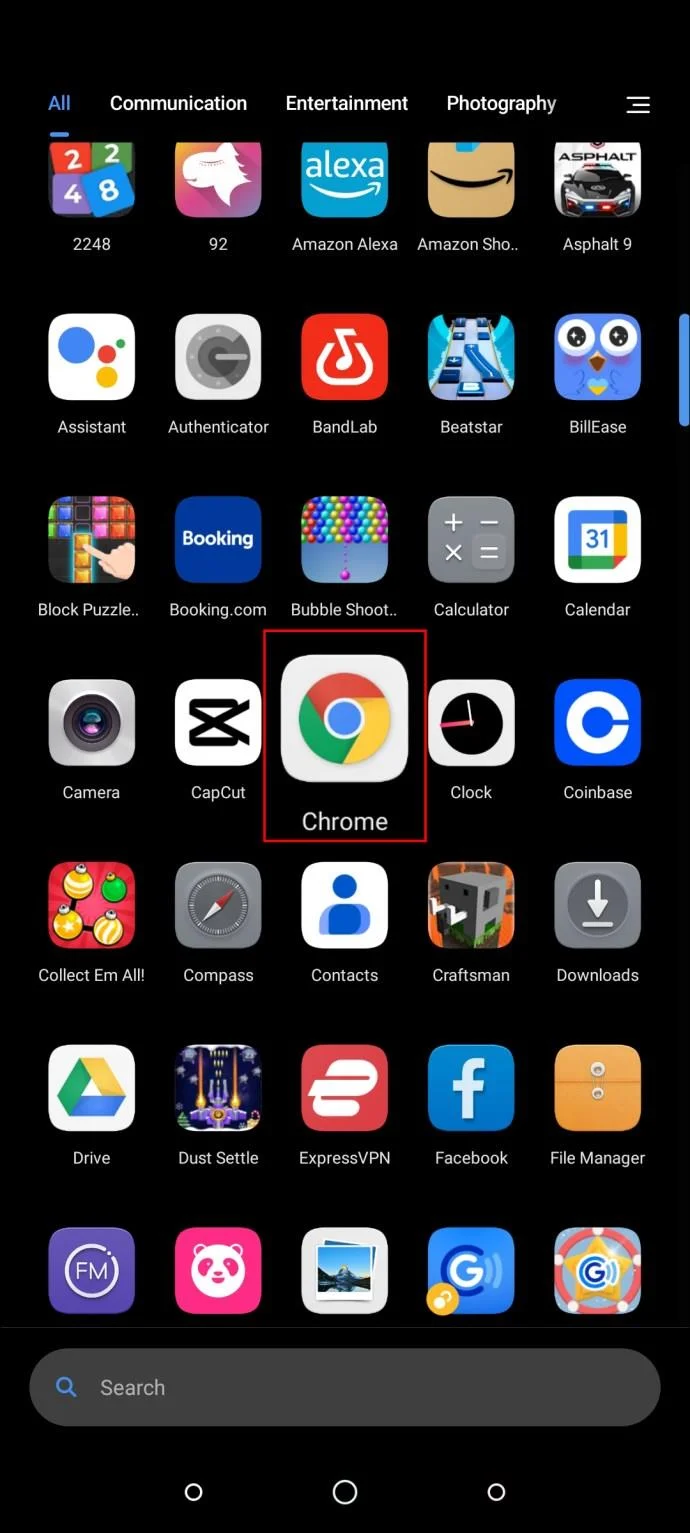
When using the Chrome app on your Android phone, you may want to view the HTML code for a webpage. This can be helpful if you are trying to troubleshoot an issue with the page or want to see how the page is structured. To view the HTML code for a webpage in Chrome on your Android phone, follow these steps:
- Open Chrome on your Android.

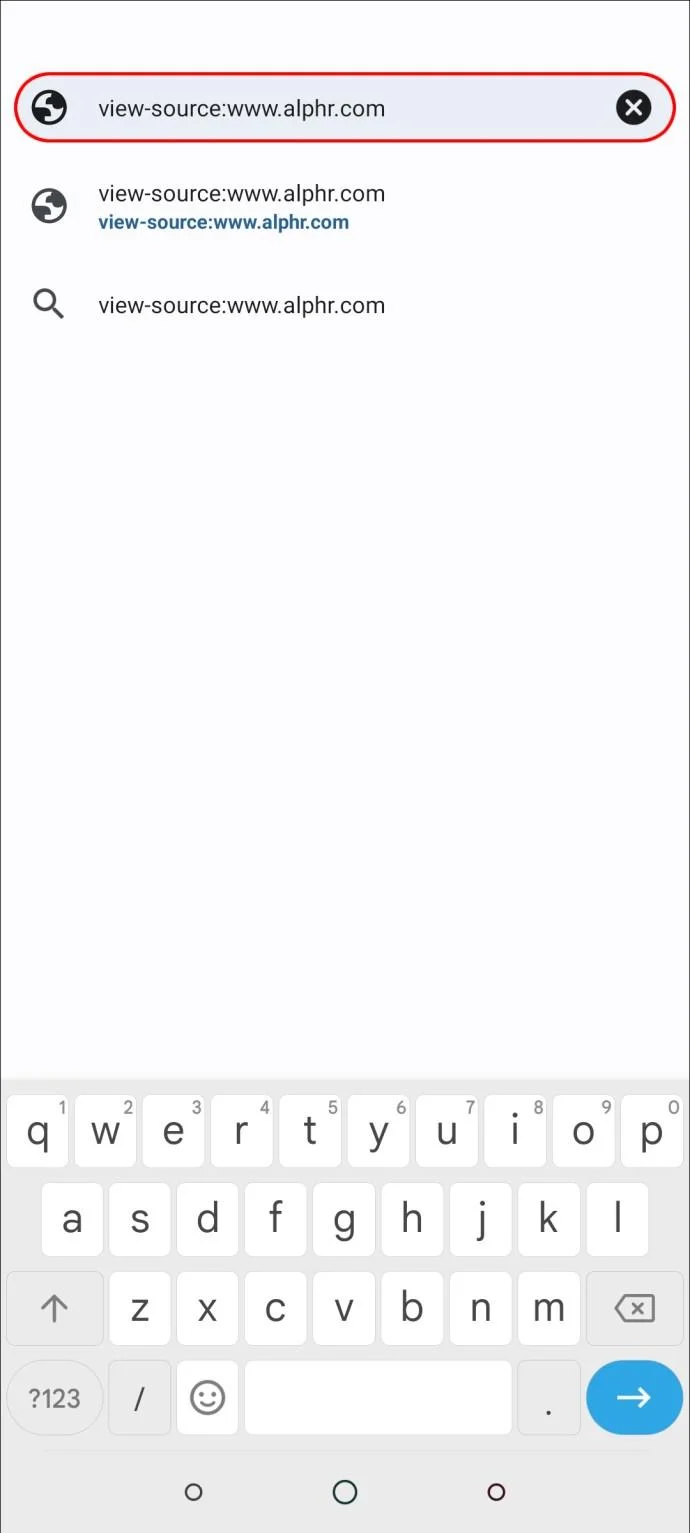
- Type “view-source:” followed by the URL of the page you want where you want to view the source code. For example, if you wanted to view the source code for www.google.com, you would type “view-source:www.google.com” into Chrome’s address bar.

This will open up the HTML code for that page in Chrome’s built-in Developer Tools interface. From there, you can view and edit the code as desired. Keep in mind that this method will only work if the website you’re trying to view allows access to its source code. If it doesn’t, you won’t be able to see anything other than an error message.
How to View the HTML Code of a Webpage in Chrome on an iPad
Chrome on the iPad app makes it easy to view the HTML code of any webpage. Simply follow these steps:
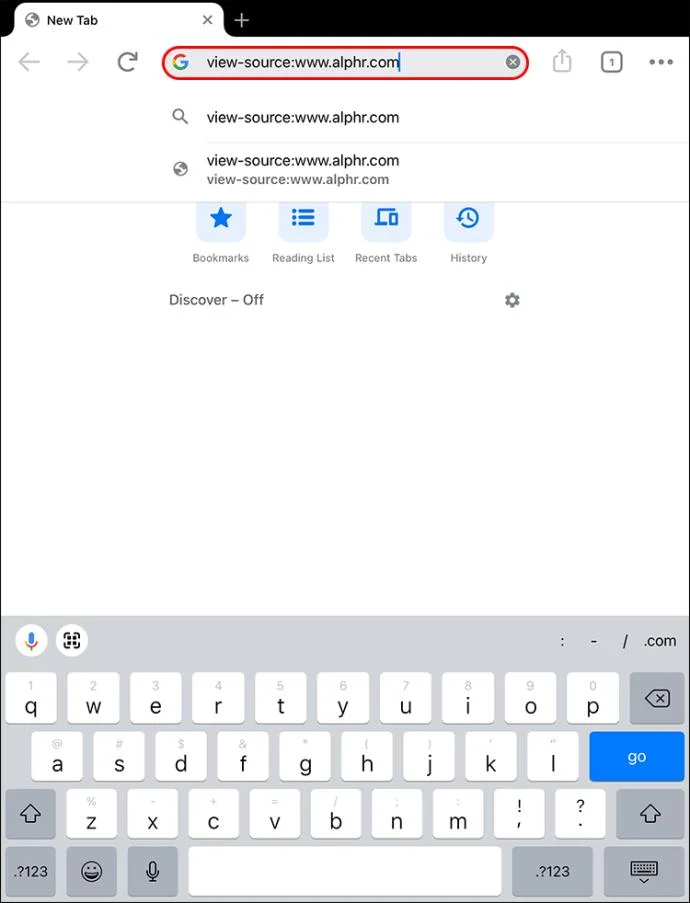
- Open Chrome and type “view-source:” followed by the URL of the page you want to view. For example, if you wish to view the source code for www.alphr.com, you need to type “view-source:www.alphr.com” into Chrome’s address bar.

- Hit the “Go” button.

This should load the page’s source code in a new tab within Chrome. From there, you can save or share the code as needed.
The Source Code Is the Glue That Holds Pages Together
HTML is the foundation of any website. It provides the structure and content visitors see when they load a page in their browser.
While the final appearance of a page may be determined by CSS or other styling languages, the HTML code determines the page’s basic structure and content. Some changes can potentially break the page. For this reason, it is important to have a good understanding of HTML when viewing or making changes to the source code.
Also, keep in mind that while viewing the HTML code can be helpful in some cases, changes made to the code will not be reflected on the live webpage. Only changes published by the site’s administrator will be visible to visitors.
Have you tried viewing the HTML code of any webpage using any of the methods discussed in this tutorial? How did it go?
Let us know in the comments section.