Coding is not as difficult as you think

The whole concept of coding used to be intimidating to many people with all the technical jargon. But once you learn about it and actually try it out for yourself, you'll find that coding is incredibly easy to use and incredibly practical for everyday life.

How encryption works

Encryption keeps user data safe by converting it into a code that only someone with the correct password or key can decode. When you encrypt a file or message, you scramble the information so that it looks like gibberish to anyone else. Only someone with the correct key can turn it back into something readable, helping to protect private data, whether you’re sending it or just storing it.

Along with encryption, hashing is another important process commonly used in data security. Instead of locking and unlocking information, hashing creates a unique fingerprint of your data. It takes your information and runs it through an algorithm, giving you a string of numbers and letters that represents the original data. You can't use a hash to recover the original data, but you can use it to verify that nothing has changed. For example, if you download a file, you can compare its hash to the original to make sure nothing has been tampered with.

In short, encryption keeps your information private and allows you to unlock it later with the right key. Hashing helps verify that your data hasn’t been altered. Both work silently in the background, and you don’t need to understand all the technical details to take advantage of them.

There are many encryption, decryption, hashing, and key management tools available today to help secure your data. Here are some of the top choices for easily encrypting files, flash drives, and emails.

Quickly encrypt archives with 7-Zip

7-Zip is free, reliable, and comes standard on most Windows computers. Encrypting files with it is much easier than you might think, and you can now use it whenever you want to keep your files and documents private before archiving or sending them to someone.

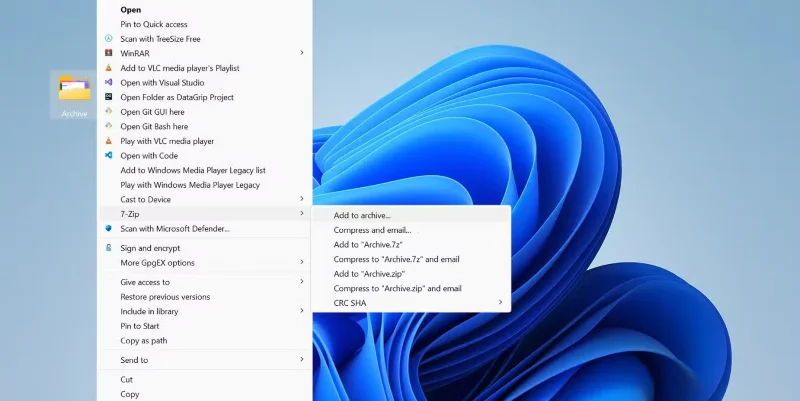
Here's how. Right-click the file or folder you want to protect, then select 7-Zip > Add to archive . In the pop-up window, change the archive format from ZIP to 7z. The 7z format offers stronger security and advanced encryption than the default ZIP format.

Coding is not as difficult as you think
Add archive to 7zip

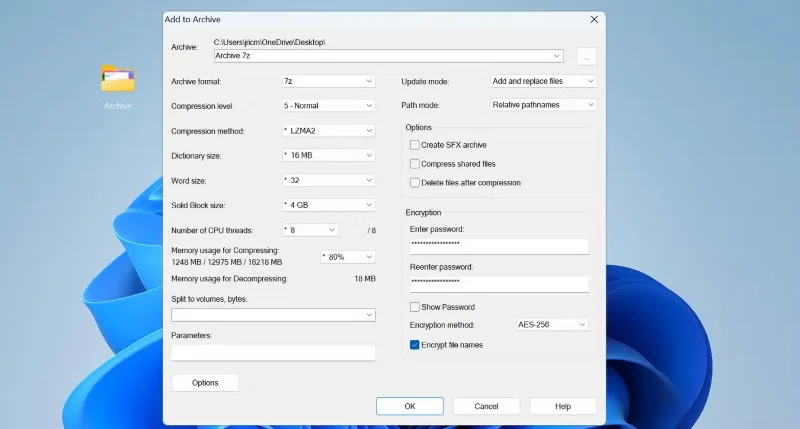
Next, set a password. Make sure it's at least 12 characters long, with a mix of uppercase and lowercase letters, numbers, and symbols. A strong password is important. Remember, no matter how good your encryption is, a weak password can break it.

Check the Encrypt file names box . This feature not only hides the contents of your file, but also the file name. If you leave this feature unchecked, other people will still be able to see the file name, even if they can't open it.

Coding is not as difficult as you think
Add password to archive file

The encryption method is set to AES-256 by default, which is the same standard used by government agencies. This method is proven and doesn't slow things down.

After clicking OK , 7-Zip will create an encrypted archive in the same folder as the original files. This usually only takes a few seconds. Always test your encrypted archives by trying to open them, just to make sure you remember your password and everything is working properly.

For added security, never send the encrypted file and the password through the same channel. If you email someone the archive, share the password over the phone or text message as well. That way, even if someone intercepts the email, they won't be able to access the files.

Once you get used to it, encrypting with 7-Zip becomes a breeze. It's a simple way to keep your files truly private.

Encrypt flash drives with BitLocker

Now that you know how to encrypt your hard drive with BitLocker, you'll also need to encrypt your flash drives, since you've probably lost dozens of them over the years. These little devices are easy to lose, and you don't want someone accidentally rummaging through your personnel files. BitLocker, which is built into Windows, turns out to be the easiest way to keep everything on your drive safe.

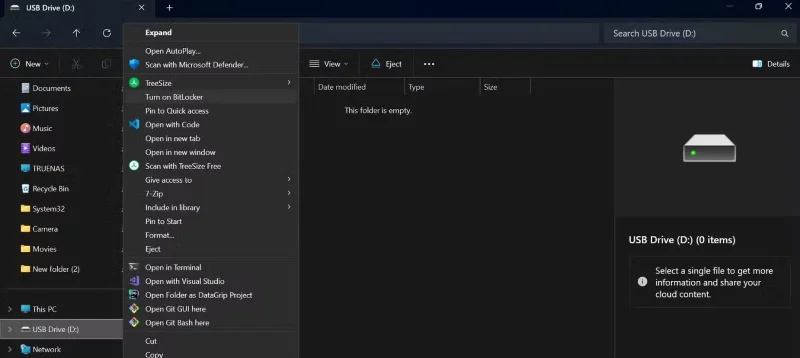
Setting up BitLocker is pretty straightforward. Plug in your flash drive and open File Explorer . Then, right-click the drive and select Turn on BitLocker . On Windows 11, you sometimes have to click Show more options to see this option.

Coding is not as difficult as you think
Set up BitLocker on a flash drive

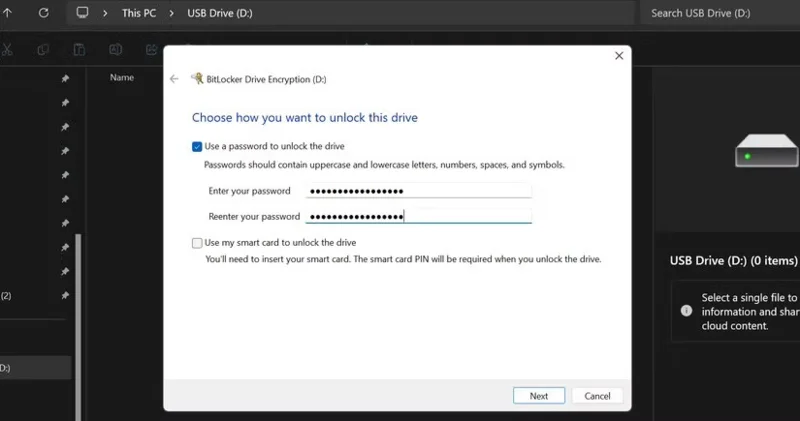
BitLocker prepares the drive for encryption, which usually only takes a minute or two. It then asks you to set a password. Use a strong, unique password that is different from the passwords you use for the rest of your accounts. Since you'll have to enter this password every time you unlock the drive, make sure it's something you can remember but still difficult to guess.

Coding is not as difficult as you think
Add password to USB

Next, BitLocker will ask you where you want to save your recovery key. This key is very important. If you forget your password, the recovery key is the only way to get your files back. Save the key in a safe location, such as cloud storage or a printout stored at home.

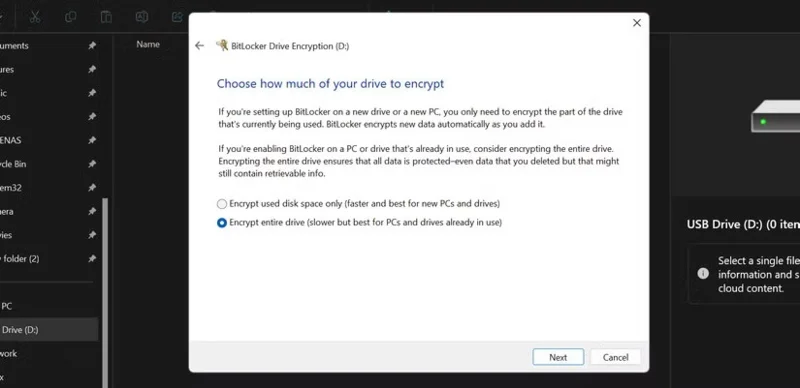
BitLocker then lets you choose which part of the drive to encrypt. For new drives, choose to encrypt only the used space, as this is faster. If the drive already has files, choose to encrypt the entire drive to ensure that no data is left unprotected.

Coding is not as difficult as you think
Encrypt entire flash drive

How to encrypt email with PGP

When you want your messages to be completely secure, even from email providers, use PGP encryption with Kleopatra . There are other ways to send PGP encrypted emails on Linux, but if you're on Windows, you might want to opt for Kleopatra. It takes a little more work to set up, but once you get the hang of it, the process is simple and gives you true end-to-end privacy.

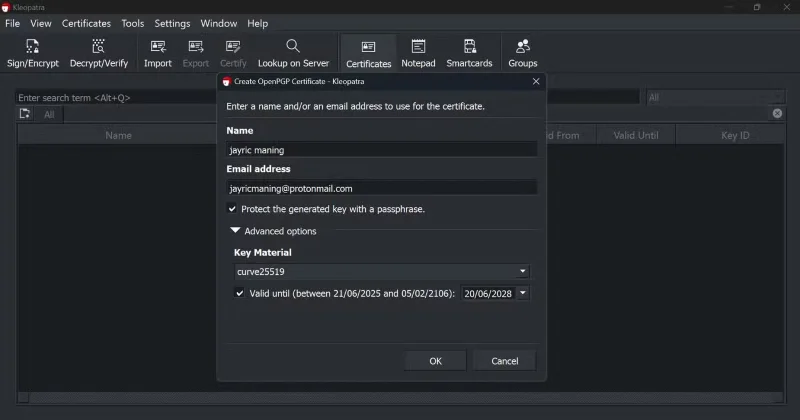
First, download and install the Gpg4win package, which includes Kleopatra. Once you open Kleopatra, create your own key pair by entering your name, email, and a strong password. Kleopatra generates two keys for you: a Public key that you can share with anyone who wants to send you encrypted messages, and a Private key that you must keep safe on your computer.

Coding is not as difficult as you think
Create new PGP certificate

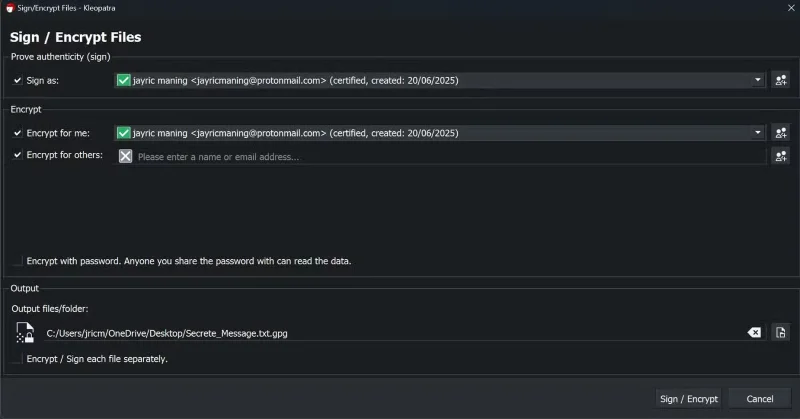
When you want to send an encrypted message, you usually write it in Notepad. Then, in Kleopatra, click the Sign/Encrypt button and select the text file containing your message. Check the Encrypt with password box and enter the password you will share with the recipient. After clicking Encrypt, Kleopatra will create a new PGP encrypted file.

Coding is not as difficult as you think
Encrypt messages using Kleopatra

You can send this encrypted file via email. To open the file, the recipient only needs Kleopatra and the password you set. They right-click on the PGP file, select Open with Kleopatra , and enter the password. Kleopatra then decrypts the file and displays the original message.
Tags: #System
Sign up and earn $1000 a day ⋙

Leave a Comment

Fix Windows Error Code 0xc0000098: Backup ACPI.sys to Prevent Boot Failure

Fix Windows Error Code 0xc0000098: Backup ACPI.sys to Prevent Boot Failure

Error code 0xc0000098 in Windows causes a blue screen error on startup. The ACPI.sys driver is often to blame, especially on unsupported versions of Windows 11 like 23H2 or 22H2 or Windows 10.

Quickly fix Windows 10/8/7 computer error that freezes and cannot exit Safe Mode

Quickly fix Windows 10/8/7 computer error that freezes and cannot exit Safe Mode

In some cases, sometimes you start your computer in Safe Mode and the computer freezes. So how to fix the error in this case, please refer to the article below of WebTech360.

How to fix Snipping Tool keeps showing error

How to fix Snipping Tool keeps showing error

Snipping Tool is a powerful photo and video capture tool on Windows. However, this tool sometimes has some errors, such as constantly displaying on the screen.

How to get the fastest internet connection from your router

How to get the fastest internet connection from your router

Every network has a router to access the Internet, but not everyone knows how to make the router work better. In this article, we will introduce some router tips to help speed up the wireless connection in the network.

Common Mistakes When Performing Internet Speed ​​Tests

Common Mistakes When Performing Internet Speed ​​Tests

If the results seem slower than expected, don't be too quick to blame your ISP - mistakes when performing the test can skew your numbers.

What is QoS? How to use QoS for faster Internet speeds when you need it most

What is QoS? How to use QoS for faster Internet speeds when you need it most

In the article below, we will introduce and guide you to learn about the concept of QoS - Quality of Service on router devices.

Why cant this built-in Credential Manager feature in Windows replace a password manager?

Why cant this built-in Credential Manager feature in Windows replace a password manager?

Windows has a built-in Credential Manager, but it's not what you think it is—and certainly not a replacement for a password manager.

How to install free HEVC codecs on Windows 10 (for H.265 video)

How to install free HEVC codecs on Windows 10 (for H.265 video)

Microsoft charges for its official codecs and doesn't include them in Windows 10. However, you can get them for free without pulling out your credit card and spending $0.99.

Instructions to fix Access Denied error when accessing files or folders on Windows

Instructions to fix Access Denied error when accessing files or folders on Windows

While having trouble accessing files and folders can be frustrating, don't panic—with a few simple tweaks, you can regain access to your system.

How to check if USB Boot has been created successfully?

How to check if USB Boot has been created successfully?

After creating a USB boot to install Windows, users should check the USB boot's performance to see if it was created successfully or not.

4 Types of Windows Data That Are Growing in Size: How to Control Them?

4 Types of Windows Data That Are Growing in Size: How to Control Them?

Although Windows Storage Sense efficiently deletes temporary files, some types of data are permanent and continue to accumulate.

How to turn off background apps in Windows 11, reduce RAM consumption on Win 11

How to turn off background apps in Windows 11, reduce RAM consumption on Win 11

You can turn off Windows 11 background apps to optimize performance, save battery and reduce RAM consumption.

Instructions to fix the error “Network path was not found” in Windows

Instructions to fix the error “Network path was not found” in Windows

When a computer, mobile device, or printer tries to connect to a Microsoft Windows computer over a network, for example, the error message network path was not found — Error 0x80070035 may appear.

How to block Internet connection of Windows 10 software and applications

How to block Internet connection of Windows 10 software and applications

We can block Internet access for any application or software on the computer, while other programs can still access the network. The following article will guide readers on how to disable Internet access for software and applications on Windows.

How to Stay Safe on Windows 10 Until 2030

How to Stay Safe on Windows 10 Until 2030

Instead of paying $30 for a year of security updates, keep Windows 10 safe until 2030 with this simple solution.

Fix Windows Error Code 0xc0000098: Backup ACPI.sys to Prevent Boot Failure

Fix Windows Error Code 0xc0000098: Backup ACPI.sys to Prevent Boot Failure

Error code 0xc0000098 in Windows causes a blue screen error on startup. The ACPI.sys driver is often to blame, especially on unsupported versions of Windows 11 like 23H2 or 22H2 or Windows 10.

Quickly fix Windows 10/8/7 computer error that freezes and cannot exit Safe Mode

Quickly fix Windows 10/8/7 computer error that freezes and cannot exit Safe Mode

In some cases, sometimes you start your computer in Safe Mode and the computer freezes. So how to fix the error in this case, please refer to the article below of WebTech360.

How to fix Snipping Tool keeps showing error

How to fix Snipping Tool keeps showing error

Snipping Tool is a powerful photo and video capture tool on Windows. However, this tool sometimes has some errors, such as constantly displaying on the screen.

How to get the fastest internet connection from your router

How to get the fastest internet connection from your router

Every network has a router to access the Internet, but not everyone knows how to make the router work better. In this article, we will introduce some router tips to help speed up the wireless connection in the network.

Common Mistakes When Performing Internet Speed ​​Tests

Common Mistakes When Performing Internet Speed ​​Tests

If the results seem slower than expected, don't be too quick to blame your ISP - mistakes when performing the test can skew your numbers.

What is QoS? How to use QoS for faster Internet speeds when you need it most

What is QoS? How to use QoS for faster Internet speeds when you need it most

In the article below, we will introduce and guide you to learn about the concept of QoS - Quality of Service on router devices.

Why cant this built-in Credential Manager feature in Windows replace a password manager?

Why cant this built-in Credential Manager feature in Windows replace a password manager?

Windows has a built-in Credential Manager, but it's not what you think it is—and certainly not a replacement for a password manager.

How to install free HEVC codecs on Windows 10 (for H.265 video)

How to install free HEVC codecs on Windows 10 (for H.265 video)

Microsoft charges for its official codecs and doesn't include them in Windows 10. However, you can get them for free without pulling out your credit card and spending $0.99.

Instructions to fix Access Denied error when accessing files or folders on Windows

Instructions to fix Access Denied error when accessing files or folders on Windows

While having trouble accessing files and folders can be frustrating, don't panic—with a few simple tweaks, you can regain access to your system.

How to check if USB Boot has been created successfully?

How to check if USB Boot has been created successfully?

After creating a USB boot to install Windows, users should check the USB boot's performance to see if it was created successfully or not.

4 Types of Windows Data That Are Growing in Size: How to Control Them?

4 Types of Windows Data That Are Growing in Size: How to Control Them?

Although Windows Storage Sense efficiently deletes temporary files, some types of data are permanent and continue to accumulate.

How to turn off background apps in Windows 11, reduce RAM consumption on Win 11

How to turn off background apps in Windows 11, reduce RAM consumption on Win 11

You can turn off Windows 11 background apps to optimize performance, save battery and reduce RAM consumption.

Instructions to fix the error “Network path was not found” in Windows

Instructions to fix the error “Network path was not found” in Windows

When a computer, mobile device, or printer tries to connect to a Microsoft Windows computer over a network, for example, the error message network path was not found — Error 0x80070035 may appear.

How to block Internet connection of Windows 10 software and applications

How to block Internet connection of Windows 10 software and applications

We can block Internet access for any application or software on the computer, while other programs can still access the network. The following article will guide readers on how to disable Internet access for software and applications on Windows.

How to Stay Safe on Windows 10 Until 2030

How to Stay Safe on Windows 10 Until 2030

Instead of paying $30 for a year of security updates, keep Windows 10 safe until 2030 with this simple solution.