Knowing how to change directories in CMD or Command Prompt can be very useful for troubleshooting an issue or performing an advanced administrative function on your computer. Changing directories in CMD is a relatively straightforward process that shouldn’t take more than a few minutes. However, if you have never used CMD before, this Windows app might be slightly confusing at first.
In this article, we’ll show you how to change directories in CMD or Command Prompt on different operating systems. In addition, we’ll discuss why it may not be possible to change directories in CMD and how you can fix this issue.
Change Directory in CMD
Command Prompt is otherwise known as CMD, the command shell, or the Windows Command Processor. It’s a native app that’s available on all NT-based Windows operating systems. It works as a command-line interpreter, used for giving various types of commands to the system, performing advanced administrative functions, and troubleshooting issues with your Windows. Its main purpose is to execute entered commands.
You can also use Command Prompt for automated tasks, which gives you the option to run more than one command at a time. Keep in mind that not all Windows OS versions use the same commands, so the command you will type in to change directories depends on your version of Windows. Another important fact is that you won’t be able to execute a lot of commands unless you’re using the Command Prompt app as an administrator.
If you have a newer version of Windows, you can find CMD right in the Start menu. The location of the shortcut may vary, depending on the OS version you have. In any case, this is its original location: “Local Disk (C:)\Windows\system32\cmd.exe,” and it’s the same for all Windows versions.
Many Windows users aren’t aware that Command Prompt is actually one of the most powerful apps this operating system has. Although the app is quite straightforward, only requiring you to know how computer syntax works, it might be complicated if you have never used it before. That being said, once you get the hang of it, CMD is generally easy to use. Once you launch the app, you only have to type in the correct syntax, along with any optional parameters, and press “Enter.”
If you want to change directories in CMD, the correct syntax is “cd,” which stands for “change directories.” As opposed to many commands that are limited to your Windows OS, the “cd” command is available in all versions of Windows. The “cd” command is also used to show the drive letter and the folder where you are right now. To put it simply, this command allows you to jump from one directory (folder) to another.
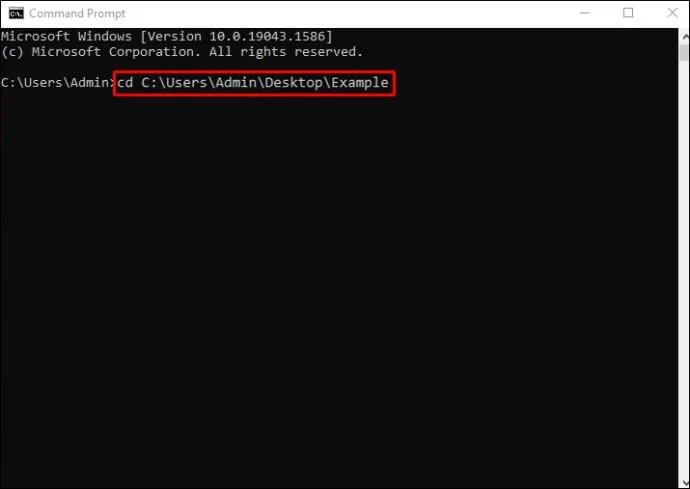
We’ll be using the so-called drag-and-drop method to show you how it works. Before getting started, make sure the folder you want to change in the Command Prompt window is somewhere close by. Follow the steps below to find out how to change directories in CMD:
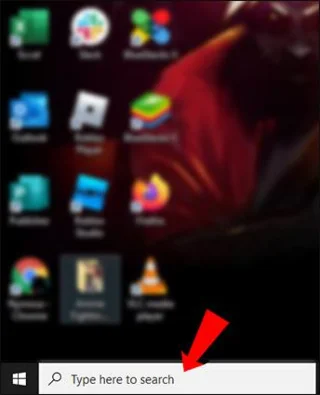
- Go to the search bar on the far-left side of your taskbar.
")
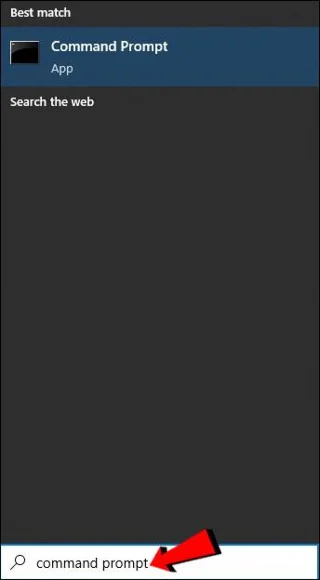
- Enter “CMD” or “Command Prompt” in the search bar.
")
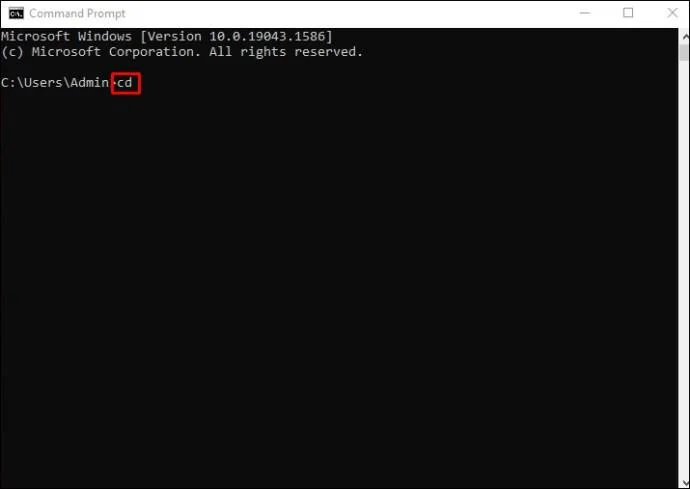
- In the Command Prompt window, type in “
cd.”
")
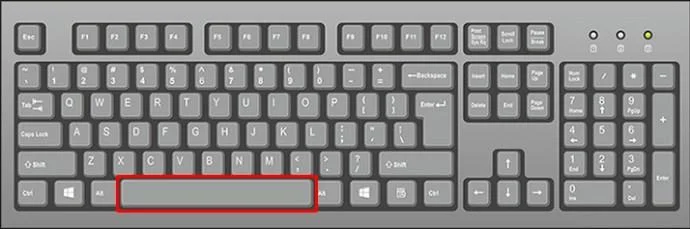
- Press the “Space” key on your keyboard.
")
- Navigate to the folder on your desktop, drag it to the Command Prompt window and drop it.
")
- Press the “Enter” key.
")
That’s all there is to it. This is by far the easiest way to change a directory in CMD. If you want to clear the command you have just entered, just type in “cls” and press the “Enter” key. Everything will immediately go back to normal.
The “cd” command is actually a shorter version of the “chdir” command, which is used to change the drive or the directory in CMD. “Chdir” also stands for “change directory.”
Change Directory in CMD to C Drive
You can also use the drag-and-drop method to change a directory in CMD to the C Drive. This is how it’s done:
- Run Command Prompt. You can find it by typing “CMD” in your search bar.
")
- Enter “
cd” or “chdir.”
")
- Press the “Space” key.
")
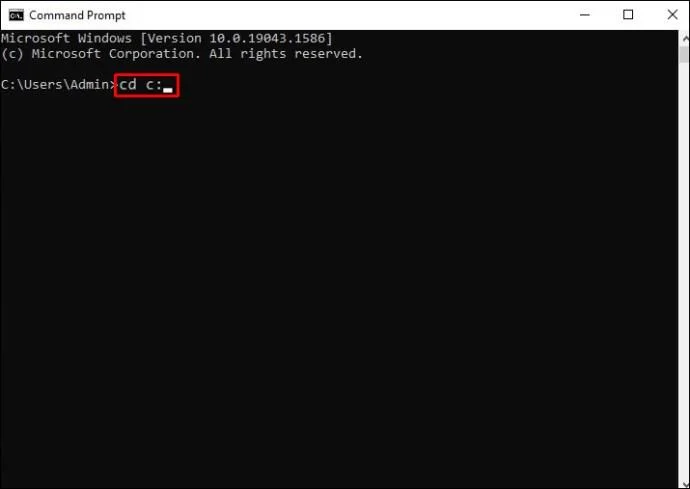
- Type in “
C:” beside “cd” in the CMD.
")
- Press the “Enter” key.
")
You’ll be immediately taken to the Local Disk (C:) Drive. This command helps you change the entire directory altogether. If you are already in your C Drive, there is no need to perform this command. What’s also great about CMD is that it doesn’t differentiate lowercase and uppercase letters, so if you accidentally enter “c:” and press “Enter,” it will still take you to this drive.
Change Directory in CMD Mac
On Mac devices, the Command Prompt app can be found on the Apps screen. Note that on a Mac, the Command Prompt app is known as Terminal, which is the default gateway to the command line. Even though the Command Prompt window looks slightly different on a Mac, the command to change directories is the same.
As mentioned before, the Terminal app is located in the Applications or the Utilities folder. You can also open it using Finder. This is what you need to do next to change a directory in CMD on your Mac:
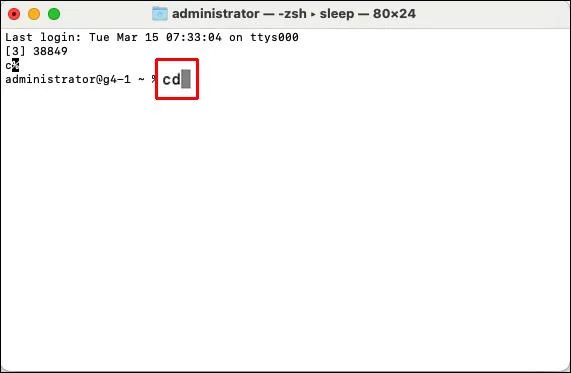
- Type in “
cd” in the Terminal.
")
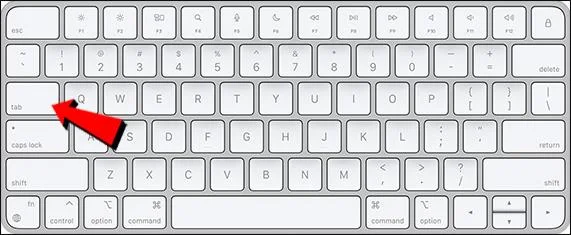
- Press the “Space” or the “Tab” key.
")
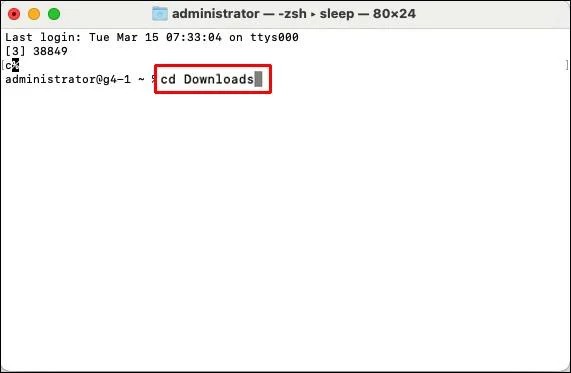
- Enter the name of the directory (or folder) that you want to change. For example: “cd Downloads.”
")
That’s all you have to do. If you want to go to that folder, type in “~” after “cd.” If you just press the “Return” key after “cd,” it will just take you back to the Home folder.
Change Directory in CMD Linux
Similar to the Command Prompt on Windows and Mac devices, you need to use the “cd” command to change directories. This is how it’s done on Linux:
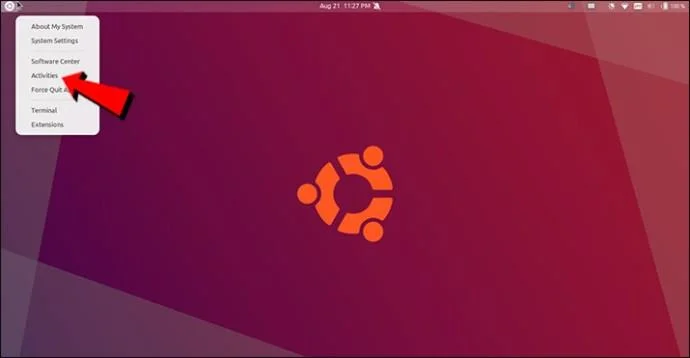
- Go to “Activities” in the top-left corner of your screen.
")
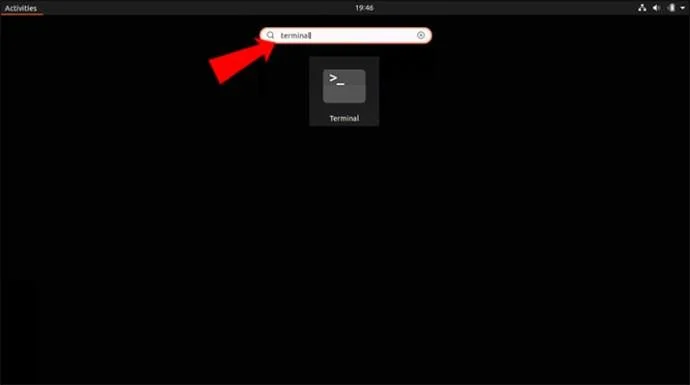
- Search for “CMD,” “terminal,” “command,” or even “shell.”
Note: Some Linux OS versions allow you to use the “Ctrl + Alt + T” shortcut to open CMD.
")
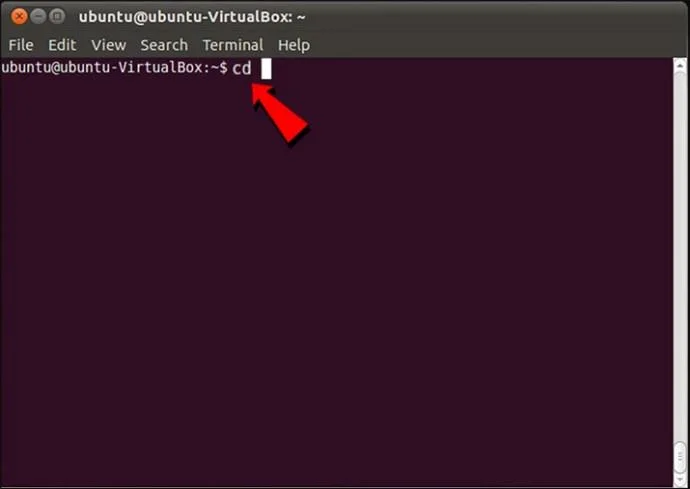
- Type in “
cd” in the command line.
")
- Enter the “Space” key.
")
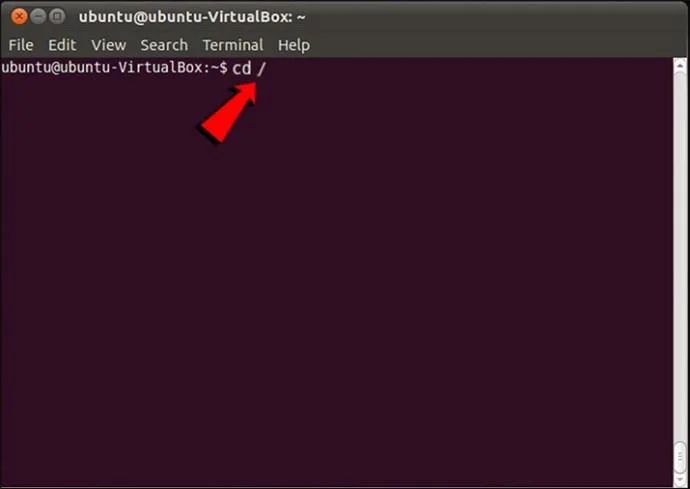
- Type in “
/” after the space.
")
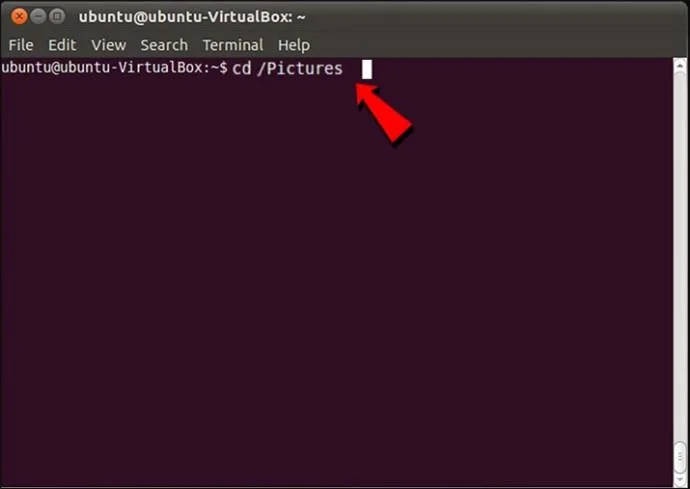
- Write the name of the directory that you want to change.
")
- Press the “Enter” key on your keyboard.
")
As opposed to Windows and Mac, the Linux CMD does differentiate lowercase and uppercase letters, so be careful when typing.
Change Directory in CMD Not Working
If you tried to change a directory in Command Prompt, and it doesn’t seem to be working, there could be a couple of reasons. One of the most common reasons why you can’t change a directory in CMD is because you didn’t type in the correct syntax. This is the first thing you should check if the CMD directory doesn’t work. What’s more, make sure there is one space between “cd” and the directory.
Keep in mind that you are required to be the administrator of your Windows account for this to work. If you aren’t the administrator, or if you don’t have administrative permissions, you won’t be able to do much with this command-line interpreter.
Another thing to do is check whether the directory you want to use currently exists on your device. If the directory was somehow deleted, or if it doesn’t exist in the first place, your command prompt won’t go through. Finally, make sure that you are referring to the right hard drive. If there is more than one hard drive on your computer, the Command Prompt may get confused and make a mess.
Use CMD Like a Pro
The Command Prompt app may be confusing for first-time users, but once you get the hang of it, you will be able to use it to your advantage. To change directories in CMD, simply type in “cd,” followed by the name of the directory you want to change, and that’s it.
Have you ever tried to change a directory in CMD? Did you try performing any other tasks in the command line? Let us know in the comments section below.