Windows 10 offers a wide range of customization options, including the ability to change the taskbar color, size, and contrast. However, finding all the settings in a relatively new Windows version can be challenging.
But don’t worry. We’re here to help.
In this article, we provide a step-by-step guide to changing the Windows 10 taskbar color, size, and contrast. Plus, we’ll list the most common mistakes that occur when customizing the Windows 10 taskbar.
How to Change the Windows 10 Taskbar Color
To customize the Windows 10 taskbar color, follow the easy steps below.
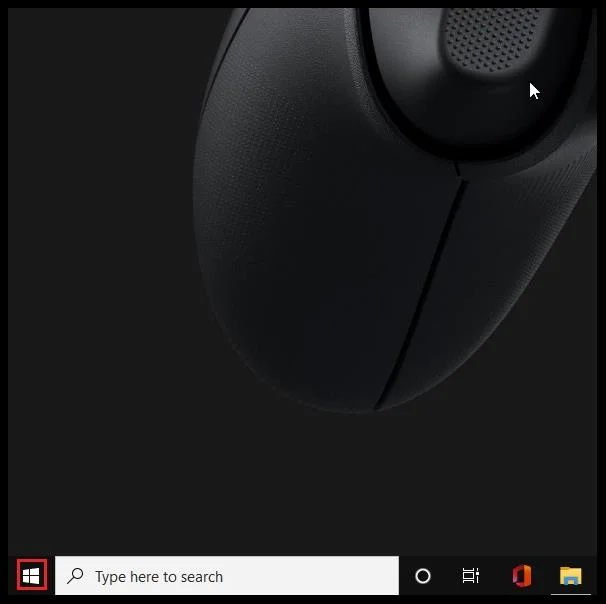
- Select “Start” > ”Settings”.

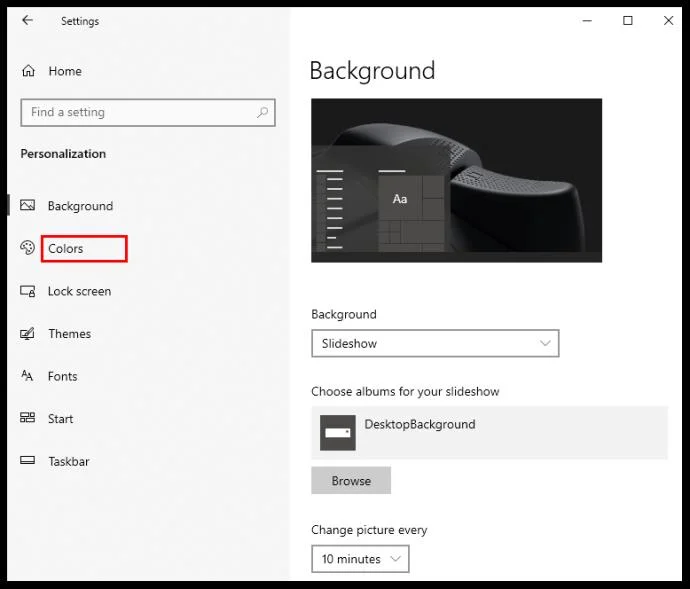
- Select “Personalization” > ”Open Colors setting”.

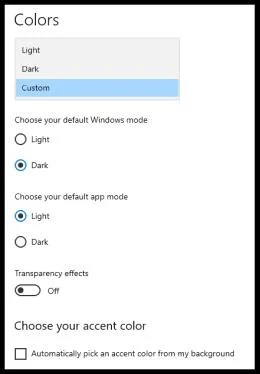
- Under “Choose your color”, select the theme color.

Windows 10 offers “Light”, “Dark” and “Custom” color modes. “Light” mode is basically a standard theme and is best suited for bright spaces, setting a white color for the start button, taskbar, action center, and most apps. “Dark” does the job in darker settings, making buttons and apps black/dark grey. The “Custom” option provides a combination of any wallpaper and accent color. The “Light” mode does not support the taskbar color change – any chosen color will appear grey.

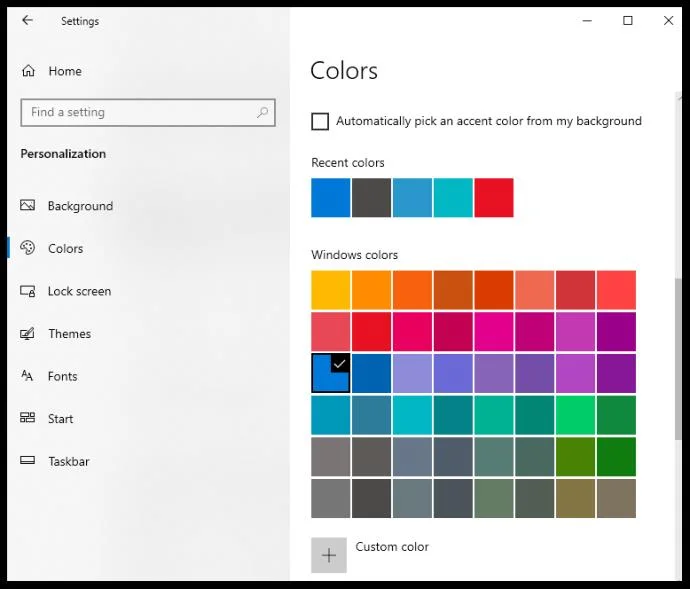
Select the accent color.
Accent color applies to the “Start” button, taskbar, action center, title bars, and window borders.
There are four options to select it manually. Choose color among suggested by clicking under “Recent colors” or “Windows colors”. To set a different color, click “Custom color”.
Clicking “Automatically pick an accent color from my background” allows Windows to select a suitable color based on your wallpaper.
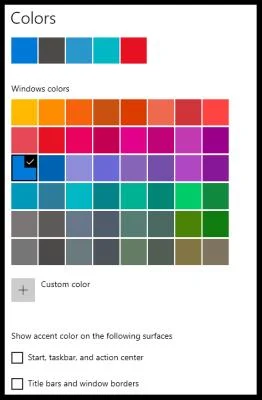
Select surfaces to show the accent color on.

Select “Show accent color on the following surfaces” and tick one of the following or both – “Start, taskbar, and action center” or “Title bars and window borders”.
How to Change the Windows 10 Taskbar Color Without Activation
Personalizing Windows 10 without activation is slightly more complicated, but possible through the Registry Editor. Below is a guide on how to make Windows 10 select the accent color automatically to complement the background. To set a background image, simply right-click on any image from your files and select “Set as a background”. Then, follow these steps:
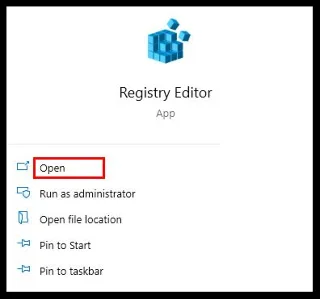
- Open the Registry Editor. Type “regedit” in the search box of the taskbar and click “Registry Editor” or select “Start” > ”Run”. Then, type “regedit” in the “Open” box and click “OK”.

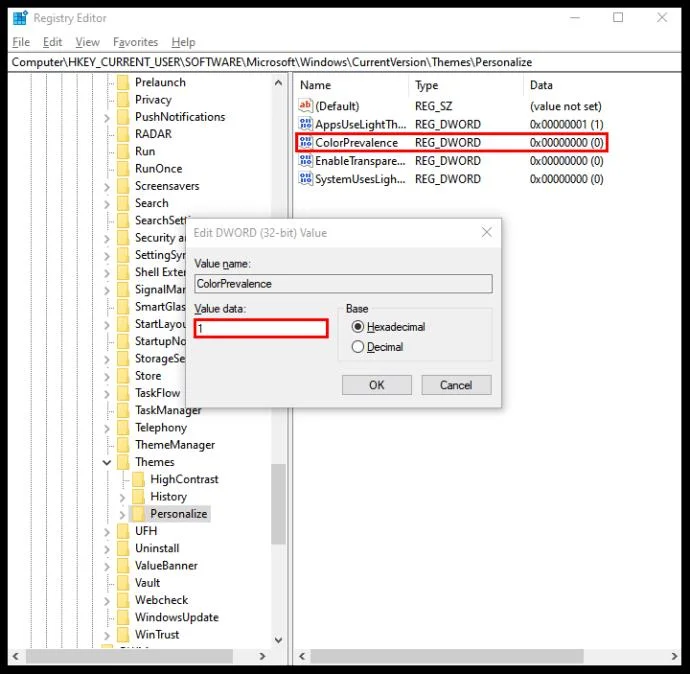
- Navigate to: HKEY_CURRENT_USER\SOFTWARE\Microsoft\Windows\CurrentVersion\Themes\Personalize folder, and double-click “Color Prevalence”, then change the Value Data field to “1”.

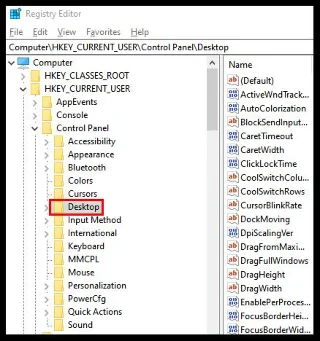
- Navigate to HKEY_CURRENT_USER\Control Panel\Desktop and select “Desktop directory,” not expanding it.

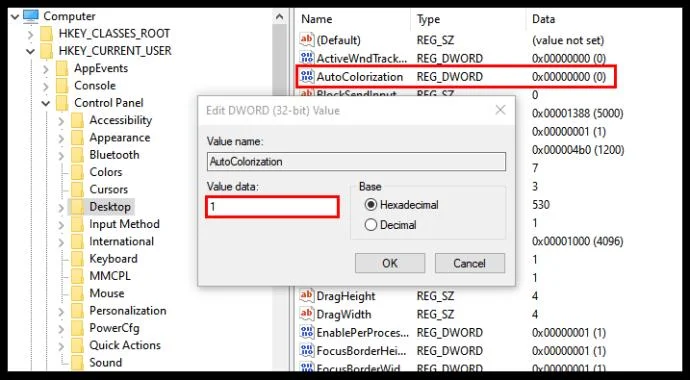
- Double-click “Auto Colorization”, then change the Value Data to “1”.

- Close the Registry Editor and restart the File Explorer.
With the theme and taskbar color set up, you might want a few more tips on how to personalize your desktop on Windows 10.
How to Resize the Windows 10 Taskbar
To change the height of the taskbar:
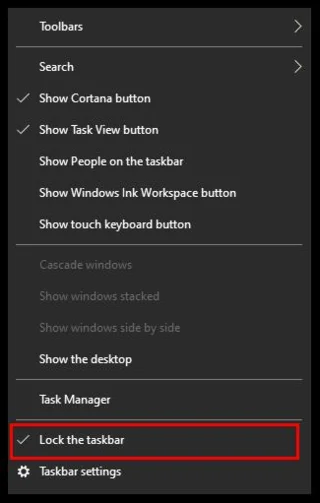
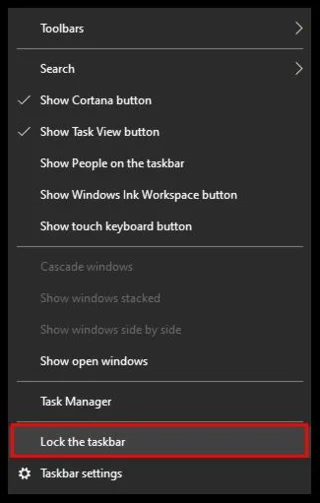
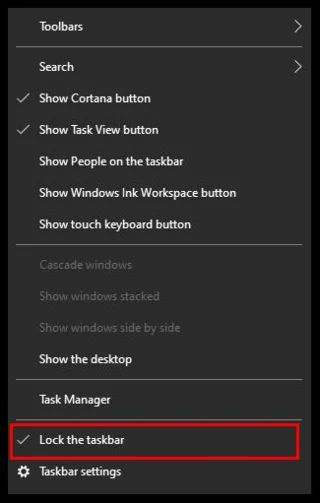
- Unlock the Taskbar. Right-click on the taskbar and select “Lock the taskbar” in case there is a checkmark on the left beside it. If there isn’t one, the taskbar is already unlocked.

- Move the Cursor to the Edge of the Taskbar. The pointer cursor will change to a resize cursor, a two-sided arrow.

- Click and drag the cursor up or down to change the height.
- Release the mouse button.
- Lock the taskbar.

This step is optional and will help to prevent accidentally changing the taskbar size.
To change the width of the taskbar:
- Switch the taskbar to the vertical position.
- Move the cursor to the edge of the taskbar.
- The pointer cursor will change to a resize cursor, a two-sided arrow.
- Click and drag the cursor left or right to change the height.
- Release the mouse button.
- Lock the taskbar.

Other Customization Options
Windows is an incredibly versatile OS so there are a lot of things you can do with your Windows 10 Taskbar. Let’s review a few more to perfect your machine’s interface.
Resize Your Icons
You can actually resize your icons. You can actually make them smaller by going into the computer’s settings just as we did above. Select the option for ‘Personalization’ then select the option for ‘Taskbar.’ Next, toggle the switch for ‘Use small taskbar buttons.’
Customize the System Tray
If you’d like to get rid of the clock or a notification icon simply head over to your system’s Settings and click on the ‘Personalization’ option, then click on ‘Taskbar.’ Click ‘Select which icons appear in the taskbar’ and toggle off the ones you’d like to remove (or toggle on the ones you would like to see).
Hide Cortana
You can hide the Cortana Search Bar by right-clicking the taskbar and clicking on the option for ‘Search.’ From here, you’ll see the ‘Hidden’ option. Click it and Cortana will disappear from the taskbar.
Frequently Asked Questions
As we mentioned above, we’ve included more information about the Windows 10 Taskbar in this section!
How Do I Increase My Contrast on Windows 10?
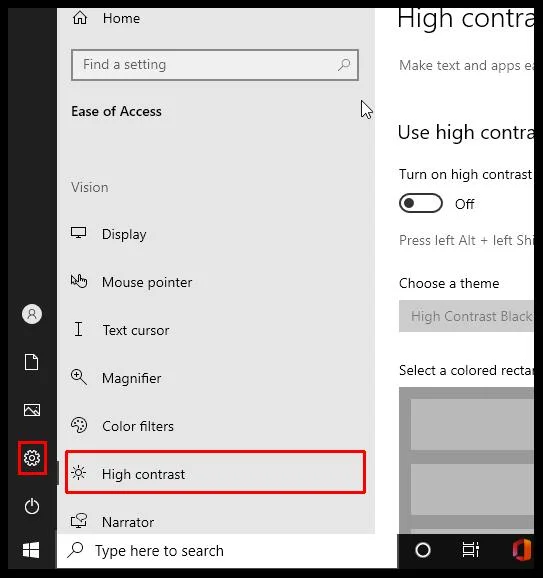
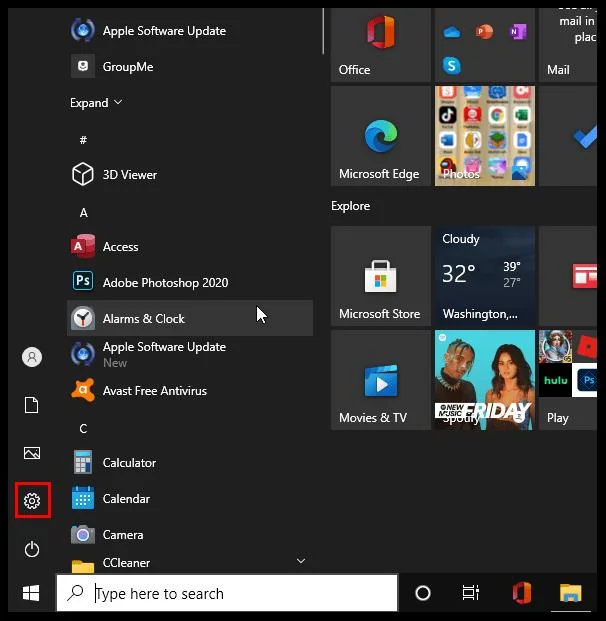
• Click the “Start” button.

• Click “Settings” > “Ease of Access” > “High contrast”.

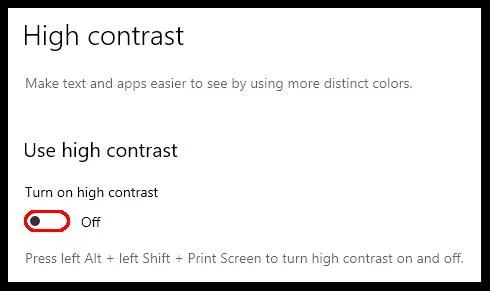
• Select the “Turn on high contrast” toggle button.

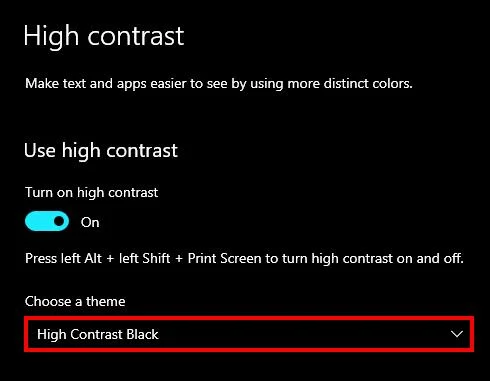
• Select a theme from the suggested options

• Select the “Turn on high contrast” toggle button again. Windows may display a “Please wait” screen between the steps. To quickly switch from the high contrast to ordinary mode, press the left Alt key + left Shift key + Print screen.
In case none of the suggested color themes are a good fit for you, Windows offers an option of creating a custom theme by varying colors of screen elements such as hyperlinks, selected text, and button text in the “Choose a theme” dropdown menu.
Why Can’t I Change the Color of My Taskbar in Windows 10?
There are several common reasons why the taskbar color fails to change. First, check whether the “Light” mode is selected. Custom accent colors are not supported in this mode, so you have to go back to the theme menu and select “Dark” or “Custom”.
The second most common reason is the wrong choice of theme. Some themes found online might be interfering with the Windows 10 taskbar color settings, resulting in wrong color codes being selected. To fix it, try choosing a custom accent color instead of an automatically picked color. If this does not help, pick a different theme and restart your PC.
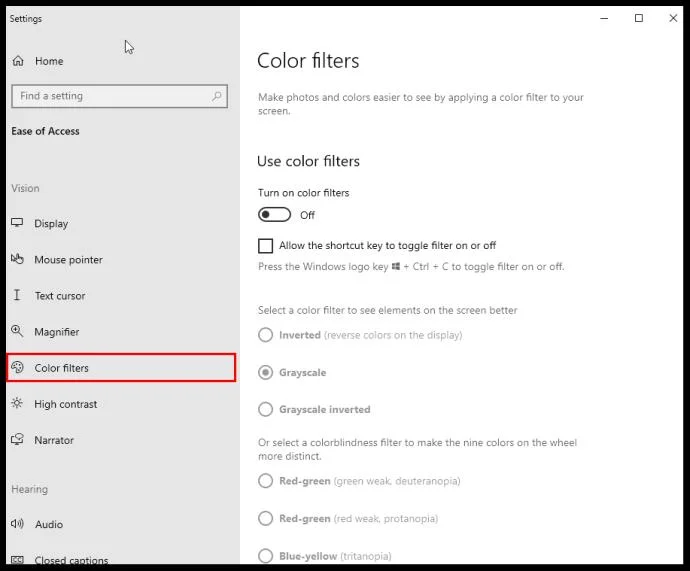
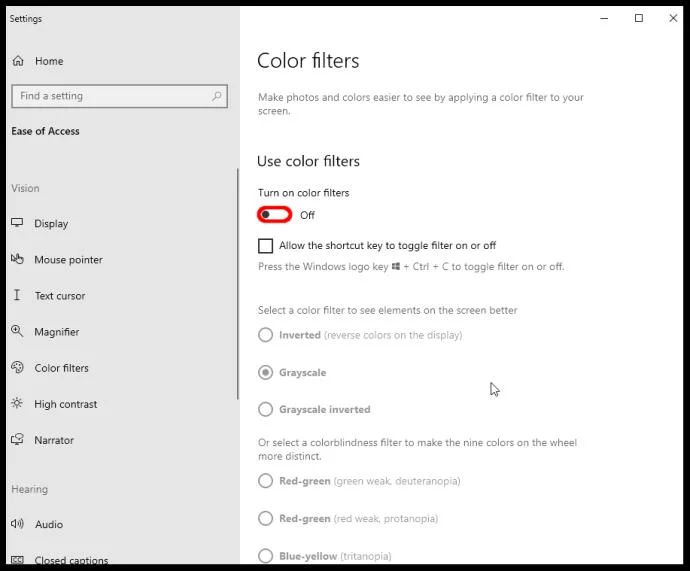
The third reason is that the color filter is selected. Windows 10 allows you to set a color filter for disabled access. In case the accent color you have picked is not displaying correctly, chances are the filter is on.
Here’s how to remedy the issue:
• Click “Settings” in the “Start” menu and select “Ease of Access”.

• Click “Color filters”.

• Find “Turn on color filters” and turn off the toggle button beside it.

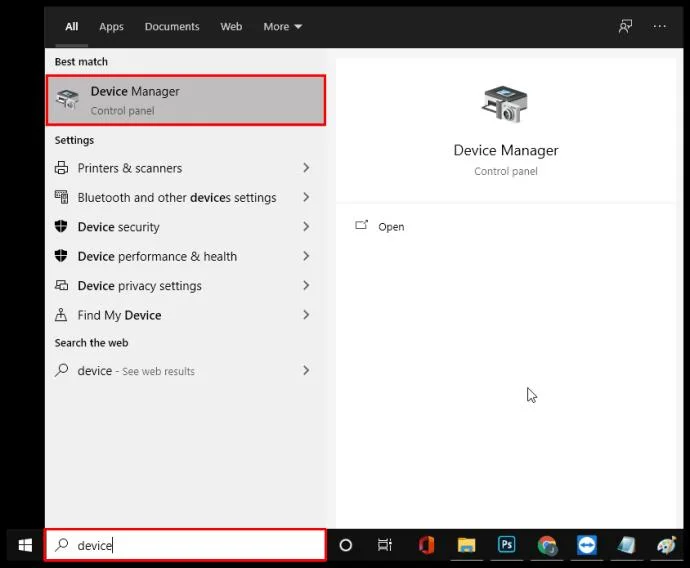
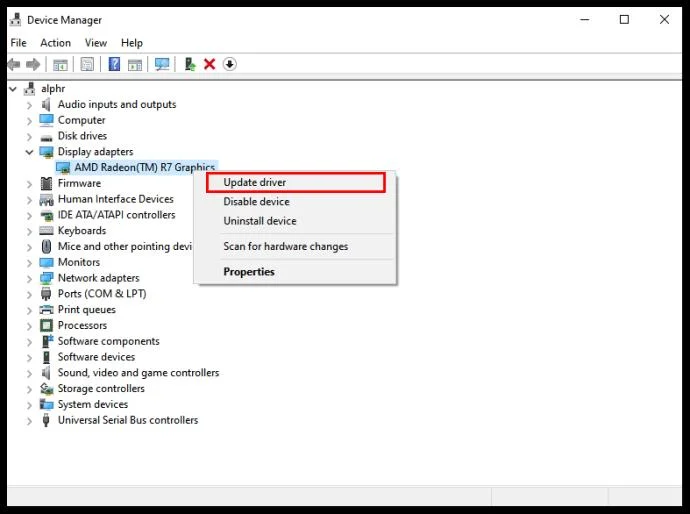
Finally, your display driver might need an update. To update display drivers:
• Find in the “Search” box “Device Manager” and click it.

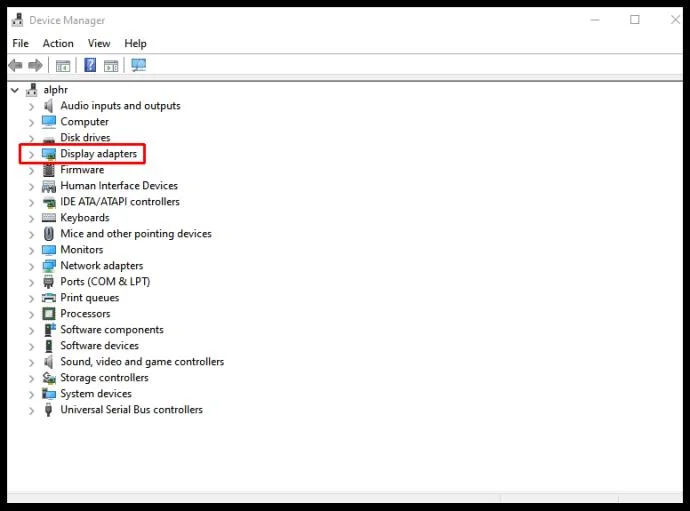
• Find the “Display Adapters” option, click it, and find your display name.

• Right-click on the display name and select “Update driver”.

• Follow the instructions on the screen.
• Restart your PC.
Colorful Solutions
Increasing display contrast and changing the taskbar height serve a practical purpose, while changing the theme and color of the Windows 10 taskbar can truly brighten up your desktop and help it stand out. Hopefully, they are now adapted to your preference.
Let us know if you’ve experienced any issues related to the Windows 10 personalization and how you fixed them! Do you have additional tips to add a dash of color to a PC? Share your experiences in comments section below!