Visual Studio (VS) Code is one of the best code editors for many reasons. But what makes this code editor a go-to for many programmers is the ability to customize it to fit your needs. One of the many ways programmers customize VS Code is by accessing and editing the settings.json file.
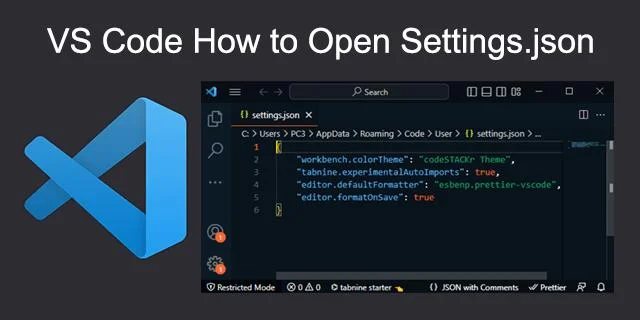
But how exactly do you access this file? Keep reading to discover how to go about the process.
How to Open Settings.json in VS Code
Users can easily alter most of the VS Code settings using the provided user interface (UI). However, some customizations are unavailable on the interface, and you must access the settings.json file to alter them.
Fortunately, opening the settings.json file is relatively easy, and there are a few ways to go about it.
Using VS Code Command Palette – Windows or Linux
Shortcuts and commands can be overwhelming to navigate, especially if you’re not an avid computer user. Good thing VS Code provides an intuitive Command Palette that makes it easy to access the settings.json file. Here’s how to use the VS Code Command Palette to access the file on a Windows or Linux computer:
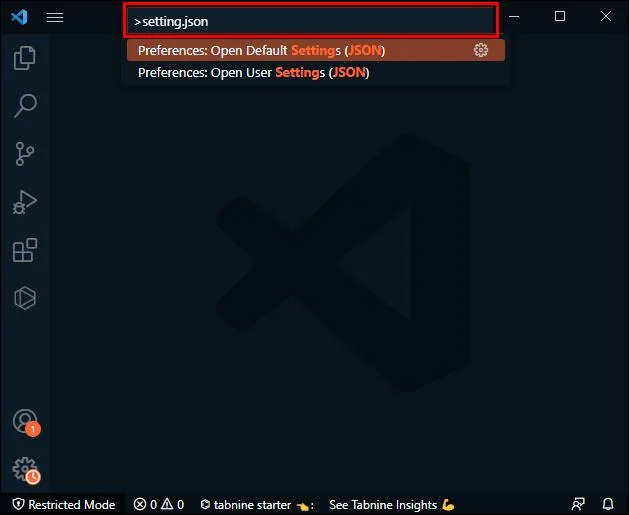
- Open VS Code and press the “Ctrl + Shift + P” shortcut to access the Command Palette.

- Type “Settings.json” in the search bar and select the specific settings.json file you want to edit. Please note that there are two settings.json files—one for the user settings and another for the workspace settings.

- Modify your settings through the file.
If you’re not fond of keyboard shortcuts, consider using the method below instead:
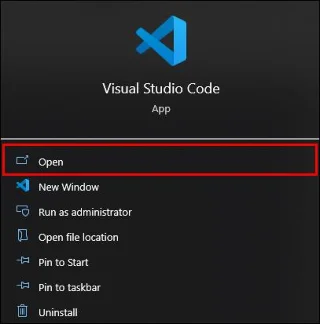
- Open Visual Studio Code.

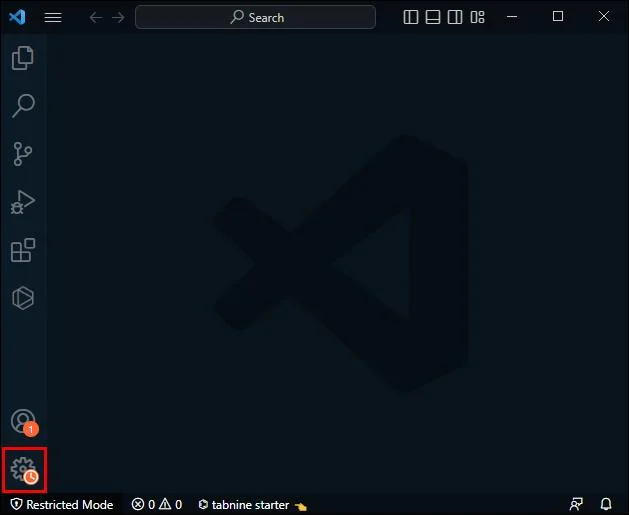
- Click the settings icon at the bottom left corner of the screen.

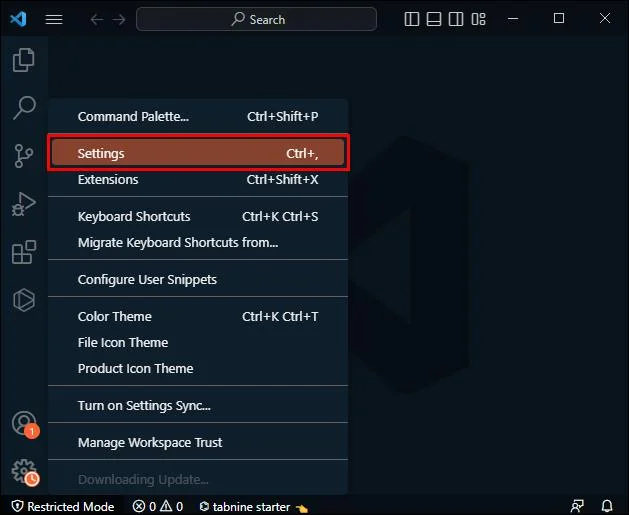
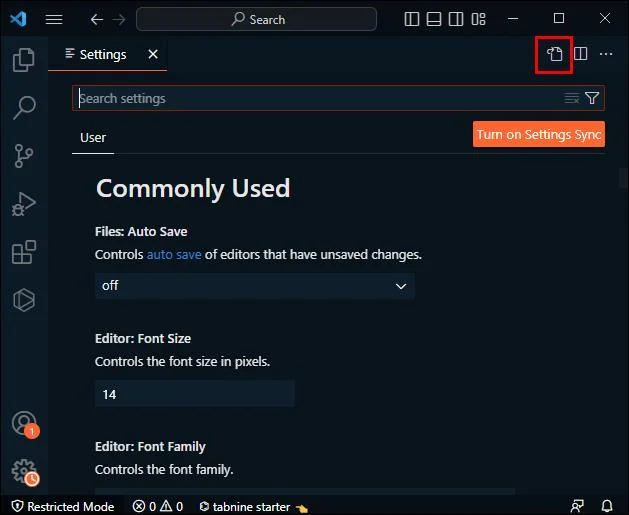
- Select “Settings.”

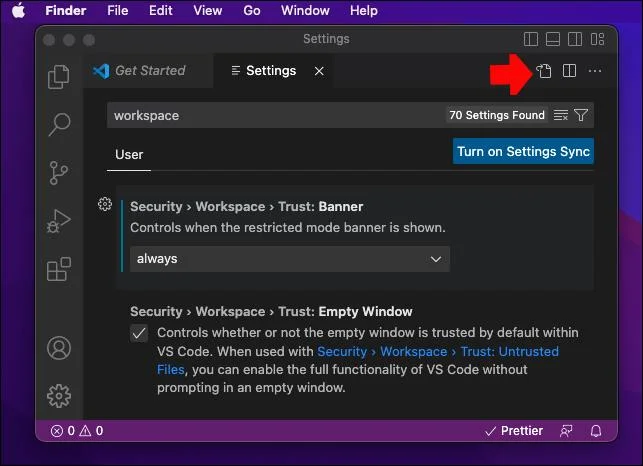
- Click the file icon in the top-right corner of the screen.

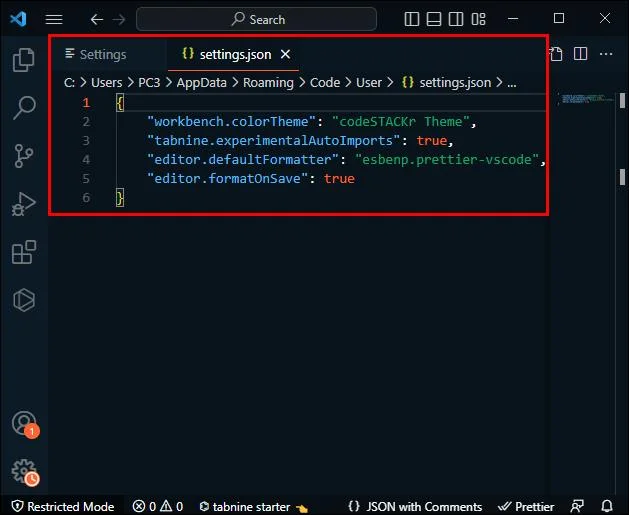
- The settings.json file should open immediately, and you should be able to make any modifications as you please.

Using VS Code Command Palette – Mac
If you’re on a Mac, follow the steps below to open the settings.json file using the Command Palette.
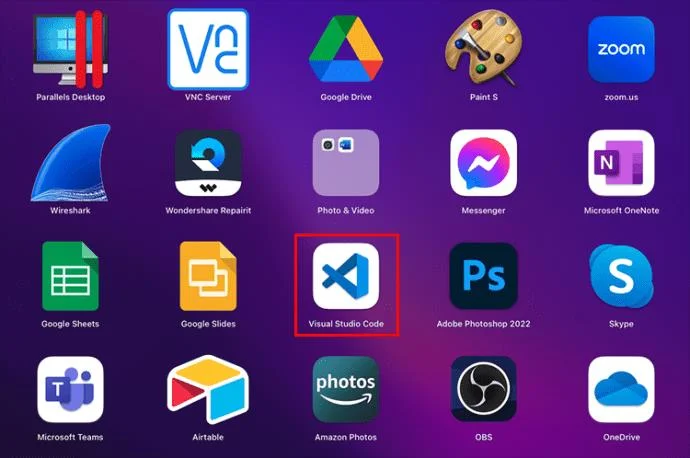
- Open Visual Studio Code.

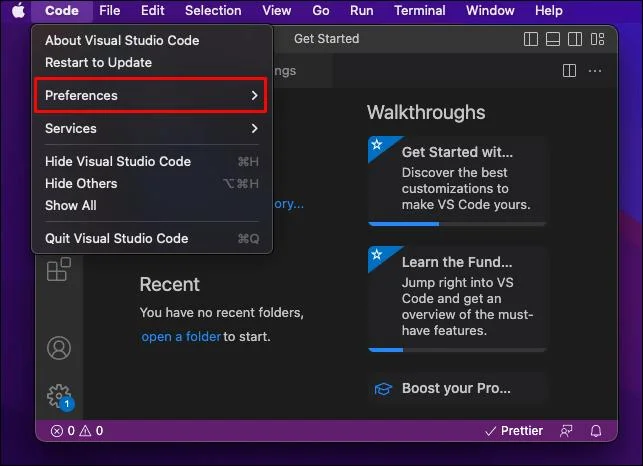
- Select “Code” and select “Preferences.”

- Go to:
- “User” tab for user settings.

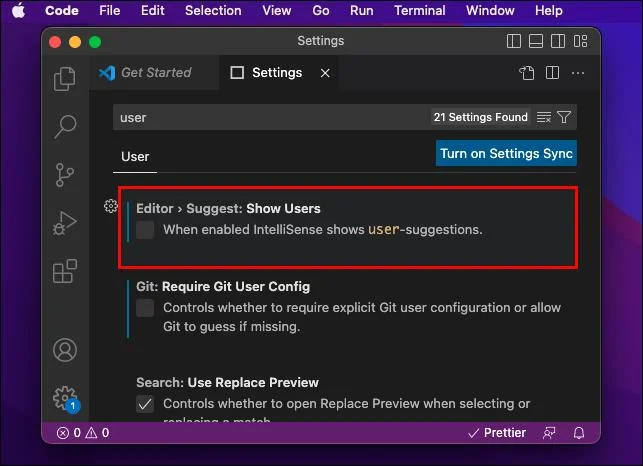
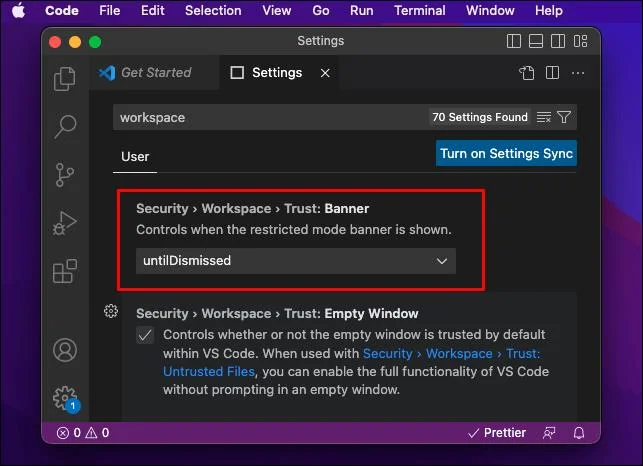
- “Workspace” tab for workspace settings.

- Click the file icon in the top right corner of the screen to open the chosen settings.json file.

- Make the necessary changes.
- Save and close the file.
Please note that any changes made to the user’s settings.json file will reflect across all VS Code projects currently in progress. So it makes sense to edit the user’s settings.json file if you want to adjust settings that affect all the projects across the editor.
If you want the changes to only affect the project you’re currently working on, edit the workspace settings.json file. This way, any changes you make will not affect the other projects.
Using File Explorer – Windows
You can also utilize File Explorer to access the settings.json file. If you’re on a Windows computer, here’s how to use the program to open the settings.json file:
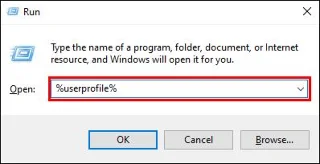
- Press the “Windows + R” keys to open the run box.

- Type in “%userprofile%” without the quotations and hit “Enter.”

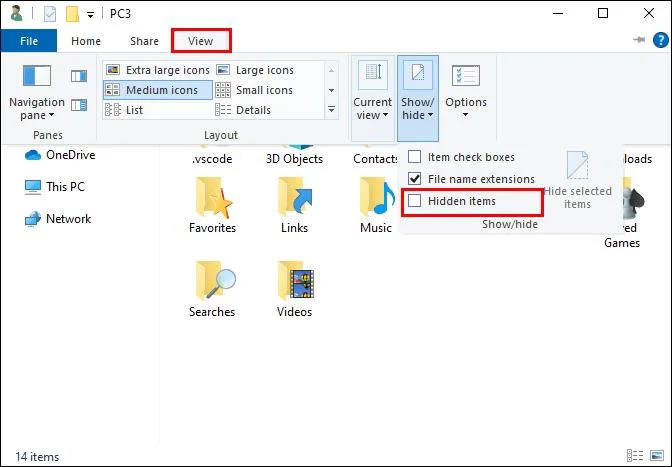
- Select “AppData.” By default, you can’t view the “AppData” file. So, go to “View” and check the “Hidden items” checkbox to get permission to view the file.

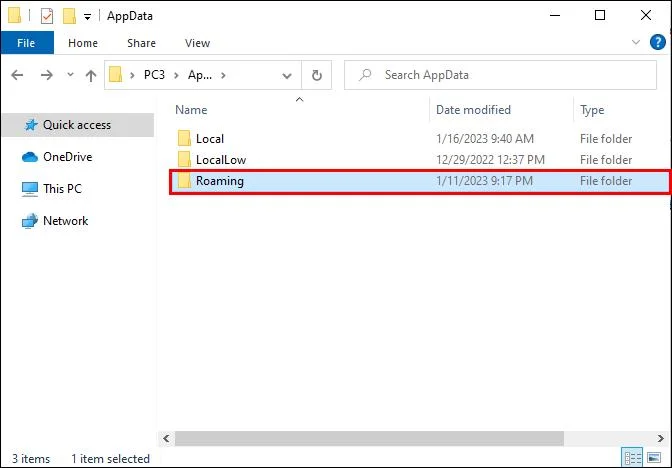
- Go to “Roaming” then “Code.”

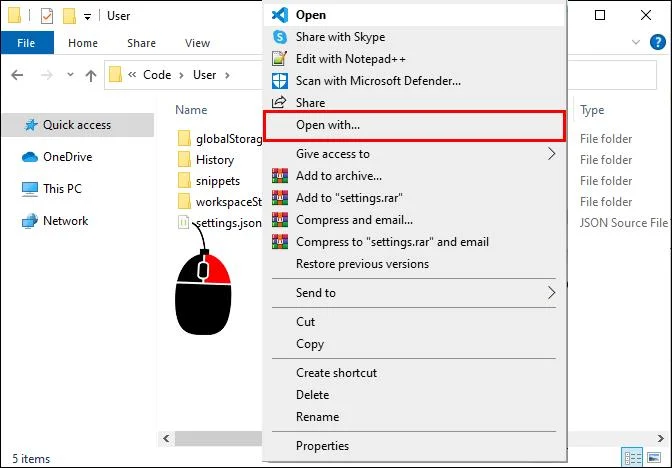
- Locate the “Settings.json” file, then right-click it. Go to “Open with”.

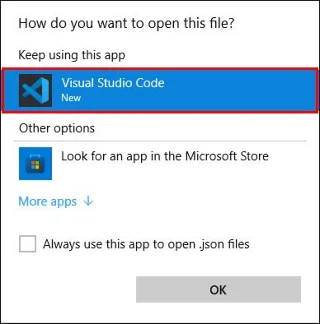
- Select “VS Code” to open the file in Visual Studio Code.

- Make the necessary changes and save the file before you exit.
Alternatively, you can type “%userprofile%\AppData\Roaming\Code\User” (without quotes) in the run box, then open the settings.json file in VS Code. From there, make the necessary modifications, and save the changes before closing the file.
Using File Explorer – Linux
To open the settings.json file on Linux, follow the directory path below, and open the file using VS Code:
$HOME/.config/Code/User/settings.json
Using File Explorer – Mac
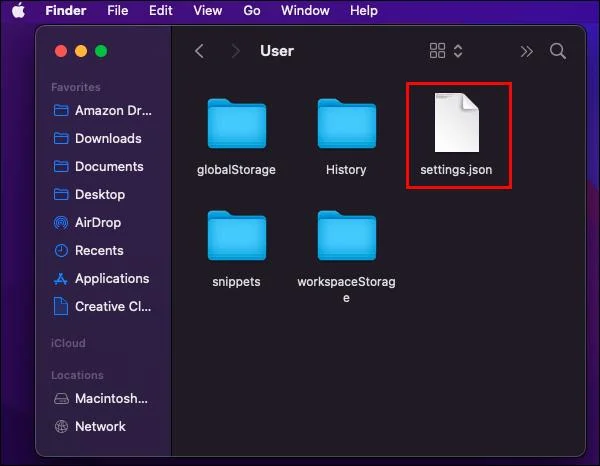
If you’re on a Mac, follow the steps below to open the settings.json file in VS Code:
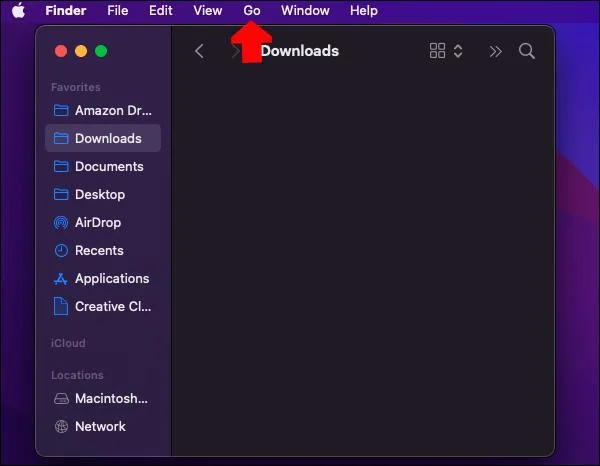
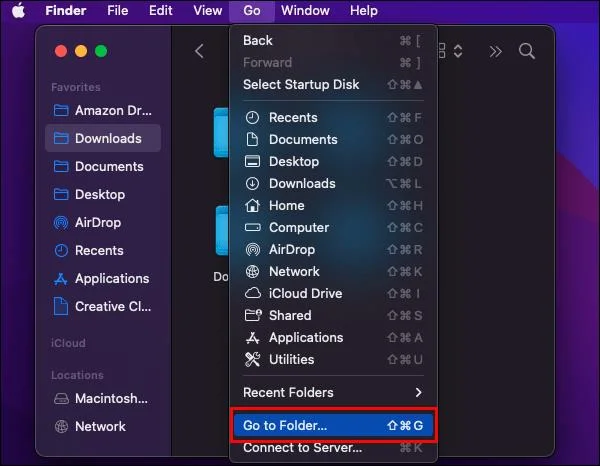
- Navigate to “Go” and select the “Library” option.

- If the “Library” option is missing, navigate to “Go” and then “Go to folder.” Type in “~/Library” then hit the “Go” button to make the Library option available.

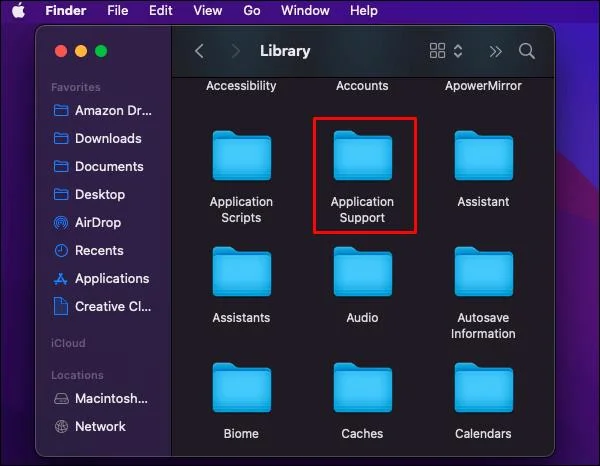
- Once the “Library” folder is open, click “Application Support.”

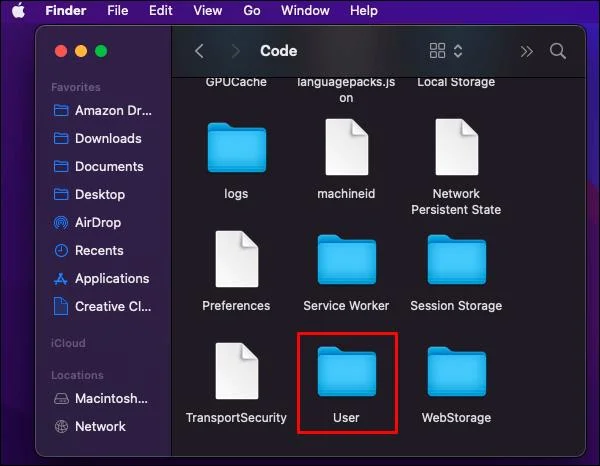
- Navigate to “Code” and open the “User” directory.

- Open the “Settings.json” file using VSCode.

- Change the file as necessary, and ensure you save the file before you exit.
How to Edit Settings Using the Settings.json File
Accessing the settings.json file is just one part of the process. You also need to know how to edit the settings in the file.
First, you have to understand the JSON format. Simply put, it is a text-based data interchange format. The format is used to exchange data between computers and other devices. Every data item in JSON contains an ID along with the value that represents it. So, when you open the settings.json file, every setting will have its ID and the value to which it is currently set. The same goes when you want to add an edit– specify the ID and its value.
Consider the example below:
Let’s say you want to auto-save your files after a certain time delay. In that case, you can add the following line of code in the settings.json file anywhere between the opening and closing curly braces:
“files.AutoSave”: “AfterDelay”,
The first part of the above line of code is the ID of the “File Auto-Save” setting, and the second is the newly assigned value.
Even better, the settings.json file is integrated with IntelliSense and smart predictions. So whenever you start typing a setting’s ID, it should automatically be predicted. You can press the “Enter” key to accept the suggested ID. The values of the respective setting’s ID are predicted alike.
Whenever you mistype the ID of a setting or its value, it will be highlighted in red, making it simple to identify and correct errors. You can see the list of all the settings you can edit via the settings.json by pressing the “Ctrl + ,” keys. You can also see a list of all the default settings on the official VS Code settings page.
Additional FAQs
Why have the changes I made via the settings.json file not taken effect?
Any changes you make via the settings.json file only take effect once you have restarted the code editor. So, if there are changes that you have made and have not taken effect, restart the editor and see if that resolves the issue. If that does not work, consider restarting the whole computer altogether.
Why do I get an error saying that VS Code cannot write my settings?
If you’re trying to change a setting but keep getting an error message, there was probably a mistake while editing the settings.json file. For example, you may have mistyped a particular value. To resolve the issue, open the settings.json file again and check for errors marked with red squiggles.
How do I reset all of my settings in VS Code?
The easiest way to reset all your VS Code settings back to the default is by erasing the contents of the user settings.json file except the opening and closing brackets. However, note that this action cannot be reverted, so you must be very careful before proceeding. Once you have erased everything, save the file and restart the editor.
Start Customizing Your VS Code Settings Using the Settings.json Files
The settings.json file is one of the essential files you need to be accustomed to if you want to customize the VS Code editor to fit your needs. Fortunately, VS Code makes accessing this file relatively easy. For instance, you can open the file by pressing “Ctrl + Shift” + P” and selecting the settings.json file you want to edit. You can also access the file via File Explorer if you know its specific file path.
What’s your preferred way of opening settings.json in VS Code? Please let us know in the comments section below.