Home
» PC Tips
»
Completely delete the most stubborn files on Windows
Completely delete the most stubborn files on Windows
When you can't open, edit, or delete a file in Windows File Explorer, it's either still open in a program running in the background or something isn't closing properly. Luckily, you can force the file to be deleted, closed, or edited with a few simple tricks.
Let's start with the obvious. Did you open a file and not close it? If the file closed but the program is still running, close the application and try again.
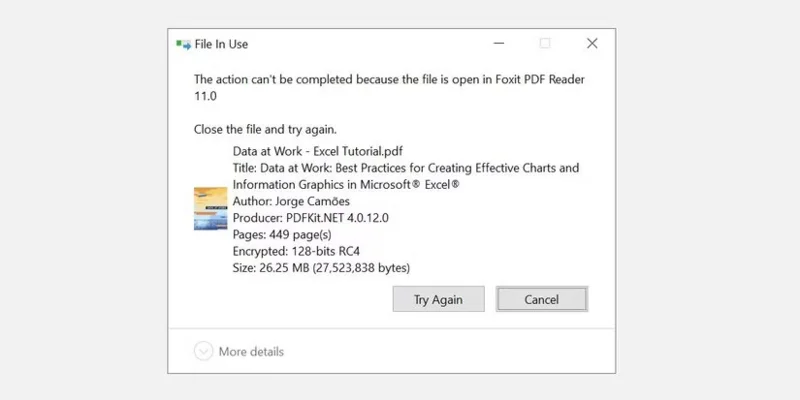
Windows 10 file in use notification when trying to delete open PDF.
You should also check the system tray to make sure the file isn't just minimized there.
2. End the application via Task Manager
Task Manager can help manually end the process or application holding your file hostage. This is one of the most promising methods to fix the "File is open in another program" error, since you may not always realize that the file is not closing properly.
Press Ctrl + Shift + ESC on your keyboard to open Task Manager . Alternatively, you can press Ctrl + Alt + Del to get to the menu or right-click on the Taskbar and select Task Manager . If you are using Windows 11, right-clicking on the Taskbar will not work.
If you see the compact version of Task Manager, click More details in the lower left corner and make sure you're on the Processes tab .
Browse for the application you used to open the “file in use”. For example, if you were viewing a document, search for Microsoft Word .
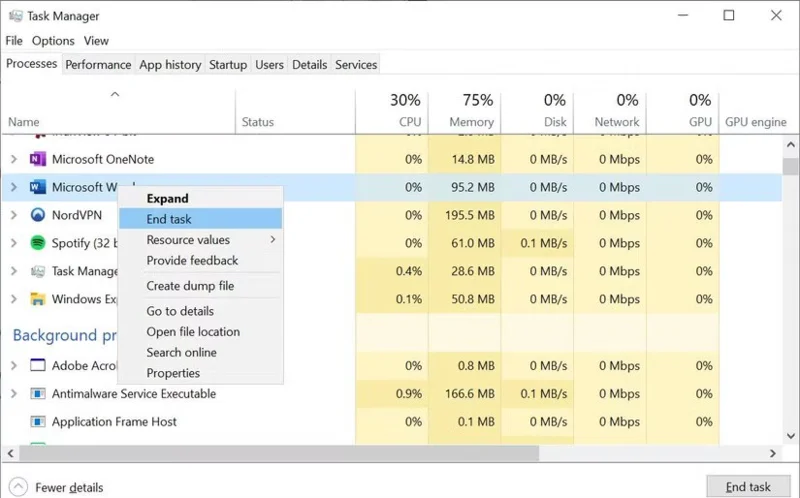
End tasks in Windows 10 Task Manager.
Once you find the process, select it and click End task in the lower right corner. This will close all instances of the program.
3. Change File Explorer process settings
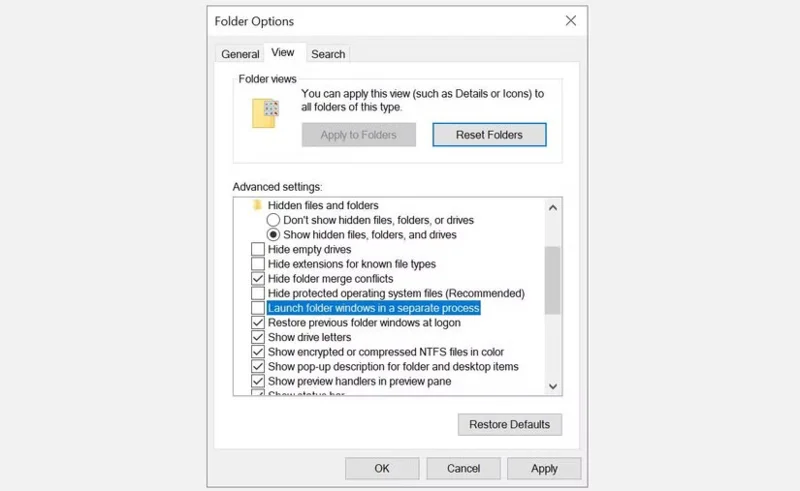
By default, File Explorer launches all of its windows in a single process (explorer.exe). However, it's possible that your settings force File Explorer to launch separate processes, which can cause conflicts between different processes.
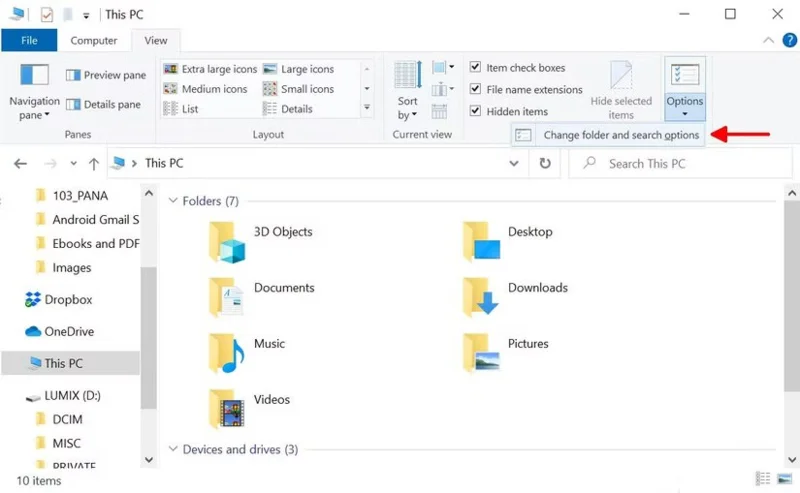
Press Windows key + E to open File Explorer . In Windows 10, go to View > Options > Change folder and search options .
Change folder and search options in Windows File Explorer.
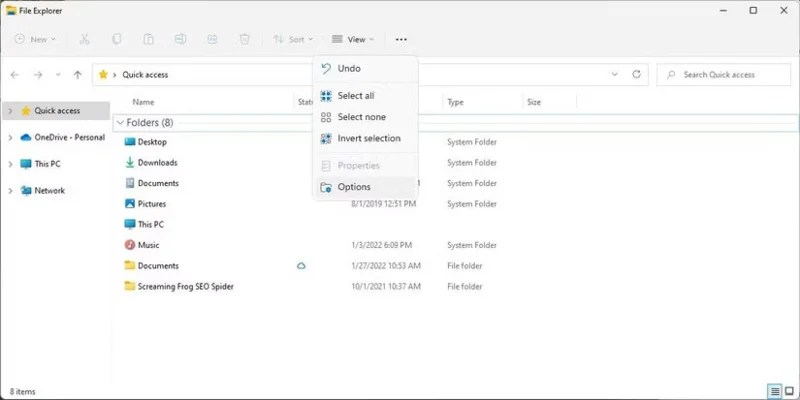
In Windows 11, click the See more icon with three dots next to View , then select Options.
In the Folder Options window , switch to the View tab and look for the Launch folder windows in a separate process option . Make sure this option is not selected. Click Apply to save any changes.
Windows Folder Options Menu
If this option is not selected initially, you should check if this solves your problem.
4. Disable File Explorer Preview Pane
Previews in File Explorer can also cause conflicts, such as the "File is open in another program" error.
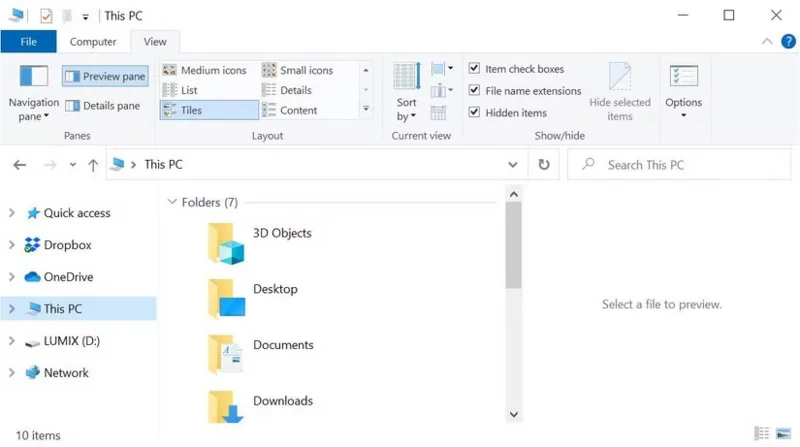
In Windows 10, press Windows key + E , switch to the View tab , and press Alt + P to close the preview pane.
In Windows 11, open File Explorer ( Windows key + E ), then go to View > Show and if you see a check mark next to the Preview pane, click it to close the preview.
The screenshot below shows an open preview pane on the right.
Close the Windows File Explorer preview pane.
After closing the preview pane, try the operation again and see if the "file in use" error is gone.
5. Force delete file via Command Prompt
You can bypass File Explorer and force delete the file using Command Prompt .
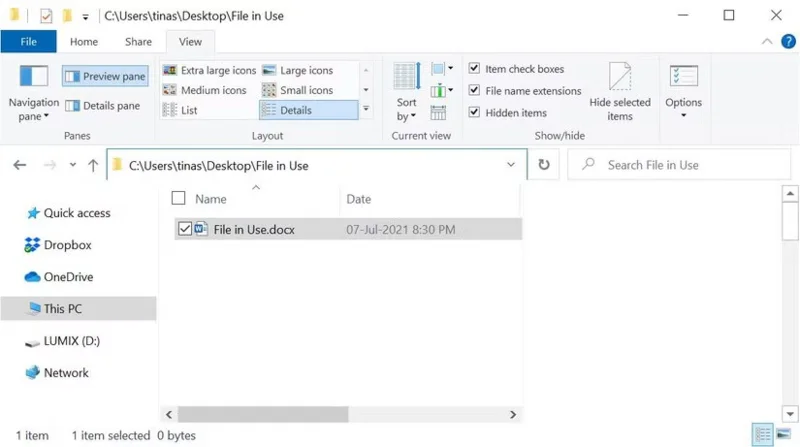
First, we need to track down the file path folder in File Explorer. Press Windows key + E to open File Explorer, locate the affected file, and copy the file path from the address bar at the top of the window.
Find file path in Windows File Explorer.
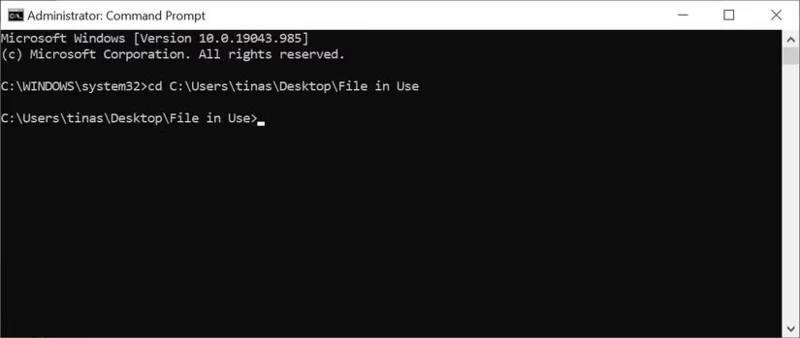
Now, right-click on the Windows Start button and select Command Prompt (Admin) or Windows Terminal (admin) . To navigate to the file folder of the file in use, type cd [the folder path you copied] and press Enter.
Navigate to the file path in Windows Command Prompt.
Before we can force-delete files in use, however, we need to temporarily kill the File Explorer process. This will cause your Taskbar, wallpaper, and open folders to disappear. But don’t worry, you can easily restart File Explorer and get everything back later.
To close File Explorer, press Ctrl + Shift + ESC to open Task Manager.
Find Windows Explorer in the list and right-click the process. Select End task .
Return to the Command Prompt window where you entered the previous command.
Enter the command below to delete the file, replacing everything between the quotes with the actual file name:
del "file name"
Now, to restart File Manager, all you need to do is open Task Manager ( Ctrl + Shift + ESC ). Then, click File > Run new task , type explorer.exe and click OK. This will restore your desktop to its normal appearance.
6. Unlock the file in use with the tool
If trying to delete the file manually doesn't work or you're not comfortable using the Command Prompt , you can always use Microsoft's Process Explorer.
This is a more powerful version of Task Manager that can show you which processes have taken up your files.
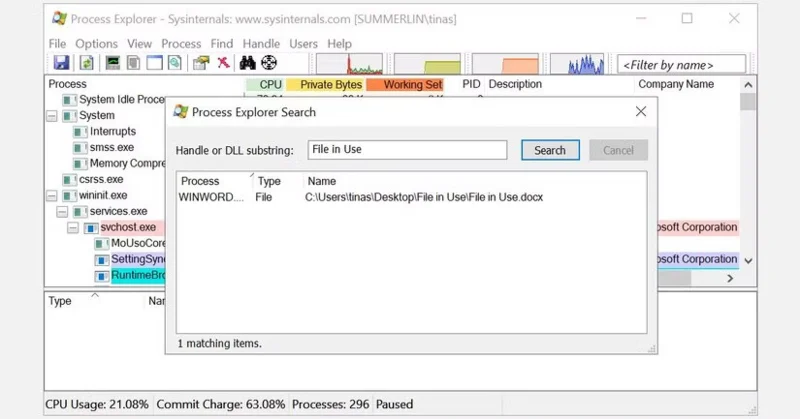
Open Process Explorer's Search window by clicking Find > Find Handle or DLL (or pressing Ctrl + Shift + F ), enter the file name, and wait for a list of processes accessing your file.
Process Explorer Search
You can't close a process from the Search window, but you can use Process Explorer or Windows Task Manager to close the offending application. There are also alternatives, such as Unlocker and LockHunter , that can help you identify pesky processes.
7. Boot into Safe Mode
Sometimes, the file you're trying to delete might be loaded automatically by another app. Apps like Unlocker might still work in that case. However, if there's malware involved or you don't want to deal with third-party tools, booting into Safe Mode is your next best option.
In Windows 10 or 11, press the Win key on your keyboard and click the power icon. Hold down the Shift key and select the Restart option . Your PC will boot into the Windows Recovery Environment (WinRE) page.
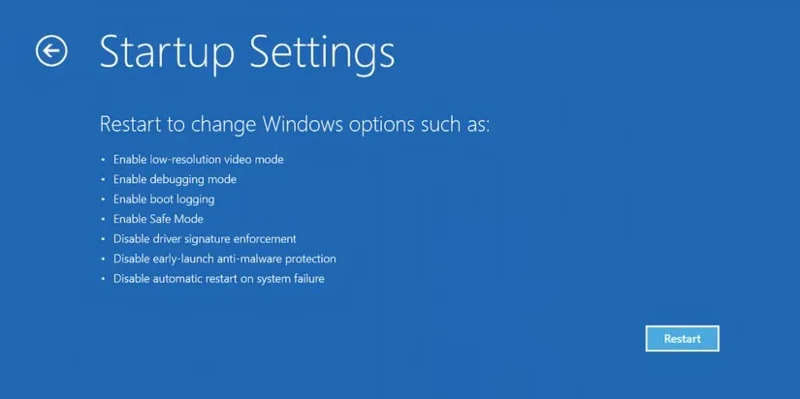
From the next screen, select Troubleshoot > Advanced Options > Startup Settings > Restart . When your computer restarts, you will see the Startup Settings screen. Select Safe Mode and wait for Windows to start.
The Windows Recovery Environment page has a Startup Settings option.
While you are in Safe Mode, navigate to the file in question and try to access or delete it.
Now, the next time Windows tells you a file is in use, you’ll know how to free it up or force your PC to delete it. If you’re not comfortable with third-party tools, you can always use the Command Prompt or boot into Safe Mode to help clear up any issues with the file in question.