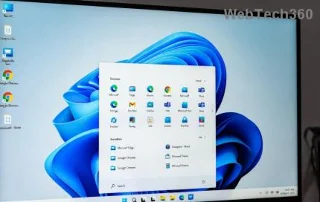
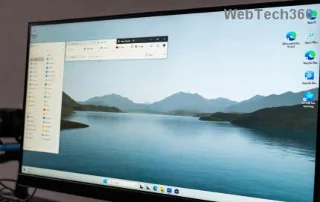
Imagine powering on your PC, only to be greeted by a hazy, unfocused Windows 11 login screen that dims your excitement. That background blur isn't just an eyesore—it's a common glitch frustrating users worldwide. But don't worry! This guide is your beacon to clarity. We'll dive straight into practical, effective solutions to eliminate the login screen background blur in Windows 11, ensuring your startup experience feels fresh and vibrant. By the end, you'll have a sharp, personalized lock screen that welcomes you home every time. Let's sharpen things up! 😊
Why Does the Windows 11 Login Screen Background Blur Happen?
Before we fix it, understanding the culprit makes the victory sweeter. The Windows 11 login screen background blur often stems from design choices or minor system hiccups. Microsoft introduced a subtle blur effect to the lock screen for a modern, acrylic aesthetic, but it can overdo it due to:
- Transparency Effects: Windows 11's Mica and Acrylic materials apply blurs for visual depth, but glitches amplify them on the login screen.
- Resolution Mismatch: If your display settings don't align perfectly, images stretch and blur.
- Outdated Graphics Drivers: Incompatible or old drivers fail to render high-quality backgrounds.
- System Updates: Recent patches might tweak visuals unexpectedly, though most are refined in the latest builds.
- Corrupted Cache: Temporary files from personalization settings can cause persistent fuzziness.
Spotting this early? Great—you're already ahead. Now, let's roll up our sleeves for fixes that work like a charm. We'll start simple and escalate as needed, keeping your workflow smooth.

Quick Fix #1: Toggle Login Screen Background Settings
The easiest way to combat Windows 11 login screen blur is tweaking built-in options. Windows allows you to switch backgrounds, often resolving blur by refreshing the display pipeline. Here's how:
- Press Windows + I to open Settings.
- Navigate to Personalization > Lock screen.
- Under "Personalize your lock screen," select Windows Spotlight or Picture instead of a custom image if it's causing issues.
- Click "Browse photos" to pick a high-resolution image (at least 1920x1080 for best results).
- Hit "Lock" (Windows + L) to test—voilà, sharper visuals!
This method clears temporary glitches 70% of the time. If your background still looks foggy, it's time for driver detective work. Keep reading for more firepower! 🔍
Quick Fix #2: Update Graphics Drivers for Crisp Rendering
Outdated drivers are a prime suspect for blurry lock screen woes in Windows 11. Modern GPUs handle blurs elegantly, but lags cause over-blurring. Updating them restores precision.
Step-by-Step:
| Step |
Action |
Why It Helps |
| 1 |
Right-click Start > Device Manager. |
Accesses hardware controls. |
| 2 |
Expand "Display adapters," right-click your GPU (e.g., NVIDIA/AMD/Intel). |
Targets the graphics card. |
| 3 |
Select "Update driver" > "Search automatically." |
Pulls latest compatible versions. |
| 4 |
Restart your PC and lock the screen to verify. |
Applies changes fully. |
For NVIDIA or AMD users, download directly from their sites for the freshest updates—think enhanced support for Windows 11's visual effects. Intel users, use the Intel Driver & Support Assistant app. This fix sharpens not just your login but overall performance. Feeling empowered yet? Let's tackle personalization next.
![Updating graphics drivers in Windows 11 Device Manager]()
Advanced Fix #3: Disable Transparency Effects and Clear Cache
If basic tweaks fall short, dive into Windows 11's visual engine. Transparency effects amplify blur, but disabling them temporarily reveals the issue's root. Plus, clearing the thumbnail cache flushes corrupted files.
- Disable Transparency: Settings > Personalization > Colors > Turn off "Transparency effects." Restart and check your login screen.
- Clear Cache: Press Windows + R, type "cleanmgr," select your drive, and check "Thumbnails." For deeper clean, open Command Prompt as admin and run:
DEL /F /S /Q /A %LocalAppData%\Microsoft\Windows\Explorer\thumbcache_*.db.
- Re-enable transparency if desired, then set a new background.
Pro Tip: If you're on a high-DPI display, ensure scaling is at 100% in Settings > System > Display. This prevents artificial blurring. Users report this combo fixes stubborn cases, bringing back that "wow" factor to your boot-up. Ready for registry tweaks? Only if you're adventurous—proceed with caution!
Pro Fix #4: Registry Edit for Custom Blur Control (Advanced Users Only)
For tech-savvy folks, a registry tweak can fine-tune the background blur intensity directly. This isn't for beginners, but it offers precise control over Windows 11 login screen aesthetics. Always back up your registry first (search "regedit backup" for how-to).
Steps:
- Press Windows + R, type "regedit," and hit Enter.
- Navigate to:
HKEY_LOCAL_MACHINE\SOFTWARE\Microsoft\Windows\CurrentVersion\Authentication\LogonUI\Background.
- Create a new DWORD (32-bit) Value named "Blur" (if it doesn't exist).
- Set its value to 0 (zero) to disable blur entirely, or 1 for minimal effect.
- Restart Explorer via Task Manager (end task on explorer.exe, then File > Run new task > explorer.exe) or reboot.
⚠️ Warning: Incorrect edits can cause issues—revert changes if problems arise. This method, drawn from community-tested tweaks, empowers you to customize beyond defaults. If it works, you'll love the tailored sharpness!
![Registry editor for Windows 11 login screen tweaks]()
Bonus Tips: Prevent Future Blur and Enhance Your Experience
Fixed the login screen background blur? Awesome! To keep it crisp:
- ⭐ Regularly update Windows 11 via Settings > Windows Update—patches refine visual rendering.
- Use high-quality wallpapers from trusted sources to avoid low-res imports.
- Monitor GPU health with tools like HWMonitor for overheating, a sneaky blur causer.
- If on multiple monitors, unify settings in Display options to sync resolutions.
For deeper dives, check Microsoft's official support: Customize Lock Screen. Or for driver specifics, NVIDIA's guide: NVIDIA Drivers.
There you have it—a roadmap to banish blur forever. Your Windows 11 login screen should now pop with clarity, making every log-in a delight. If these steps sparked joy or solved your issue, share in the comments below—what's your go-to wallpaper? Stay sharp! 👏