

Kawaii Halloween Decor Without Gore or Jump Scares

Create a gentle Halloween look with pastel colors, friendly ghosts, easy no-carve accents, and practical safety tips for your home.
Being familiar with the places you live or visit regularly may make you less likely to spot unique photo opportunities, but this doesn't mean they don't exist.
Table of Contents
Many people like to experiment with iPhone camera filters to get unique photos of familiar locations. If you usually use the Vivid filter, you can experiment with the Dramatic filter for a change.
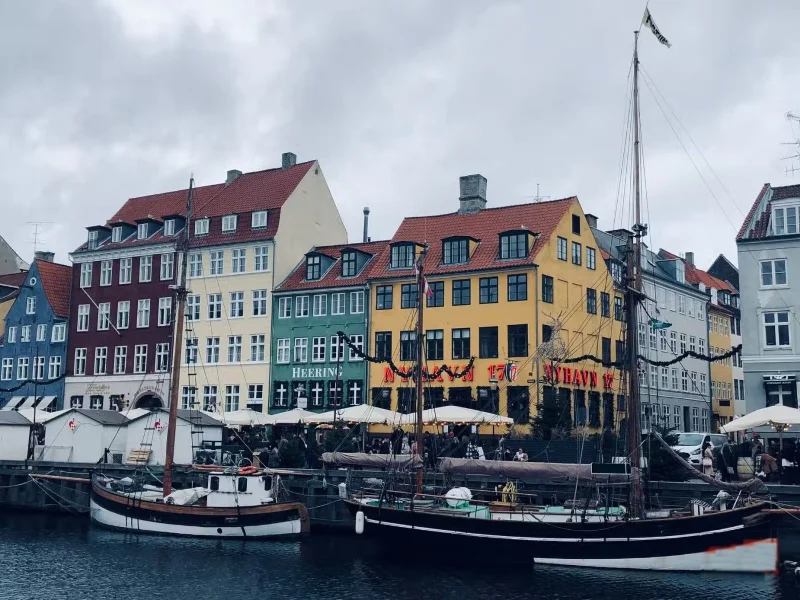
Experimenting with different filters also encourages you to explore styles you might not normally try, like monochrome. What's especially great is that you can revert to your usual filter later if the results aren't what you expected.
Every now and then, try going beyond your phone's default options and use apps like VSCO to add unique effects to your photos.
If you live in a place with four distinct seasons, take advantage of this. For example, you could try a photography challenge where you take a photo of the same location for 12 months in a row. At the end of the year, you can compare these photos.
Another option is to simply wait for the weather to change. Since daylight hours vary throughout the year, the light is also softer in winter than in summer – this makes a big difference.
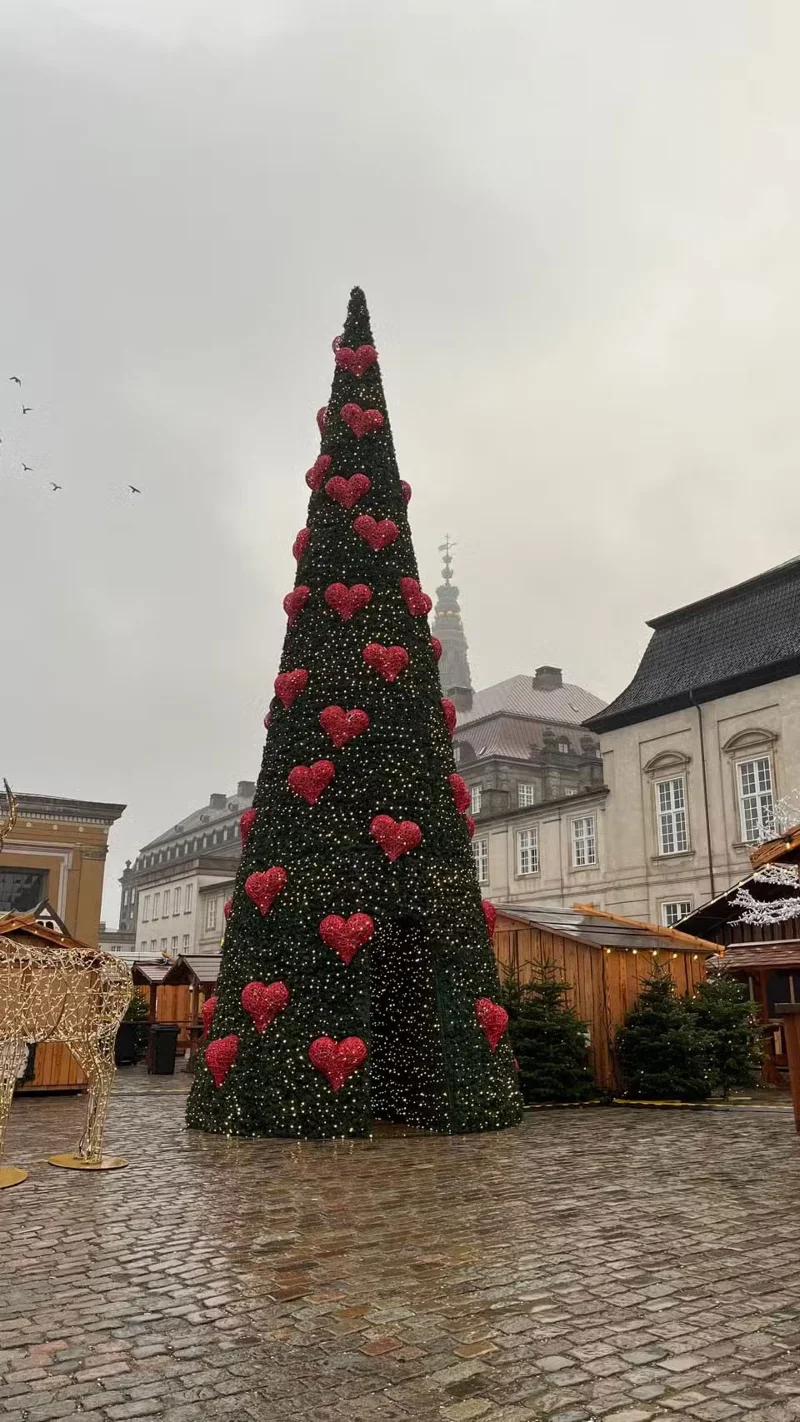
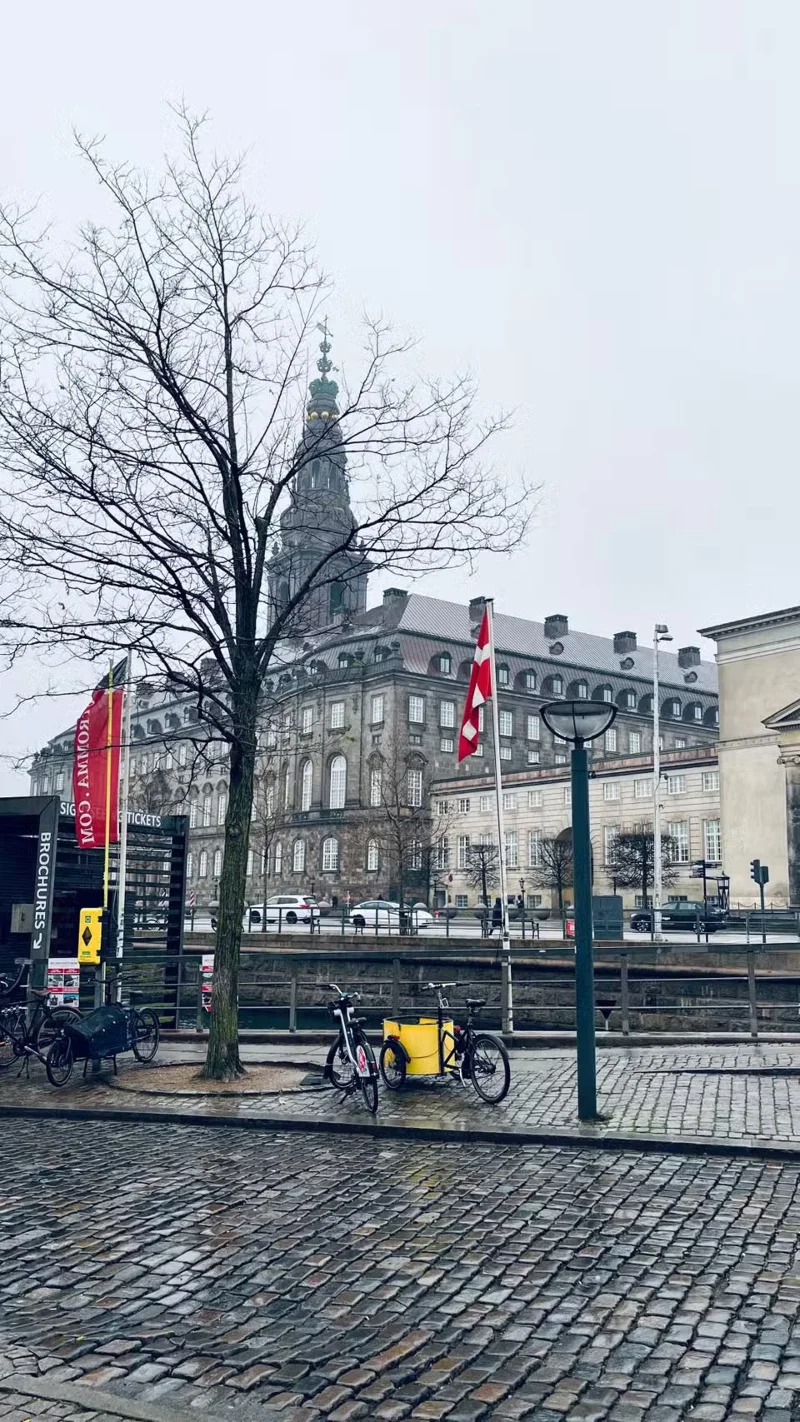
Special events and holidays offer even more opportunities. For example, during Christmas, the city is often filled with lights and decorations. National holidays often feature lots of flags and flowers, which also make for great photo opportunities.
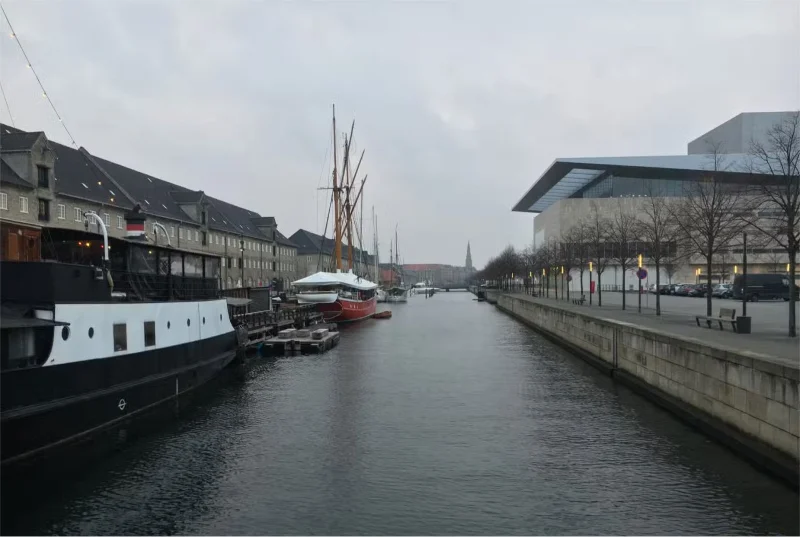
Leading lines are one of the simplest ways to instantly make your photos unique and interesting. Use things like roads, waterways, and trees in parks to create symmetry and guide the viewer's eye.
However, there are many other objects and compositions you can use as leading lines. These include tunnels and walkways if you are on a nature trail. In addition to using them to create symmetry, leading lines can highlight two contrasting sides of a photo.
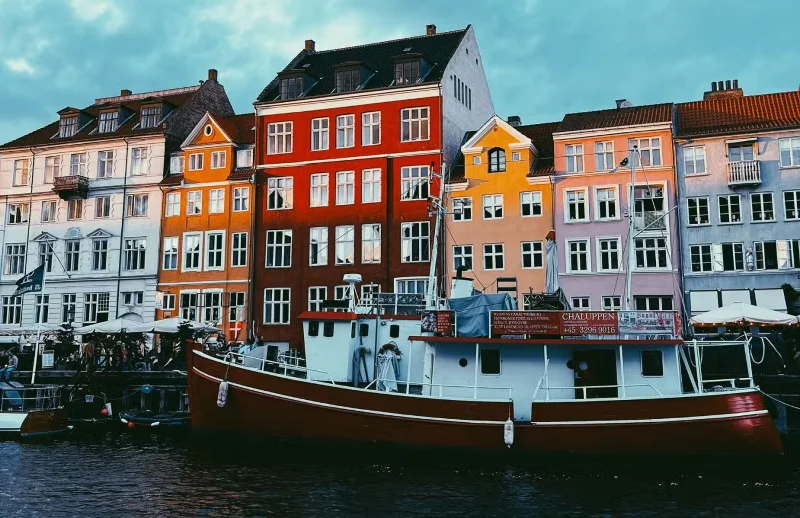
Using color theory plays a big role in creative projects. When photographing familiar locations, it can help you focus on specific aspects more closely. For example, if the colors of two buildings complement each other well, focus on that harmony in your photo.
Sometimes, you can use the color of the sky to your advantage. This is especially useful when taking sunset photos with your smartphone; sometimes the sky itself can be the most interesting aspect of a photo.
Many people also enjoy looking for bright colors, whether from buildings, trees, bicycles, or even objects like trash cans.
Sometimes a location looks beautiful but is too still to photograph. In these situations, the best thing you can do is wait for something to pass by and use it in your frame.
For example, if you live in a bike-friendly city, include cyclists in your photos. Also, keep an eye out for people in eye-catching outfits, cute dogs, boats, or birds to add life to your photos.
Many people like to use nearby objects and shapes to frame their shots. For example, you could place your subject in an archway or shoot them through tree branches or fences to create depth and perspective.
Taking reflection photos of familiar locations is another way to create unique photos. You can also use windows and even objects like hands to make your photos more unique.
If you’re used to standing at the same distance from many of the subjects you photograph with your smartphone, this can lead to monotonous results. To prevent this from happening, change things up by getting closer to the subject you’re photographing.
This isn’t always possible. You may have physical boundaries like roads and waterways. But if you can, moving closer will help the main subject fill more of the frame. So the user’s eye will automatically be drawn in that direction.
This feature highlights details—like the texture of a building or the intricate carvings on a statue—that might otherwise go unnoticed. It also sometimes works well with street-style smartphone photos.
Burst mode is a great way to tell a story and take interesting photos in crowded places. To get more dynamic burst shots on your smartphone, go to the place you want to shoot in advance and plan your shots. If you’re out on a spontaneous outing, stop for a few minutes to look around. When you’re ready, take multiple bursts until you’re happy with the story.
In addition to telling an interesting story, burst shooting is also ideal for fast-moving subjects. It helps you avoid blurry shots and focus on the final result. Depending on your device, you can choose how many photos are in your burst.
People almost always shoot at 1x zoom on their smartphone cameras, and if you shoot the same location over and over again, the results can start to blend together. To break out of a photography rut and make your photos more unique, sometimes you just need to change the focal length.
To freshen things up, sometimes zoom out for a wider perspective or occasionally zoom in for a more intimate feel. Avoid zooming in too much to preserve image quality, but a little tweaking—like zooming in 1.5x—can do wonders. Knowing when to zoom in and when to move closer helps you use the right focal length.
Sometimes, all you need to do is make some simple adjustments to capture more unique photos of the places you visit. Thinking outside the box is a great way to get creative. Start by experimenting with different focal lengths and styles and see if this changes the way you look at familiar places.
Create a gentle Halloween look with pastel colors, friendly ghosts, easy no-carve accents, and practical safety tips for your home.
Create a spooky office cubicle with Halloween desk decor ideas that keep your workspace usable, tidy, and mindful of workplace safety.
Plan a recognizable Halloween 2026 look with pop culture costumes inspired by Spider-Man, Supergirl, Toy Story 5, Moana, Mario, and Wednesday.
Sort leftover Halloween candy safely, share or repurpose sealed treats, and choose food use or compost for pumpkins based on their condition.
Compare workplace Halloween costume choices by respect, dress code, mobility, and safety—and learn when a subtle accessory or a policy check is the better option.
Find a couples costume that fits your style, budget, and comfort level, from Addams Family classics to original inside-joke duos.
Need a last-minute high school Halloween costume? Compare 10 easy closet-based ideas by prep time, comfort, school-day practicality, and simple safety checks.
Use a simple 2026 Halloween decorating timeline for indoor décor, outdoor displays, and fresh pumpkins, with practical adjustments for weather and events.
Mix five vivid, approachable Halloween cocktails with measured recipes, simple prep tips, and an alcohol-free option for your party guests.
Find 15 office-friendly Halloween costume ideas for 2026, with practical checks for dress codes, respectful themes, comfort, and workplace safety.








