Google Lens turns your Chrome browser into a powerful visual search engine. Whether you want to identify objects, translate text from images, or find similar products, learning how to use Google Lens on Chrome gives you these capabilities directly from your desktop or laptop. This guide walks through the exact steps to activate and use the feature effectively.
Google Lens Basics in the Chrome Browser
Google Lens works inside Chrome through the main Google search page and image search results. No separate extension is required on most accounts, though you must be signed into a Google profile for full functionality. Make sure Chrome is updated to the latest version so the camera icon and Lens options appear correctly in the search bar.
Before starting, open Chrome and sign in with the Google account you normally use for search. This ensures saved history and personalized results sync across devices.
How to Use Google Lens on Chrome Step by Step
-
Open Google Search and Locate the Lens Icon
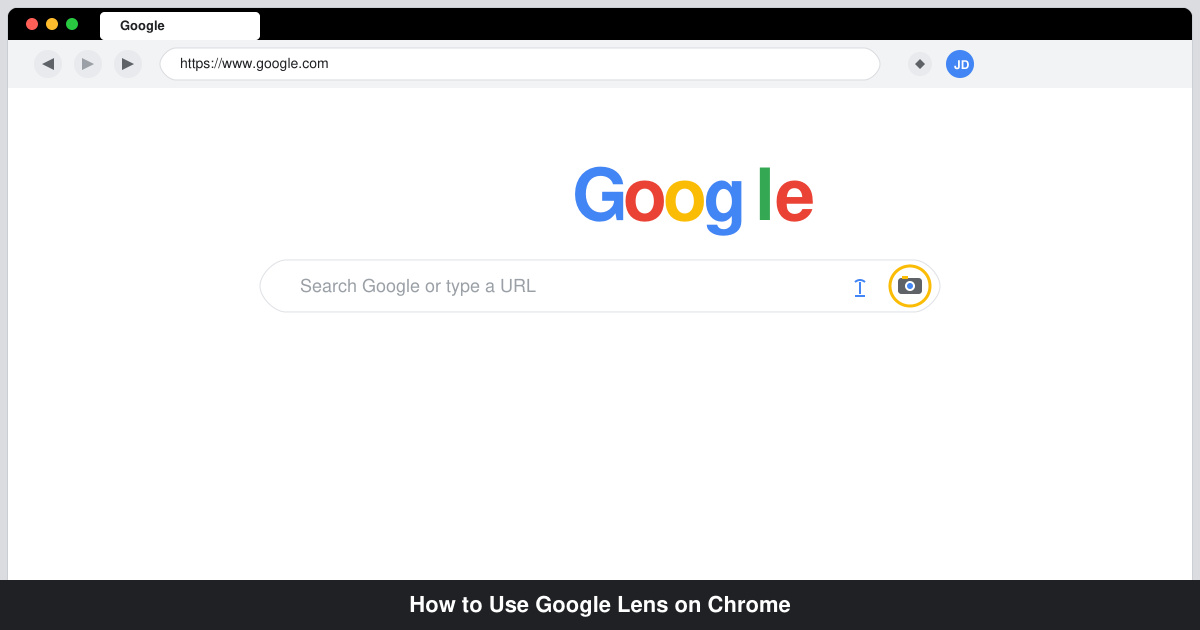
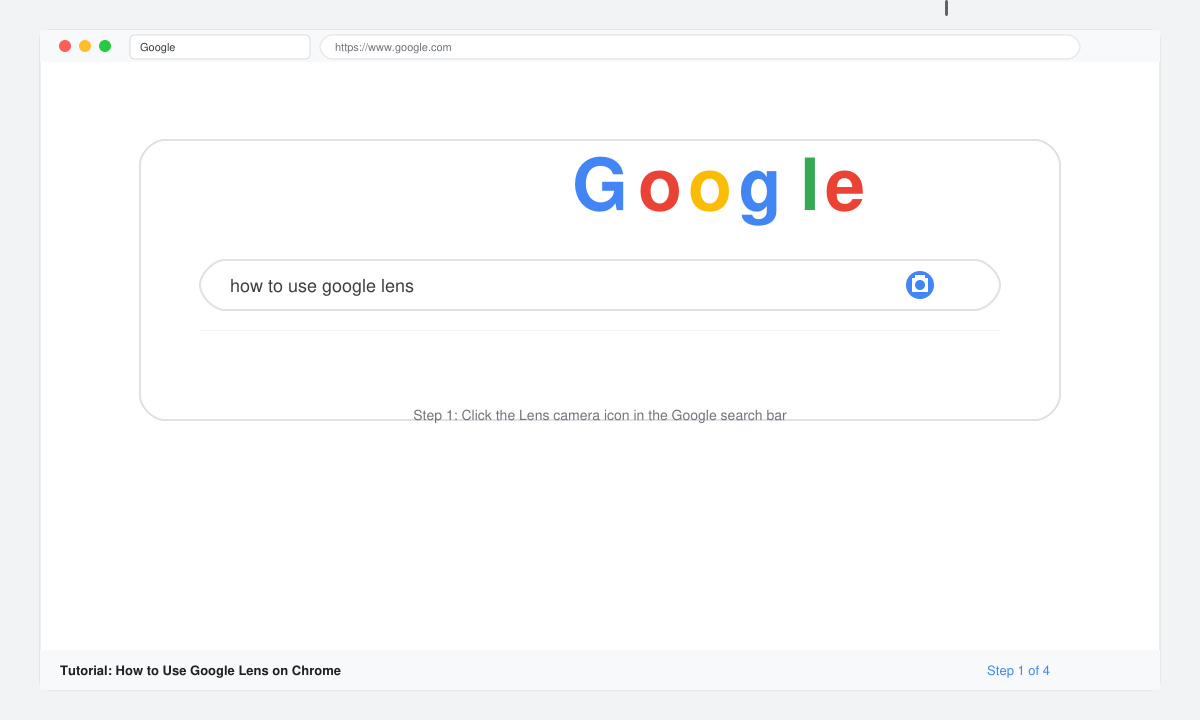
Launch Chrome and navigate to google.com. Click inside the search bar. Look for the camera icon on the right side of the field. If you do not see it immediately, type any query and press Enter, then return to the homepage.
-
Upload or Capture an Image
Click the camera icon. Choose “Upload an image” to select a file from your computer, or paste an image URL. For live capture, select “Search with your camera” if your device has a webcam. The image processes in seconds and displays matching results.
-
Review and Interact with Results
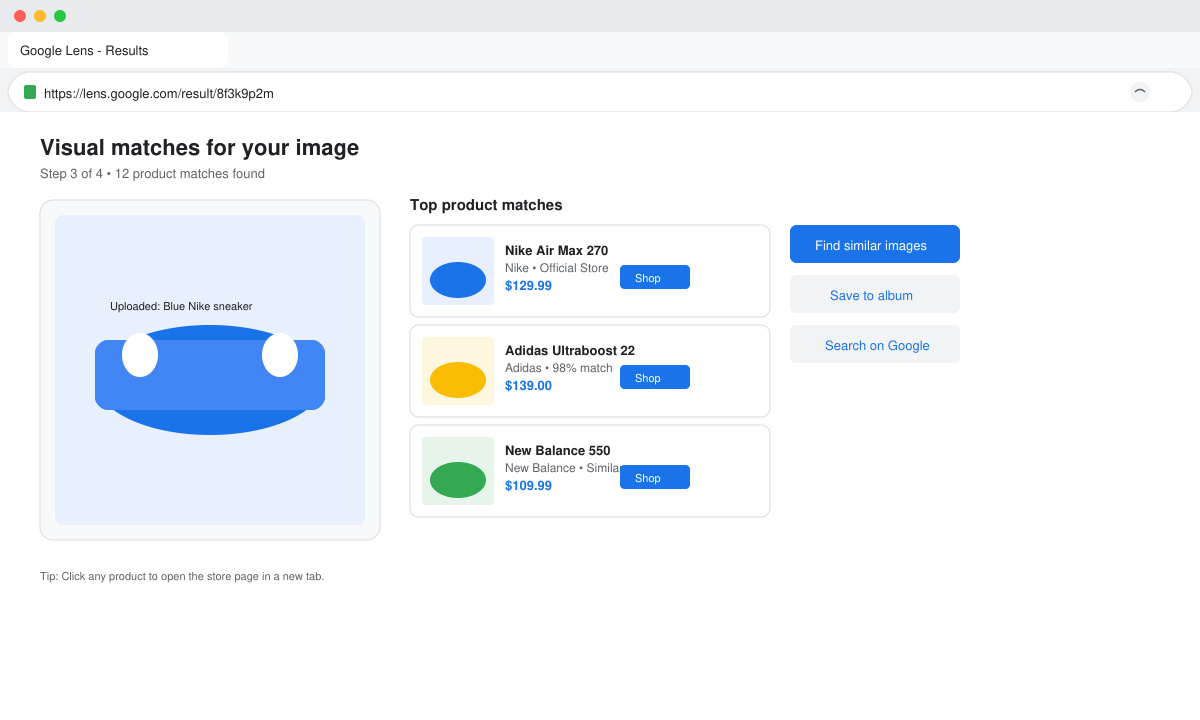
Google Lens shows detected objects, text, or shopping matches. Click any result card to open product pages, copy translated text, or view similar images. Use the filters at the top to narrow results by shopping, text, or translate mode.
-
Apply Lens to Existing Web Images
When viewing any webpage in Chrome, right-click an image and select “Search image with Google Lens.” The same result panel opens without leaving the current tab.
Common Issues and Quick Fixes When Using Google Lens on Chrome
- If the camera icon is missing, clear your browser cache or sign out and back in to refresh account permissions.
- Low-quality or very small images may return poor matches. Use higher-resolution files for better object recognition.
- Translation works best on printed text. Handwriting or stylized fonts often need manual cropping first.
- Shopping results depend on your region and available merchant data. Change your Google location settings if results seem irrelevant.
Frequently Asked Questions About Google Lens on Chrome
Does Google Lens on Chrome require a mobile app?
No. The full feature set runs directly in the Chrome desktop browser through Google search.
Can I use Google Lens offline in Chrome?
Internet access is required because image processing happens on Google servers.
Is there a way to save Lens results for later?
Results appear in your Google account search history, which you can review or delete at myactivity.google.com.
Conclusion
Mastering how to use Google Lens on Chrome adds instant visual intelligence to everyday browsing. Follow the steps above and you will be searching images, translating text, and discovering products within minutes.