How to Fix Ubuntu 24.04 Wi-Fi Disconnecting After Suspend

Fix Ubuntu 24.04 Wi-Fi drops after suspend with checks for NetworkManager, radio blocks, updates, power saving, and drivers—then verify each resume.
For some reason, your Windows 10 computer lost Admin rights, every time you open an application on the screen you receive an error message. So how to restore lost Admin rights, please refer to the article below of WebTech360.
Option 1: Get back lost admin rights in Windows 10 via Safe Mode
Step 1 : Log in to the current Admin account that you have lost administrative rights to.
Step 2 : Open the PC Settings control panel and select Accounts.
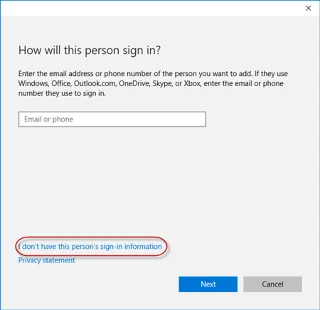
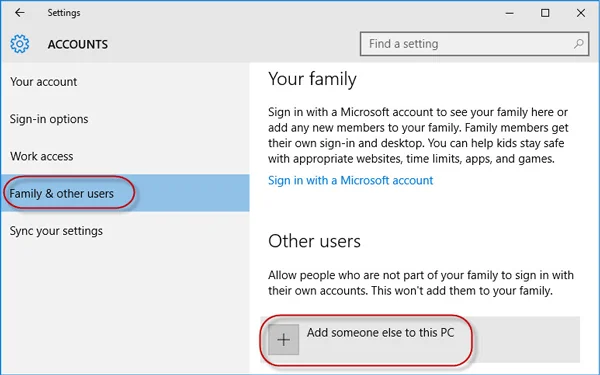
Step 3 : Select Family & other users , then click Add someone else to this PC .
Step 4 : Click I don't have this person's sign-in information .
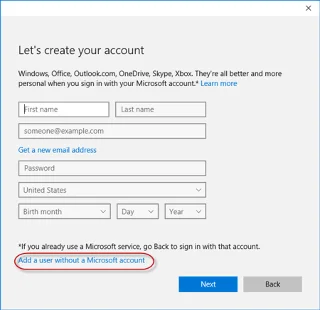
Step 5 : Click Add a user without a Microsoft account.
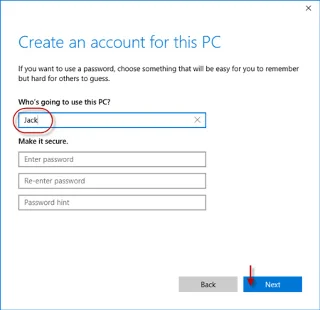
Step 6 : Enter a username, then click Next. This will add a new local account on your PC.
Step 7 : Press Win + R to bring up the Run dialog box , type cmd and press Enter.
Step 8 : After the Command Prompt window opens , type shutdown /r /o and press Enter.
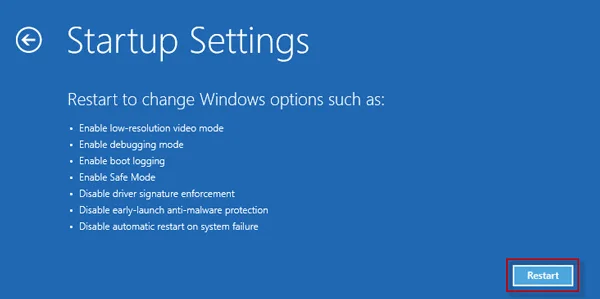
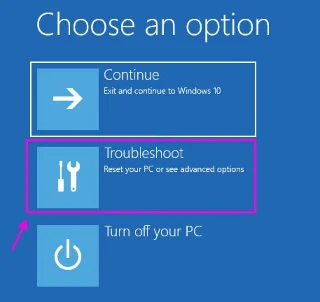
Step 9 : After Windows 10 restarts to the "Choose an option" screen , click Troubleshoot > Advanced options > Startup Settings . Then click Restart.
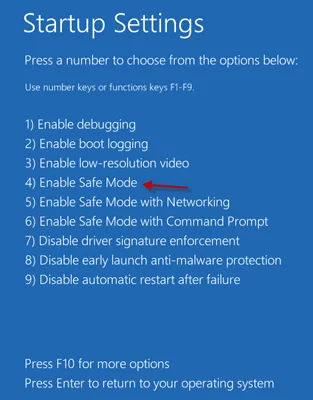
Step 10 : On the Startup Settings screen , press the number 4 key to enable Safe Mode .
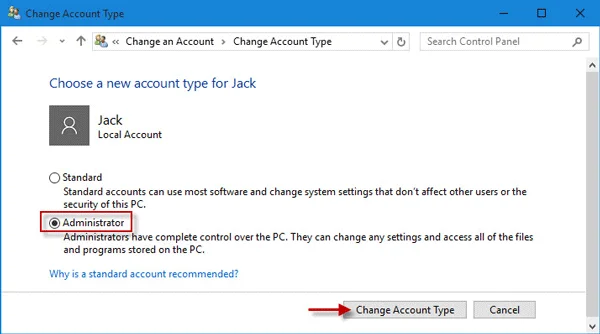
Step 11 : After Windows 10 starts in Safe Mode, open Control Panel . Go to User Accounts > Manage another account , select the new local account you added in step 6, and then click the Change the account type link . Select Administrator and click Change Account Type to change the account from a standard user to an admin.
Step 12 : Restart your PC to get Windows 10 out of Safe Mode and back to normal mode. Log in to Windows 10 with the new admin account. Now, you have regained administrator rights in Windows 10 and can delete the Admin account that you lost administrator rights to.
Option 2: Modify account settings from Registry Editor
1. Open Settings .
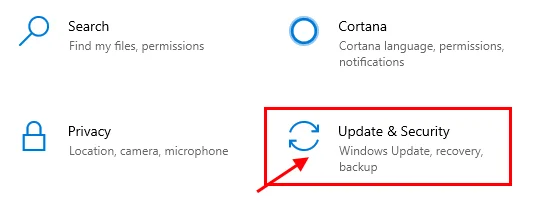
2. Then, go to “Update and Security” settings .
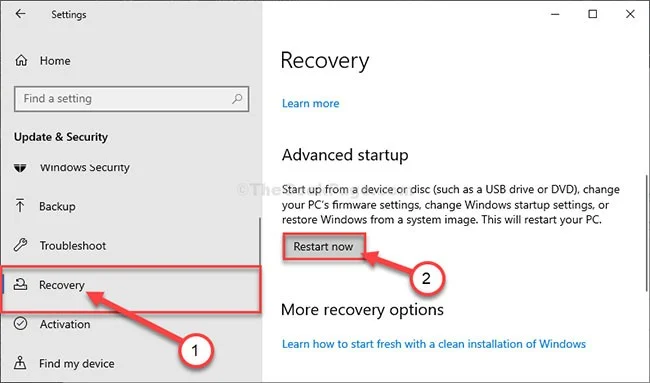
3. Then click "Recovery".
4. Then, under “Advanced Startup” section , click “Restart Now”.
5. The next step is to click on “Troubleshoot”.
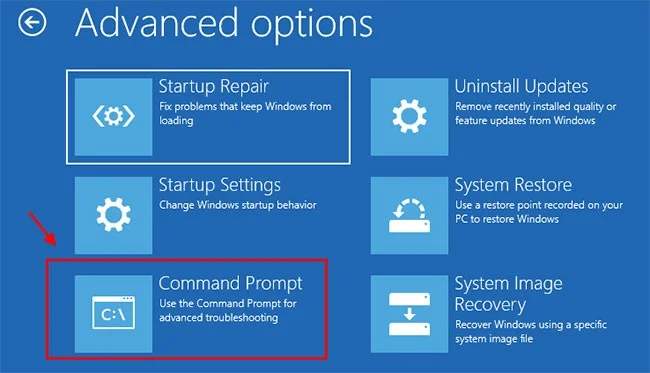
6. To see more available options, you have to click on "Advanced options".
7. You need to access “Command Prompt”. So click on it.
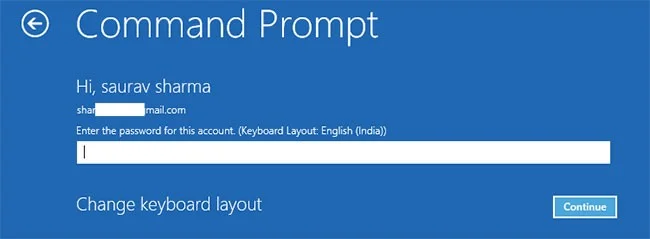
8. Set your account password to access the CMD terminal. Click “Continue”.
9. In the Command Prompt window, type or copy "regedit" and press Enter to open the Registry Editor on your computer.
NOTE: You will need to create a backup of the Registry. Once you have opened the Registry Editor, you will need to click File and then select Export from the menu bar.
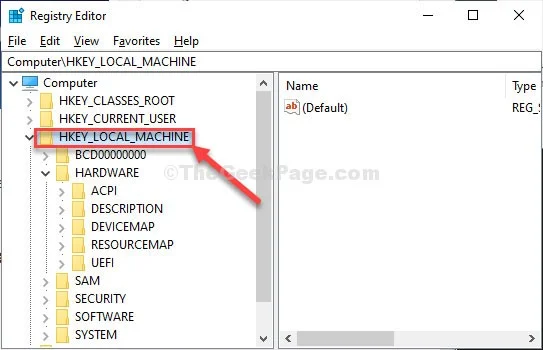
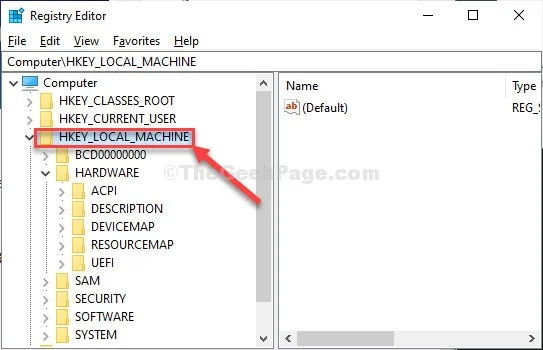
10. In the Registry Editor window , select the "HKEY_LOCAL_MACHINE" branch to highlight it.
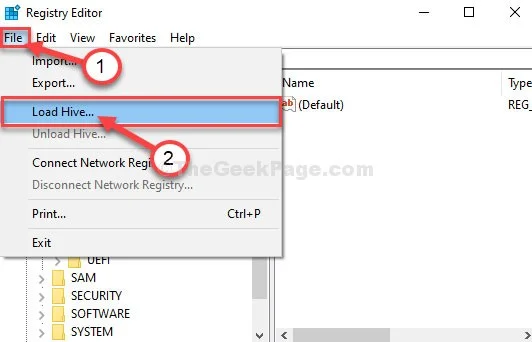
11. Now, click on “File” from the menu bar and then click on “Load Hive”.
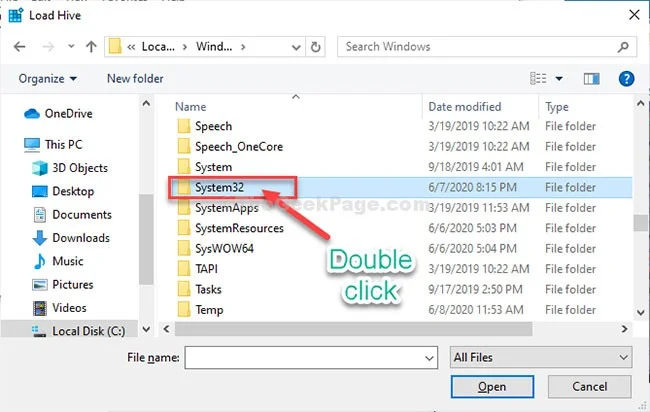
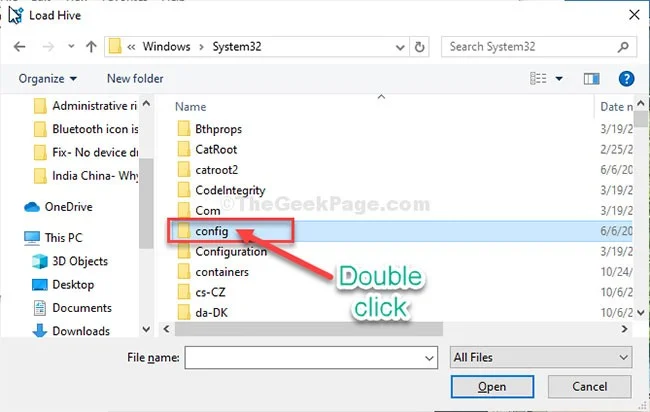
12. In the Load Hive window , navigate to this location:
system root drive > Windows > System3213. In the System32 folder , double-click the “config” folder .
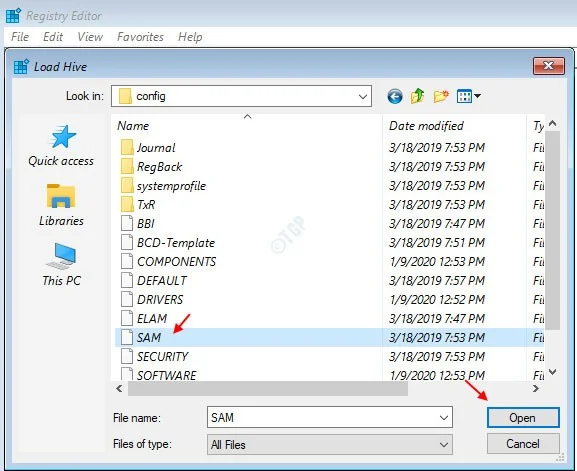
14. In the Config folder , scroll down to find and select the “SAM” file.
15. Now, click Open to load the hive in the registry branch..
16. You need to provide a name for the hive.
17. Name the key “REM_SAM”. Click OK.
18. In the Registry Editor window, on the left side, navigate to this location:
HKEY_LOCAL_MACHINE\REM_SAM\SAM\Domains\Accounts\Users
HKEY_LOCAL_MACHINE\REM_SAM\SAM\Domains\Accounts\Users\000001F4
0001F4
19. Now, in the same window, on the right hand side, double click on the binary value “F” to modify it.
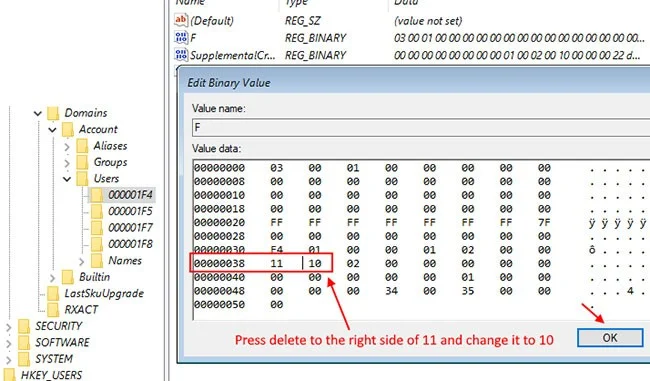
20. In the Edit Binary Value window , go to the line “00000038".
21. Place your cursor just to the right of “11” and press Delete from your keyboard.
22. Now, type “10” to change the value.
23. Finally, click OK to save the changes on your computer.
Close the Registry Editor and Command Prompt windows.
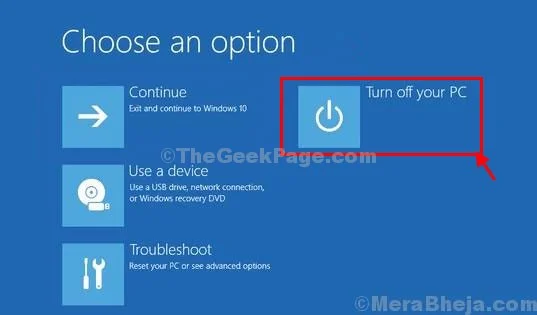
24. Back in the Choose an Option window , click Turn off your PC to turn it off.
Restart your computer.
After restarting your computer, you will have administrative rights to your account again.
Note:
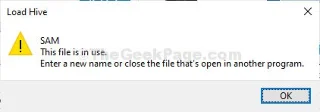
Try to open the “SAM” file , you may see this error message “The process cannot access the file it is being used by another process” or “File is in use” message .
To resolve the issue, follow these steps:
1. In the Registry Editor window, select the "HKEY_LOCAL_MACHINE" branch to highlight it.
2. Now, click on “File” from the menu bar and then click on “Load Hive”.
3. Now, click on “Look in:” to open the drop-down menu.
Note : You are facing trouble because you are selecting the “BOOT (X:)” drive from which CMD is running.
4. Select the system root drive on your computer (for this computer, it is the “Local Disk (D:)” drive , usually Local Disk (C:) ) and then click “Open”.
5. Now, scroll down and double-click on the “Windows” folder.
6. Similarly, scroll down, find the “System32” folder and access it.
7. Now, double click on the “Config” folder to access it.
Then follow the remaining instructions (from step 13) to modify the binary value and resolve the issue.
Option 3: Get back lost Admin rights on Windows 10 using iSumsoft Windows Password Refixer tool
To use this option, you need to borrow a PC that you can access as admin.
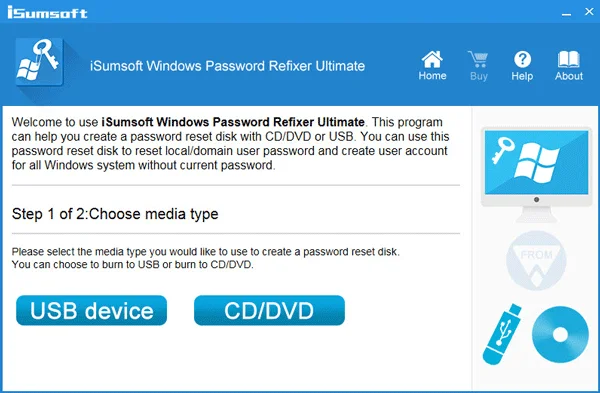
Step 1 : On another PC that you can access with admin rights, download and install iSumsoft Windows Password Refixer .
Step 2 : Launch this tool and follow the steps to burn it to USB and create a bootable drive.
Step 3 : Connect the bootable USB drive to the Windows 10 PC on which you have lost admin rights and set the PC to boot from USB.
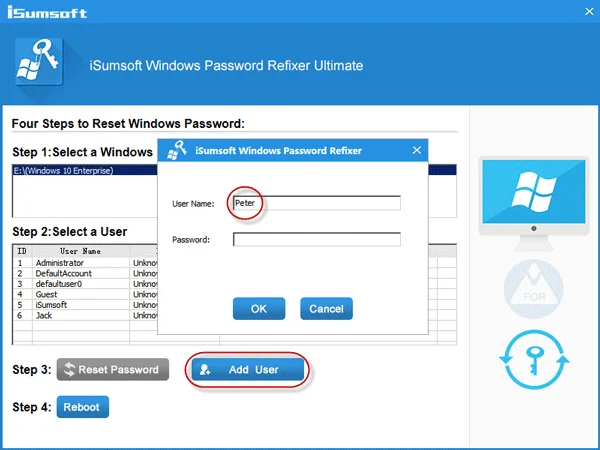
Step 4 : After the " Windows Password Refixer " screen appears, click Add User . Then, enter the username in the dialog box and click OK. This will add a new local user with admin rights on Windows 10.
Step 5 : Click Reboot and exit the bootable USB drive to restart your PC. The new admin account will appear on the Windows 10 login screen. Log in there and you have regained admin rights.
See more articles below:
Good luck!
Fix Ubuntu 24.04 Wi-Fi drops after suspend with checks for NetworkManager, radio blocks, updates, power saving, and drivers—then verify each resume.
Learn why tracker-miner-fs-3 uses high CPU in Ubuntu GNOME and how to check indexing, exclude folders, update Ubuntu, or safely rebuild the search index.
Fix Debian’s UEFI boot error by checking boot mode, the EFI System Partition, GRUB files, and firmware boot order—without reinstalling Debian first.
The Outlook Inbox Repair Tool fixes corrupted PST files quickly so you can recover emails and restore normal Outlook function. Follow these exact steps to run scanpst.exe without data loss.
Get the Adobe PDF Installer Offline to install Acrobat Reader on any PC without needing internet during setup. Follow these exact steps for the full standalone package.
Learn how to Chromecast from laptop to TV with this step-by-step guide. Stream browser tabs, videos, or your full screen from Windows or Mac to your TV in minutes.
Learn how to edit an Adobe PDF file in Adobe Acrobat with precise steps for text, images, and layout changes. Make professional edits quickly and save time.
Get your Free Foxit Reader Free Download from the official source with this step-by-step guide that ensures a safe and quick installation for viewing PDFs.
Learn how to get help in Windows 11 with built-in tools like the Get Help app and Quick Assist for fast, official support without third-party downloads.
Learn how to retract an Outlook email in Microsoft Outlook when you need to correct a mistake before the recipient opens it. Follow these precise steps for Exchange accounts.








