Free Games for PC Steam
Find and download the best free games for PC Steam with this complete guide. Learn how to browse, install, and play top free-to-play titles quickly.
Peaceful players view Minecraft as a field to express their creativity and have some fun with friends. However, there are also griefers who prefer to add a bit of drama to their gameplay. Griefers irritate people by destroying their constructions or majorly altering them.

Discovering your work has been ruined or rearranged can be frustrating. Thankfully, there’s a way to find out who exactly has placed or removed a block in Minecraft if you’re playing on your own server.
In this guide, we’ll explain how to check who made changes to construction in Minecraft and answer some of the most common questions related to the topic.
Can You Check Who Placed a Block in Minecraft?
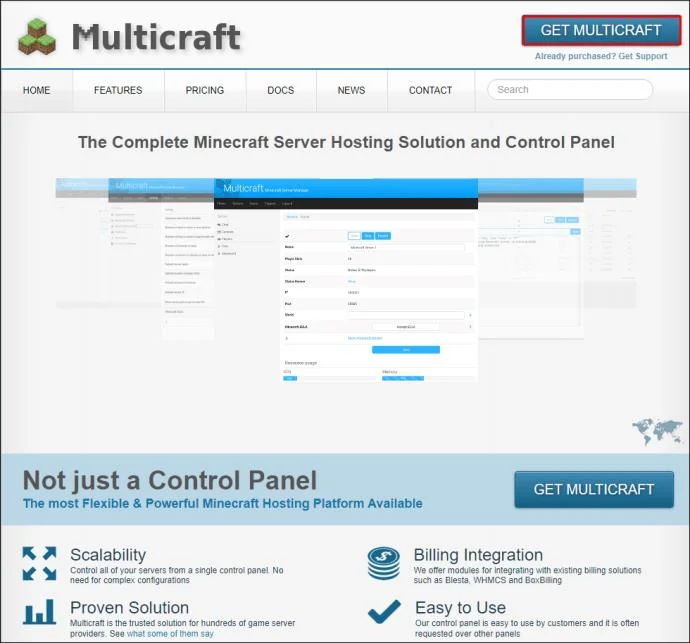
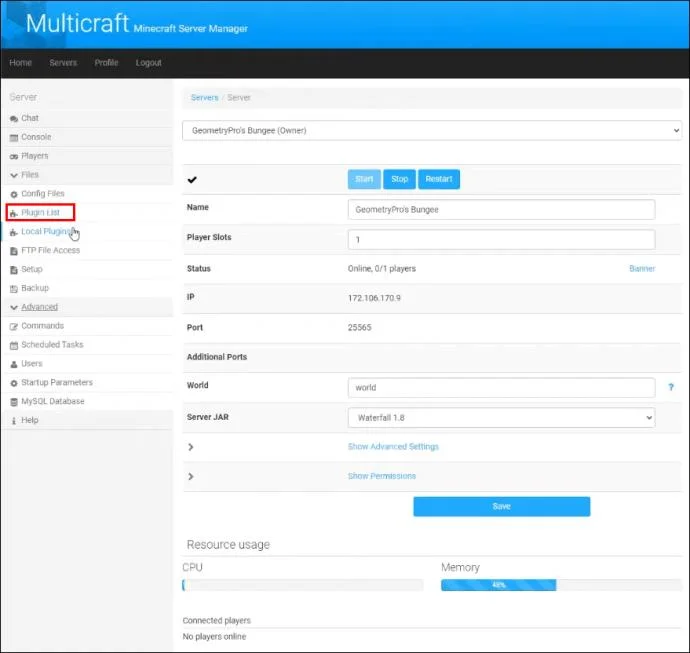
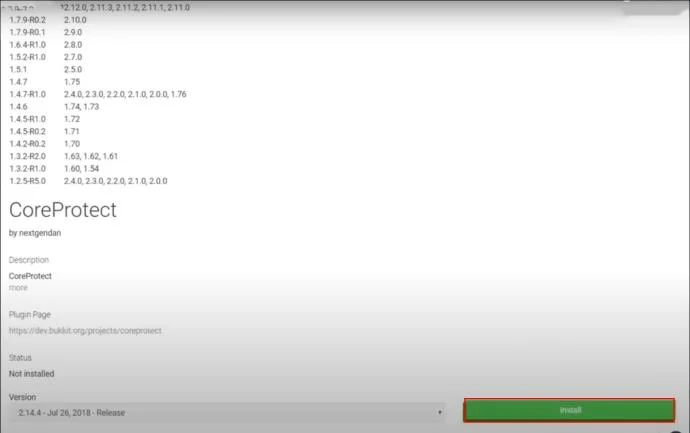
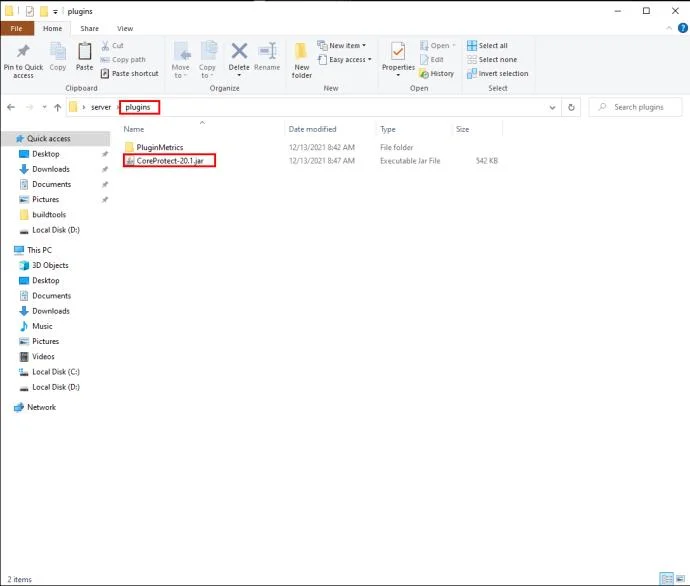
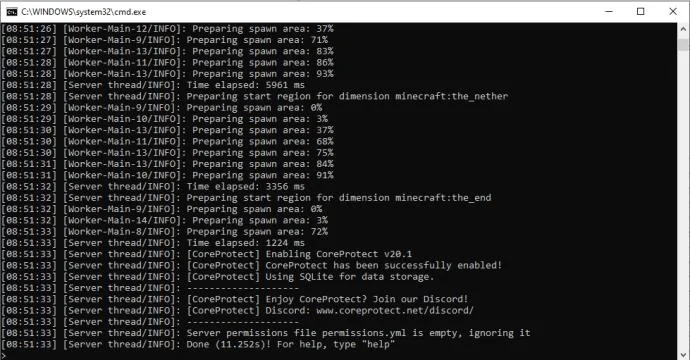
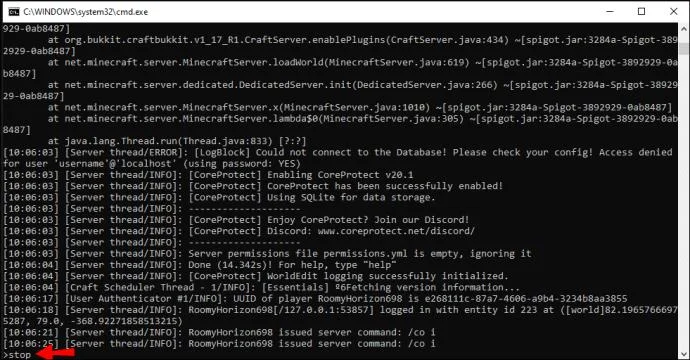
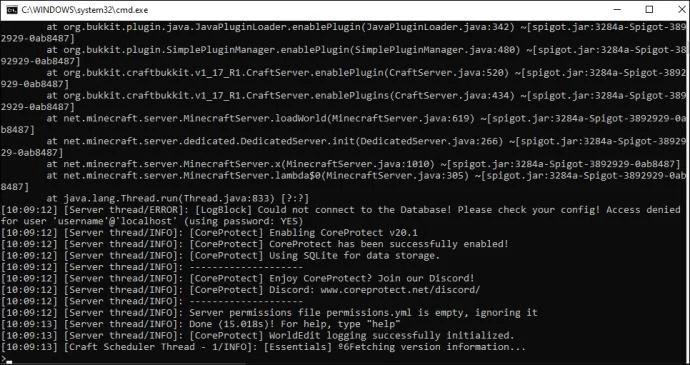
There is no way to find out who has placed a block in the Minecraft base game. But you can track all changes made on your server with third-party plugins. One of the most popular block logging tools is CoreProtect. Here’s how to install it using the Minecraft Server Manager:
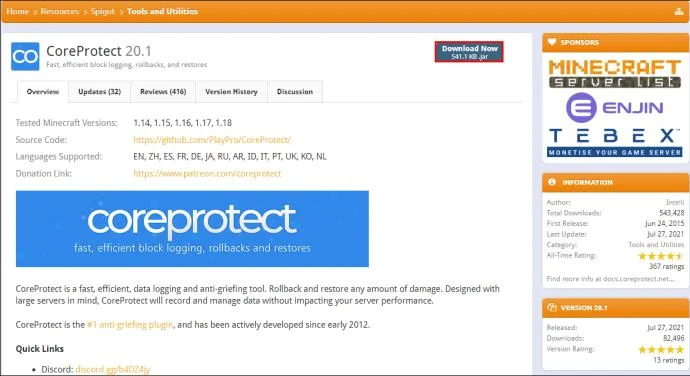
If you don’t have the Minecraft Server Manager, you can install the plugin following these instructions:
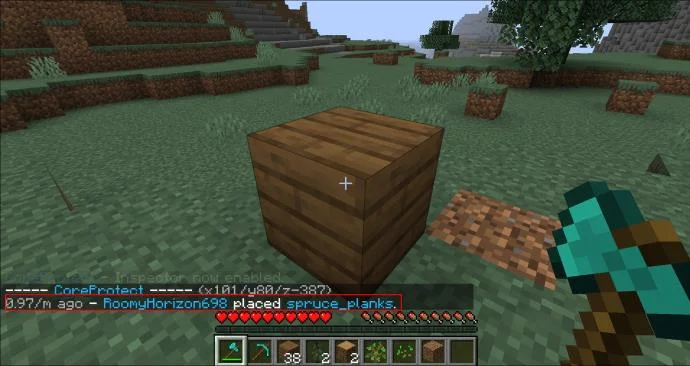
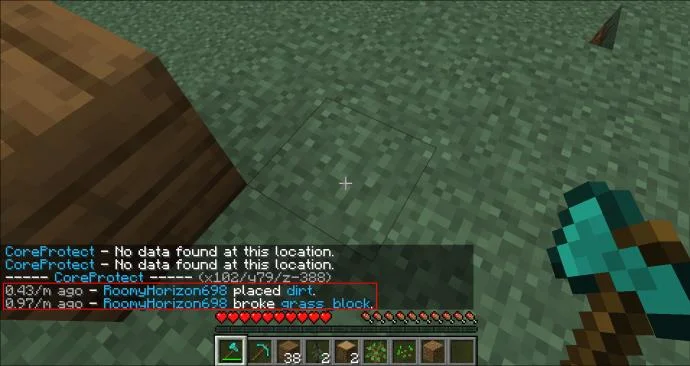
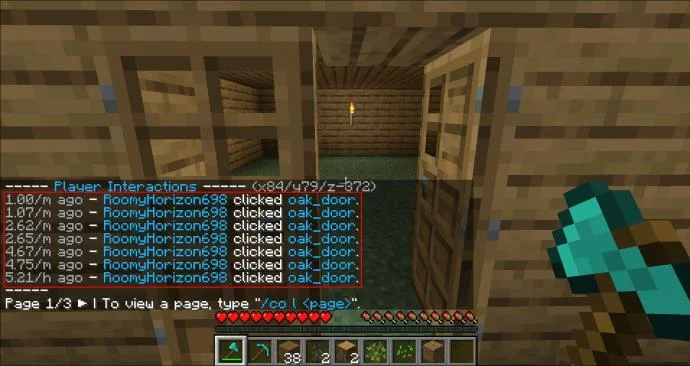
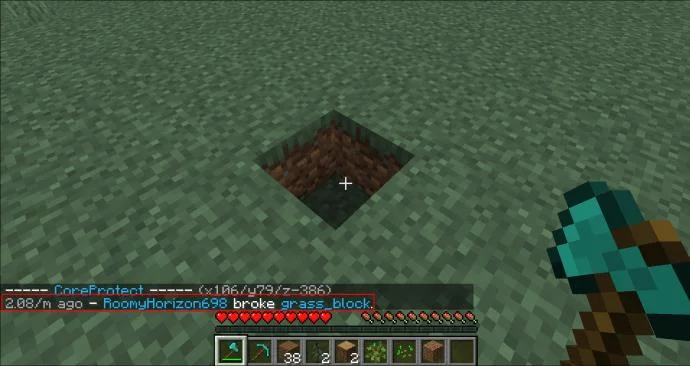
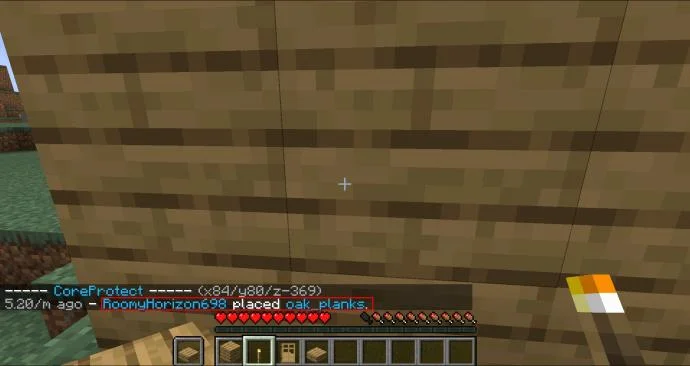
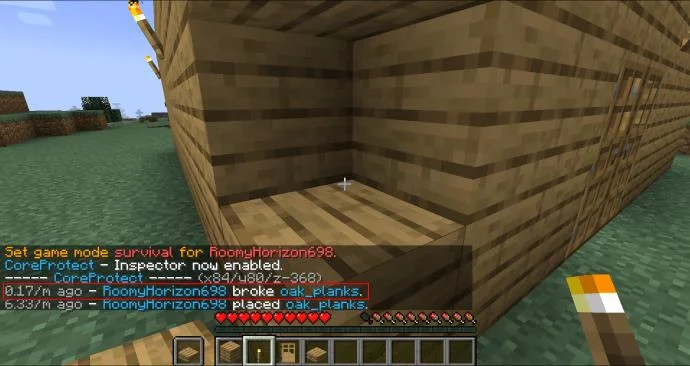
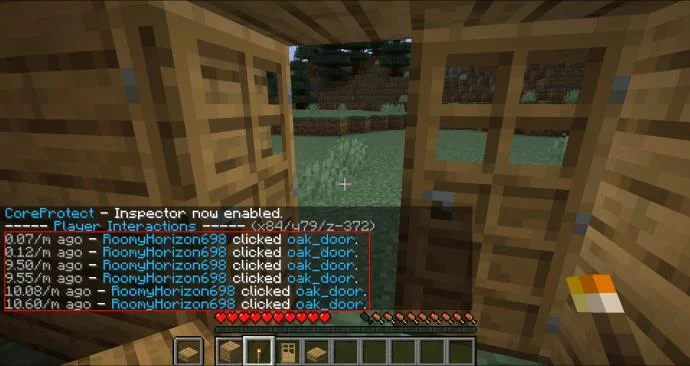
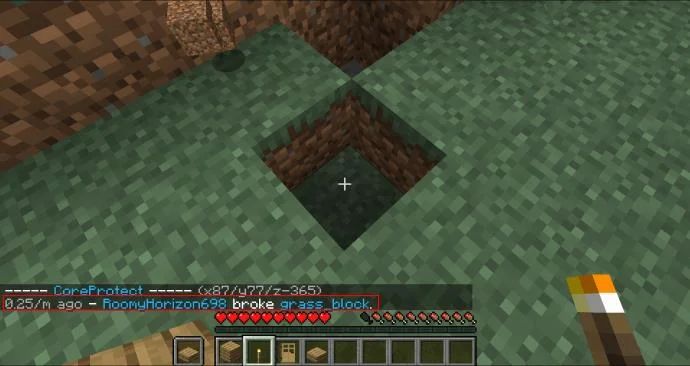
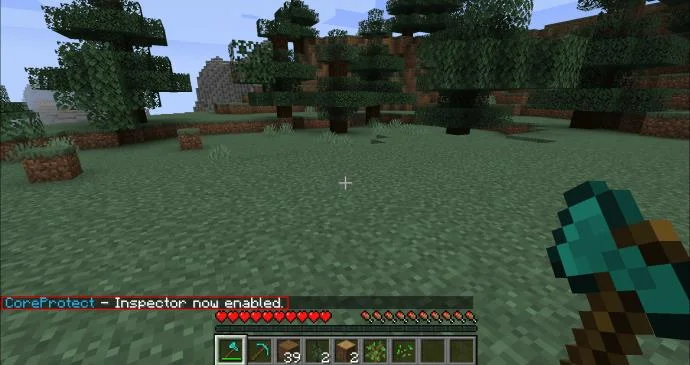
Once the plugin is installed, you can start tracking who made changes on your server. To do this, launch your server and bring up the command input box. Type in “/core inspect” or “/co i”. Then, use the controls listed below to check who has placed or removed a block in Minecraft:
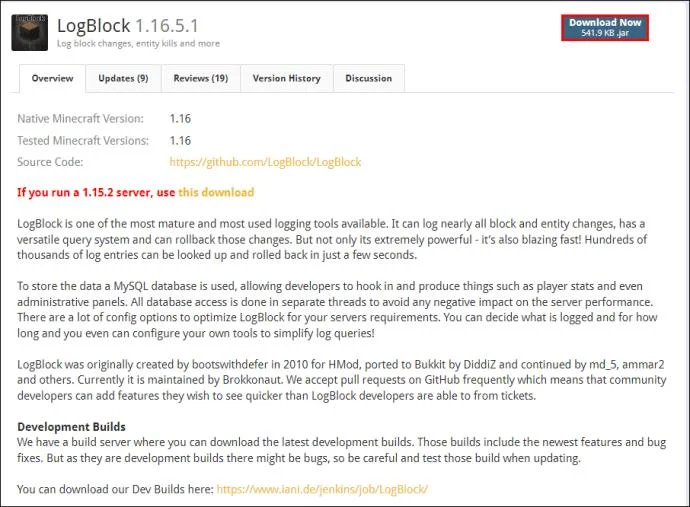
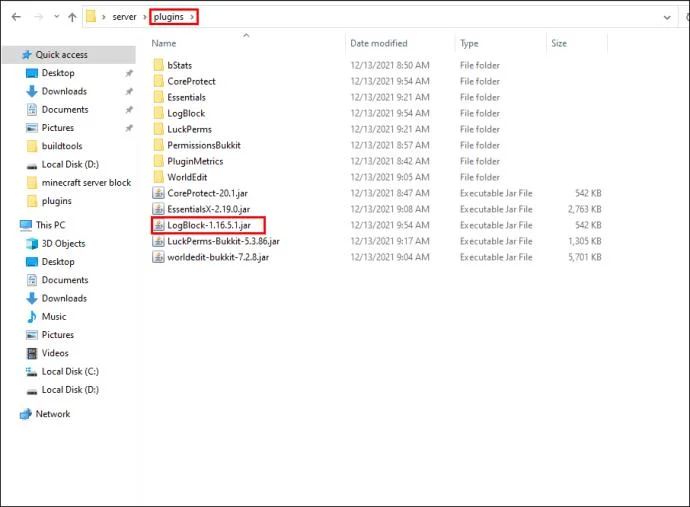
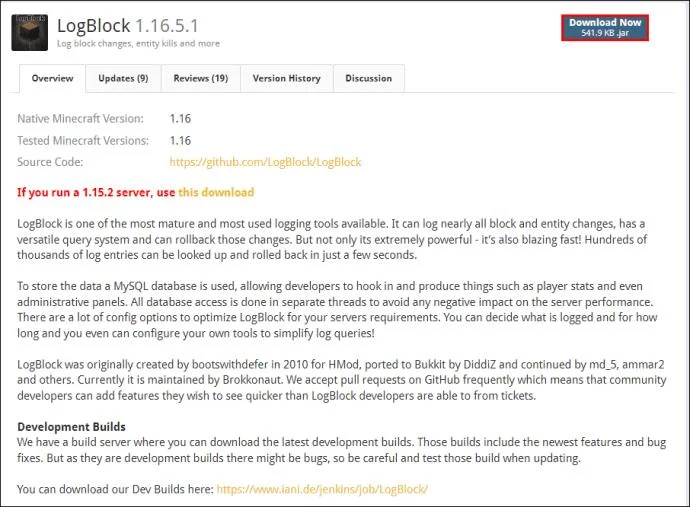
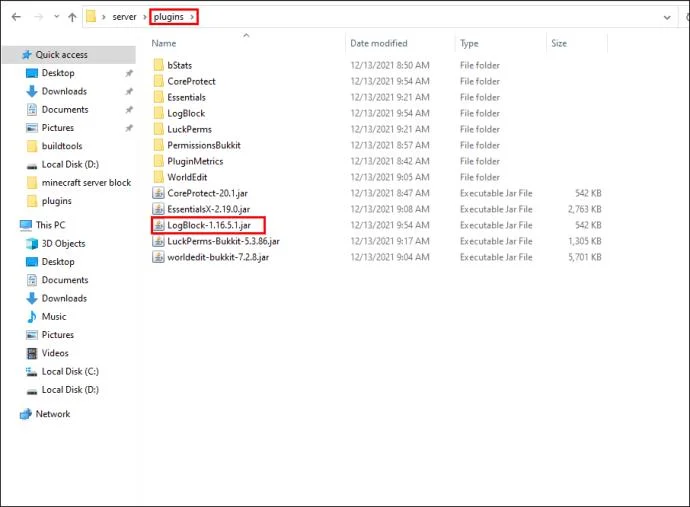
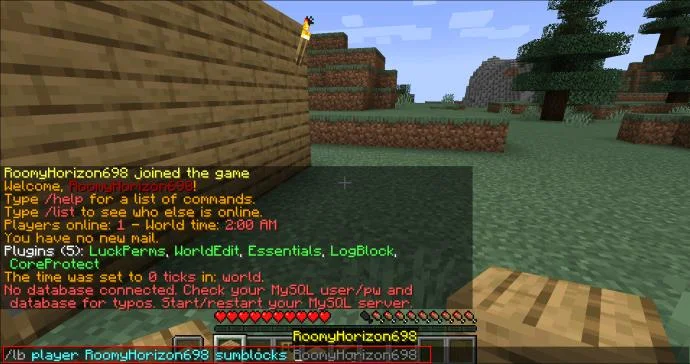
Alternatively, you can use the LogBlock plugin. It doesn’t let you view who placed a specific block but provides information on all blocks placed by a specific player. Here’s how to set it up:
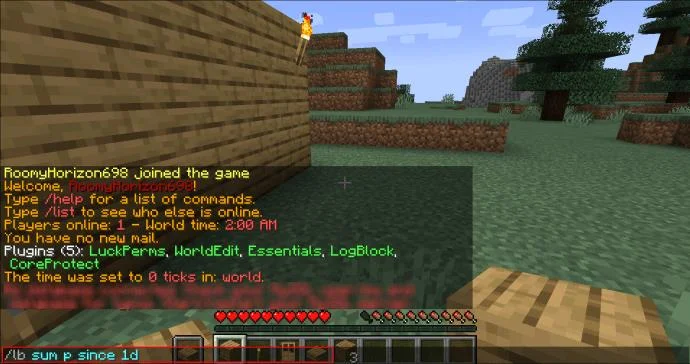
After the plugin is installed, you can track who made changes on your server by typing the following commands into the command input box:
How to Check Who Placed a Block in Minecraft WorldEdit?
Minecraft WorldEdit makes building large-scale structures simple and lets you copy and paste enormous constructions between worlds. The issue is, it also helps griefers do massive damage with less effort. Thankfully, WorldEdit is compatible with Bukkit block logging plugins, such as CoreProtect. Here’s how to install it on your server:
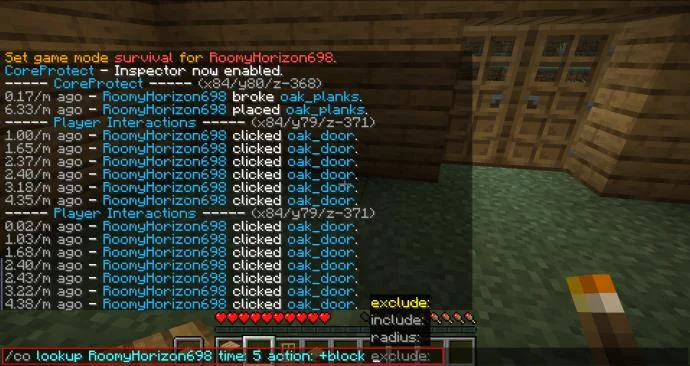
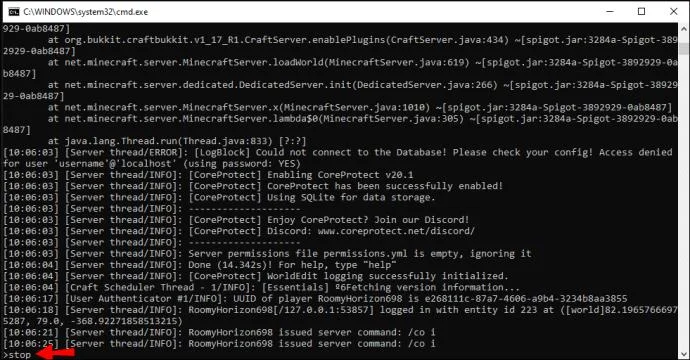
Once the server is restarted, launch it and bring up the command input box. Type in “/co inspect” to start the inspector. Then, use the following commands to track who placed or removed blocks on your server:
/co lookup” followed by the necessary parameters into the command input box to search for specific changes. For instance, you can specify the player’s name, time, location, and action.How to See How Many Blocks You Placed in Minecraft
Sometimes, it’s interesting to see how many blocks make up a massive construction. You can check how many blocks you or someone else has placed in Minecraft using plugins such as LogBlock. Here’s how to install it on your server:
You can check how many blocks a user has place using the following commands:
Protect Your Server
Now that you know how to track changes on your Minecraft server, you can fight griefers and revert the changes they made. Apart from that, block logging plugins such as LogBlock and CoreProtect can provide you with valuable insights into the work you’ve performed. Keep your server safe!
What are your tips to prevent griefing in Minecraft? Share your tips in the comments section below.
Find and download the best free games for PC Steam with this complete guide. Learn how to browse, install, and play top free-to-play titles quickly.
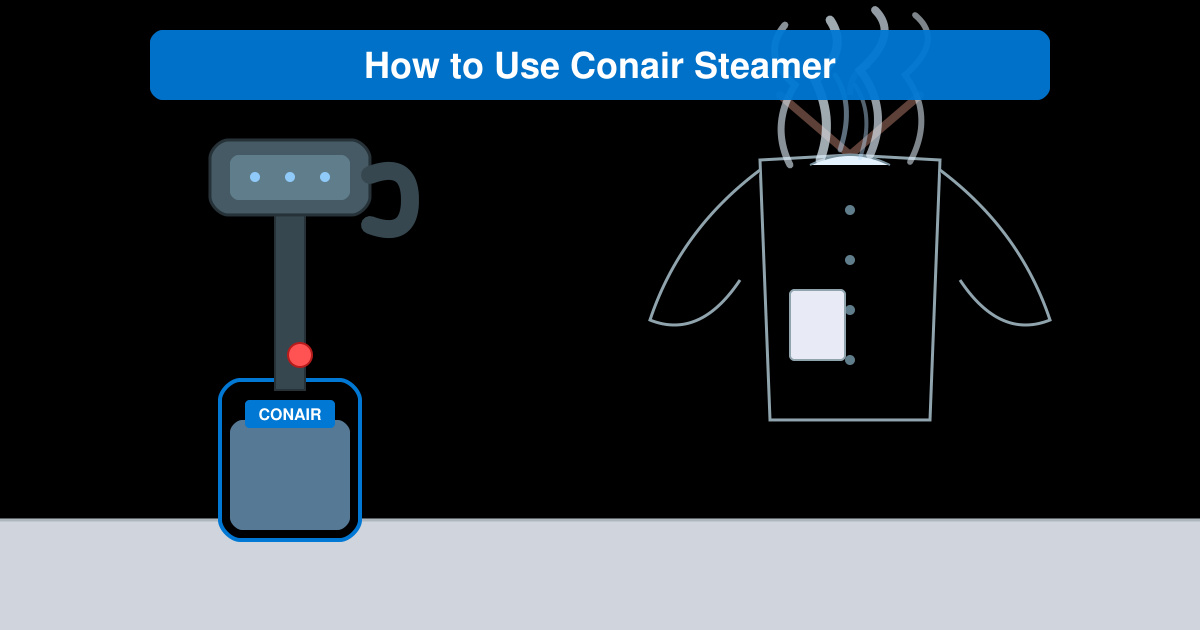
How to Use Conair Steamer correctly to remove wrinkles fast from clothes and fabrics. Follow these clear steps for safe, effective results every time.
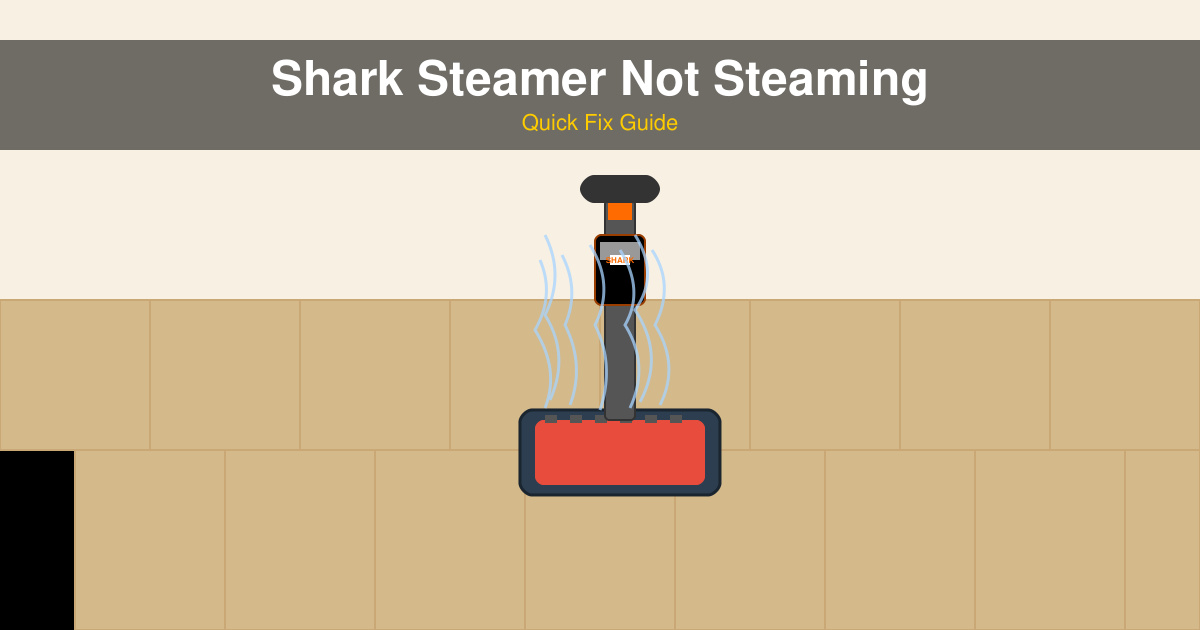
Shark Steamer Not Steaming? Follow these targeted troubleshooting steps to identify and fix the issue so your Shark steam cleaner works properly again.
Learn how to steam fresh broccoli perfectly in just five minutes. This simple stovetop method keeps nutrients intact and delivers tender-crisp results every time.
How to Steam Vegetables Without a Steamer using everyday kitchen tools like a pot, colander or microwave. Get crisp, nutrient-rich results with these proven methods.
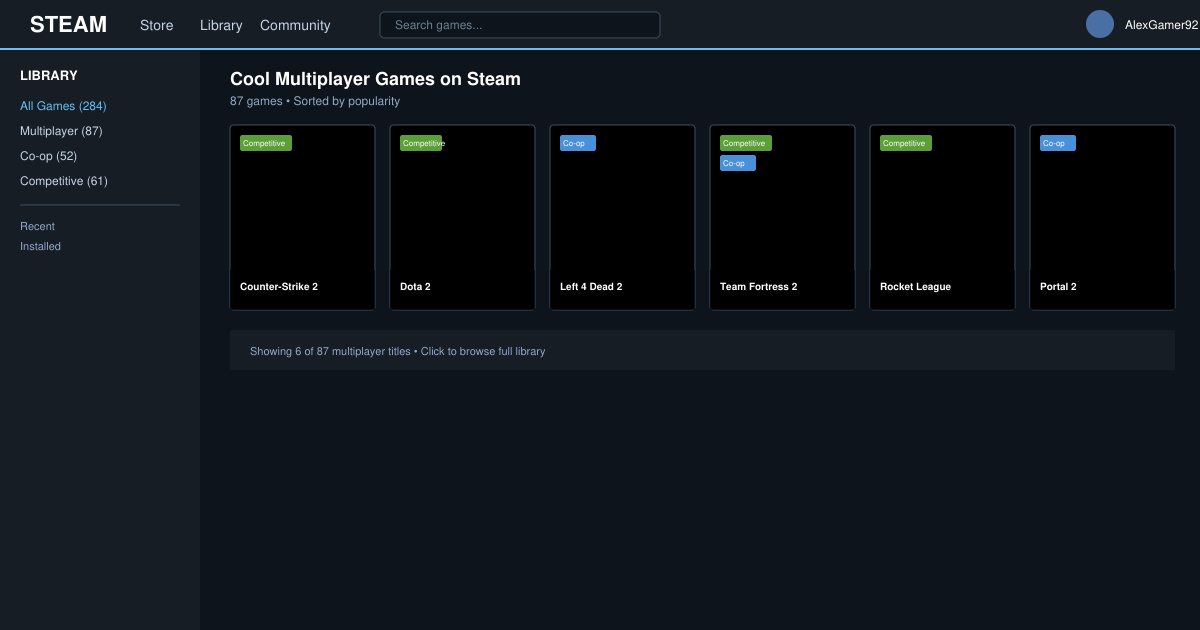
Find cool multiplayer games on Steam with this guide covering discovery, installation, and play. Jump into co-op and competitive titles with friends today.
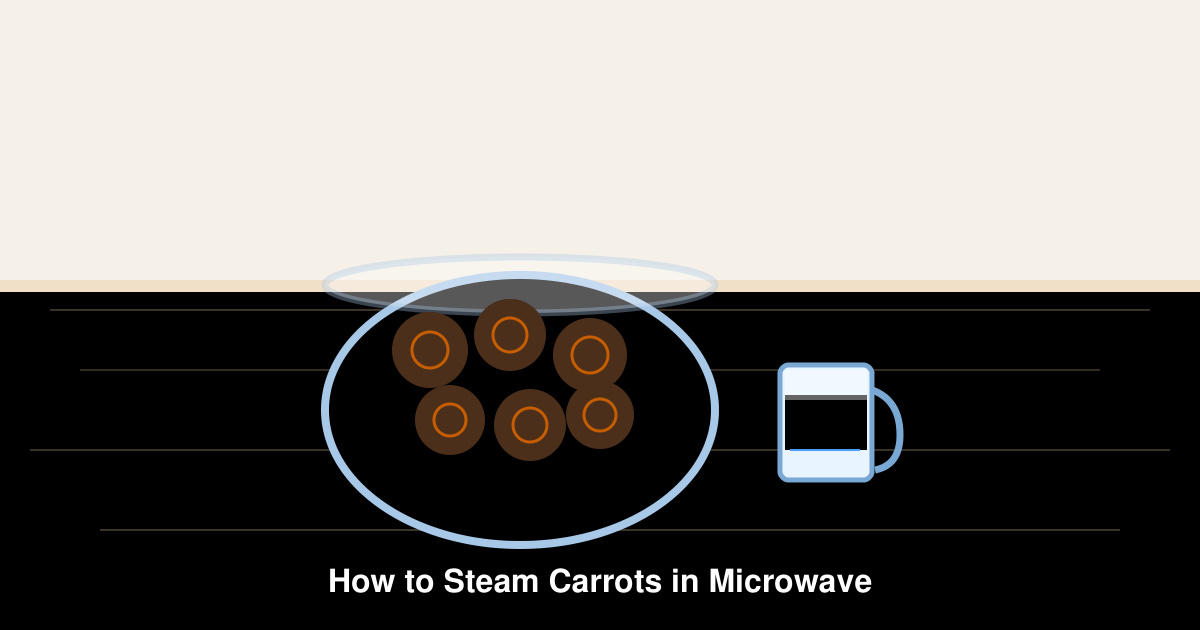
How to steam carrots in microwave delivers tender, nutrient-rich results in under 10 minutes. Follow these precise steps for perfectly cooked carrots without a steamer basket.
How to Steam Without a Steamer using everyday kitchen tools for perfectly cooked vegetables and dumplings. Discover fast methods that deliver restaurant-quality results at home.
How to Cook Broccoli in a Microwave delivers perfectly steamed florets in minutes. Follow these exact steps for tender, bright green results without a steamer basket.
How to steam broccoli in the microwave delivers tender, nutrient-rich florets in under five minutes with almost no cleanup. This reliable technique works in any standard microwave and needs only a microwave-safe bowl.