A visually striking PowerPoint presentation can go a long way toward grabbing and keeping people’s attention, whether they’re guests at a wedding or visitors at a museum exhibition. It doesn’t matter whether you want to help the audience retain information or build an emotional connection. Playing the presentation repeatedly in the background can significantly benefit your goal.
If you’re unsure how to keep the presentation going without having to restart it manually, you’ve come to the right place. Keep reading to learn how to loop a PowerPoint presentation.
How to Loop a PowerPoint Presentation on a PC
After designing the perfect Microsoft PowerPoint presentation for your event, you can easily tweak the settings to make it loop instead of ending after a single viewing.
- Open the presentation you want to loop in PowerPoint.
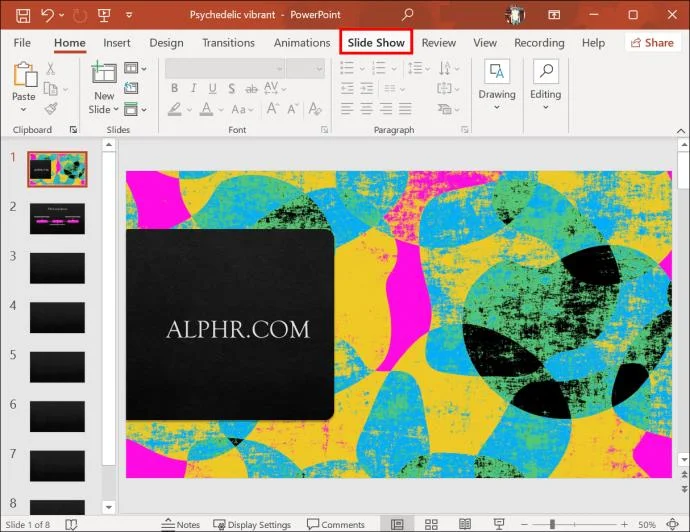
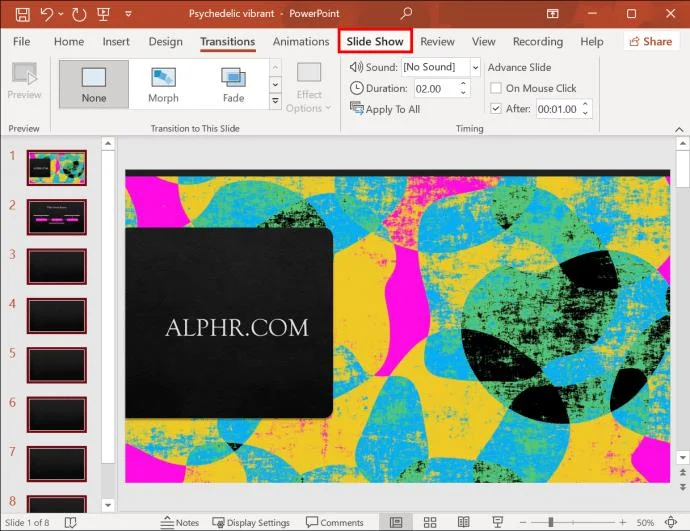
- Click on the “Slide Show” tab at the top of your screen.

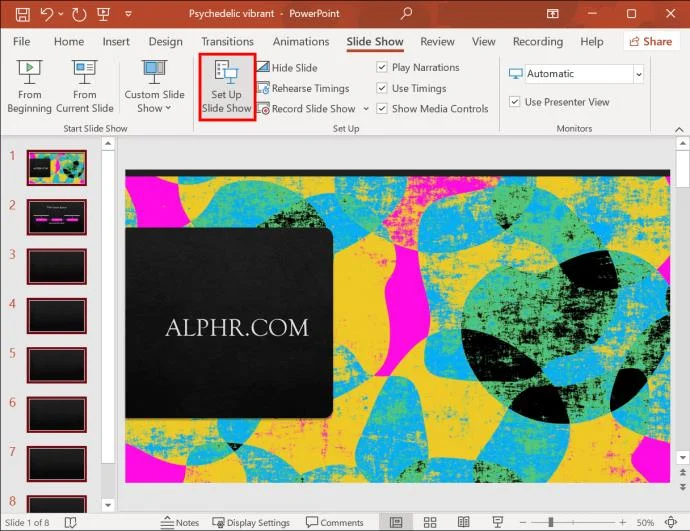
- Press the “Set Up Slide Show” button.

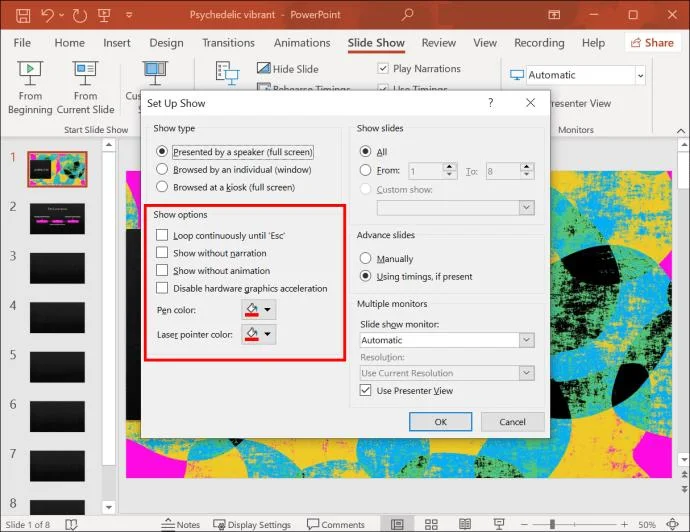
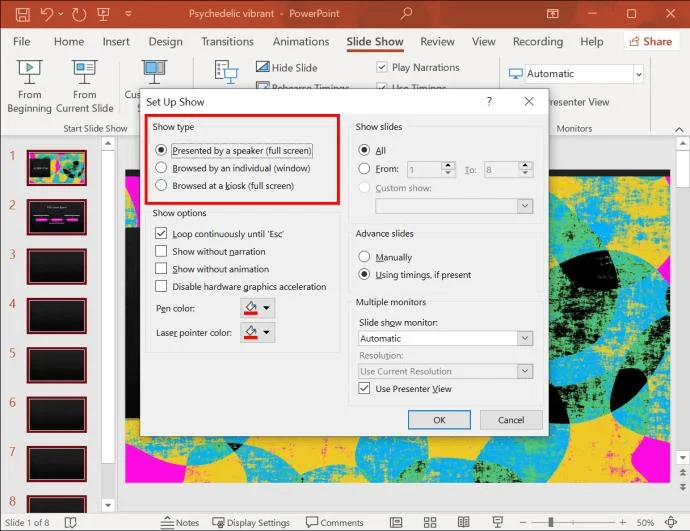
- Navigate to the “Show options” section in the “Set Up Show” pop-up window.

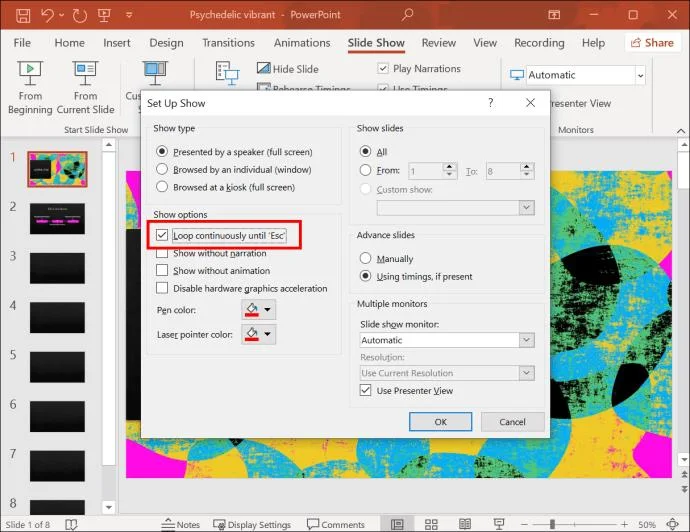
- Enable the “Loop continuously until ‘Esc’” checkbox.

If you were to leave it at that, the presentation would loop after finishing, but you would still have to click between the slides to keep it going. So, this option only works if a speaker is present at all times, which is highly unlikely and inconvenient.
Let’s set up an automatic slide transition so the presentation does all the work from beginning to end.
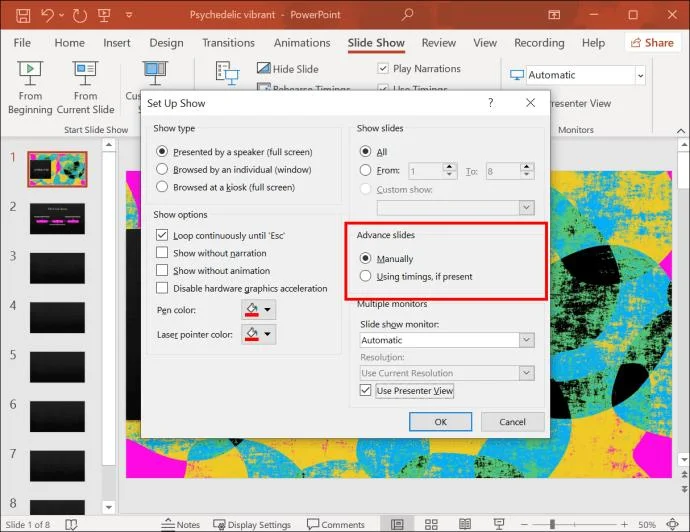
- While in the “Set Up Show” pop-up window, find the “Advance slides” section.

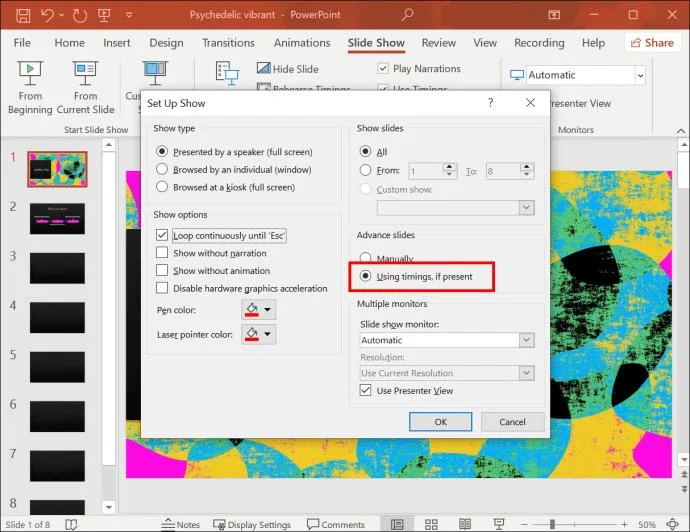
- Check the box next to “Using timings, if present.”

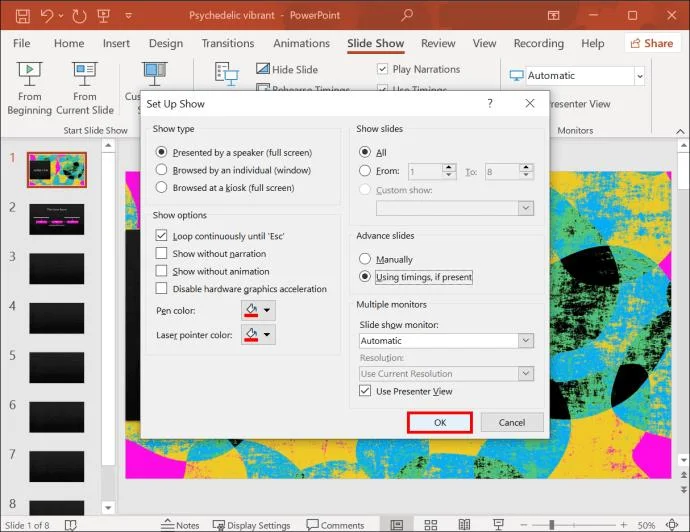
- Hit “OK.”

The next step is to deal with the “If present” portion of the checkbox. Follow these steps to set up timing for the automatic slide transition.
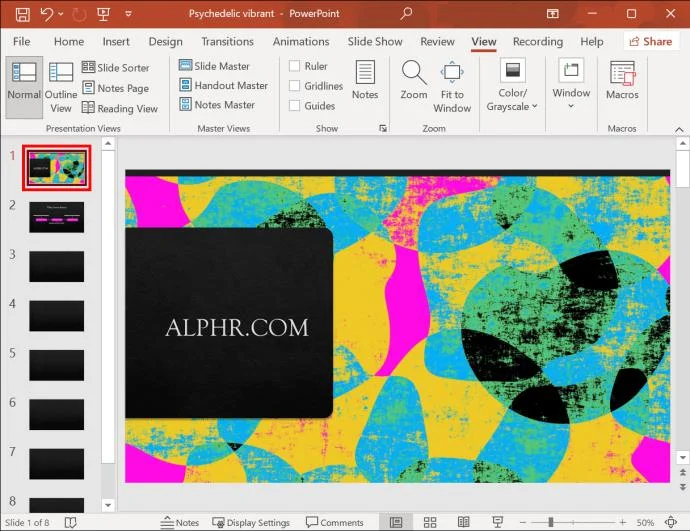
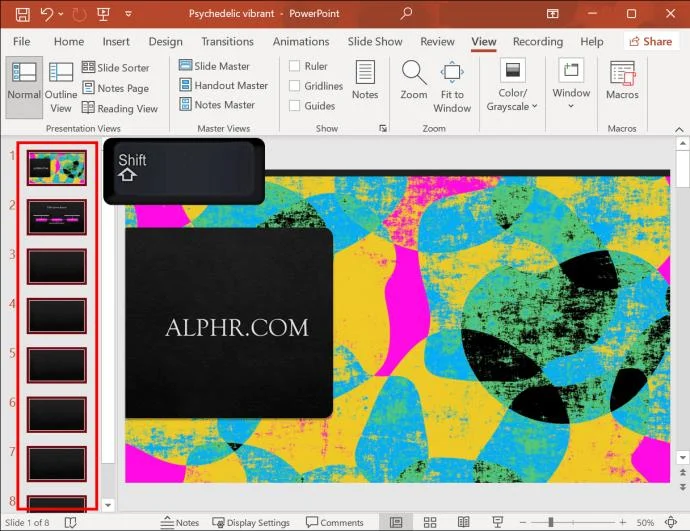
- Click on the first slide in the “Slides” preview panel on the left.

- Press and hold the “Shift” button and click on the last slide to select all the slides in your presentation.

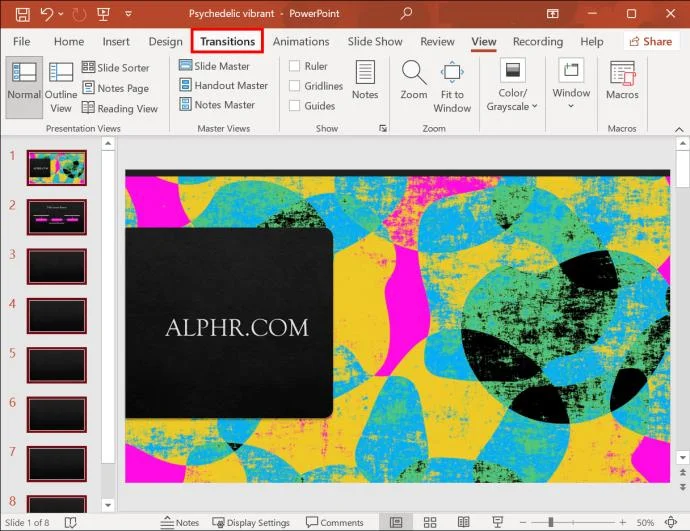
- Go to the “Transitions” tab at the top.

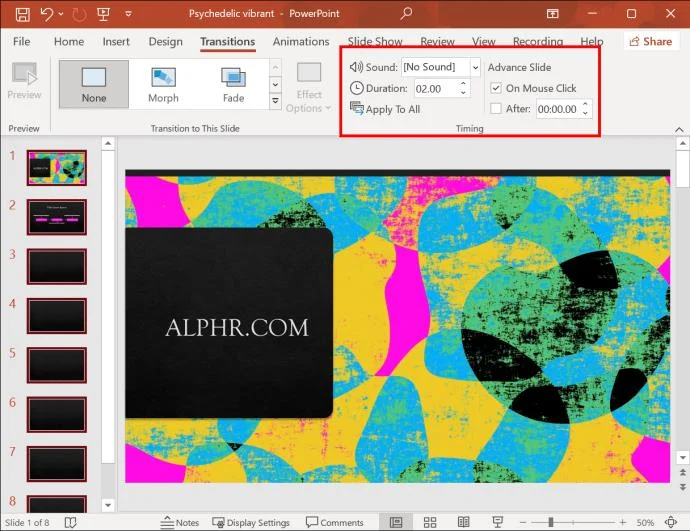
- Find the “Timing” section.

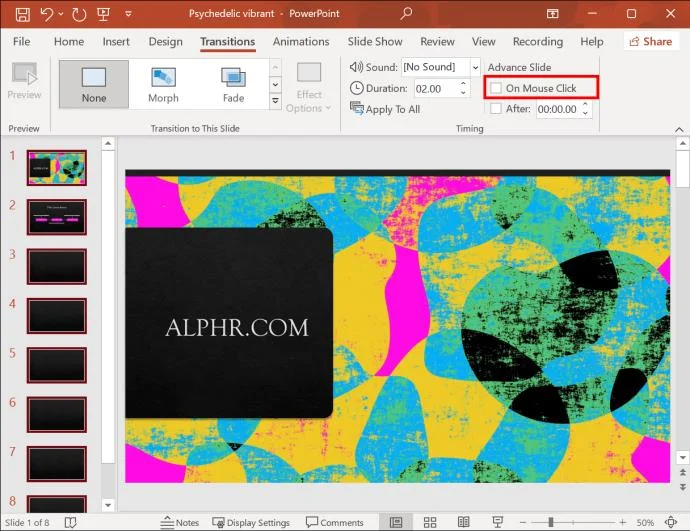
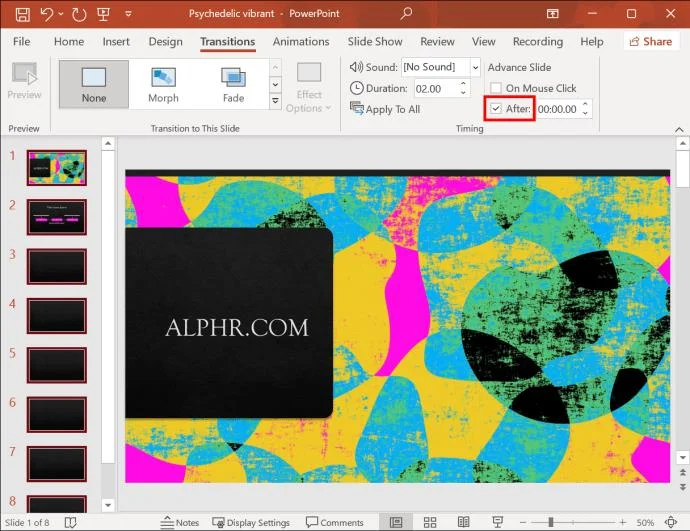
- Uncheck the box next to “On Mouse Click.”

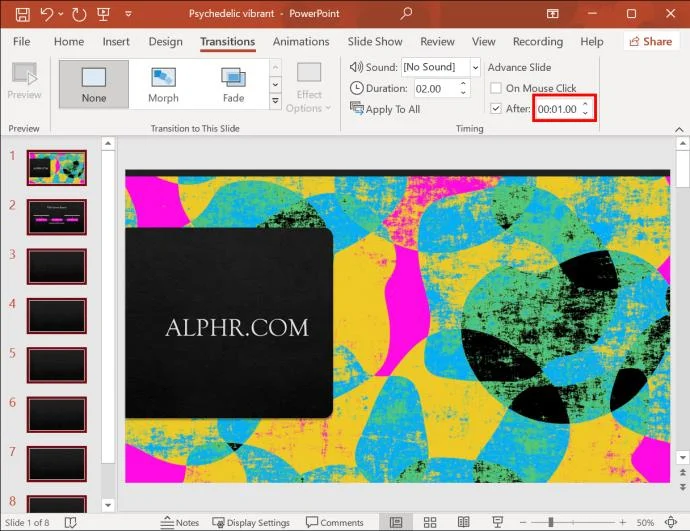
- Check the box next to “After.”

- Enter how long you’d like each slide to display in the field next to “After.”

The duration of the slides depends on the content of your presentation. You can move it along a bit faster if it’s an all-picture display. That way, the audience won’t have to stare at a static screen for too long. Otherwise, make sure to leave enough time for people to read the text on each slide, especially if your goal is to inform them about a service or product.
With everything set up, the presentation will reach the last slide on its own. From there, it will automatically loop back to the beginning.
If the presentation is set up where it can’t be monitored at all times, visitors might get impatient and switch the slides manually. Such interference would disable the automatic slide progression. To avoid this, you should change one more setting in your presentation.
- Go back to the “Slide Show” tab.

- Click on the “Set Up Slide Show” button.

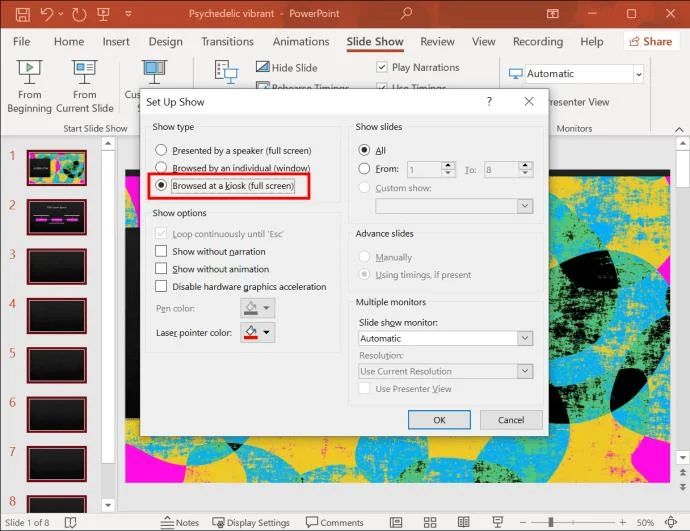
- Navigate to the “Show type” section at the top of the pop-up window.

- Select the “Browsed at a Kiosk (Full Screen)” checkbox.

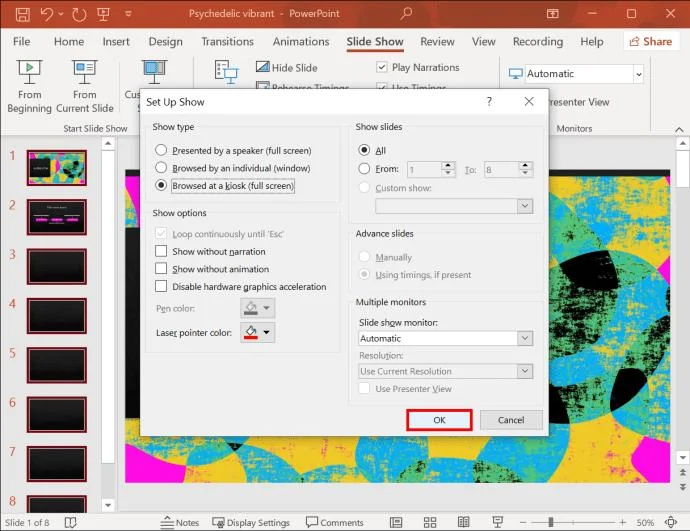
- Press “OK.”

The Forward and Back keys will be locked with this show type enabled. No one will be able to disrupt the presentation’s progress. You can hit the Esc button to exit the slideshow when the event has finished.
Before your presentation has its big day, you should ensure everything is set up correctly. To preview your presentation, do the following.
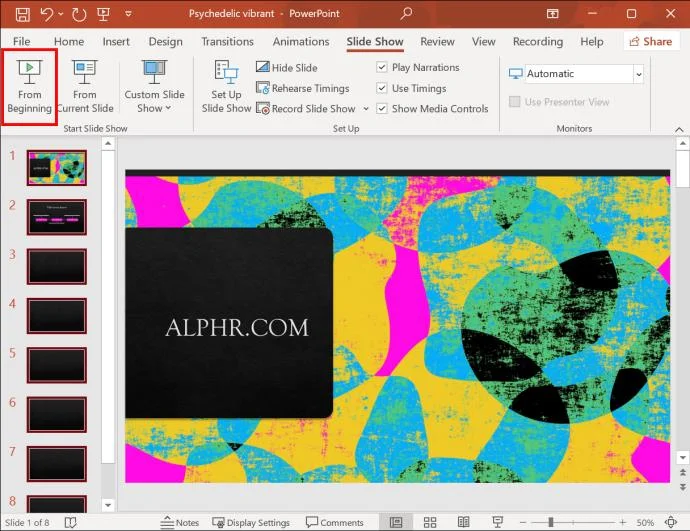
- Click on the “Slide Show” tab.

- Tap the “Play From Start” or “From Beginning” button.

Sit through your presentation and check that it repeats from the beginning once it reaches the final slide. When you’re confident the looping is enabled, press the Esc key and save your work.
How to Loop a PowerPoint Presentation on a TV
While this process is pretty simple, it will only work if your TV supports the PPT format and thus can play a PowerPoint presentation. Not all TVs have this option.
You can use some methods to loop a PowerPoint presentation on a TV that doesn’t support this format.
Connect a Laptop
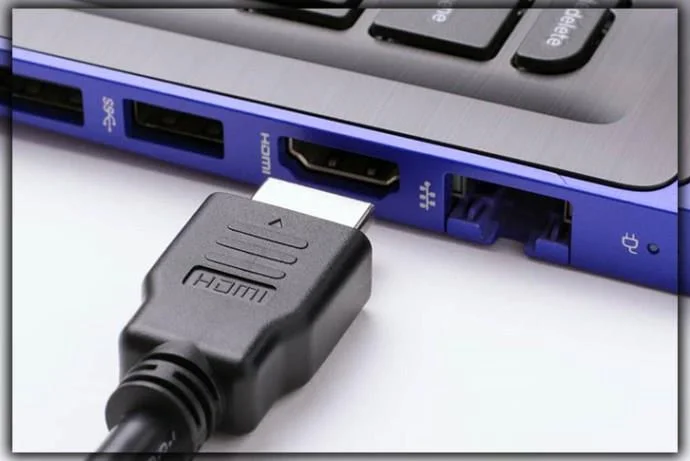
The simplest solution to your problem is connecting a laptop to your TV using an HDMI cable.
- Plug the HDMI cable into the laptop’s HDMI port.

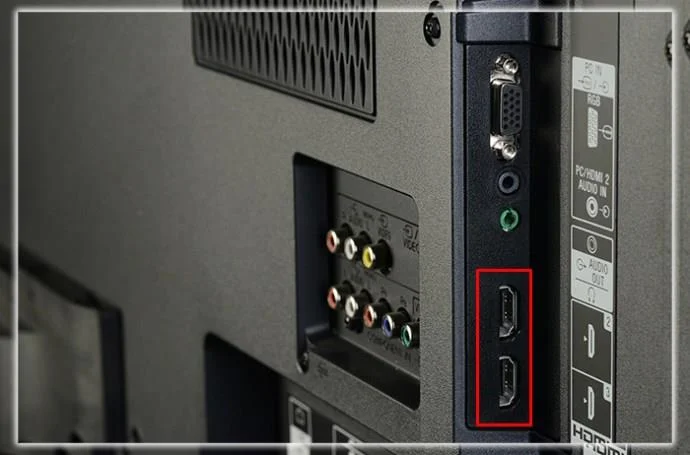
- Locate an HDMI port on your TV and connect the other end of the cable.

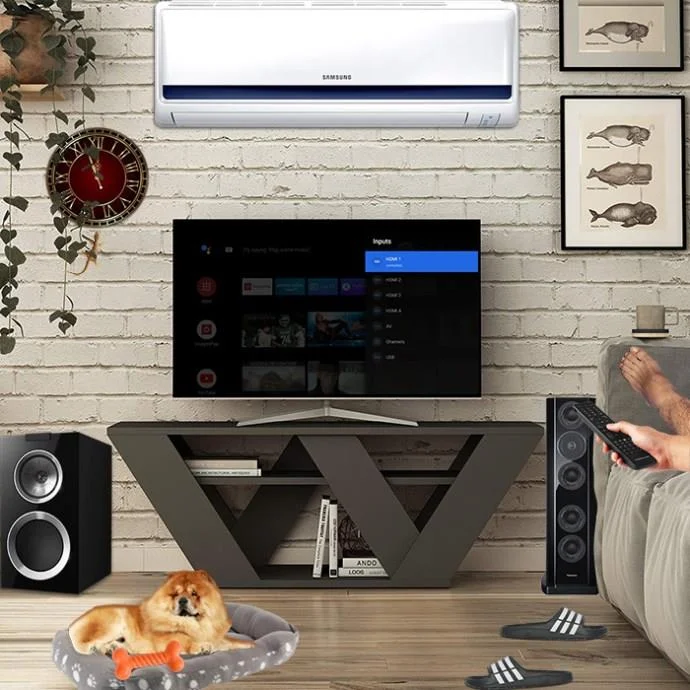
- Switch to the “HDMI” view on your TV using the remote.

Now you can play the looped presentation on your laptop, which will keep going on your TV until you manually stop it.
Use a PowerPoint TV Player
You’ll need an alternative solution if you can’t leave your laptop connected to the TV for a prolonged period. Another great way to play a self-running presentation on your TV is to use a PowerPoint player called PowerPlayer. This product supports the native PNG format; you can simply plug it into any TV you’d like.
Can You Loop a PowerPoint Presentation on an iPad? Not Directly
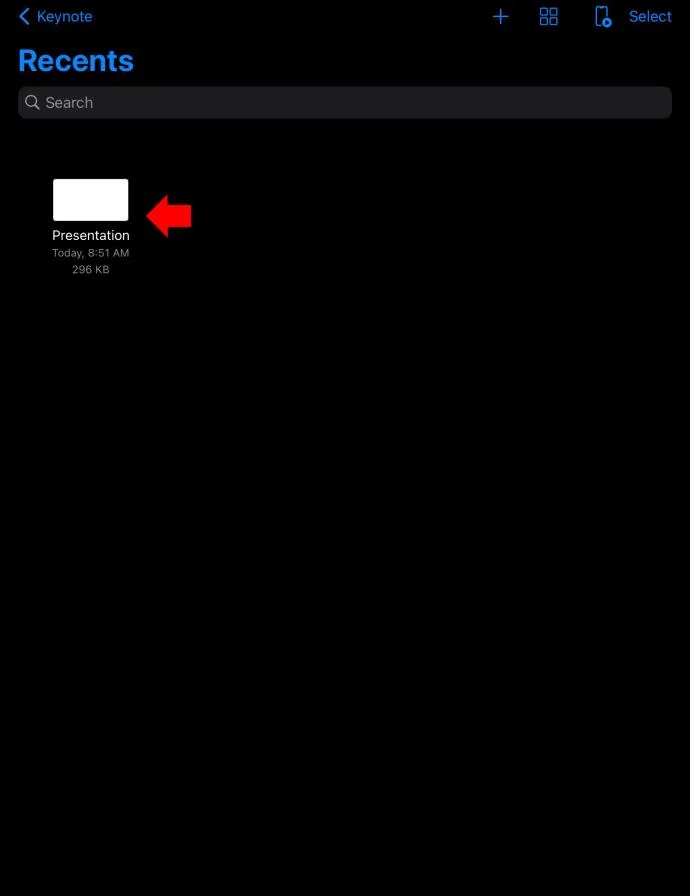
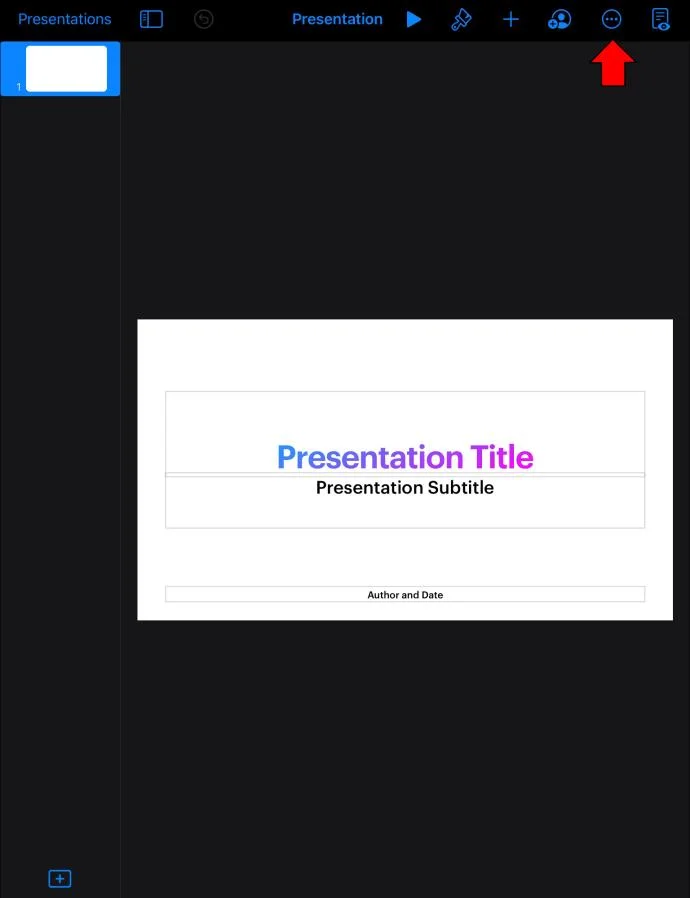
Although available on iPad, the PowerPoint app doesn’t offer the same auto-play functionality as the PC version. You can always loop your presentation on a computer and play it on your iPad. However, if you’d like to loop the presentation directly on the device, you’ll have to open it using Apple’s native presentation app, Keynote.
- Open your presentation using Keynote.

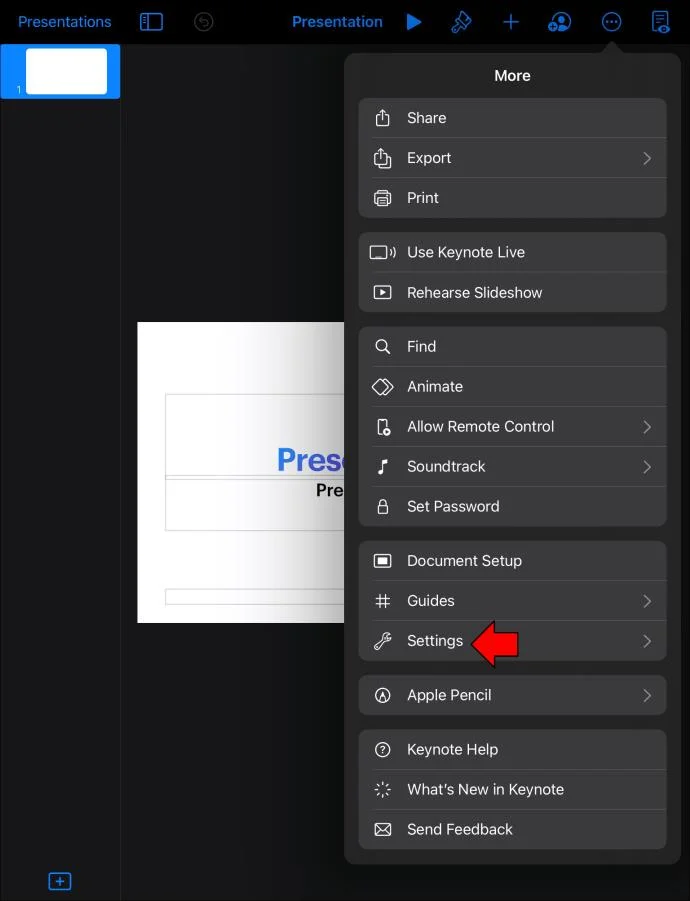
- Tap the three-dot icon in the upper-right corner of your screen.

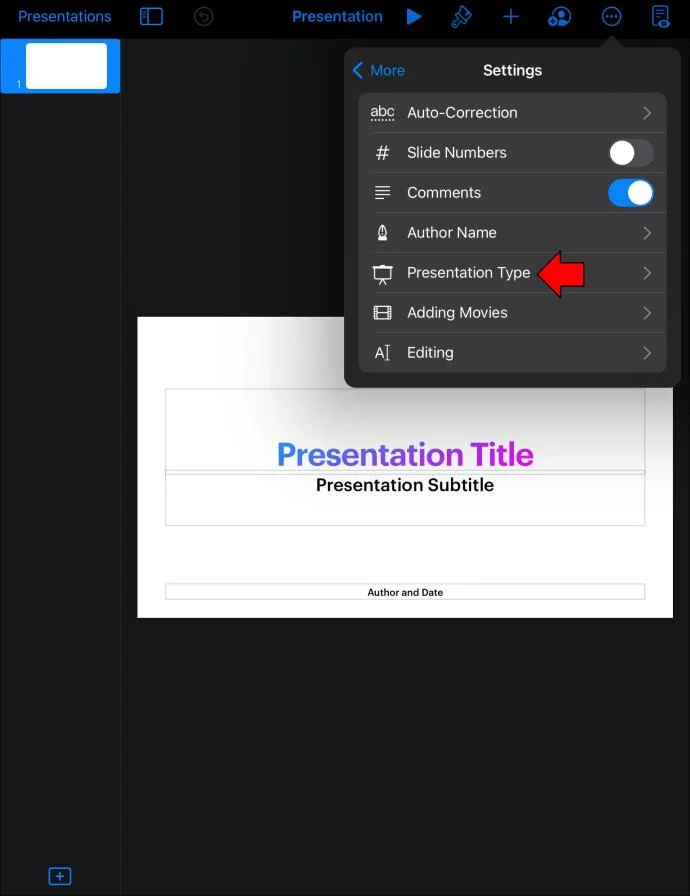
- Select “Settings.”

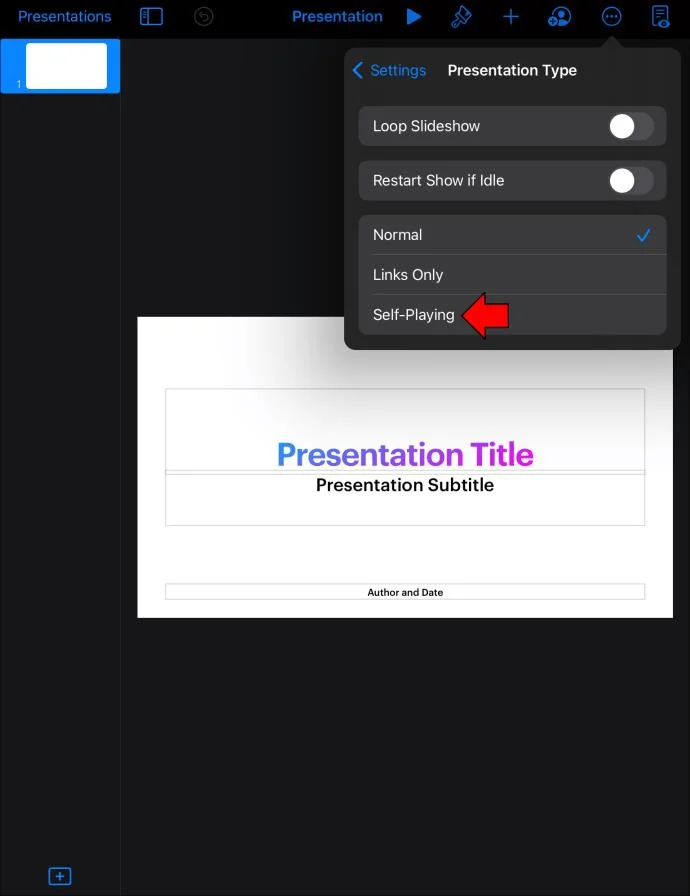
- Go to “Presentation Type.”

- Select the “Self-Playing” option.

Now that your presentation is set to advance automatically, the only thing left is to arrange the looping.
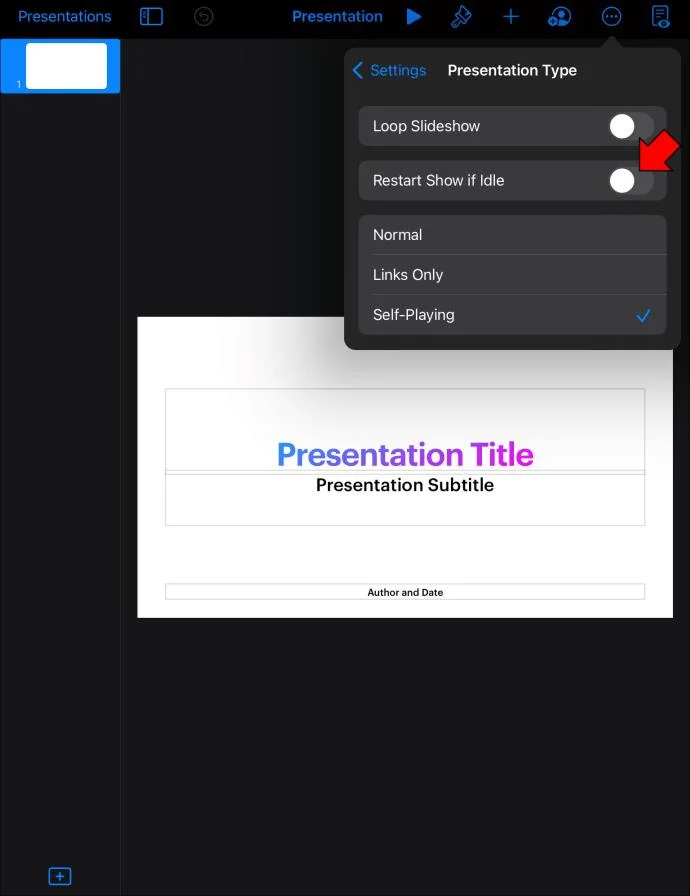
- While in the “Presentation Type” window, turn on the “Restart Show if Idle” option.

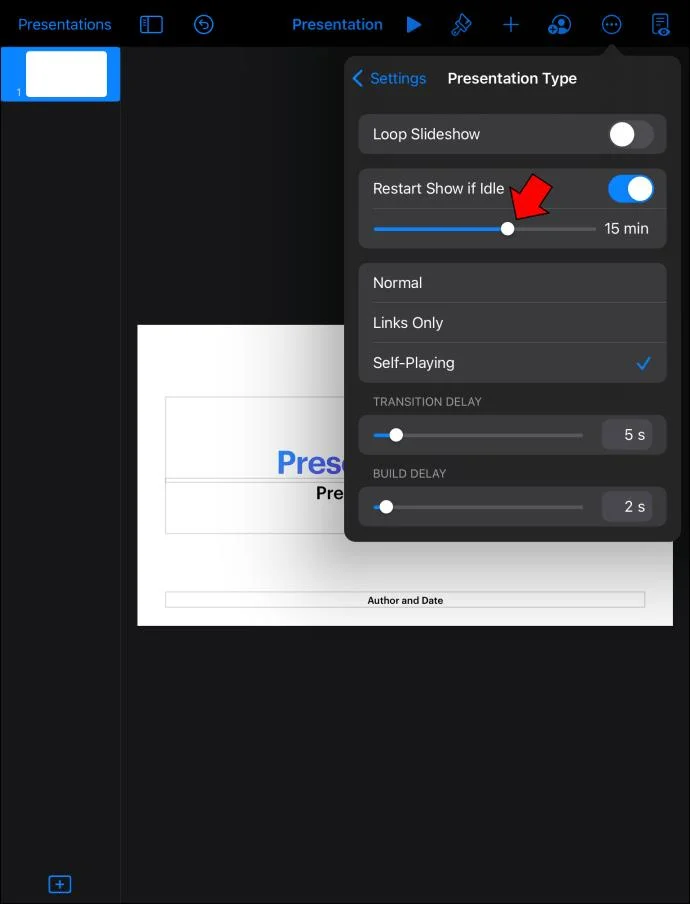
- Drag the slider next to the option to adjust the amount of idle time necessary for the presentation to restart.

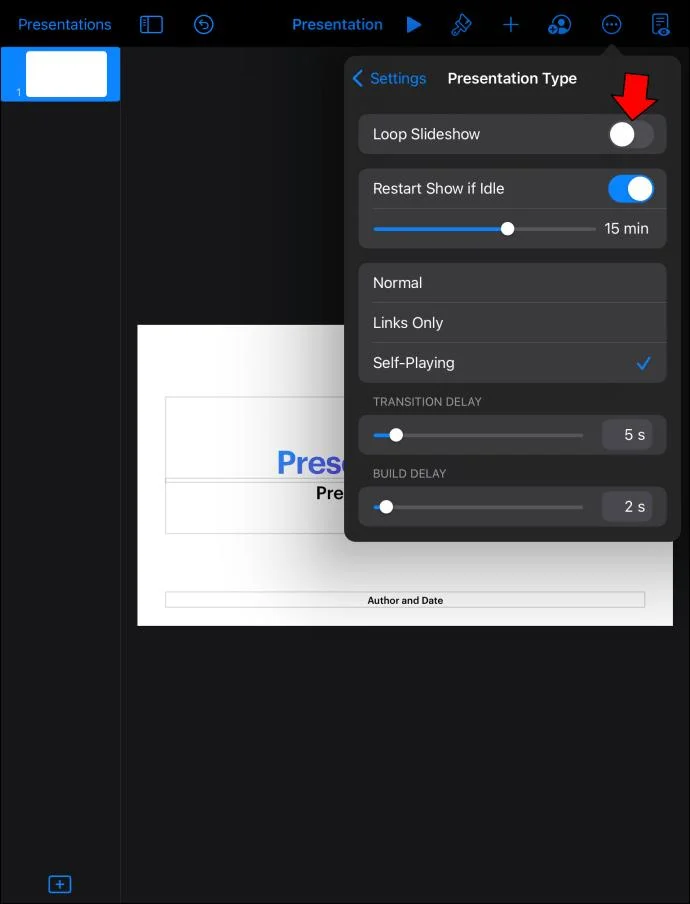
- Turn on the “Loop Slideshow” option to make the presentation continuously repeat.

Keep Everyone in the Loop
After spending a lot of time making your PowerPoint presentation informative and aesthetically pleasing, you’ll want to display it proudly for the world to see. Playing it once is certainly not enough, so you’ll want to loop your presentation and ensure everyone gets the chance to see it. While creating the perfect presentation can be time-consuming, looping it is a simple process that will take you no more than a few minutes.