The network adapter on the Windows operating system is a vital device that ensures network connections run smoothly. Since the network adapter receives and sends data via both wireless and wired connections, it acts like the interface of a computer network.
If you can’t see the network adapter in Windows 10, it could be due to a variety of reasons. This article will explain everything you need to know to solve the issue.
Restart Your Computer
Restarting your computer is the easiest solution to many problems, including your network adapter not being seen in Windows 10.
Check for Any Windows Updates
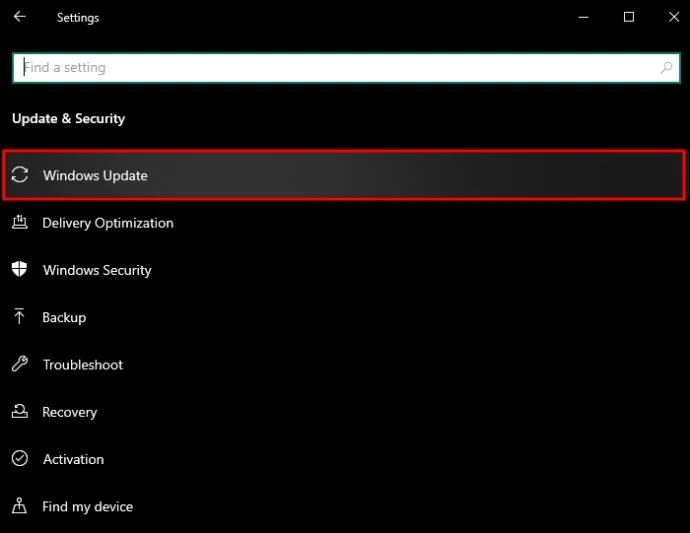
If you’re not seeing your network adapter in Windows 10, you might need to update Windows. Here are the steps to follow:
- Go to “Settings” then “Update & Security.”
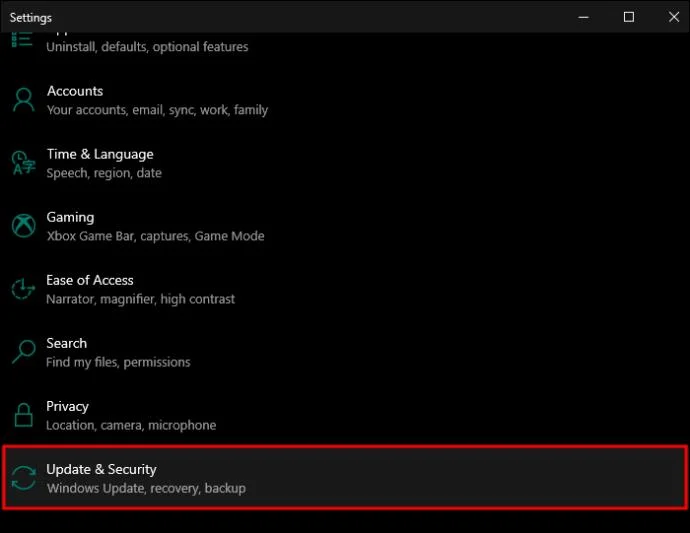
- In the pop-up window, click to check for any updates, then install them.

Disable Your Antivirus Software
Disabling your antivirus software can fix the issue of not being able to see your network adapter. Once you’ve disabled your antivirus software, restart your computer, and check to see if your network adapter is now showing.
Uninstall or Rollback the Network Driver
A common cause of not being able to see the network driver is that it wasn’t installed properly or it’s corrupt. To fix this issue, you need to uninstall it or do a rollback.
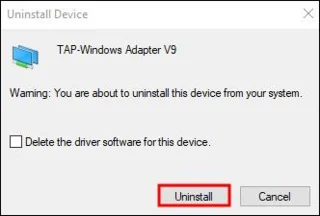
Here are steps for uninstalling the network adaptor:
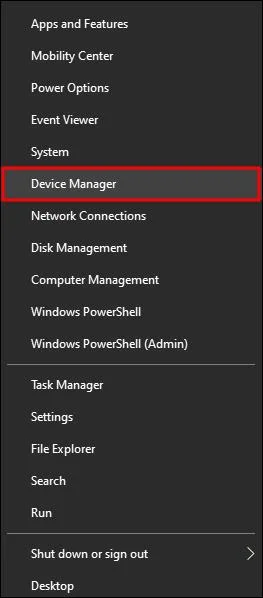
- On the “Windows” button, right click then choose “Device Manager.”

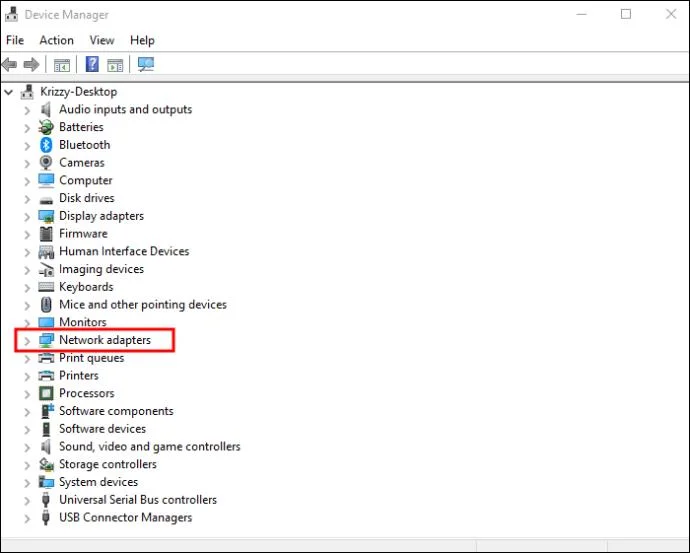
- Open “Network adapter.”

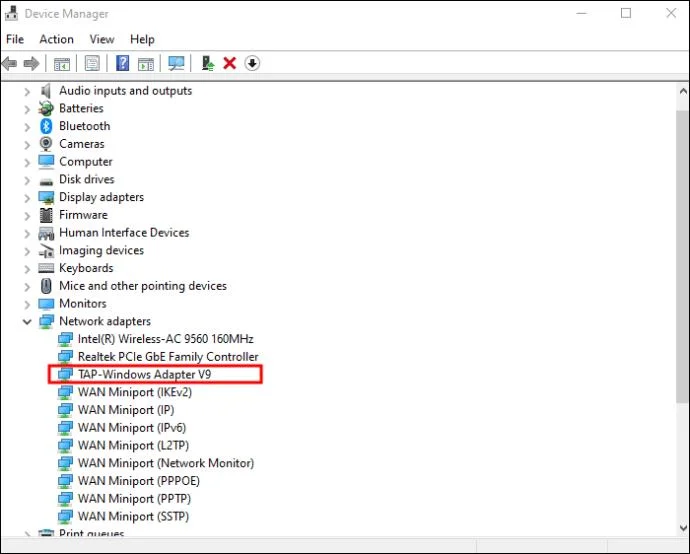
- Find the adapter then click on “Uninstall device.”

- Click on “Uninstall.”

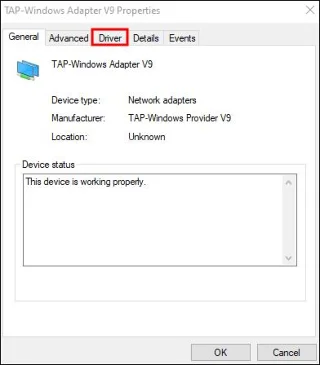
Here are steps for rolling back the network driver:
- On the “Windows” button, right click then choose “Device Manager.”

- Open “Network adapter.”

- Find the adapter then click on “Properties” and click on the “Driver” tab.

- Click on “Roll Back Driver.”

Show the Hidden Devices
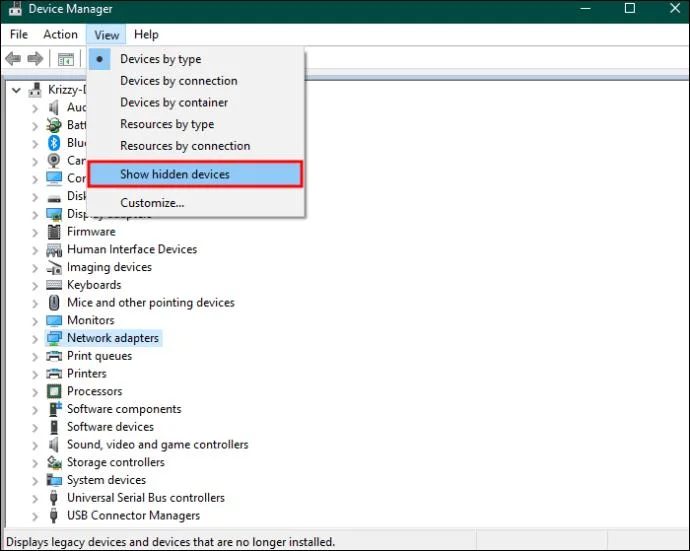
If you’re not seeing your network adapter, it could be that Windows has hidden network adapters in your Windows Device Manager. To show all hidden network devices, do the following:
- On the “Start button,” right click then choose “Device Manager.”

- Click on “View” and then “Show hidden devices.”

- Wait for some seconds then check to see if you can now find your network adapter.
Use the Troubleshooting Feature
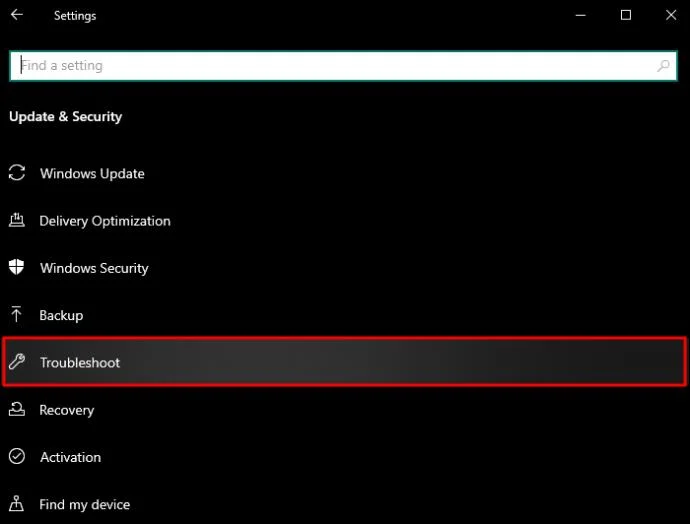
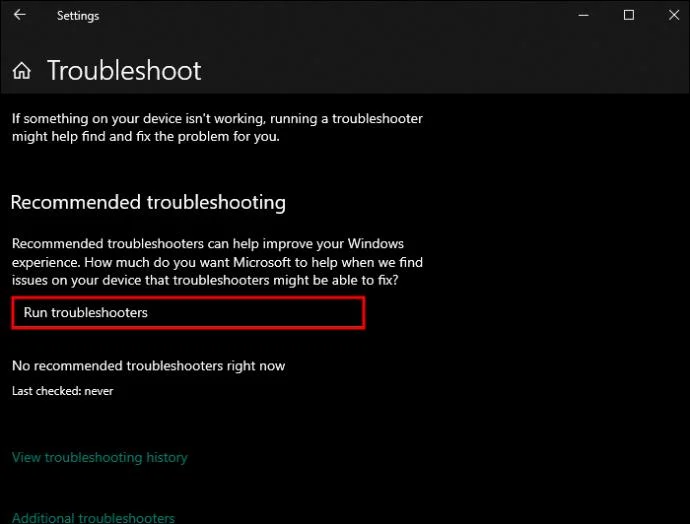
To figure out what could be causing your network adapter to stop showing, you can use Windows troubleshooting feature. Here’s how it’s done:
- Select “Windows + I” and choose “Update & Security.”

- Select “Troubleshoot” on the left pane, then click on “Network adapter” which is in the “Find and Fix other problems” section.

- Select “Run the troubleshooter” and let the process complete.

If you’d like to access it directly, in your WinX Menu select “Run box” then use this command:
Msdt.exe /id NetworkDiagnosticsNetworkAdapter
Do a Network Reset
Sometimes resetting your network will solve the problem of not seeing your network adapter in Windows 10.
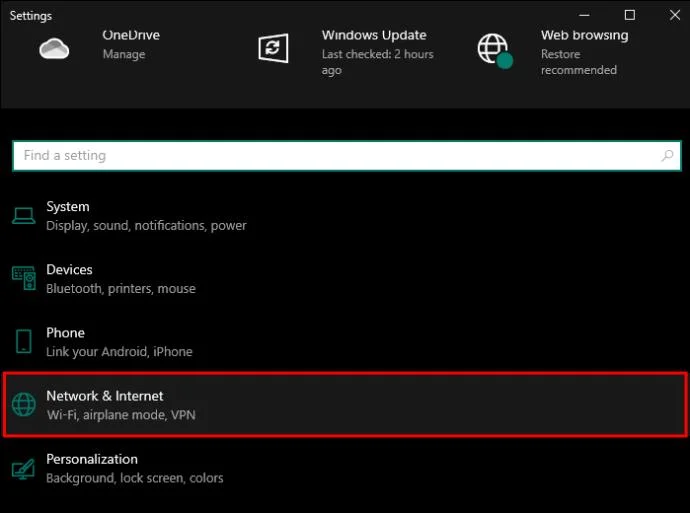
- Open the “Windows Settings app” then select “Network & Internet.”

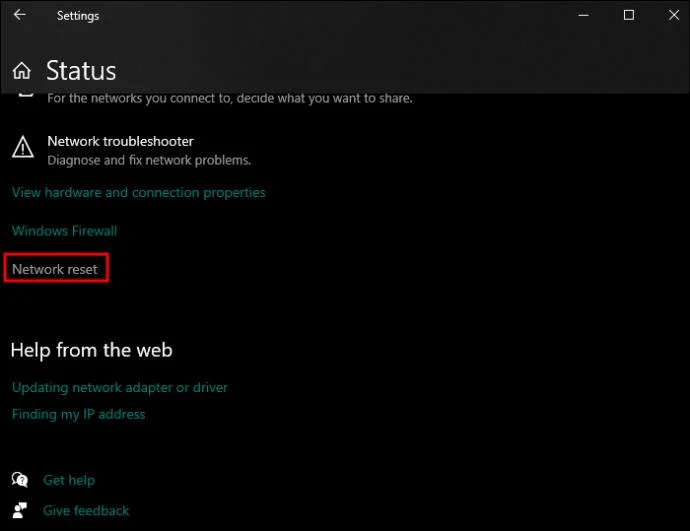
- Click on “Network Reset.”

- Find and select “Network” from your right pane.
Your network adapters will be reinstalled and your networking components will be reset to the default settings.
Do a Network Device Clean Up
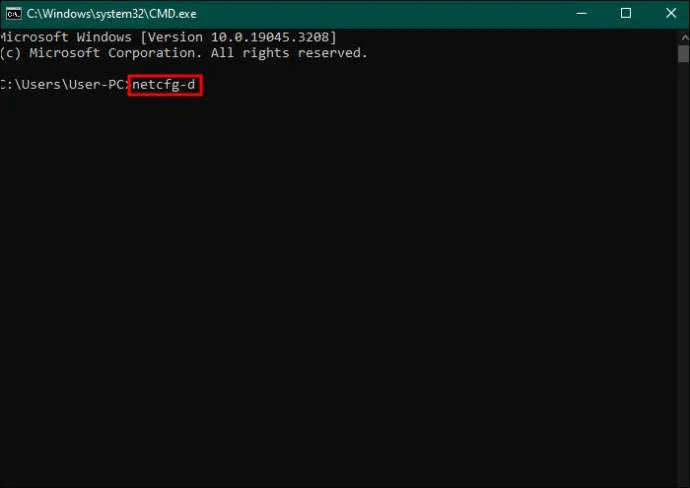
When your network adapter is missing, doing a cleanup of your network devices using Command Prompt may fix the problem. Here are steps to follow:
- Select “Win + R” then type “
cmd.”

- In the command prompt, type this code: “netcfg-d” then press “Enter.”

- Restart your computer.
From CMD Restart Winsock
To see your missing network adapter in Windows 10, you could go into your command prompt and reset Windsock. Here’s how it’s done:
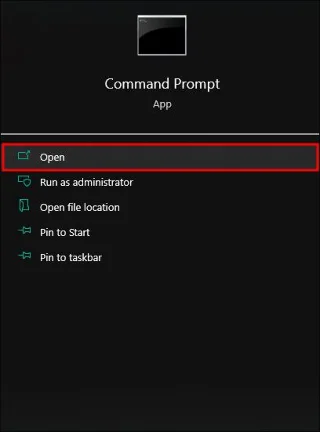
- Using “Administrator control” open “Command Prompt.”

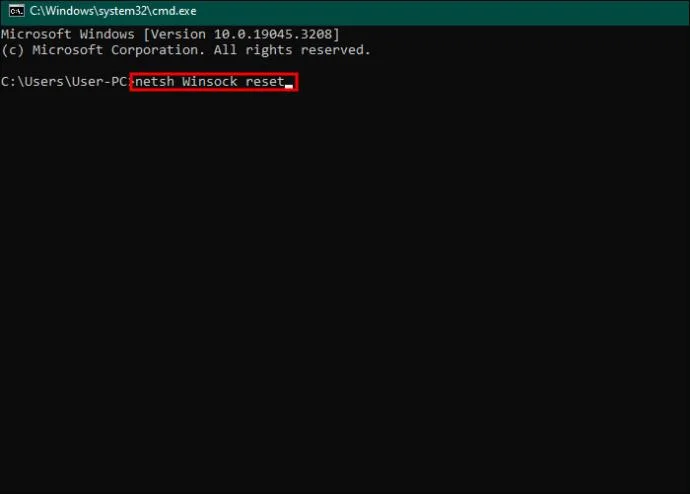
- Type this code into your command prompt interface “
netsh Winsock reset” then press “Enter.”

- Restart your computer.
Run the WWAN AutoConfig Service
If you want to use mobile broadband services, ensure that you’ve allocated the WWAN AutoConfig service.
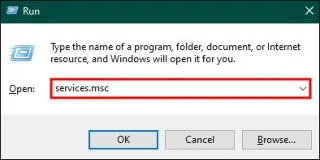
- Go to your “Run box” and type “
services.msc.”

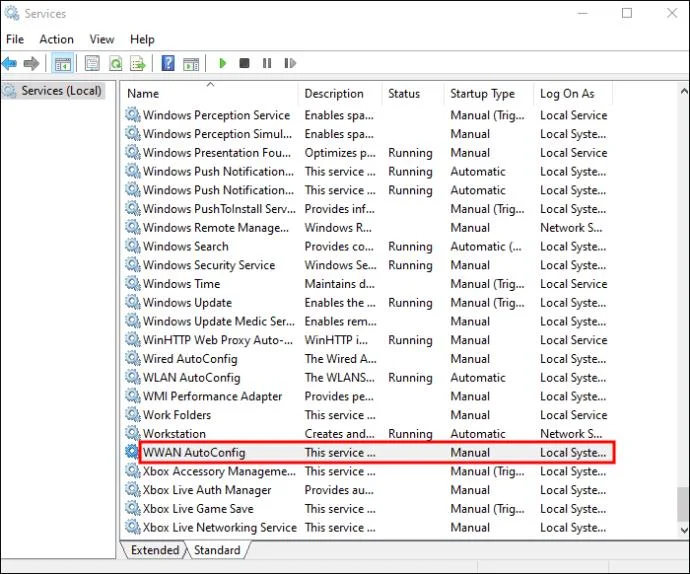
- In “Services” find “WWAN AutoConfig,” and open it.

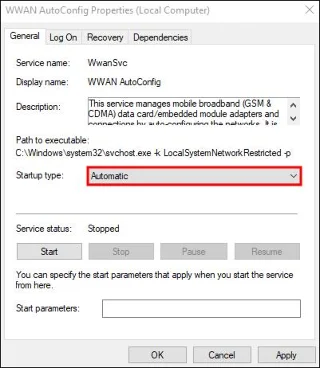
- Set your “Startup type” to “Automatic.”

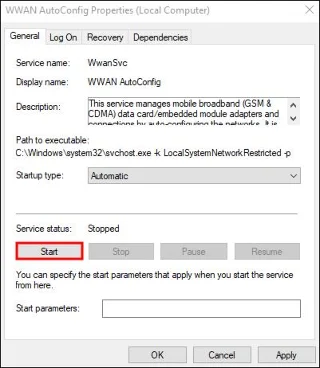
- Click on “Start” to begin the service.

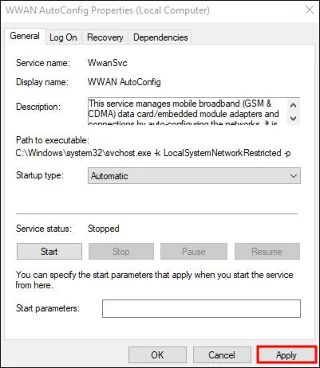
- Click on “Apply” to save.

Install Generic Ethernet Drivers
If you’re using an ethernet cable to connect to a network but it’s missing in Windows 10, try these steps to ensure it’s been installed properly:
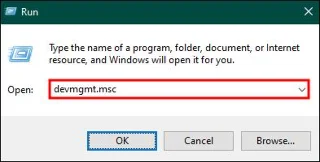
- Select “Windows + R” and type “
devmgmt.msc” then click “OK.”

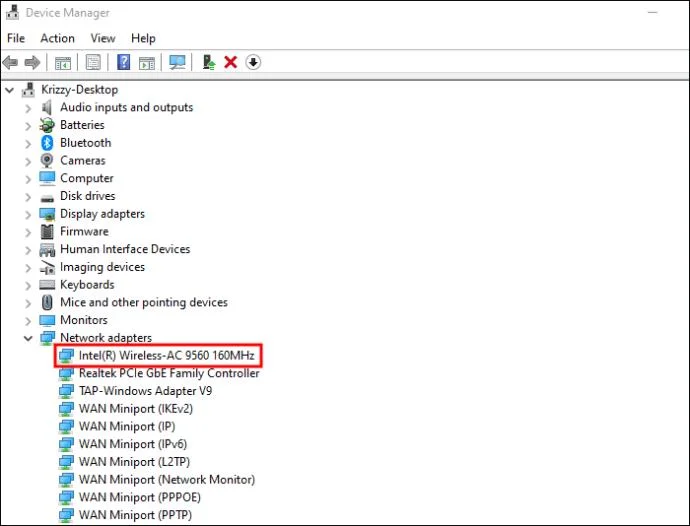
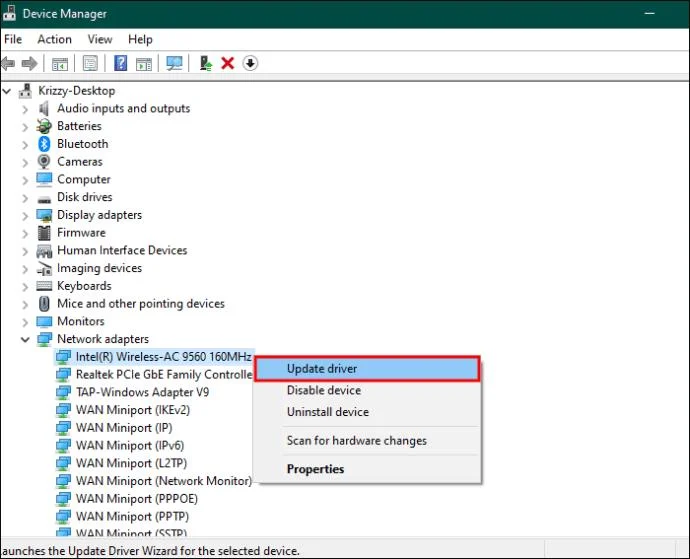
- In “Device Manager” open the network adapters then do a right click on the Wi-Fi/ethernet driver you’re trying to use.

- Click “Update driver.”

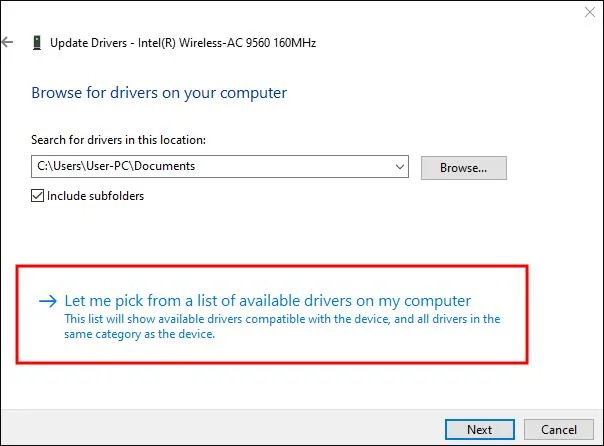
- Select “Browse my computer for driver software” then select “Let me pick from a list of available drivers on my computer.”

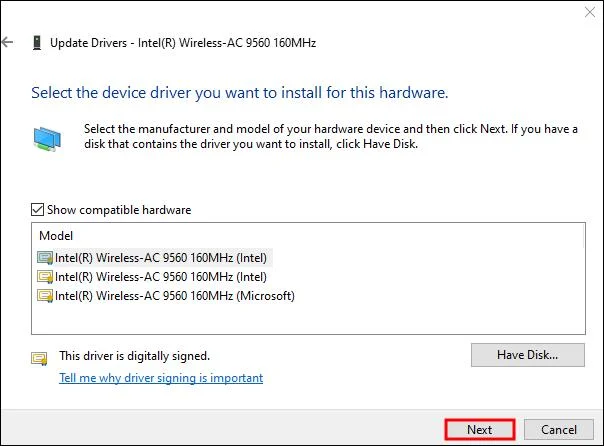
- Choose the network adapter driver then click on “Next.”

- Restart your computer and check if you can see your network adapter.
Other Solutions
If you’ve tried all the above solutions but your network adapter is still missing in Windows 10, try these other solutions:
- Completely disconnect your Wi-Fi connection, then reconnect it.
- If you’re using a VPN, disable it.
- Check if your physical network button is working fine. If it’s not, upgrade the system.
View and Use Your Network Adapter
If can be frustrating when you need to connect to a network in Windows 10 but your network adapter is missing. There are several reasons why this can happen, including the wrong settings, incompatibility, corrupt or outdated network adapter drivers, malware or viruses. Fortunately, all of the solutions have easy steps to follow to ensure that you’ll see your network adapter and get connected again.
Do you know the fastest and most effective way to restore your missing network adapter in Windows 10? Did we cover it in this article? Let us know in the comments section below.