
Use Regex in LibreOffice Writer to Edit Text in Batches
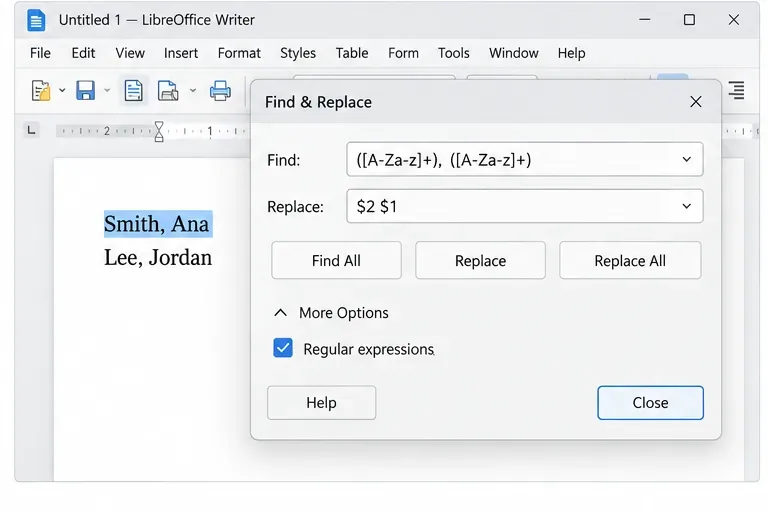
Clean spacing, find structured text, and rearrange names with Writer regex patterns you can preview before replacing.
Encountering the dreaded ERR_SSL_PROTOCOL_ERROR on your Windows 11 device? You're not alone. This frustrating issue pops up when browsers like Chrome, Edge, or Firefox struggle to establish a secure connection to websites. It blocks access to online banking, shopping, or any HTTPS site, leaving you feeling locked out of the digital world. But don't worry—this guide is your friendly roadmap to resolution. We'll walk through practical, up-to-date steps tailored for Windows 11, ensuring you regain smooth, secure browsing without the hassle. Let's dive in and get you back online with confidence! 🚀
The ERR_SSL_PROTOCOL_ERROR is a common SSL/TLS handshake failure in browsers. It occurs when your browser can't verify a website's security certificate or negotiate a secure protocol. On Windows 11, this can stem from outdated system settings, browser glitches, or network hiccups. Recent updates emphasize stronger TLS 1.3 support, so mismatches here are frequent culprits.
Common triggers include:
Understanding these helps you troubleshoot effectively. Now, let's tackle the fixes, starting with the quickest wins. Stick around—these steps are ordered from easiest to advanced, so you can stop at the one that works for you.

Chrome is the most popular browser, and ERR_SSL_PROTOCOL_ERROR often hits it hardest on Windows 11 due to its aggressive security features. Here's how to resolve it step by step.
Corrupted cache is a top villain. 😤 Clearing it refreshes your connection.
This simple action resolves the error for many users, restoring secure browsing in seconds.
Ensure you're on the newest Chrome version for Windows 11's enhanced security.
Pro tip: Windows 11's 2026 updates prioritize TLS 1.3—matching this in Chrome prevents future glitches.
Extensions or antivirus (like Windows Defender) might interfere.
If it works, re-enable one by one to identify the culprit. Safety first—re-enable security afterward!
Edge, being native to Windows 11, integrates deeply with the OS. SSL protocol errors here often tie to system-level issues.
A quick reset without losing data.
This flushes out misconfigurations, getting you back to secure surfing swiftly.
Stay current with the latest patches.
Recent Windows 11 builds fix SSL handshake bugs, making this essential for error-free browsing.
SSL certificates rely on accurate time.
A synced clock often banishes ERR_SSL_PROTOCOL_ERROR like magic. ✨
Firefox users on Windows 11 might face unique quirks due to its independent engine. Let's sort it out.
Similar to Chrome, but Firefox-specific.
Restart Firefox—your secure connections should flow again.
Keep it fresh.
Firefox's config tweaks give you granular control over SSL protocol handling on Windows 11.
Sometimes, graphics settings clash with SSL.
This lesser-known fix surprises many by resolving stubborn errors.
If basic steps fail, go deeper. These target system-wide issues.
Network glitches can mimic SSL errors.
Follow with Win + X > Network Connections > Right-click adapter > Properties > IPv4 > Use DNS 8.8.8.8 for Google's reliable servers.
Disable any VPN/proxy in Settings > Network & internet > Proxy. Test in incognito mode too.
For VPN users, switch servers or temporarily disconnect—many report instant relief.
Leverage built-in tools.
These ensure Windows 11's foundation supports secure browsing flawlessly.
Once fixed, keep it that way! 👍
By staying proactive, you'll enjoy uninterrupted, secure web experiences. If errors persist, consider hardware checks like router resets.
For rare cases, like enterprise networks, consult your IT admin. Or, for deeper dives, check Microsoft's official support:
Microsoft Network Troubleshooting Guide.
There you have it—a complete arsenal against ERR_SSL_PROTOCOL_ERROR on Windows 11. You've got this! If one fix clicks, share your success in the comments below. Happy browsing! 🌟
| Fix | Chrome | Edge | Firefox |
|---|---|---|---|
| Clear Cache | Ctrl + Shift + Delete | Settings > Privacy | Settings > Clear Data |
| Update Browser | About Chrome | About Edge | About Firefox |
| TLS Settings | chrome://flags | edge://flags | about:config |
Clean spacing, find structured text, and rearrange names with Writer regex patterns you can preview before replacing.
Enable Writer’s bidirectional controls, set RTL paragraph flow, and check mixed Arabic or Hebrew text without disrupting English words and numbers.
Install metric-compatible Linux fonts or map LibreOffice fallbacks, while keeping Microsoft font licensing and layout differences in view.
Add usable text fields, check boxes, and drop-downs in Writer, then export a PDF recipients can complete and save.
Fix missing or substituted fonts in LibreOffice Writer PDFs, choose the right export profile, and verify which fonts are embedded before sharing.
Convert a folder of Word documents to PDF with LibreOffice commands, handle nested folders safely, and verify the output before sharing.
Set a custom LibreOffice Writer template as the default so new documents open with your preferred styles and page layout.
Install a compatible Java runtime, enable it in LibreOffice, and troubleshoot an empty JRE list without changing unrelated settings.
Build a small LibreOffice container, convert office documents without a GUI, and verify PDF output while limiting host-file access.
Reduce oversized LibreOffice presentation files by compressing embedded photos, choosing sensible image settings, and checking slide quality before sharing.








