Youtube is currently one of the extremely popular and widely used applications besides Facebook, Gmail. Although it is a large application, during use, it will inevitably be unavoidable that small errors affect the user experience. The article below, WebTech360 Big, will guide you with some tips to fix common errors from Youtube on current Samsung TV models .
Tips to help you fix common Youtube application errors on Samsung TVs
1. Some common errors
- The Youtube application cannot be opened.
- The app cannot connect to the network even though the TV has reported successful connection.
- Error messages appear on the screen while watching Youtube.
2. Instructions on how to fix the error
For TVs running Tizen OS
- Method 1: Reinstall the application quickly
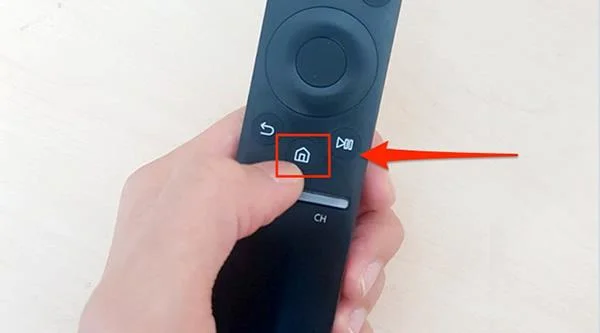
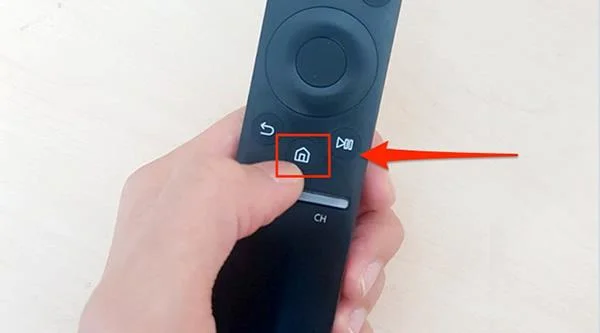
Step 1: Press the Home button (the house picture) on the TV remote.

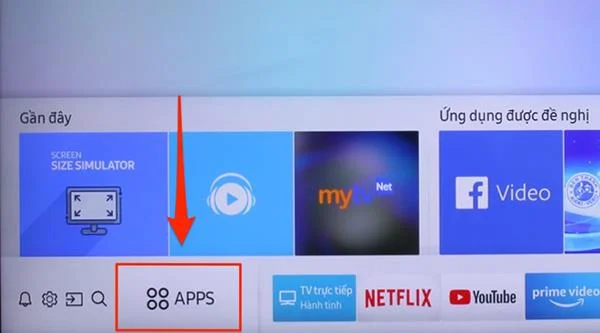
Step 2: Find and select the APPS item (with 4 dots).

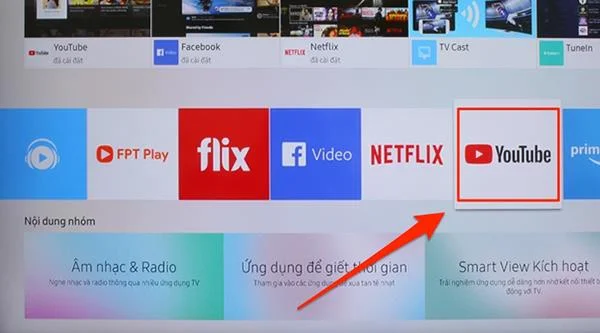
Step 3: Select the icon of the Youtube application.

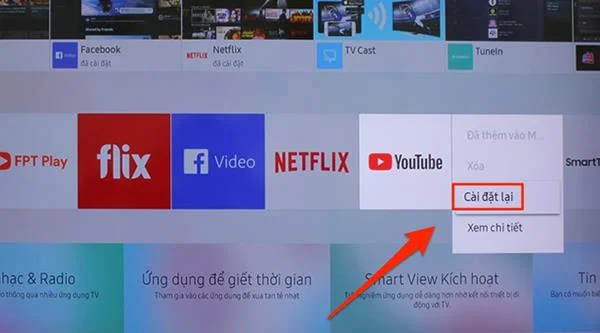
Step 4: Press and hold the OK button on the TV remote at the Youtube application icon until the small options appear inside. Select Reinstall, then wait for the TV to process the request.

After completing the installation process you can access the app again to see the changes. If your condition still hasn't improved, you can do the following 2 method.
- Method 2: Reinstall Smart Hub
Step 1: Press the Home button (house picture) on the remote to access the main user interface of the TV.

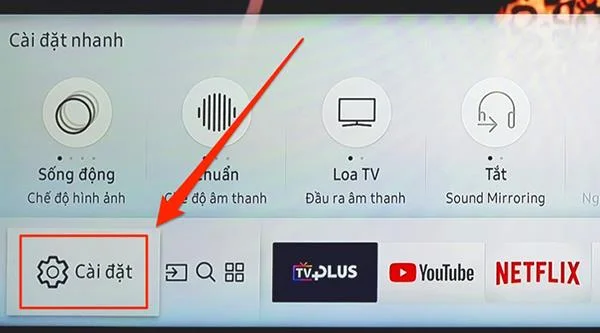
Step 2: Select Settings (cog wheel shape).

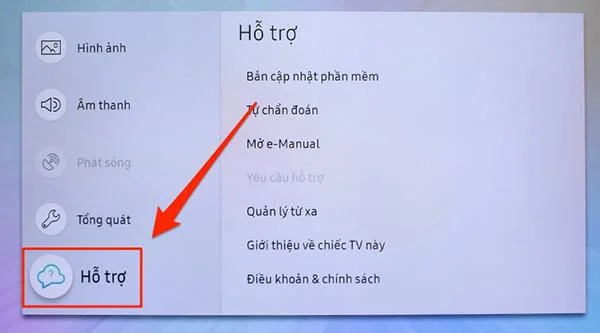
Step 3: Select the Support section.

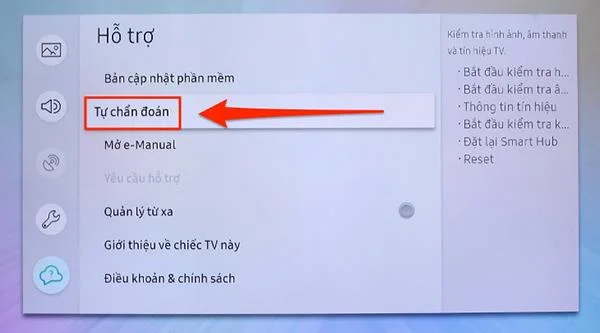
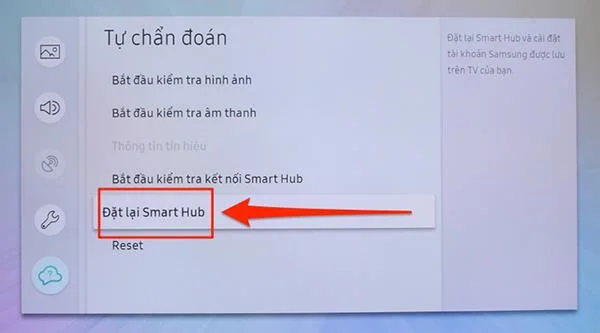
Step 4: Select Self-Diagnosis.

Step 5: Select Reset Smart Hub.

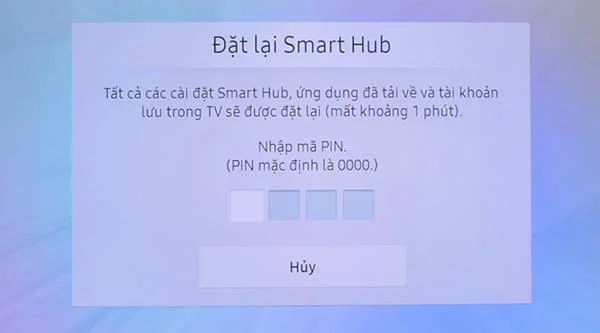
Step 6: After performing operation on TV, you will be asked to enter PIN to confirm. The default PIN code will be 4 digits 0. After Reset TV Smart Hub xog you can access the app again to check.

For Smart TV, you use Smart Hub interface
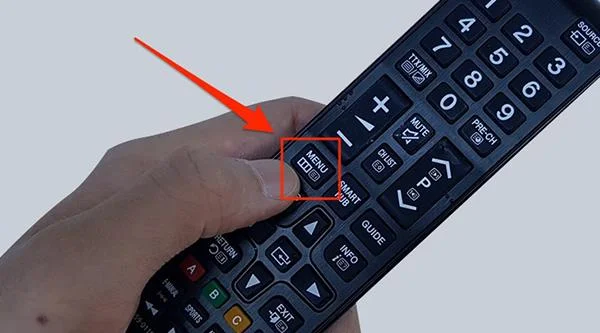
Step 1: Press the Menu button on the TV remote.

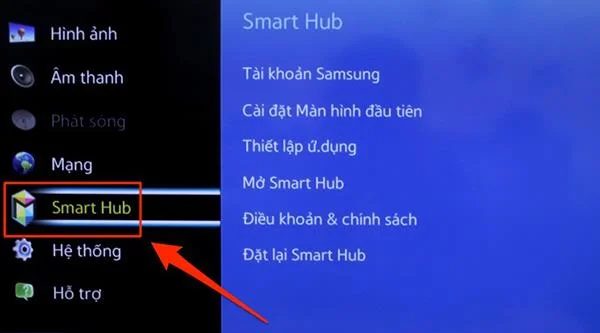
Step 2: The TV screen will show a list of usable items. Select the Smart Hub item.

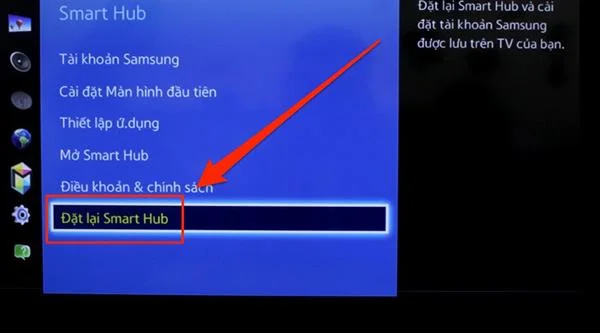
Step 3: Select Reset Smart Hub.

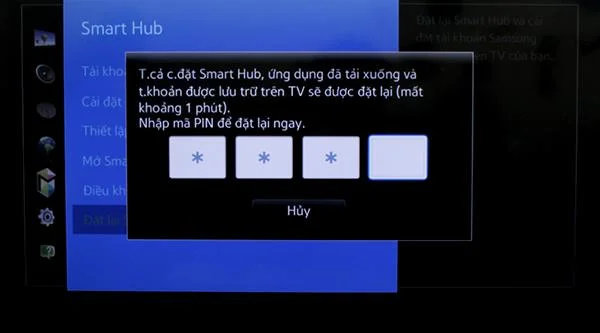
Step 4: Enter the PIN to confirm the operation, the default PIN will be 4 zeros.

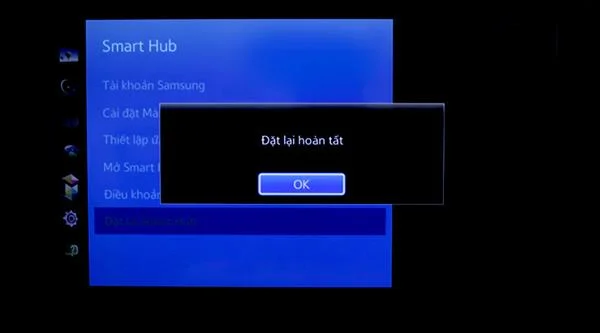
Step 5: Once the TV is finished resetting you can exit the setting, turn off the TV and then reopen it and access the app to check.

If, after performing the above 2 methods, but the condition is still not improved, you can contact the service center to get the best technical support.
>>> Refer to the selling prices of some Smart TVs currently on the market.
The above are tips to help you quickly fix the error that appears on Youtube application for Samsung TV models. Good luck!