Home
» PC Tips
»
Why Windows bloatware removal scripts can do more harm than good?
Why Windows bloatware removal scripts can do more harm than good?
While removing bloatware from your PC is necessary, not all methods are reliable. Some developers and GitHub groups advertise their Windows bloatware removal scripts as a quick fix. However, once you start using them, you'll find that they can do more harm than good. Here are some reasons why you shouldn't use bloatware removal scripts on Windows.
What is bloatware removal script?
As the name suggests, a bloatware removal script is a set of commands that help remove pre-installed apps (bloatware) from your PC.
On Windows devices, the bloatware removal script will work with PowerShell or other terminals like Mintty, PuTTy, or Git Bash.
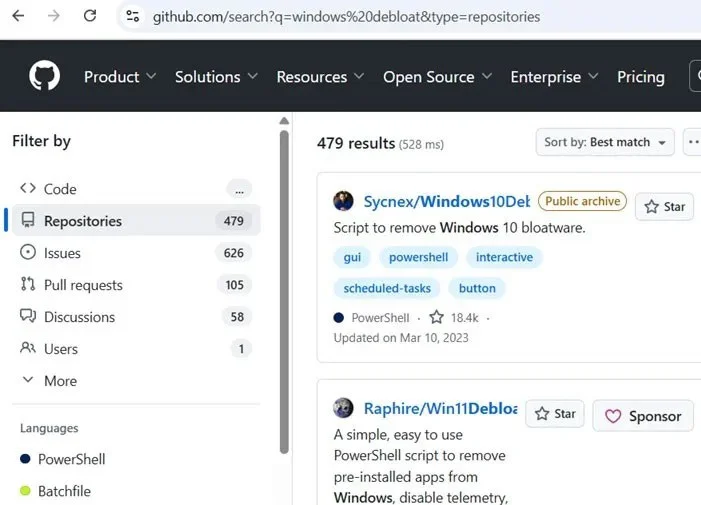
GitHub is the largest source of Windows bloatware removal scripts. A simple search will return 479 results for these programs. You can find many more bloatware removal scripts on Reddit, Quora, tech blogs, and developer sites.
A search on GitHub shows many bloatware removal scripts for Windows.
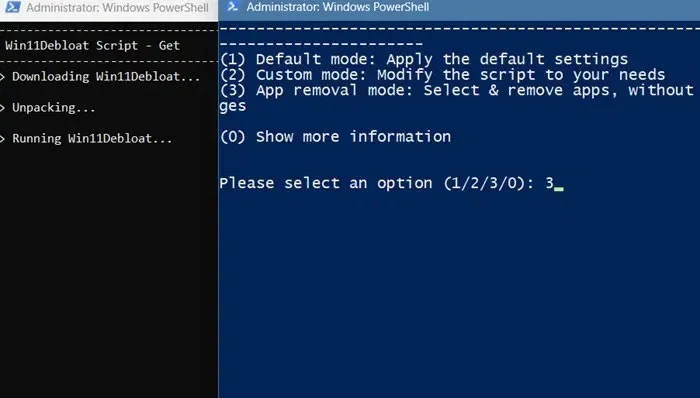
The author of the article tried a bloatware removal software for Windows, “Win11debloat”. This script claims to remove all bloatware pre-installed on Windows 11. There are two ways to run the script: Download the script manually or enter the script block in PowerShell (admin mode). When doing the second way, a new window opens with “app removal mode”, select by entering 3.
Another new window will open, allowing you to manually check for junk apps that you want to remove from your Windows PC. If you don’t want to waste too much time, you can just select all of them. But that’s not recommended.
PowerShell command to remove apps for Win11Debloat script.
The purpose of a bloatware removal script is to automatically remove apps that the developer considers to be bloatware . While this can clean up the system of such programs, it can lead to some problems, as outlined below.
1. Too many false positives
Not all pre-installed programs are bloatware. Some of them are necessary for the system to function properly. A Windows bloatware removal script may seem quick and easy, but it can be confusing when it comes to identifying false positives and removing programs you want to keep.
For the above example with "Win11debloat", the uninstallation script mistakenly identified several commonly used software as bloatware – Bing Translator, Bing Weather, Windows Tools, and Quick Assist.
List of installed applications to delete when using Win11Debloat
However, the author wanted to remove Skype and Zune Video, so he confirmed the uninstallation of those two applications. This caused the screen to flicker for a moment. Other than that, there were no other issues.
Programs like Skype and Zune Video have been removed from PowerShell using a script.
But if you follow the script's recommendations and remove programs related to Bing, Quick Assist, and Microsoft Tools (a folder that contains Control Panel and WordPad), it can lead to a variety of system issues on a running Windows PC.
2. Bloatware removal scripts can cause system instability
Not all Windows bloatware removal scripts are bad, and you may find an odd one that does a good job. “Win11debloat” is widely recommended for reducing the size of Windows because you can easily choose what you want to remove. But if you use an unknown script, it may cause your running device to become unstable.
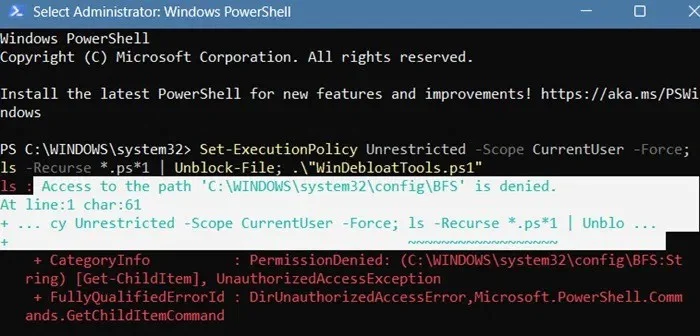
When you try to run some of these scripts, Windows may give you various “Access denied” warnings. Removing bloatware requires access to “System32,” a protected folder. After all, Microsoft Defender Antivirus is supposed to prevent remote scripts from taking over System32 and its dependent files and folders.
"Access denied" error when running bloatware removal script in PowerShell.
Defender has additional tamper protection features to prevent System32 and other important folders from being modified, so if you want the bloatware removal script to work, you'll need to remove all of these permissions.
While you may be successful in removing the extra programs, the system may become unstable. The obvious signs of this are hardware failures, unresponsive applications, connection problems, flickering screens, and even overheating of the device.
3. Comes with unwanted extras
Since the original source of these Windows debug scripts cannot be verified, there is no way to know if it installed additional components.
If this happens, it can cause software conflicts because you may accidentally download a lot of programs that you don’t need. This includes bundled software, which is offered as optional features or tools. If the script is poorly written, there may not even be a way to opt out. The hidden components form their own set of bloatware, which defeats the purpose of having a debug script.
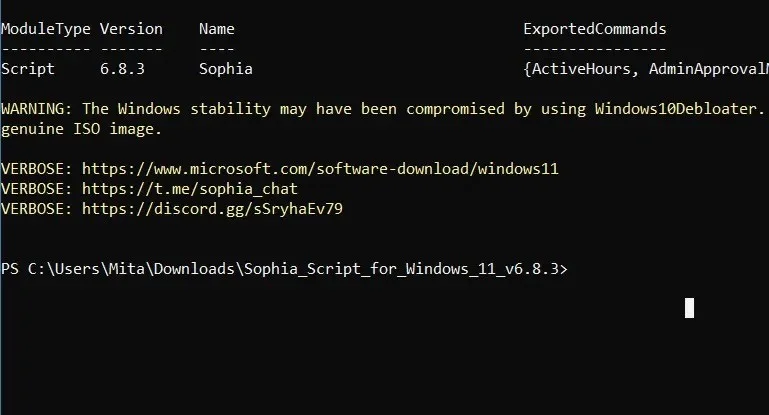
One way to tell if an external script is causing problems on your device is if it prompts you to reinstall Windows on your device. Additionally, a script acts as a trigger to execute more commands in a continuous sequence. Once you complete all the steps, you will have some additional software on your device.
Additional components are being installed when using the Windows bloatware removal script
If you start noticing some software conflicts, such as the common "File is open in another program" error, you may need to clean up the Windows Registry .
4. Windows bloatware removal scripts may cause future update errors
Bloatware removal scripts are a common source of update errors on Windows devices. This is something developers won't tell you, but the problem manifests itself in a number of areas:
Missing important system files : Along with the “bloat” on some of these programs, you may find many important files missing. If you do not do a clean install of Windows, your system may experience errors due to missing files.
Registry Error : Windows 11 cumulative updates require minor registry modifications that happen in the background. All new app features require new, valid registry entries. So it’s best to leave the registry alone and not mess with it without creating a system restore point .
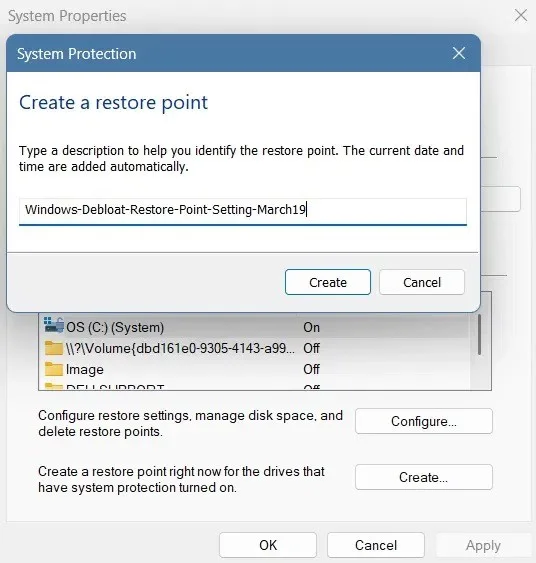
Create a restore point after using the Windows bloatware removal script.
If you encounter too many errors when trying to update your device, reset Windows using the cloud to fix the problem.
5. Threat from malware
Of course, the biggest concern when using third-party scripts from unknown sources is that some of them may contain malware variants as payloads. If you have Windows Defender or a third-party antivirus software enabled, the script may be blocked, as we saw in one of the examples above.
However, given the way zero-hour or zero-day threats work, your antivirus vendor may not be able to create an antidote in time for newer threat variants. In other words, you’ll just be taking unnecessary risks on your device without any benefit.