Screen capture on Samsung Galaxy Note 8 helps you capture images at the screen you are working on.
To take a screenshot on Samsung Galaxy Note 8 you do the following:
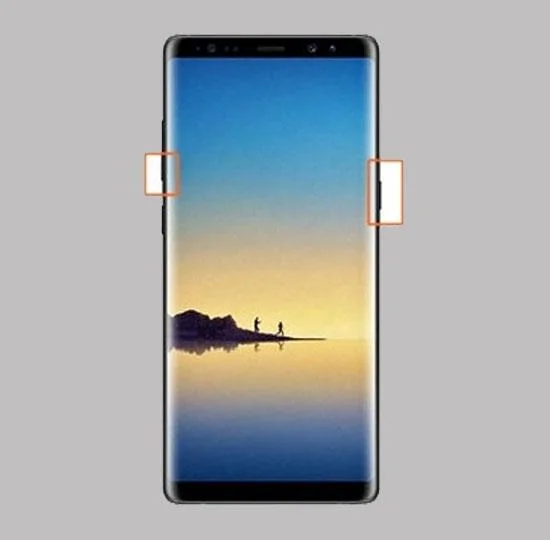
Method 1: Use hardware keys.
Press and hold the power button and volume down button at the same time for about 2 seconds to take a screenshot.
Method 2: Use the S Pen.
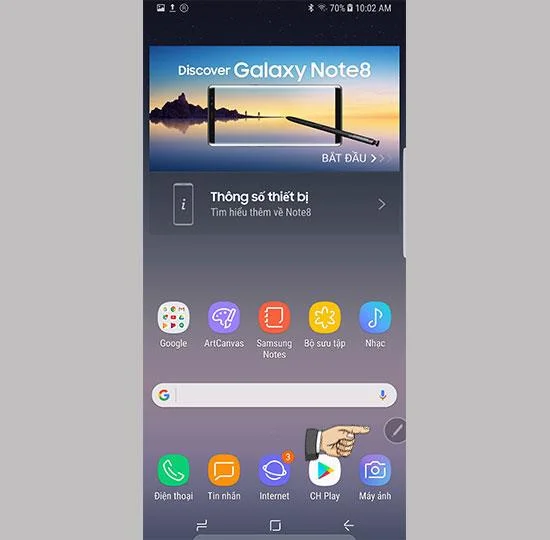
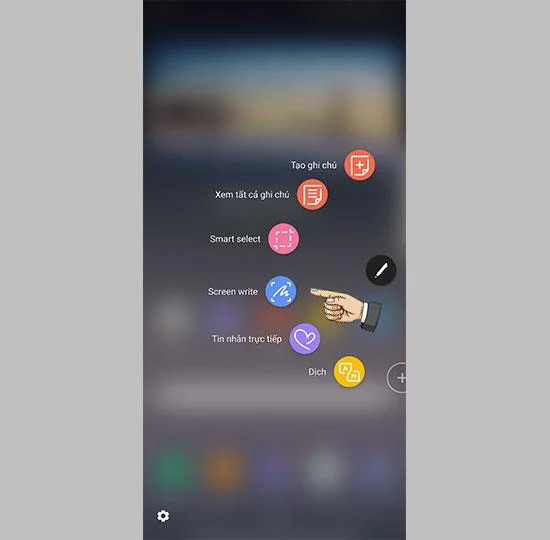
Using the Screen Write feature:
Step 1: Using the S Pen, click the pen icon.
![How to take screenshots on Samsung Galaxy Note 8]()
Step 2: Select Screen Write to take a screenshot.
![How to take screenshots on Samsung Galaxy Note 8]()
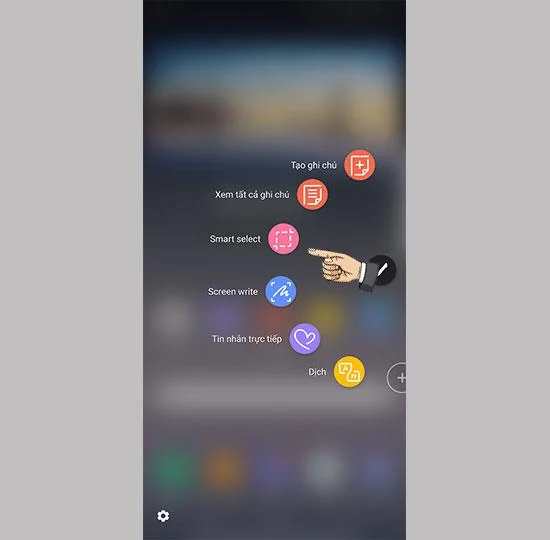
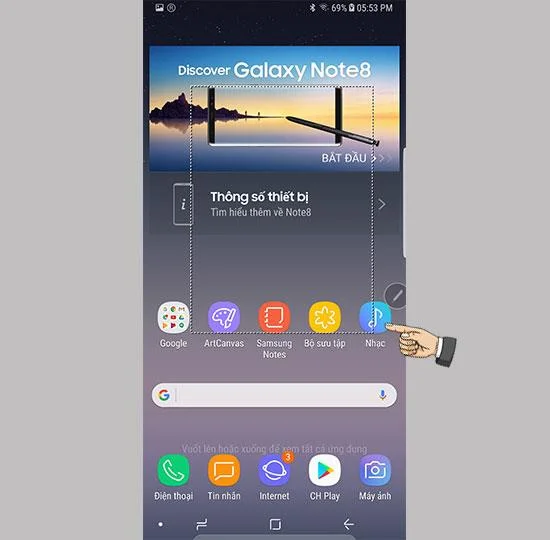
Using the Smart Select feature:
Step 1: Select Smart Select in the options menu of the S Pen.
![How to take screenshots on Samsung Galaxy Note 8]()
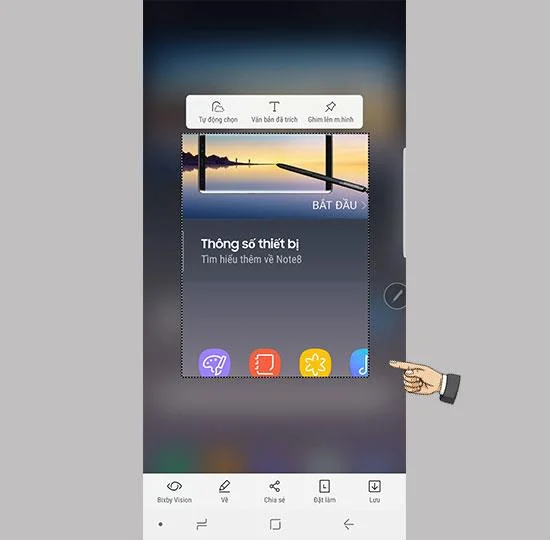
Step 2: Use the pen to touch the screen and drag and drop to the area you want to capture.
![How to take screenshots on Samsung Galaxy Note 8]()
![How to take screenshots on Samsung Galaxy Note 8]()
Method 3: Smart screen capture.
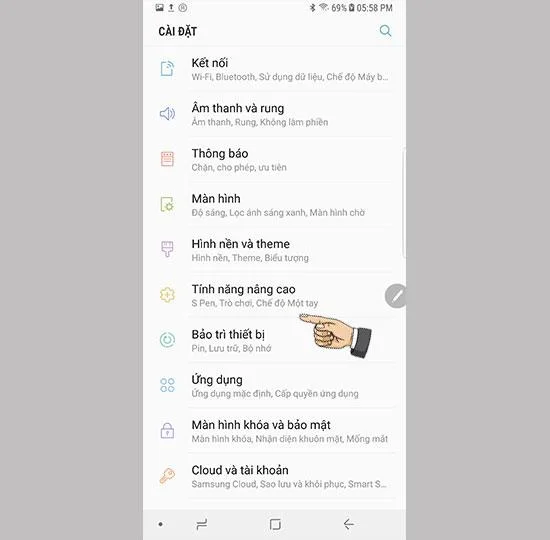
Step 1: Go to settings > advanced features.
![How to take screenshots on Samsung Galaxy Note 8]()
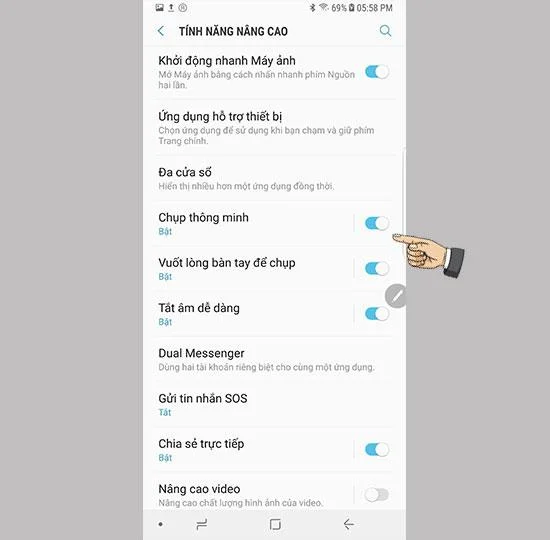
Step 2: Turn on smart capture.
![How to take screenshots on Samsung Galaxy Note 8]()
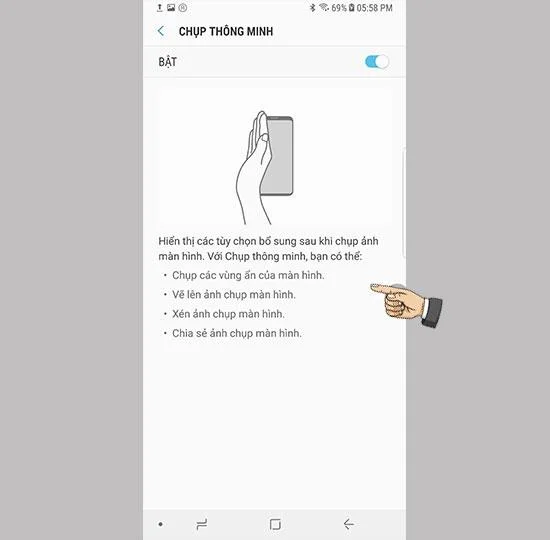
Step 3: On the screen, use your hand to slide close to the screen to capture.
![How to take screenshots on Samsung Galaxy Note 8]()
So you have successfully done how to take a screenshot on Samsung Galaxy Note 8.
See more:
>>> Summary of tips on Samsung Galaxy Note 8
>>> Good tips to live virtual with Samsung Galaxy J7 Plus
>>> Galaxy Gifts App User Guide