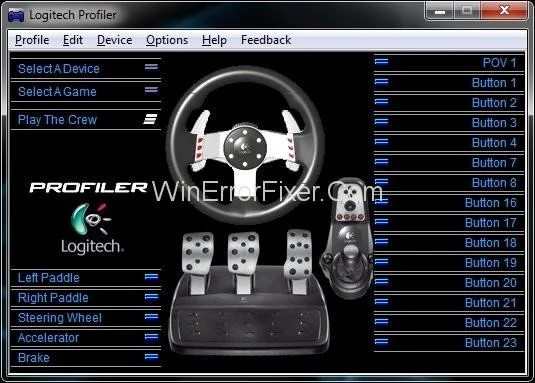
Logitech Gaming Software Not Detecting G27: If you are using Logitech G27 gaming wheel on Windows you might be face the issue of not get detected by the windows instead of this it shows some other device because of which you can not use the Logitech G27 wheel in your game. Most of the games will give the error “No controller detected”.
Contents
How to Logitech Gaming Software Not Detecting G27
We have come up with the solution of this which can help you to solve the Logitech Gaming Software Not Detecting G27 issue.
Solution 1: Update G27 Drivers
The first thing you need to do is to update the G27 drivers.Follow the steps to do it.
Step 1: Press Windows + R to open Run and type control panel in it.
Step 2: Click on Devices and Printer and locate G27 racing wheel in it.
Step 3: Right click on it and choose properties and then select hardware tab and in this you can see another properties tab click on it.
Step 4: After that click on change settings in general tab.
Step 5: Click on drivers tab and choose update drivers option.
Step 6: Select the option Let me pick from a list of device drivers on computer.
Step 7: Then, Select USB port option and wait for drivers to update.
Solution 2: Re–install Profiler and Drivers
Note: Unplug your controller before following the steps given below
Step 1: Press Windows + R to open Run and type Device Manager.
Step 2: Click on Human Interface, Other Devices and Universal Serial Bus controller and see for Logitech drivers.
Step 3: Right click on it and select uninstall option.
Step 4: Then close the device manager.
Step 5: Again, Press Windows + R and type appwiz.cpl and press Enter.
Step 6: Locate for Logitech Profiler and uninstall it.
Step 7: Once done Reboot your computer and install Logitech profiler and drivers once again.
Solution 3: Remove Ghost Devices and Reinstall Logitech Gaming Software
Removing the ghost devices and reinstalling the Logitech drivers has solved the problem for the most of the people. So follow the steps given below to perform the steps.
Step 1: Type CMD in windows search menu and run it in Admin mode.
Step 2: Type set devmgr_show_nonpresent_devices=1 and press Enter.
Step 3: Type devgmgmt.msc and press Enter to open Device Manager.
Step 4: Click on View then Choose Show Hidden devices.
Step 5: Double click on Human interface Devices.
Step 6: Then, Double click Device Universal Serial Bus Controllers.
Step 7: Now, look under both Human interface devices and Universal serial bus controllers if you see any grey entries right-click on them and uninstall.
Step 8: Then, close the Device Manager and press Windows + R.
Step 9: Type appwiz.cpl and press Enter.
Step 10: Locate the Logitech Gaming Software and select it and on Click Uninstall,Then Close all the windows and Hold Windows + R, then type msconfig and press Enter.
Step 11: Then,click on services and check the box hide all microfost services and disable the rest of them by clicking on the button Disable all.
Step 12: After that,reboot your system and re-install the Logitech drivers and connect G27 recaing wheel with the system.
Step 13: Again,press Windows+R button and type msconfig and press Enter.
Step 14: Now, Enable all the services that you disable earlier and click on apply after that and reboot your system.
The Wheel would work fine after following the above procedure properly.
Solution 4: Roll back Updates
If you are using Windows 10 you will see that it if updating your machine on the daily or on weekly basis and some programs are not working fine after the update.So here is the simple solution for this problem just follow the given steps and solve your problem.
Step 1: Open Setting and click on Update and Security.
Step 2: Then,choose the recovery option from the left side of the screen.
Step 3: Then,on get started option under the Go back to earler build option.
Step 4: Now,Follow all the steps which are given on the screen and check your problem has been resolved.
Solution 5: Check Steam Settings
Check for the Stream setting if you have installed the Stream on your machine.
Step 1: Open the Stream app.
Step 2: Then, click on the stream option from the top left corner.
Step 3: Then, click setting and after that choose controller from the menu.
Step 4: Then, click on general controller settings option and Uncheck the option Generic Game-pad Configuration Support.
Solution 6: Change USB Port
Try to change the USB port for the controller and see whether this solution solve the problem for you or not because sometimes the port is not get recognized by the system either because the port of the machine is damaged or because it does not support the version on the port.
Latest Posts:
Conclusion
Hope, all this solution helped you and you are now able to use your controller to play the amazing racing games on you machine.