
How to Check Purchase History on Apple App Store
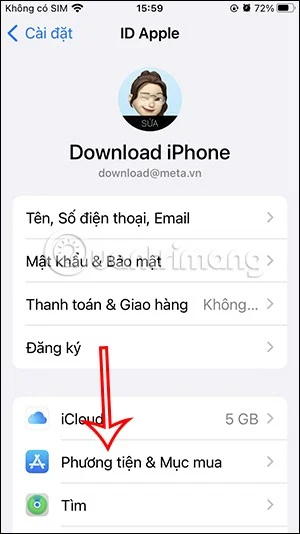
Through your purchase history on the App Store, you will know when you downloaded that app or game, and how much you paid for the paid app.
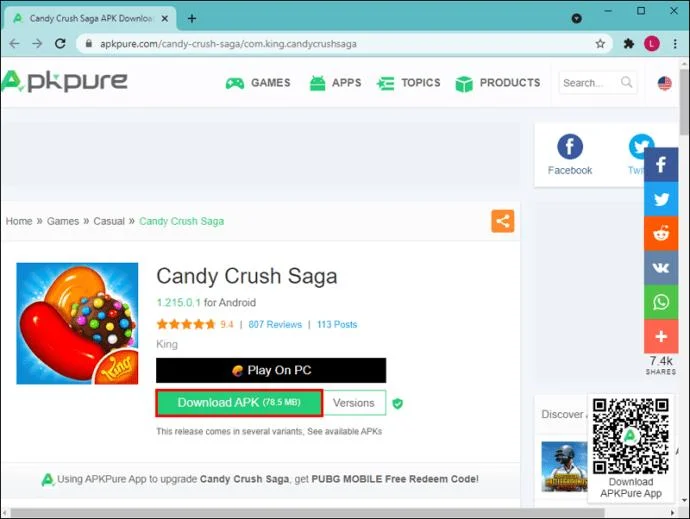
Are you looking to install your favorite Android app on BlueStacks, but you can’t find it on Google Play for some reason? Worry not. BlueStacks allows you to install any app that runs on Android as long as you’ve got the app’s APK. And with so many third-party sources offering ready-to-install APK files, nothing should stop you from enjoying your favorite games and apps, even if you don’t have a mobile device to run them.
This article will show you how to install APK on BlueStacks and set you up nicely for an Android experience on your PC.
How to Install an APK
BlueStacks is a tool for installing Android applications to your PC so you can take advantage of your computer’s larger screen, faster processor, and better graphics.
It helps you play Android games or use Android apps without having to buy an Android mobile device, bringing the power of Google Play right onto your desktop.
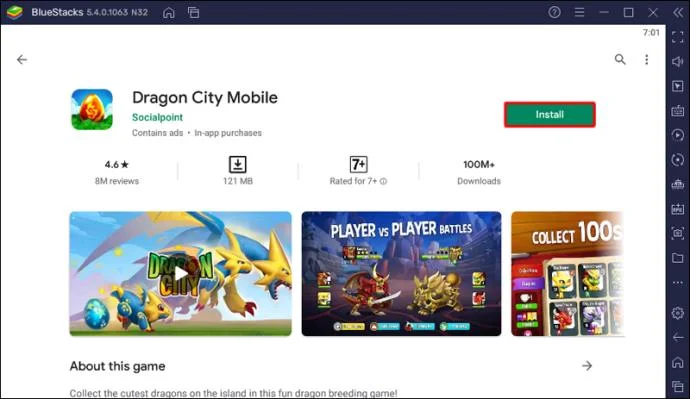
With this emulator, you can access all Google Play services. That includes millions of Android apps, eBooks, games, and magazines.
But what if you can’t access Google Play directly? That’s where APK files come in.
APK stands for Android Package Kit. It’s the file format used to distribute and install application software onto Google’s Android operating system.
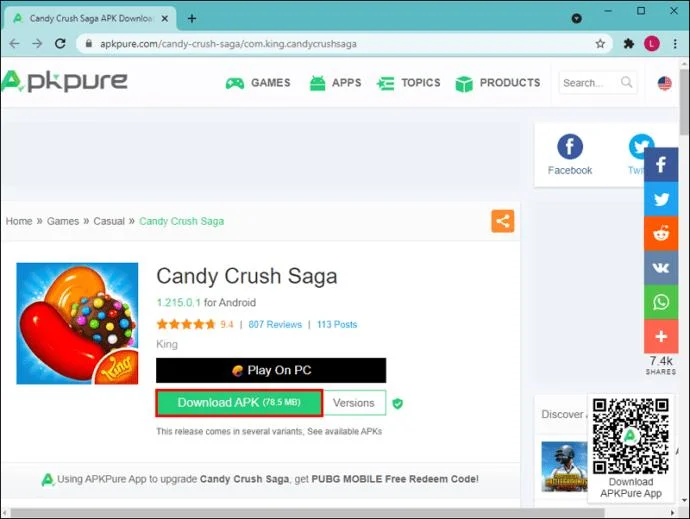
Unlike the Google Play version of an app, an APK file can be downloaded from trustworthy third-party platforms and installed on BlueStacks or Android devices.
APK files come with several benefits:
The steps to install APK files on BlueStacks vary according to the version you’re using.
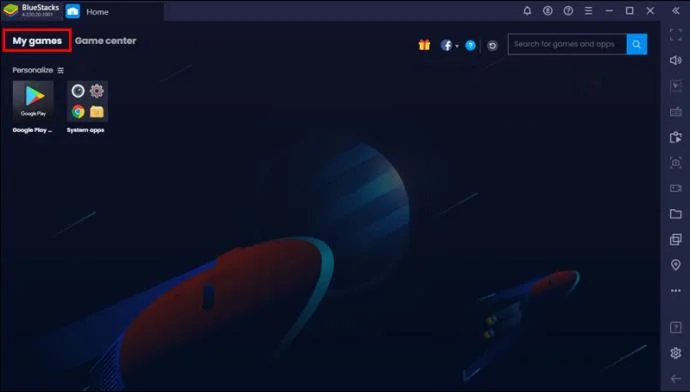
First, let’s see how to install APK on BlueStacks 4.230 and below.
How to Install an APK on BlueStacks 4.230 or Earlier
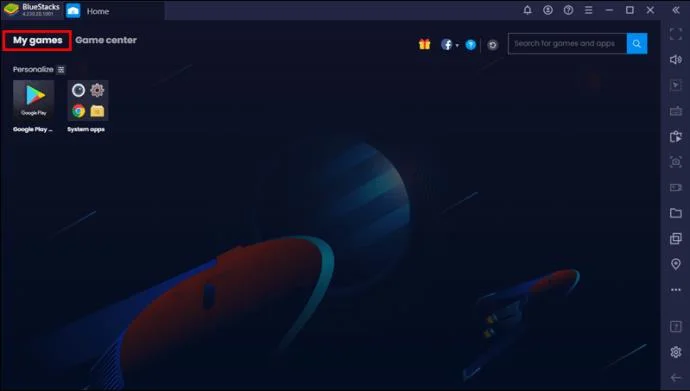
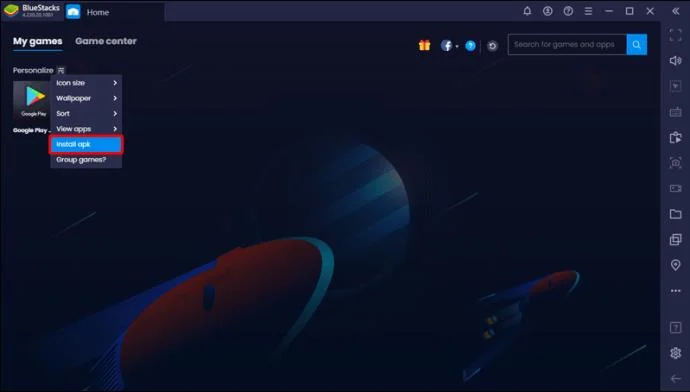
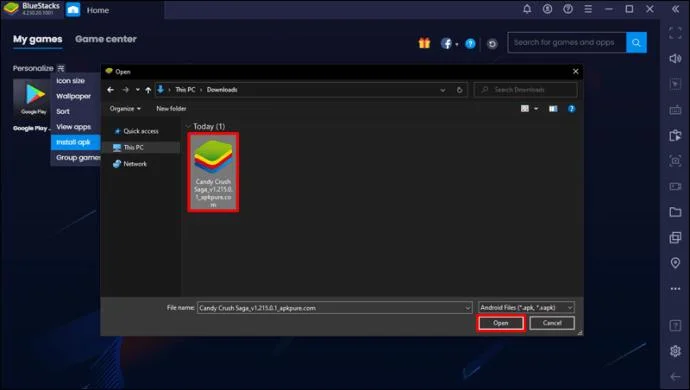
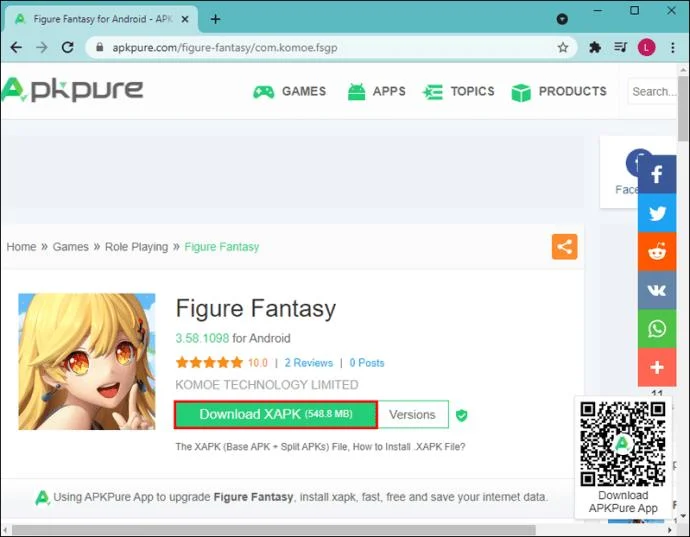
If you prefer to run your Android apps on BlueStacks version 4.230 or earlier, here’s how you can install the APK files of any app of your choice:
How to Install an APK on BlueStacks 4.240 or Later
Although versions 4.230 and 4.240 do have a lot in common, the steps to install APK files are a bit different.
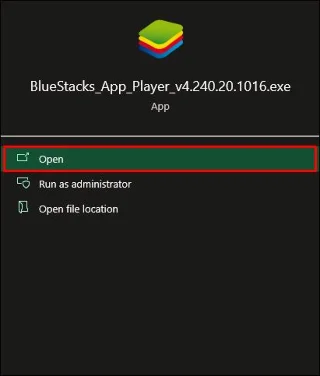
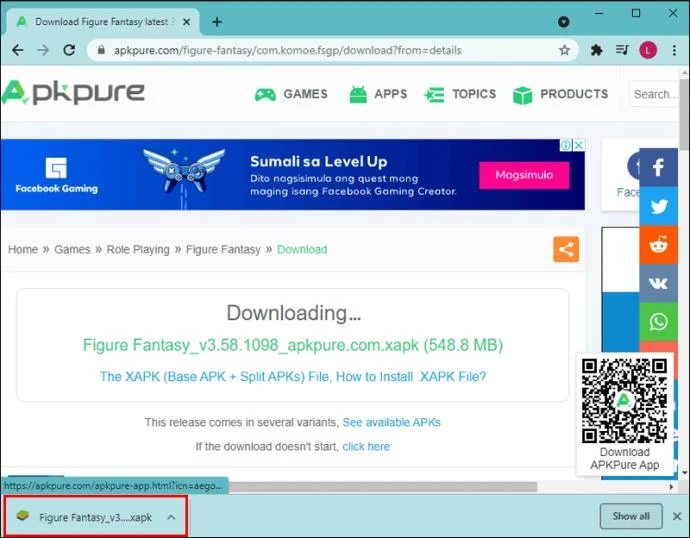
Here’s how to go about it when using version 4.240 or later:
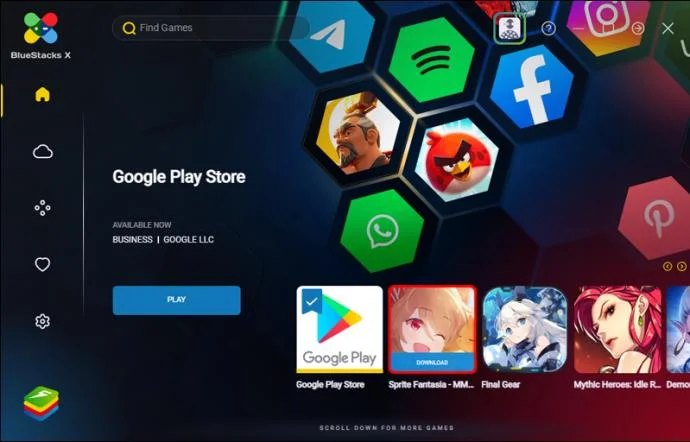
How to Install an APK on BlueStacks 5
As the latest version, BlueStacks 5 offers Android lovers the smoothest and most efficient gaming performance. However, your computer must have at least 4GB of RAM and 5GB free disk space.
There are two ways of installing APK files on BlueStacks 5:
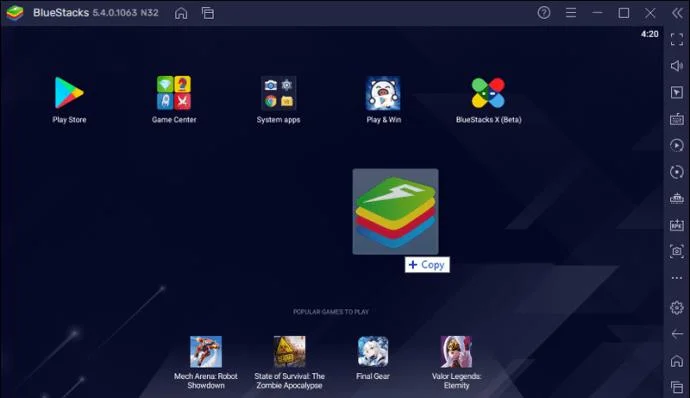
The Drag & Drop Method
After installing successfully, you can open the app from the BlueStacks 5 home screen.
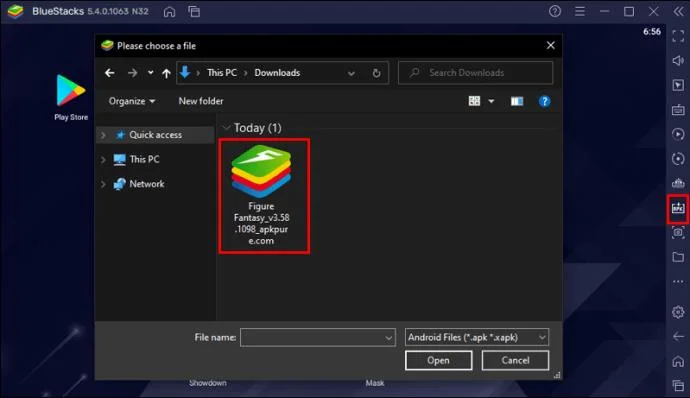
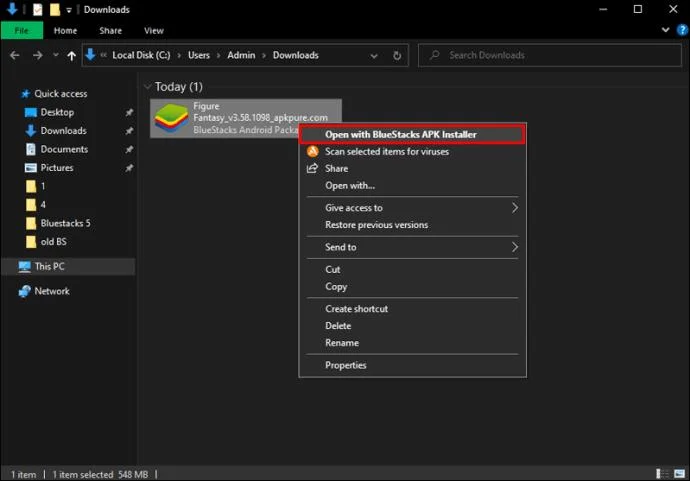
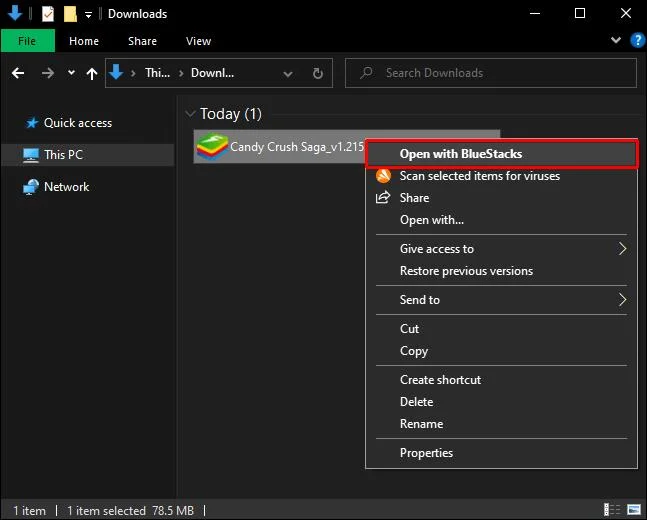
The Windows Explorer Method
After installation, you should see the app’s icon on the BlueStacks home screen.
BlueStacks Failed to Install APK
APK installation on BlueStacks almost always proceeds smoothly, but some users have reported some problems, especially when using the earlier versions of the Android emulator.
If installation fails, here are some troubleshooting methods you might want to try:
Method 1: Install the BlueStacks Invalid File Resolver
Well aware that some APK files don’t always install successfully, BlueStacks developers have released a software patch to resolve the problem. You just need to download the patch and install it on BlueStacks.
After installation, you should be able to install APK files without any issues.
Method 2: Install the Rooted Version of BlueStacks
It’s an open secret that some apps only install on rooted versions of the operating system. Likewise, such an app can only run on a rooted version of BlueStacks. The good news is that you can easily find a copy on websites across the internet.
Method 3: Reinstall BlueStacks
If none of the methods above work for you, there’s a good chance the problem is your BlueStacks app. It could be that it didn’t install properly or is simply unsupported by your PC. So, consider uninstalling it and then installing the latest version of the app.
Get the Most Out of Android
BlueStacks allows you to run pretty much any app made for Android, including anything in the Google Play Store. You can even use it to play multiplayer games with friends who also have BlueStacks installed on their computers.
Most importantly, this trick may come in handy when you want to circumvent Google Play’s geographical restrictions or use an earlier version of the app. You can even install apps that are yet to be released officially.
Alternatively, if you’re a developer, you could test your apps right on your computer before publishing them to the Google Play Store.
Have you tried to install APK on BlueStacks? How did it go?
Let us know in the comments section below.
Through your purchase history on the App Store, you will know when you downloaded that app or game, and how much you paid for the paid app.
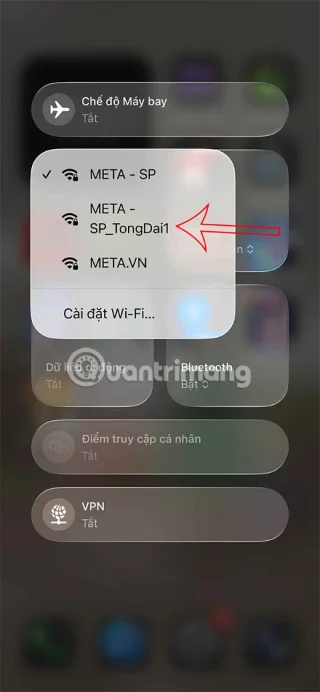
Apple makes it easy to find out if a WiFi network is safe before you connect. You don't need any software or other tools to help, just use the built-in settings on your iPhone.
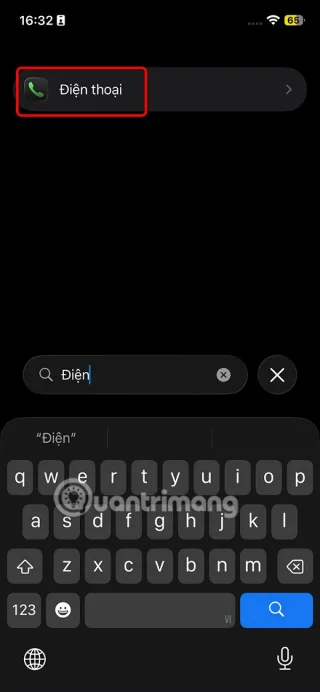
iPhone mutes iPhone from unknown callers and on iOS 26, iPhone automatically receives incoming calls from an unknown number and asks for the reason for the call. If you want to receive unknown calls on iPhone, follow the instructions below.
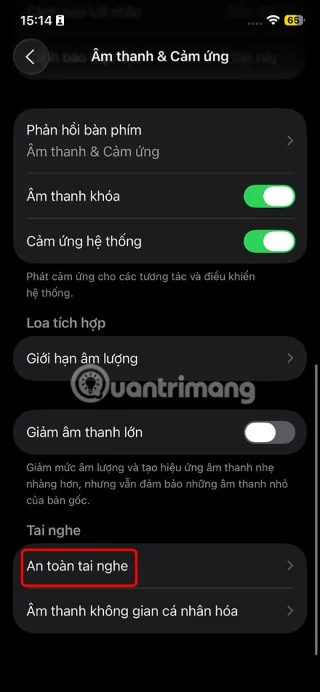
iPhone has a speaker volume limit setting to control the sound. However, in some situations you need to increase the volume on your iPhone to be able to hear the content.
ADB is a powerful set of tools that give you more control over your Android device. Although ADB is intended for Android developers, you don't need any programming knowledge to uninstall Android apps with it.
You might think you know how to get the most out of your phone time, but chances are you don't know how big a difference this common setting makes.
The Android System Key Verifier app comes pre-installed as a system app on Android devices running version 8.0 or later.
Despite Apple's tight ecosystem, some people have turned their Android phones into reliable remote controls for their Apple TV.
There are many reasons why your Android phone cannot connect to mobile data, such as incorrect configuration errors causing the problem. Here is a guide to fix mobile data connection errors on Android.
For years, Android gamers have dreamed of running PS3 titles on their phones – now it's a reality. aPS3e, the first PS3 emulator for Android, is now available on the Google Play Store.