








How to Check Purchase History on Apple App Store
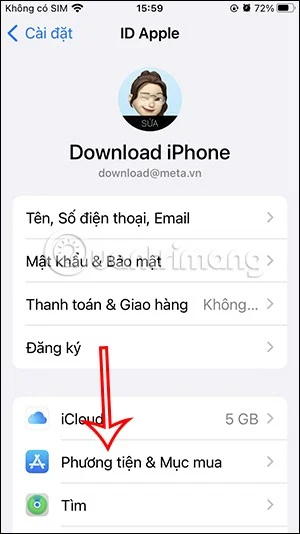
Through your purchase history on the App Store, you will know when you downloaded that app or game, and how much you paid for the paid app.
Device Links
Webex is a great tool for video conferencing and online meetings with plenty of interesting options. Thanks to the whiteboard feature, when the words aren’t enough to explain an idea, Webex enables you to visually convey your message. If you’re interested in learning how to use the whiteboard feature on Webex, you’ve come to the right place. This article will cover how to create, share, and edit Webex whiteboards on multiple platforms.

How to Use the Whiteboard in Webex on a PC
There are two ways of accessing Webex on your PC: through the app or a browser. We’ll show you how to use the whiteboard option in both cases. Plus, we’ll explain how to use the whiteboard during a meeting and in a Webex space.
How to Use the Whiteboard in Webex on a PC – Web Version
As mentioned above, you can access Webex using a web browser. Here, we’ll show you how to create a whiteboard while you’re in a meeting or in a Webex space.
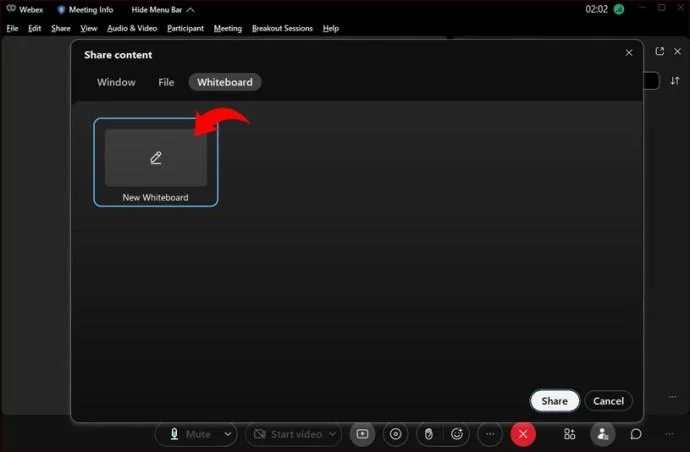
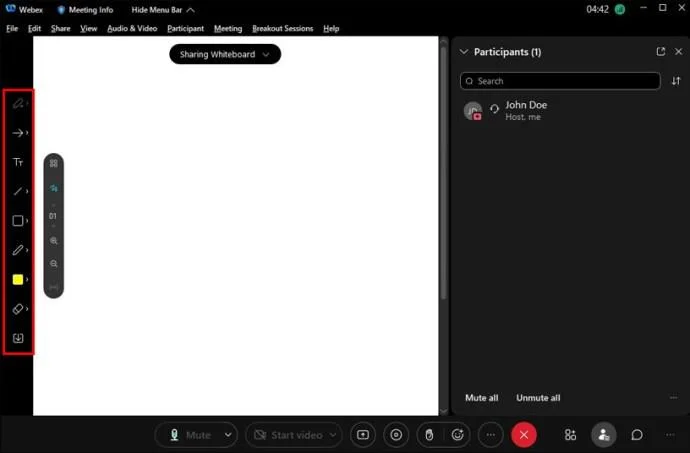
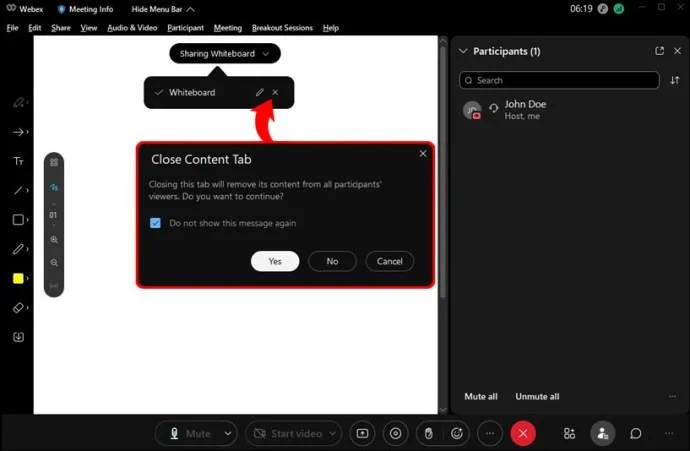
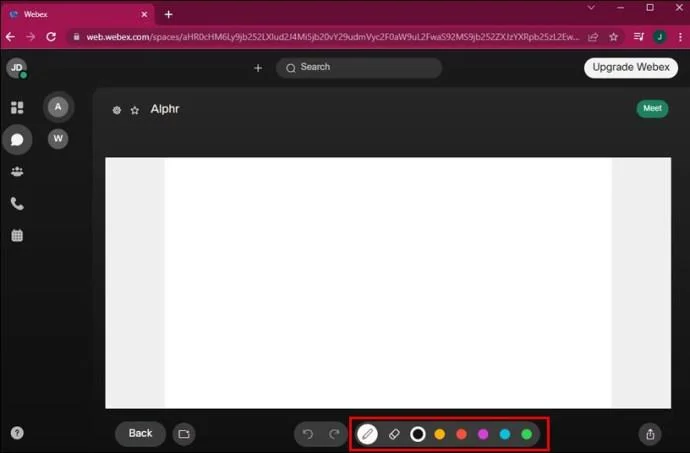
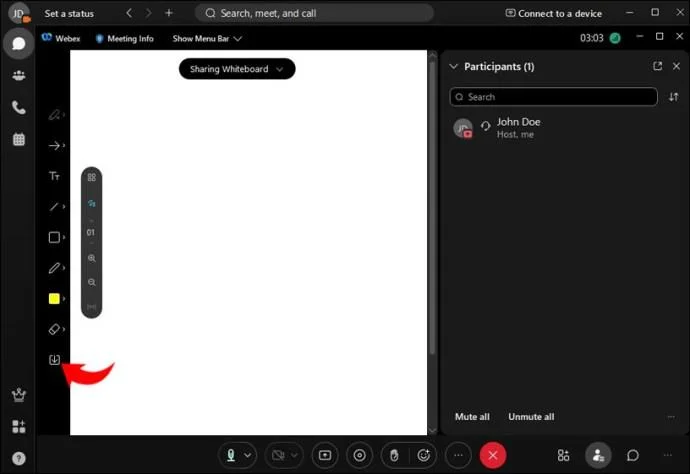
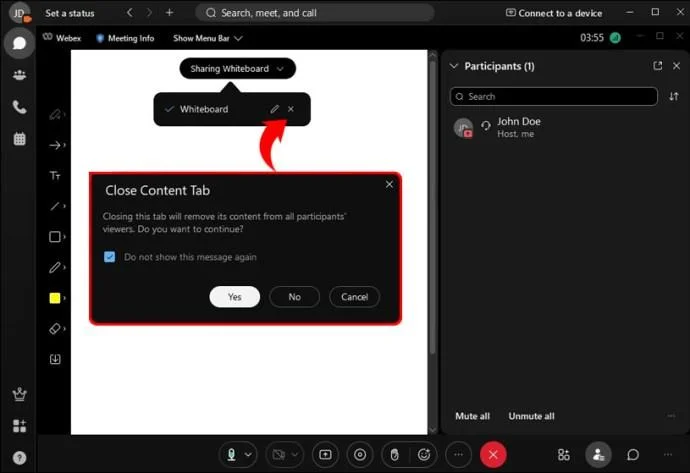
Follow the instructions below to create and manage a whiteboard during meetings using the Webex web version:
How to Use the Whiteboard in a Webex Space on a PC – Web Version
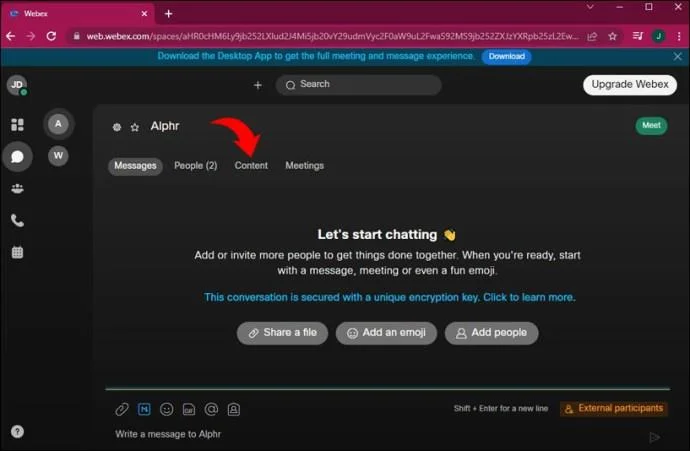
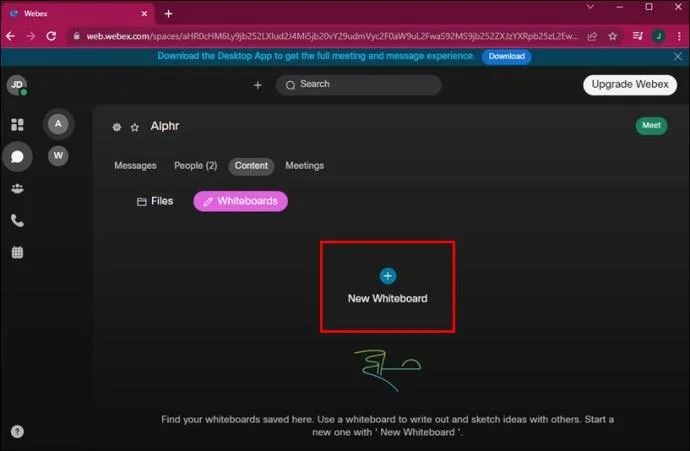
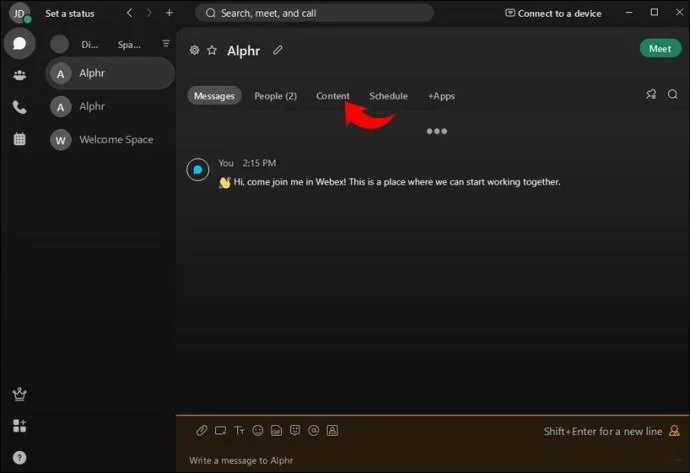
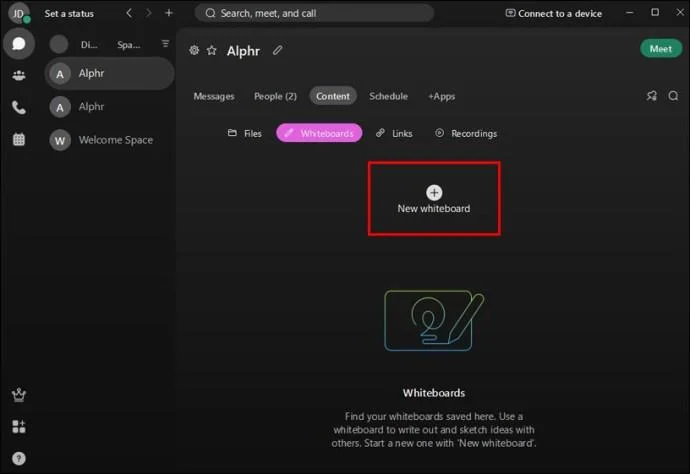
If you and your team share a Webex space, you can use it to brainstorm or draw sketches on the whiteboard. Here are the steps for using the whiteboard in a Webex space:
When using a whiteboard in a space, keep in mind that all members can see and edit it. If one of your coworkers selects the “Clear all” option, you won’t be able to undo it. However, if you select it, you can quickly select the “Undo” button to restore the whiteboard.
How to Use the Whiteboard in Webex on a PC – Desktop App
Many Webex users choose to download the desktop app because they find it more convenient. If you’re one of them, we’ll show you how to use the whiteboard option during meetings and in a space.
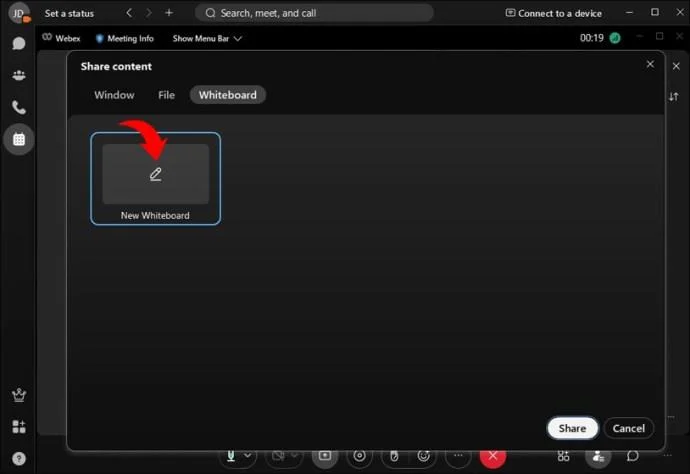
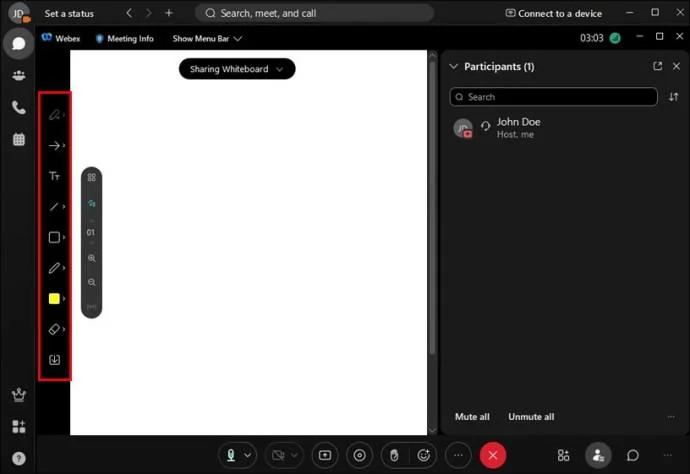
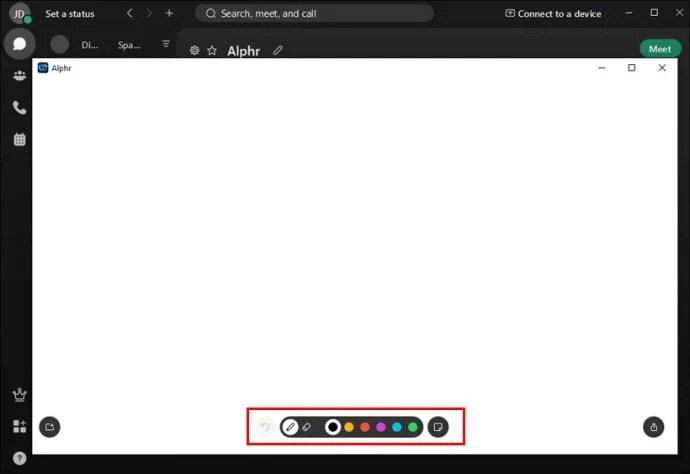
If you’re in a Webex meeting and want to make a quick drawing for the participants, here’s how to do so:
How to Use the Whiteboard in a Webex Space on a PC – Desktop App
A whiteboard in a Webex space can encourage new ideas and experiments. If you want to use it in your space, follow these steps:
Webex gives its users an unlimited amount of whiteboard space. Since Webex spaces are private, only the members can see and edit the whiteboard.
How to Use the Whiteboard in Webex on an iPhone
If you’re often on the go and don’t have access to your computer, you can always use the Webex mobile app designed for your iPhone. The whiteboard option is available and easy to use. What’s more, many people find drawing on whiteboards using their fingers much simpler. We’ll show you how to use the whiteboard option while in a meeting or in a space.
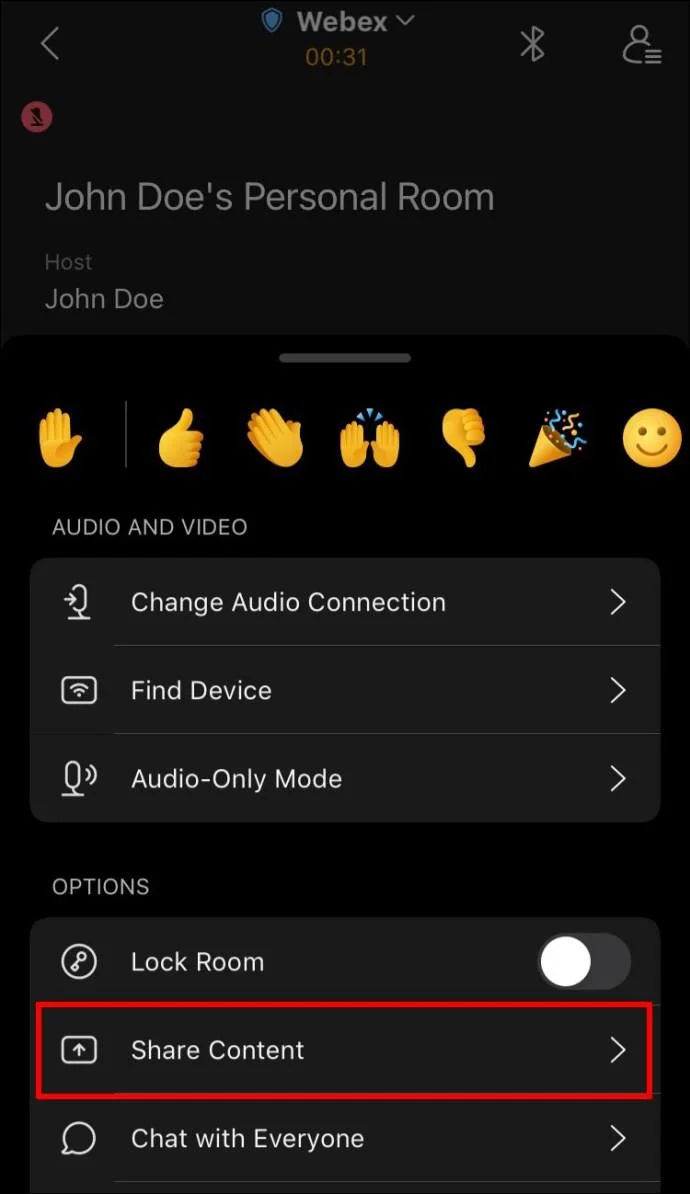
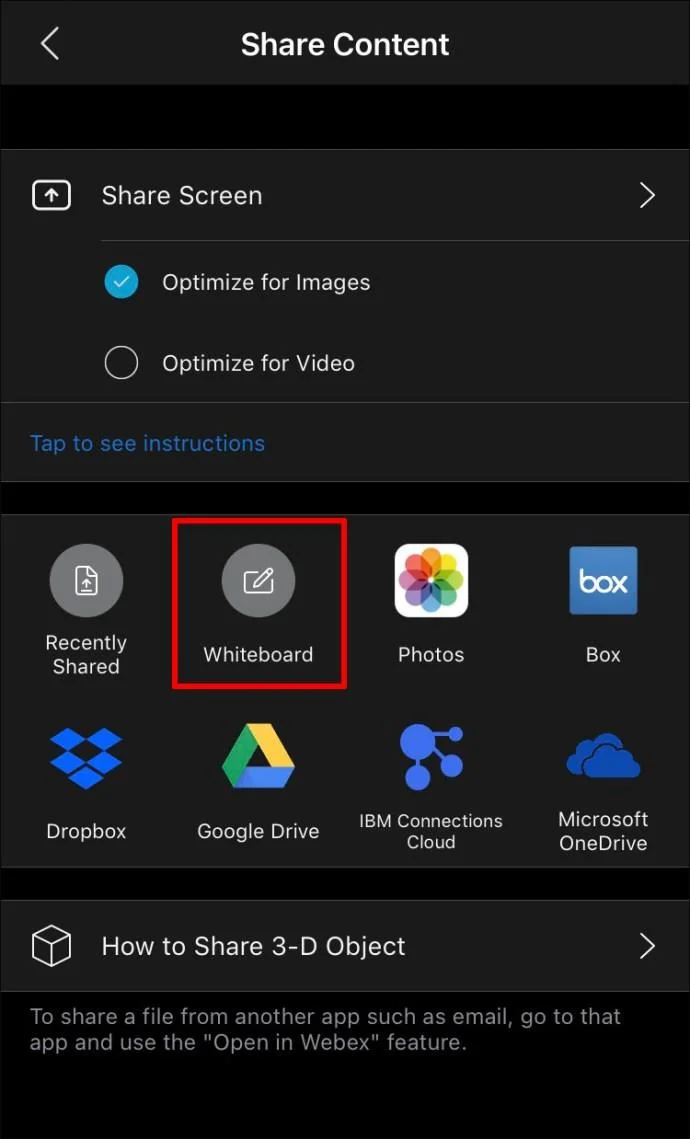
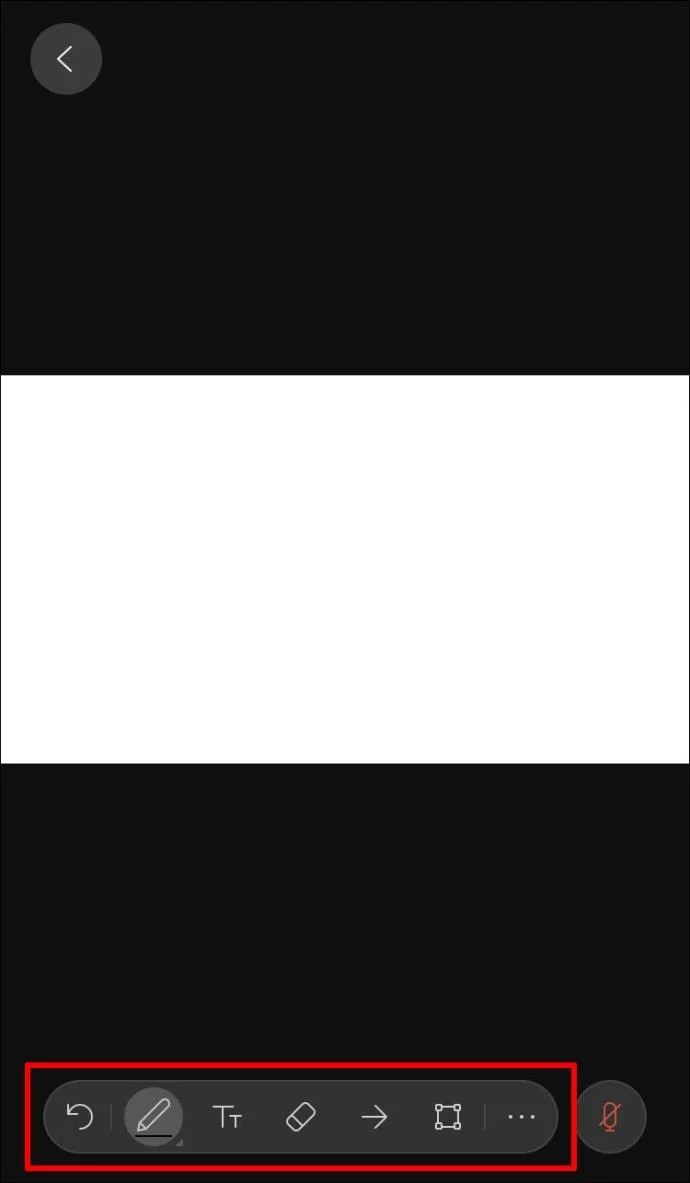
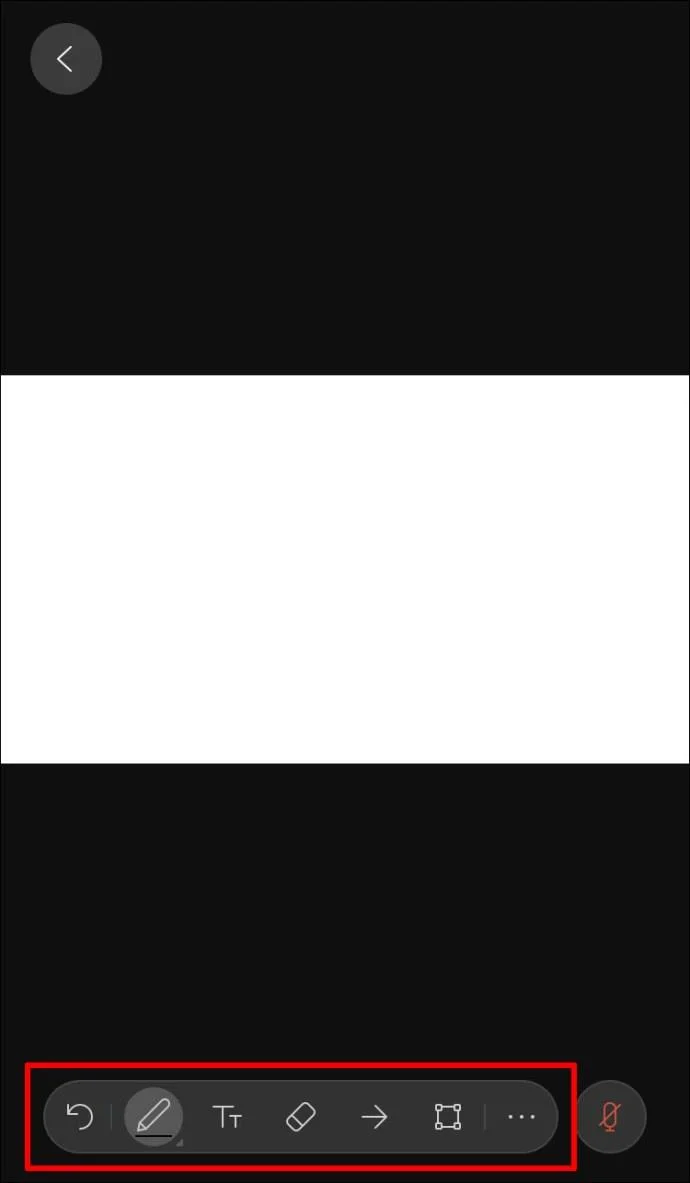
Follow the steps below to create and manage the whiteboard in a Webex meeting on your iPhone:
How to Use the Whiteboard in a Webex Space on an iPhone
Having a whiteboard in a Webex space is an excellent way to encourage your coworkers to get creative. Here’s how to create and edit a whiteboard in a Webex space using your iPhone:
Webex provides unlimited whiteboard space for its users. Use two fingers to move around the whiteboard on your iPhone.
How to Use the Whiteboard in Webex on an Android
Webex is available as an Android app and can be downloaded from the Play Store. If you’re often traveling or away from your computer, this app lets you stay on top of everything going on in the workplace.
Webex allows you to create whiteboards while in a meeting or in a space. Since the steps vary slightly, we’ll cover both.
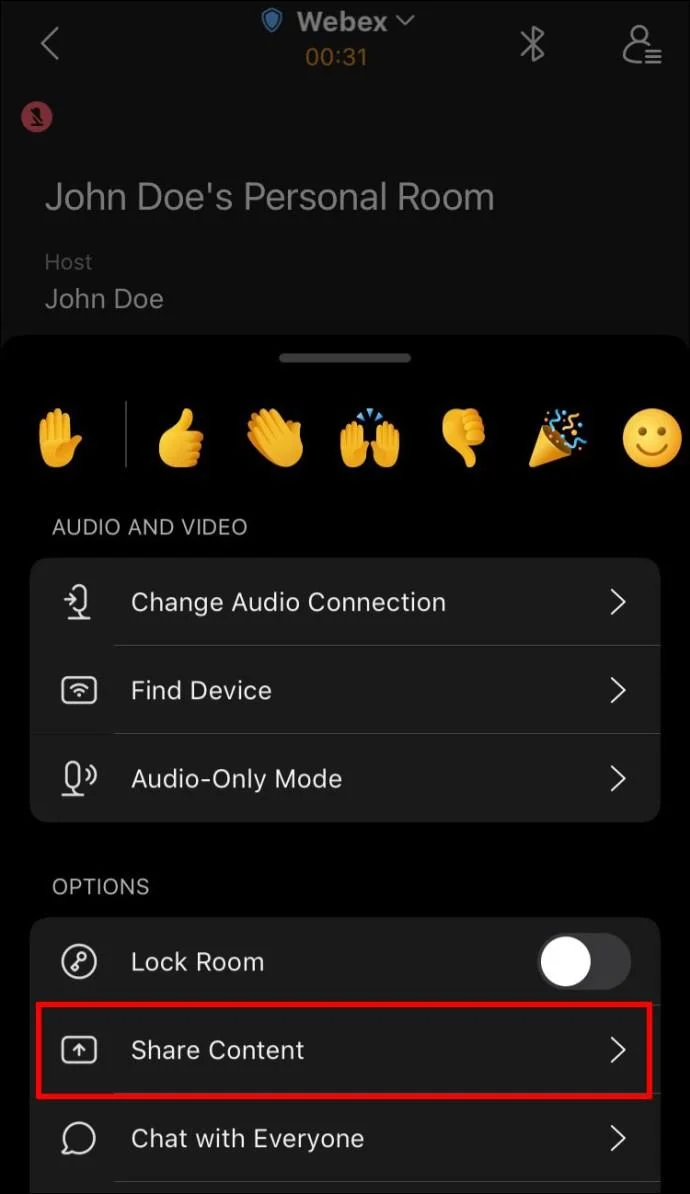
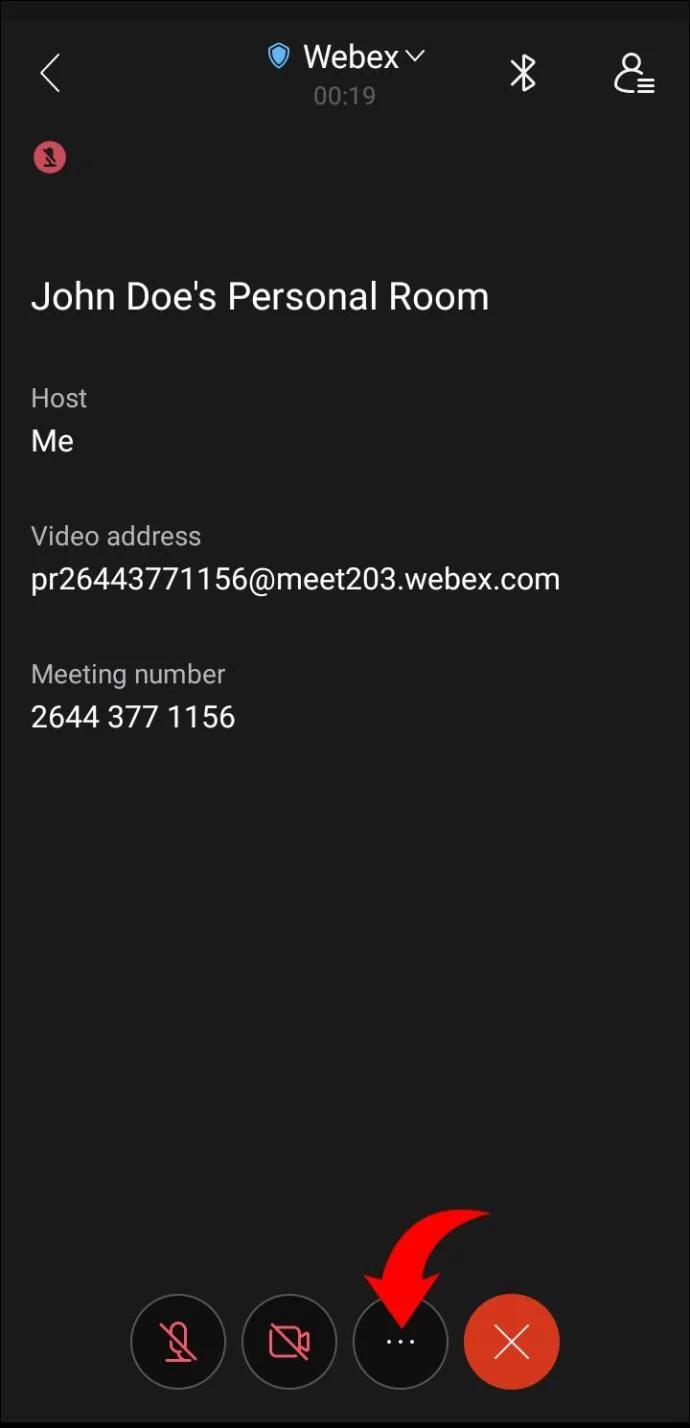
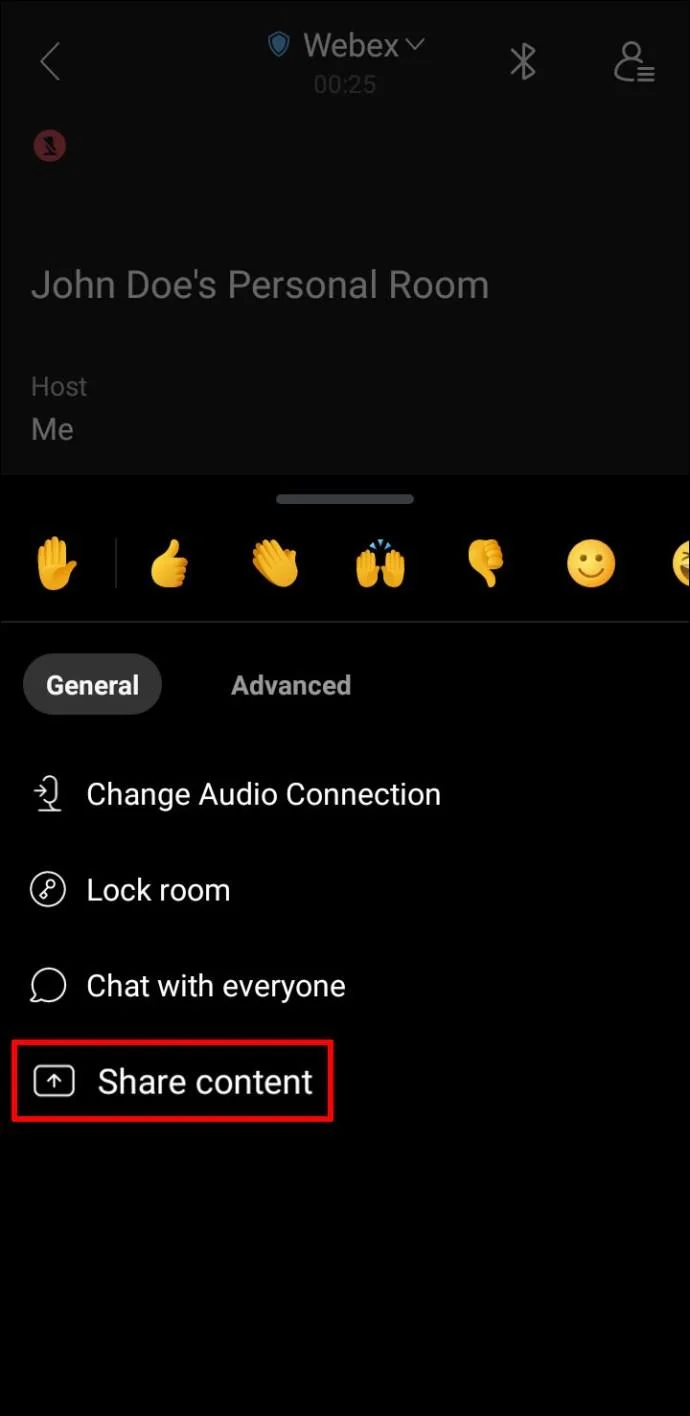
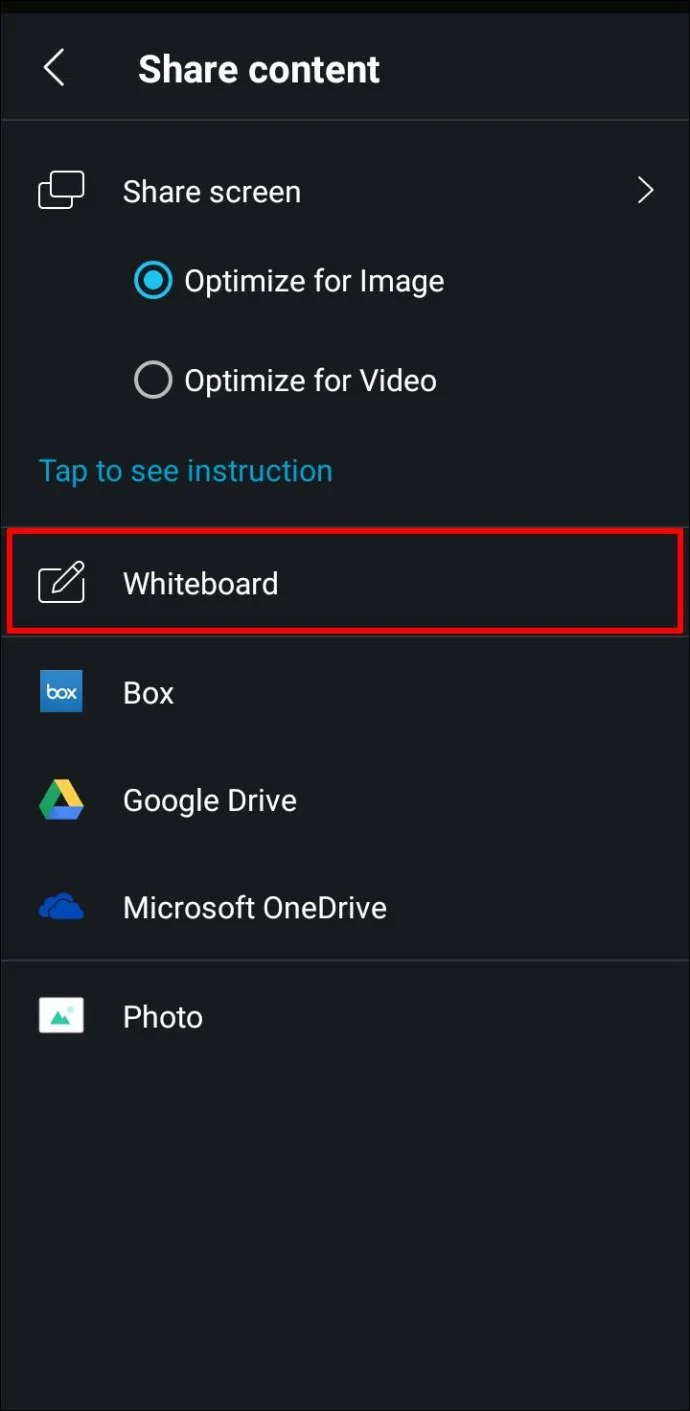
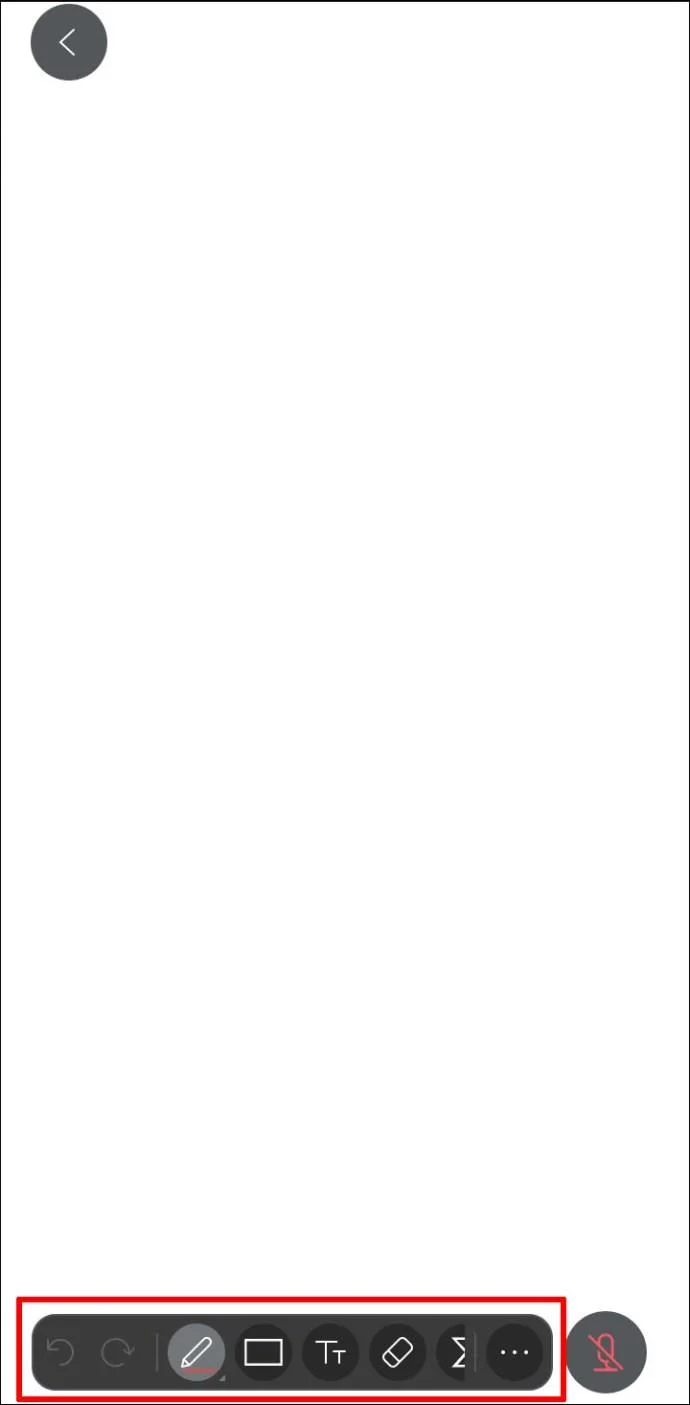
If you’re in a meeting and want to use a whiteboard to visually represent an idea, follow the steps below:
How to Use the Whiteboard in a Webex Space on an Android
If you want to improve the communication in your Webex space, using a whiteboard can be an excellent decision.
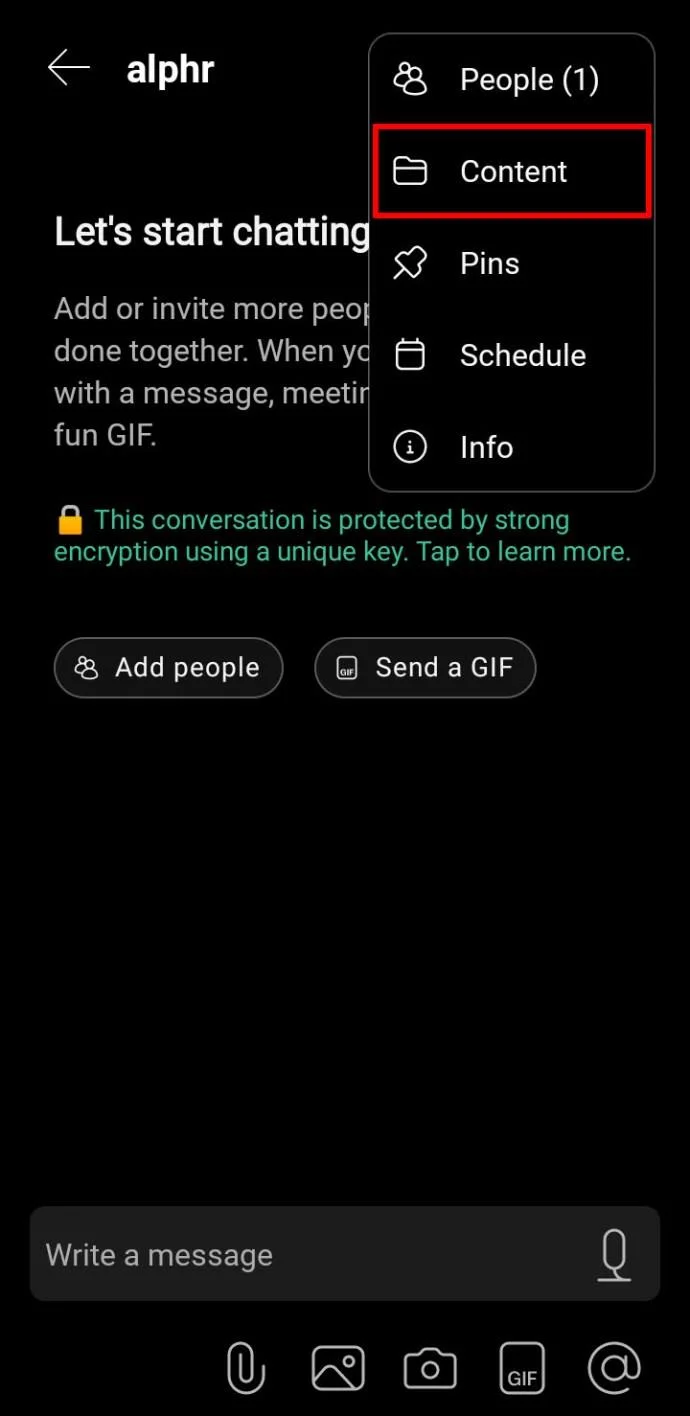
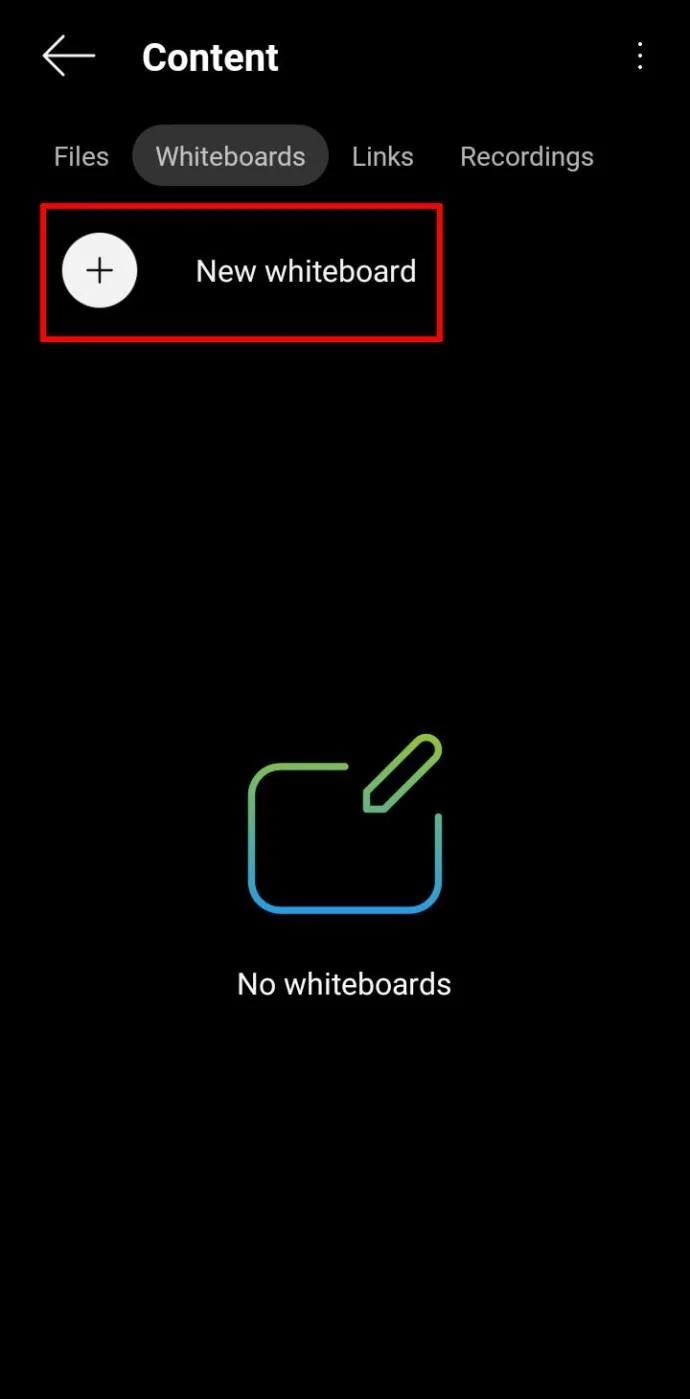
Follow the steps below to create and manage a whiteboard in a Webex space using your Android:
How to Use the Whiteboard in Webex on an iPad
Webex is compatible with iPads, and the app can be downloaded from the App Store. Due to the bigger screen, using the whiteboard option on an iPad is easy and fun.
Most people opt to use the whiteboard feature to convey a message more easily during a meeting. However, you can also use it in a Webex space you share with your coworkers. We’ll explain the process for both cases.
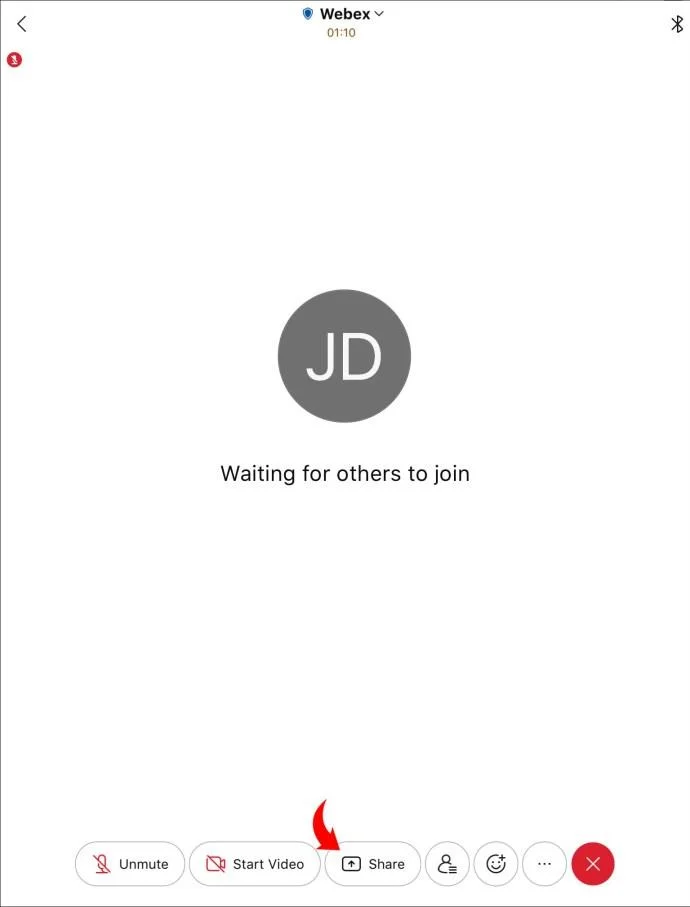
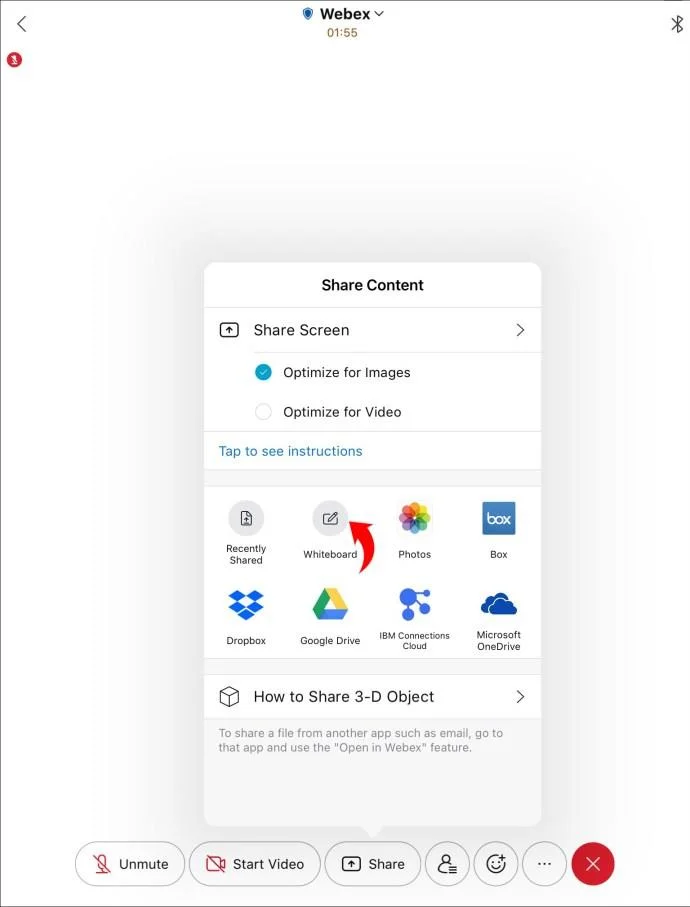
A simple drawing on the Webex whiteboard can sometimes help others better grasp an idea you’re discussing in a meeting. Here’s how to use it on your iPad:
How to Use the Whiteboard in a Webex Space on an iPad
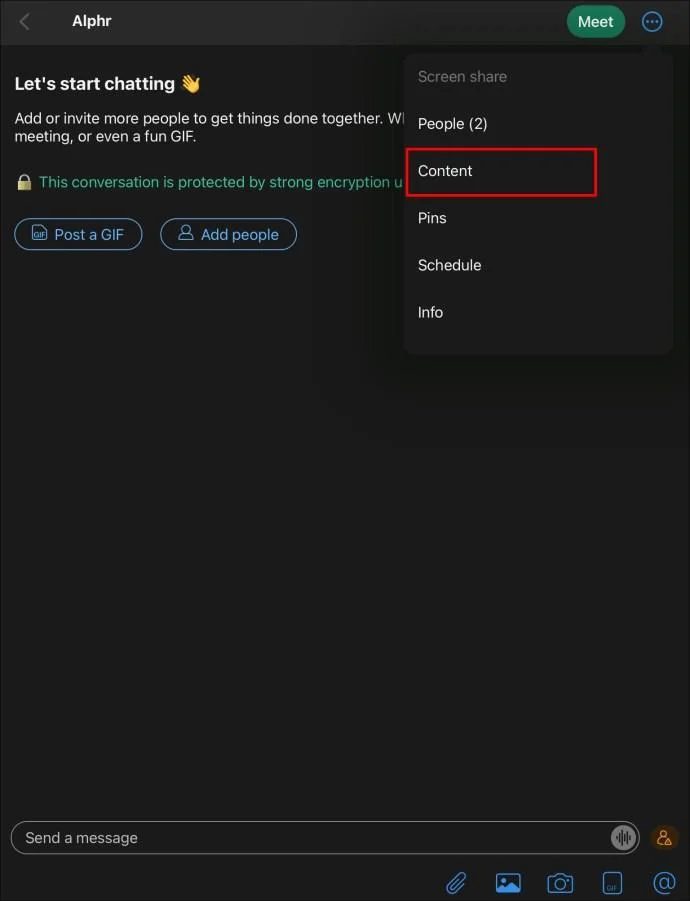
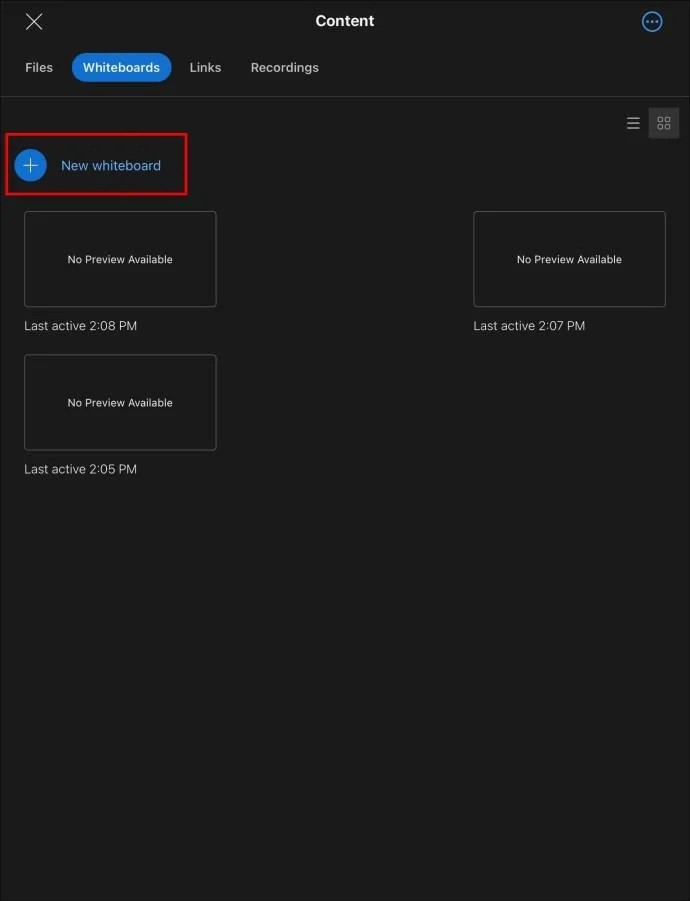
Exchanging ideas in a Webex space is always useful. If you want to make it more fun and convenient, you can use the whiteboard feature. Here’s how to do it:
You Won’t Get Bored With the Webex Whiteboard
Webex’s whiteboard feature allows you to quickly visualize a concept without wasting time on explanations. It encourages collaboration between team members and can be the birthplace of innovative ideas. Of course, the whiteboard can also be used just for fun.
Do you find the whiteboard option useful? Do you think it could help you be more productive? Tell us in the comments section below.
Through your purchase history on the App Store, you will know when you downloaded that app or game, and how much you paid for the paid app.
Apple makes it easy to find out if a WiFi network is safe before you connect. You don't need any software or other tools to help, just use the built-in settings on your iPhone.
iPhone mutes iPhone from unknown callers and on iOS 26, iPhone automatically receives incoming calls from an unknown number and asks for the reason for the call. If you want to receive unknown calls on iPhone, follow the instructions below.
iPhone has a speaker volume limit setting to control the sound. However, in some situations you need to increase the volume on your iPhone to be able to hear the content.
ADB is a powerful set of tools that give you more control over your Android device. Although ADB is intended for Android developers, you don't need any programming knowledge to uninstall Android apps with it.
You might think you know how to get the most out of your phone time, but chances are you don't know how big a difference this common setting makes.
The Android System Key Verifier app comes pre-installed as a system app on Android devices running version 8.0 or later.
Despite Apple's tight ecosystem, some people have turned their Android phones into reliable remote controls for their Apple TV.
There are many reasons why your Android phone cannot connect to mobile data, such as incorrect configuration errors causing the problem. Here is a guide to fix mobile data connection errors on Android.
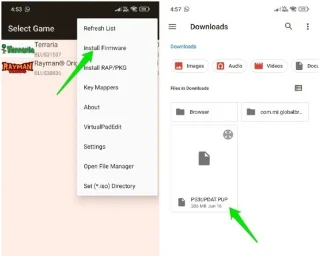
For years, Android gamers have dreamed of running PS3 titles on their phones – now it's a reality. aPS3e, the first PS3 emulator for Android, is now available on the Google Play Store.