Do you want your S Pen to support more functions but still don't know how? Then today I will guide you how to customize the shortcut on the S Pen to be able to support you better.
1. Benefits of custom S Pen
- Support users to get more features.
- Help users to customize the functions they want to operate faster.
2. Instructions on how to customize the S Pen
Quick start Guide:
Method 1: Using the S Pen
Tap the S Pen icon on the screen -> Select add shortcut -> Add shortcut you want
Method 2: Set shortcut in settings
Go to Settings -> Advanced Features -> S Pen -> Select Shortcuts -> Select the shortcut you want to add .
Method 1: Using the S Pen
- Step 1: Click the S Pen icon on the screen.
- Step 2: Select additional shortcuts .
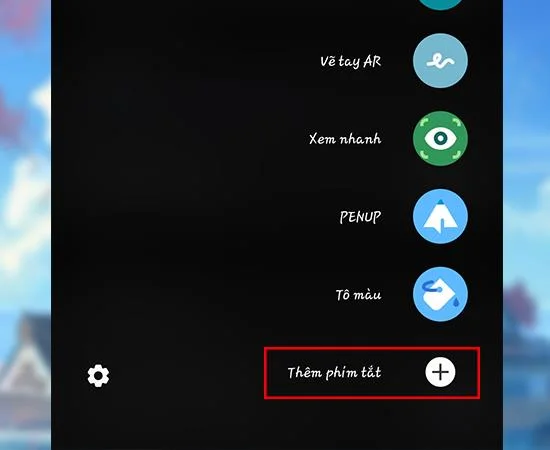
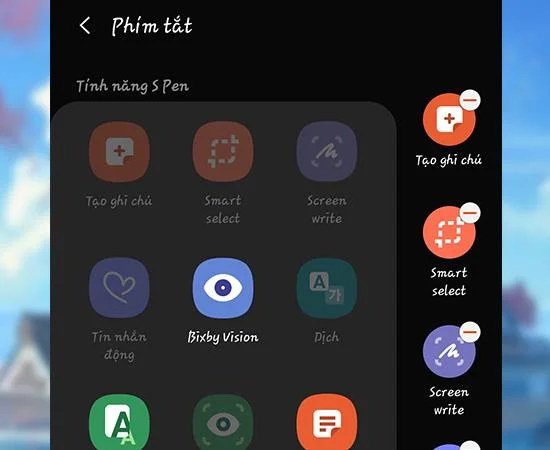
- Step 3: Add or remove shortcuts.

Method 2: Customize in settings.
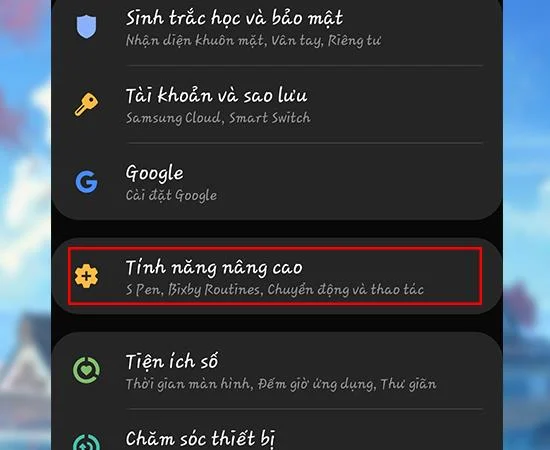
- Step 1: Settings choose Advanced features

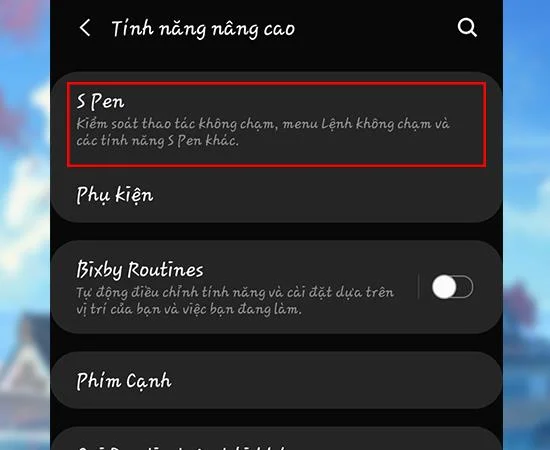
- Step 2: Select the S Pen .

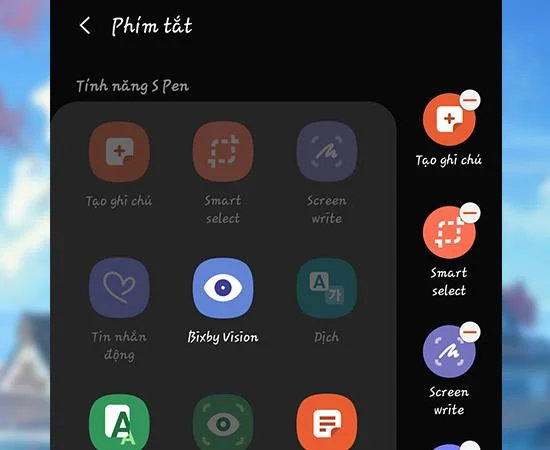
- Step 3: Then you choose Shortcuts .

- Step 4: Finally, you add or delete shortcuts .

So you have successfully set up the S Pen shortcut already. Thank you for watching!