You want to change the font size of your messages so you can read them comfortably without hurting your eyes. Then let's find out how to change message font size on Samsung Galaxy Note 8!
1. Benefits of changing message font.
- Helps you easily customize the font size to suit your eye level.
2. How to change message font size on Samsung Galaxy Note 8?
Quick start Guide:
Go to Messages -> 3 dots icon -> Settings -> Font size -> Off Use phone's font size -> Change font size -> DONE.
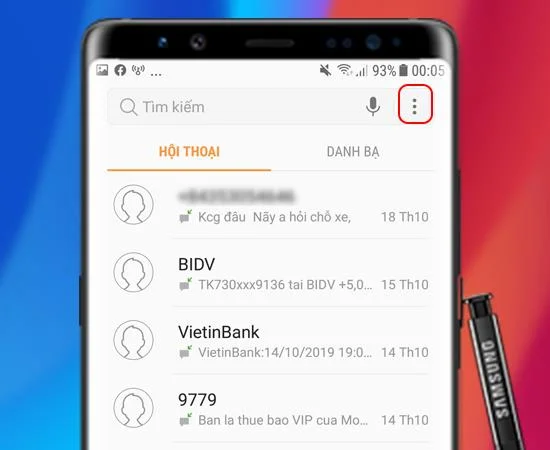
Step 1: First go to Messages.
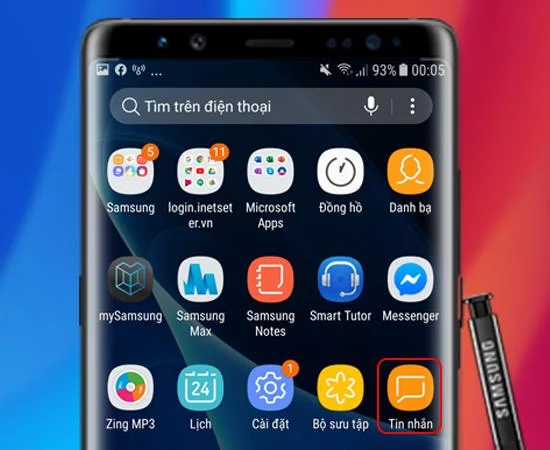
Step 2: Next, you select the 3 dot icon in the upper right corner of the screen.
![6 steps to change font size on Samsung Galaxy Note 8]()
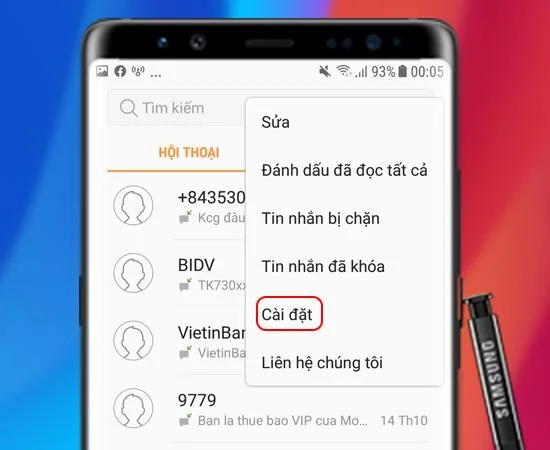
Step 3: Then choose on Settings.
![6 steps to change font size on Samsung Galaxy Note 8]()
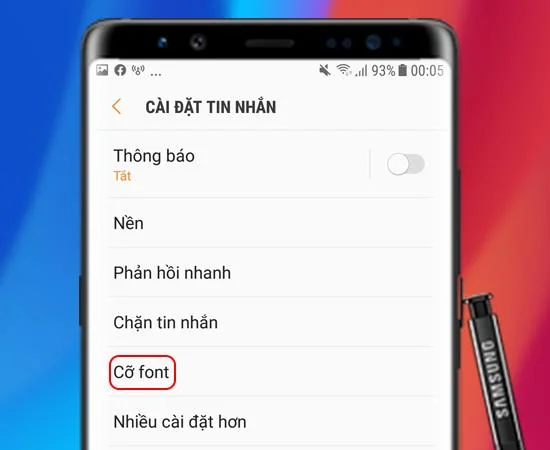
Step 4: Next, choose Font Size.
>>> See more: 5 steps to split the screen on Samsung A5 (2017) most effectively
![6 steps to change font size on Samsung Galaxy Note 8]()
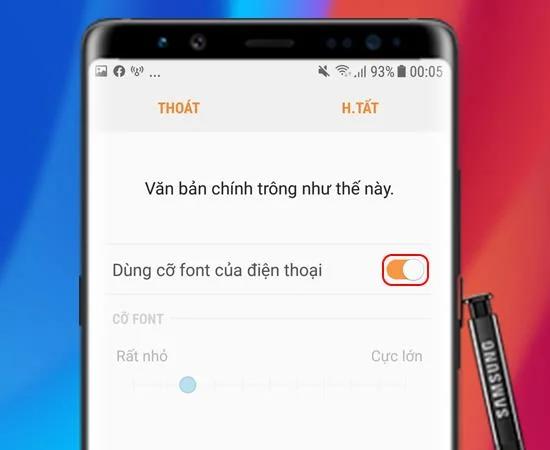
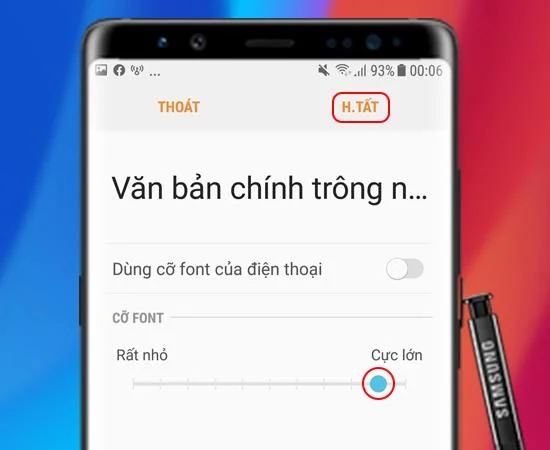
Step 5: Here you turn off Use your phone's font size.
![6 steps to change font size on Samsung Galaxy Note 8]()
Step 6: Finally, drag the blue circle to the left and right to change the font size -> DONE.
![6 steps to change font size on Samsung Galaxy Note 8]()
Your complete setup is complete, hopefully this article has been helpful to you.
Good luck!
Maybe you are interested:
- Test order for Samsung device
- Samsung warranty activation guide
- Learn about Force Touch Trackpad on MacBook.