Pop Culture Costume Ideas That Will Dominate Halloween 2026

Plan a recognizable Halloween 2026 look with pop culture costumes inspired by Spider-Man, Supergirl, Toy Story 5, Moana, Mario, and Wednesday.
You try to turn on your TV to stream your favorite show but are greeted by a blank, non-functional screen. Before you panic and panic, try these fixes!
1. Check the cable
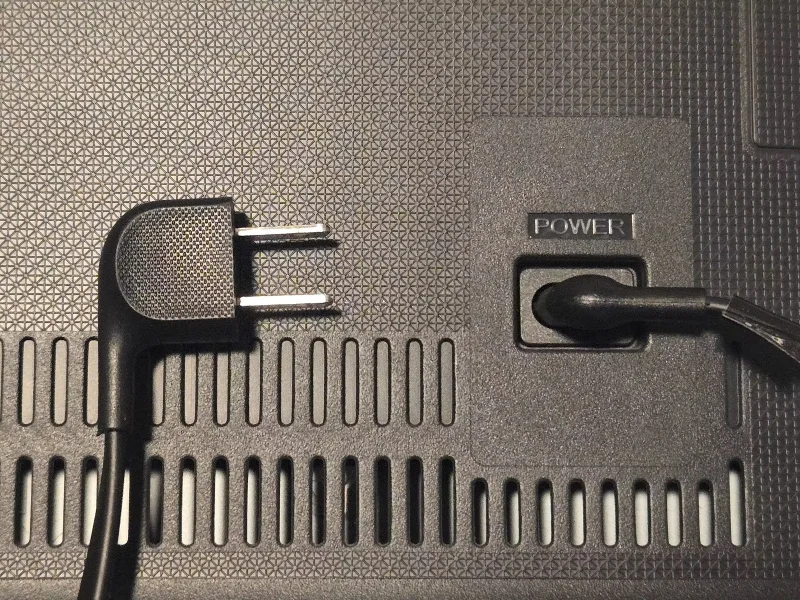
The first step in troubleshooting a TV that won't turn on is to inspect the cable for any signs of damage or wear. A damaged cable can cause a power outage, which may be the reason your TV won't turn on. If there are no obvious signs of damage, run your finger along the length of the cable to feel for bulges, small cracks, or irregularities. If you feel any signs of wear or damage, you'll need to replace the cable.
If the main cable is not damaged or frayed, make sure it is securely plugged into the wall outlet and the TV. While you are doing this, check the ports on the TV for signs of damage. If any of the ports are damaged, you may need to have them repaired by an authorized service center.
2. Disconnect and reconnect to power source
Disconnecting the mains cable from the power source and reconnecting it can resolve minor software or hardware issues. When unplugging the TV from the power source, be sure to check the wall outlet for damage or debris that could affect the TV's performance.
If you don’t find any problems, plug the cord back into the power source after a few minutes and try turning it on. If that doesn’t work, plug another device into the same outlet to see if the problem is with the outlet and not the device plugged into it. If the other device doesn’t turn on, you know what the problem is.
3. Check the circuit breaker box
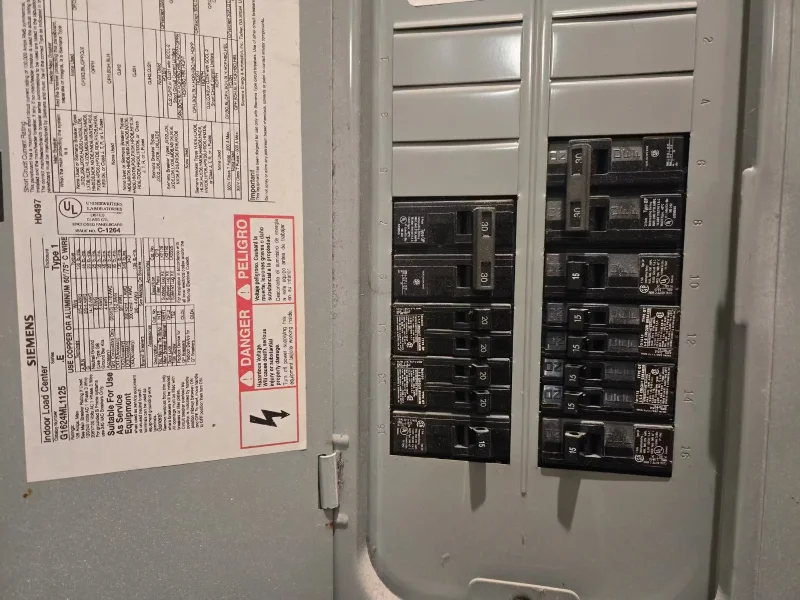
The circuit breaker box is one of the main electrical hubs in your home. If one or more circuit breakers are closed, this can cut off power to certain areas of your home or to certain appliances, such as your TV.
Circuit breakers trip for a variety of reasons, but they are often caused by an overloaded circuit. So, for example, if you have multiple devices, like a TV, a robot vacuum cleaner, and a heater, running on the same circuit, they will draw more power than the outlet can handle, which will then cause a problem.
To determine what is causing the power outage that is preventing your TV from turning on, locate the circuit breaker box and look for any switches that are in the “off” position. If you find any such switches, turn them back on.
4. Check if the backlight is faulty
If you can't find any problems with your TV's hardware or your home's electrical distribution system, your TV may not turn on due to a faulty backlight. If the backlight is faulty, your TV screen will not light up. To check for a faulty backlight, turn off all the lights and make sure the room is completely dark.
Turn on the TV, shine a flashlight on the screen and look for any images or text. If you can see anything, even if it is just a dim image, it means the backlight is not working. You will need to contact an authorized service center to fix this problem.
Remember that repairing a TV backlight can be expensive, so compare repair quotes and evaluate whether it makes more sense to repair or replace your TV.
5. Check the remote control
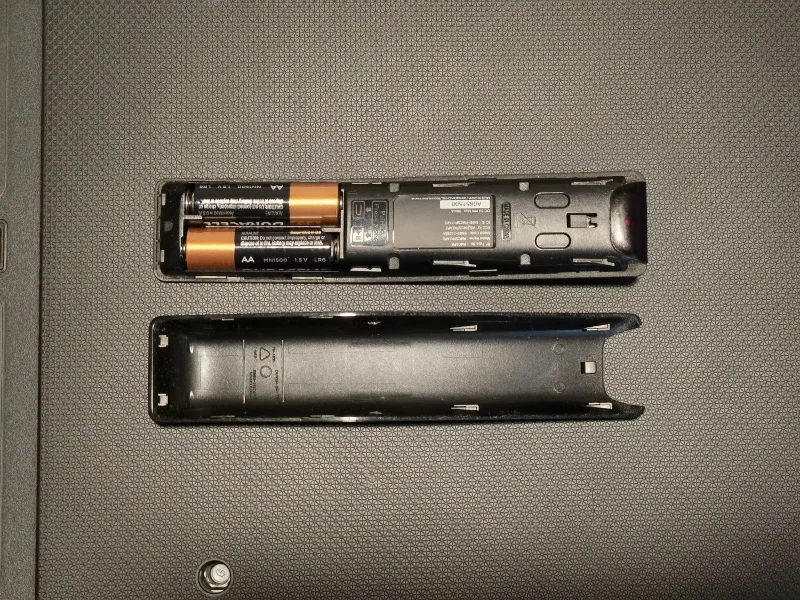
If you are using a physical remote control to turn on your TV, check to see if its batteries are working properly. Replace the existing batteries with new ones and try turning on your TV. If nothing happens, check to see if the remote control is damaged or defective.
You can confirm whether the fault lies with the remote control by using the physical power button on the TV to turn it on. If that doesn't work or there is no power button on the TV, download a TV remote control app to your phone and use it instead of the regular remote control.
6. Reset TV
If none of the above tips work, your last resort is to try a factory reset. While factory resets can fix some problems, they will restore your TV’s settings to their defaults. This means you’ll have to set up your TV again and adjust the settings to your liking.
The steps to reset your TV will vary; for example, if you have a Samsung smart TV, you'll need to follow a specific set of steps to reset your TV. These steps may vary from brand to brand.
Since your TV screen won’t turn on, you’ll need to find a physical reset button (usually on the back of the TV). Use a paperclip or pen to press the reset button and hold it for about 15 seconds. Release the button and try turning on the TV to see if a factory reset fixes the problem.
7. Get professional help
If your TV still won't turn on, the problem may be with the motherboard, internal power supply, or another component. In this case, it's best to contact an authorized service center for the brand of TV you're using. They can diagnose the problem, provide a quote, and fix the problem if it can be fixed.
The troubleshooting tips mentioned above will help you diagnose and fix relatively simple problems that may be causing your TV screen to not turn on. If these tips do not work, do not attempt to repair or replace any internal components yourself as this can be risky, may void your warranty, and may cause damage that will be more expensive to repair.
Plan a recognizable Halloween 2026 look with pop culture costumes inspired by Spider-Man, Supergirl, Toy Story 5, Moana, Mario, and Wednesday.
Sort leftover Halloween candy safely, share or repurpose sealed treats, and choose food use or compost for pumpkins based on their condition.
Compare workplace Halloween costume choices by respect, dress code, mobility, and safety—and learn when a subtle accessory or a policy check is the better option.
Find a couples costume that fits your style, budget, and comfort level, from Addams Family classics to original inside-joke duos.
Need a last-minute high school Halloween costume? Compare 10 easy closet-based ideas by prep time, comfort, school-day practicality, and simple safety checks.
Use a simple 2026 Halloween decorating timeline for indoor décor, outdoor displays, and fresh pumpkins, with practical adjustments for weather and events.
Mix five vivid, approachable Halloween cocktails with measured recipes, simple prep tips, and an alcohol-free option for your party guests.
Find 15 office-friendly Halloween costume ideas for 2026, with practical checks for dress codes, respectful themes, comfort, and workplace safety.
Plan a fun elementary school Halloween party with easy crafts, games, inclusive treats, costume tips, and a sample 75-minute classroom schedule.
Compare realistic side hustles for 2026 by startup cost, fees, flexibility, and income control, with current tax and scam guidance from official sources.








