When printing a document and detecting a print job incorrectly, we often cancel the job by removing the paper from the printer and turning off the printer, which is not harmful to the machine. This article will guide you how to quickly delete a print job on Windows and Mac computers!
1. Instructions on how to delete, cancel a print job on a Windows computer
- Use services.msc
Step 1 : Start the Run dialog box using the Windows + R key combination > Type " services.ms " into the search box> Press the Enter key (or click OK).
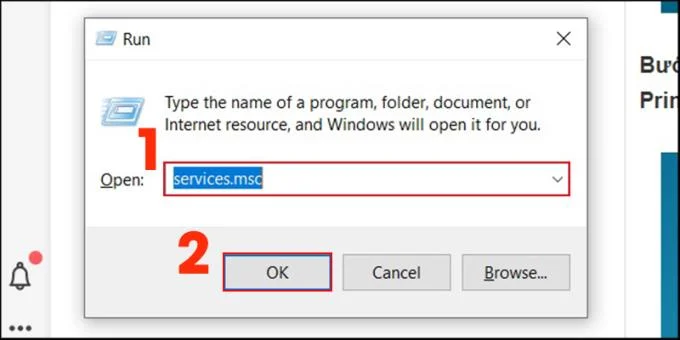
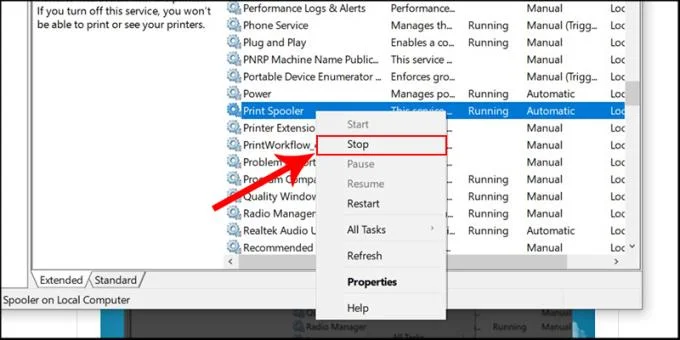
Step 2 : At the Services interface , drag the toolbar down> Find Print Spooler > Right-click Print Spooler > Select Stop to cancel the print job.
![How to delete, cancel a print job on Windows, Mac computers immediately]()
- Use Command Prompt
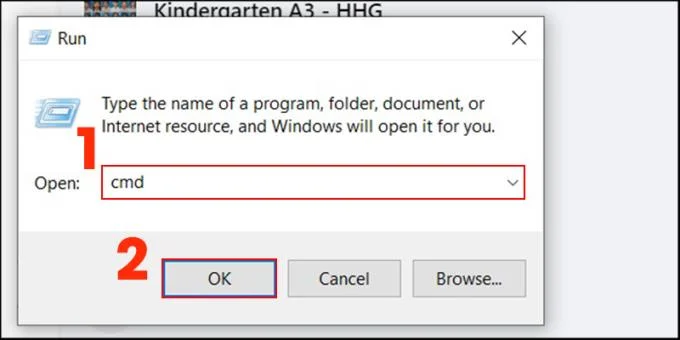
Step 1 : Start the Run dialog box using the Windows + R key combination > Type cmd in the search box> Press the Enter key .
![How to delete, cancel a print job on Windows, Mac computers immediately]()
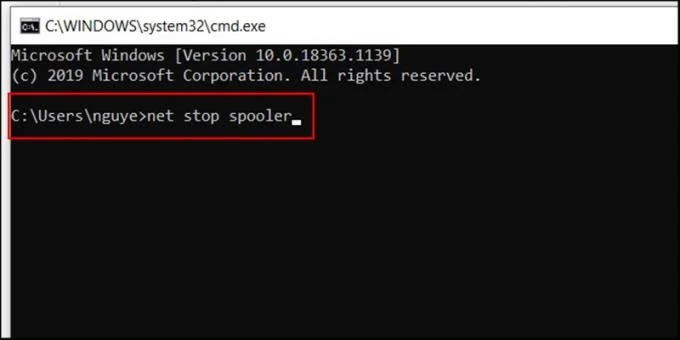
Step 2 : At the Administrator interface > Type the command " net stop spooler " at the end of the command> Press Enter to turn off the print job.
![How to delete, cancel a print job on Windows, Mac computers immediately]()
- Use Devices and Printers
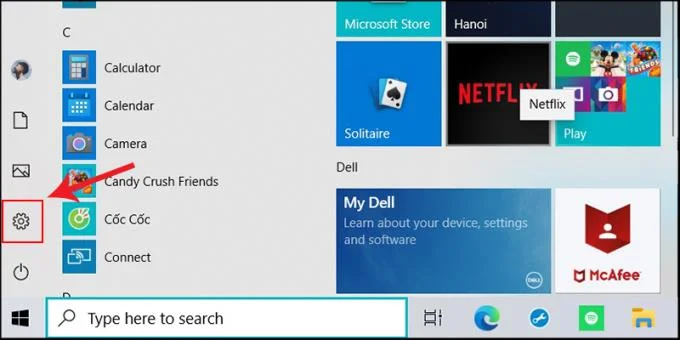
Step 1 : Click on Start menu > Click on Settings (the cog icon) or use the key combination " Windows + I " to open the Windows Settings interface .
![How to delete, cancel a print job on Windows, Mac computers immediately]()
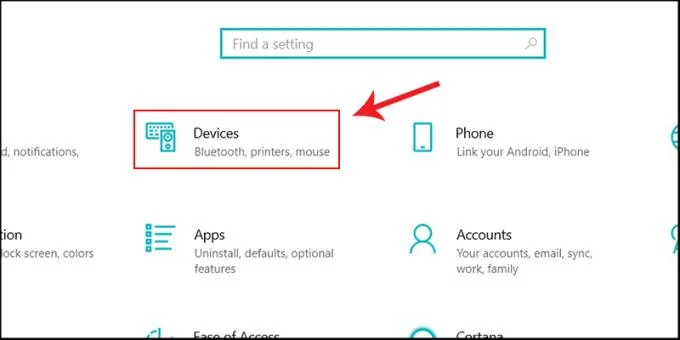
Step 2 : At the Windows Settings interface > Click Devices .
![How to delete, cancel a print job on Windows, Mac computers immediately]()
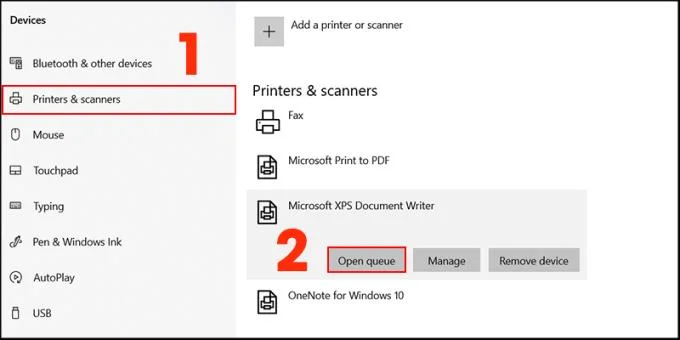
Step 3 : Appear Devices interface > Select Printers & Scanners tab in the list on the left side of the screen> Right-click the Name of printer you are using in Printers & Scanners > Select Open Queue .
![How to delete, cancel a print job on Windows, Mac computers immediately]()
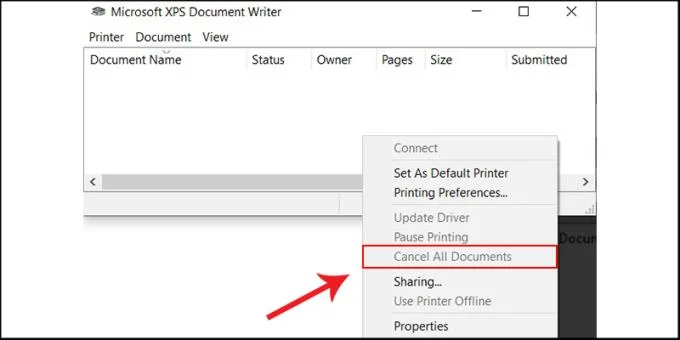
Step 4 : At Microsoft Print to PDF interface , right-click with white background> Select Cancel All Document to cancel the print job.
![How to delete, cancel a print job on Windows, Mac computers immediately]()
2. Instructions on how to delete, cancel a print job on a Mac computer
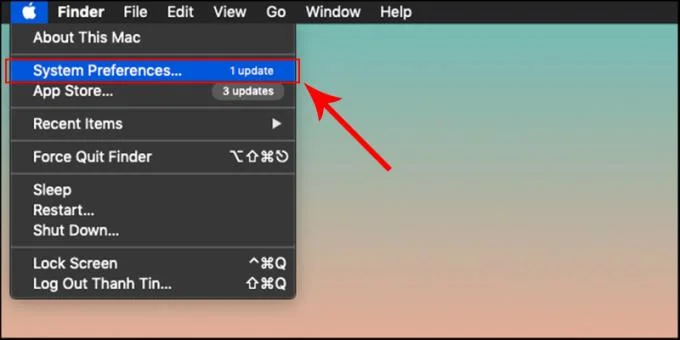
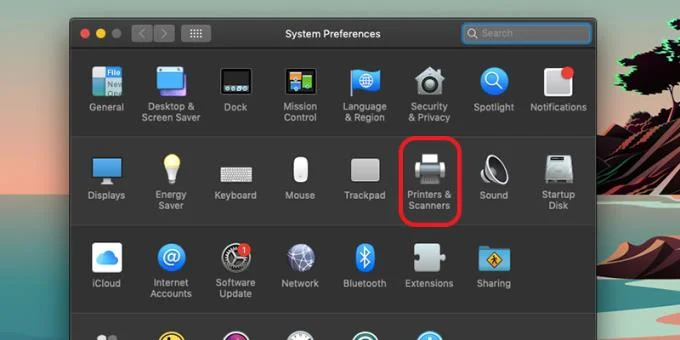
Step 1 : Go to System Preferences (System settings) .
![How to delete, cancel a print job on Windows, Mac computers immediately]()
Step 2 : Choose Printers & Scanners (printers and scanners) .
![How to delete, cancel a print job on Windows, Mac computers immediately]()
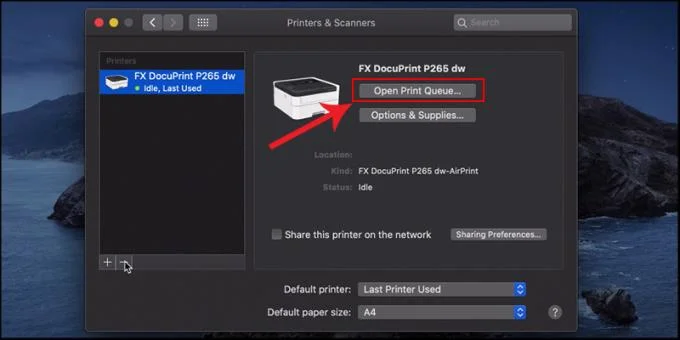
Step 3 : Next, you select at "Open Print Queue" (open printing orders) .
![How to delete, cancel a print job on Windows, Mac computers immediately]()
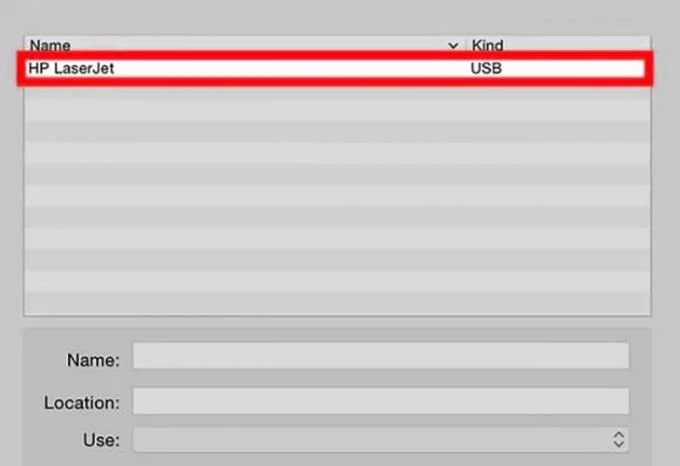
Step 4 : You choose the name of the printer on which you ran the print job.
![How to delete, cancel a print job on Windows, Mac computers immediately]()
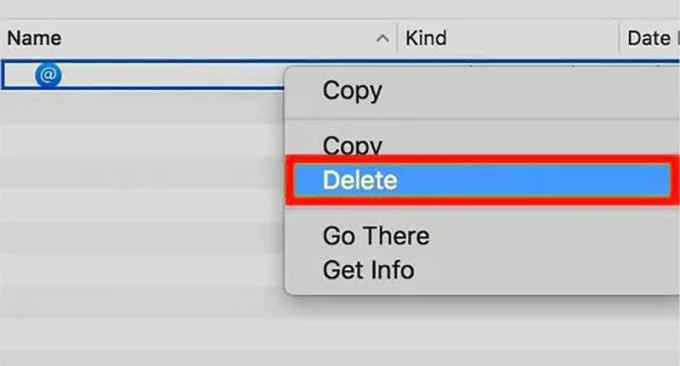
Step 5 : Then you select the existing print job, then right-click> Select Delete to cancel the print job.
![How to delete, cancel a print job on Windows, Mac computers immediately]()
See also :
>>> Key Features of a Multifunction Printer
>>> Picture in Picture feature on macOS
>>> Instructions on how to connect the printer and print from iPhone, iPad
So I showed you how to cancel print jobs on both Windows and macOS, and wish you success.