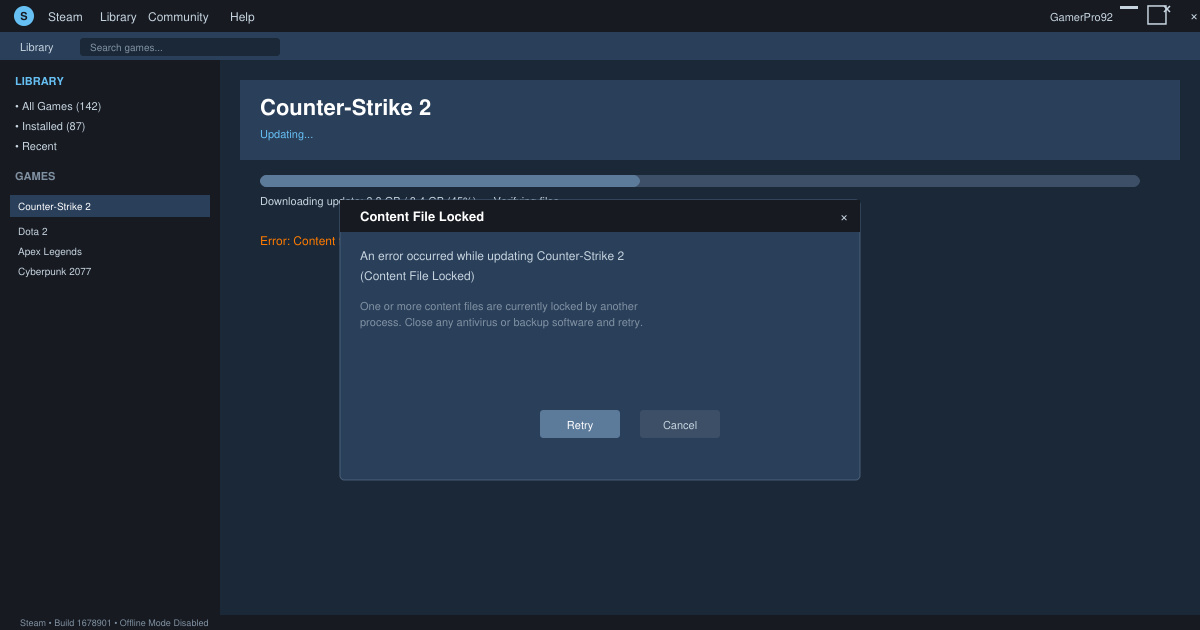
Encountering the Content File Locked Steam error stops game downloads and updates in their tracks. The message appears when Steam cannot write to its library folders because of permission conflicts, antivirus interference, or damaged manifest files. This guide provides precise steps to clear the Content File Locked Steam issue and resume installing or updating titles.
Understanding the Content File Locked Steam Error
The error occurs most often during large updates or when multiple Steam processes attempt to access the same files simultaneously. Steam stores game data in a library folder that must remain writable by the client and any helper processes. When Windows security settings, third-party antivirus tools, or leftover temporary files interfere, Steam reports the content file as locked and halts the operation.
Before starting the fixes, close Steam completely through Task Manager, confirm you are logged into a Windows account with administrator rights, and note which game triggers the message. These prerequisites prevent repeated failures when applying the solutions below.
Step-by-Step Solutions to Fix Content File Locked Steam
-
Verify integrity of game files
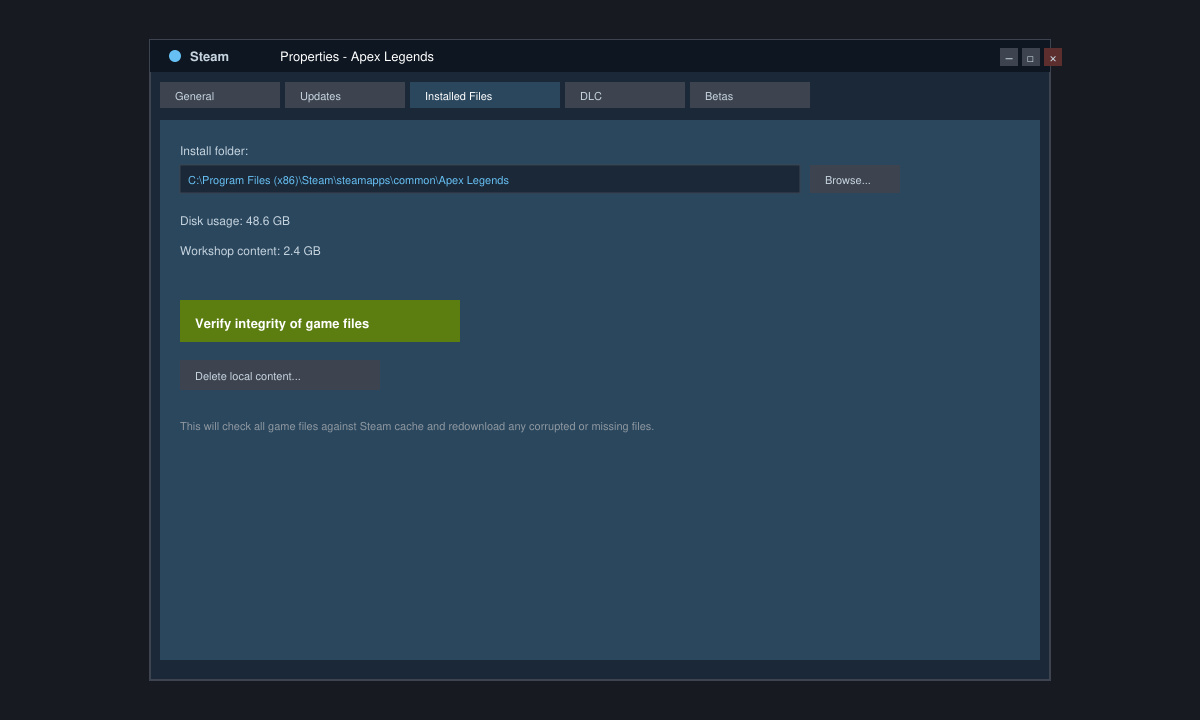
Open Steam, right-click the affected game in your library, select Properties, then click Installed Files. Press the Verify integrity of game files button. Steam will scan and replace any corrupted or locked manifest files without deleting your progress.
-
Run Steam as administrator
Close Steam. Right-click the Steam desktop shortcut or executable in the installation folder, choose Properties, switch to the Compatibility tab, and check Run this program as an administrator. Launch Steam again and attempt the download or update that previously failed.
-
Clear download cache
From the Steam menu bar select Steam then Settings. Navigate to the Downloads section and click the Clear Download Cache button. Restart Steam when prompted. This forces Steam to rebuild its temporary file index and often releases locked content files.
-
Adjust folder permissions
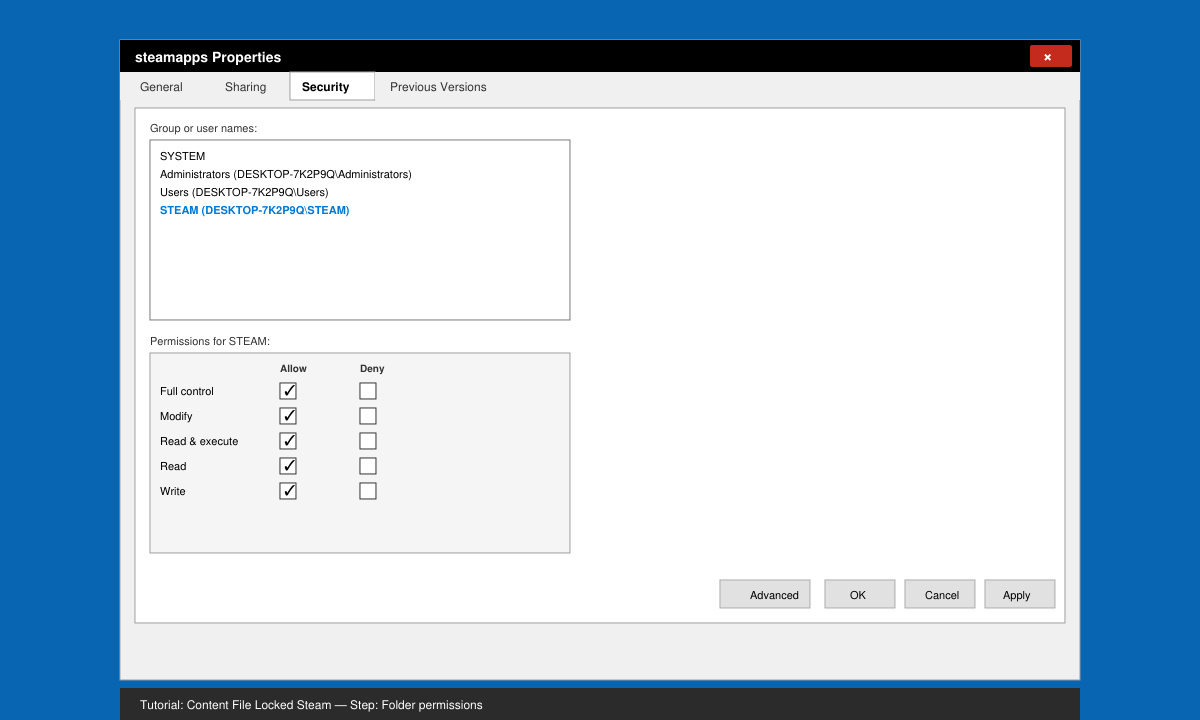
Locate your Steam library folder, typically C:\Program Files (x86)\Steam\steamapps. Right-click the folder, choose Properties, go to the Security tab, and ensure your user account has Full control. If the entry is missing, click Edit, add your username, and grant the necessary permissions before retrying the update.
-
Exclude Steam from antivirus scanning
Open your antivirus program settings and add exclusions for the entire Steam folder plus the steam.exe executable. Real-time scanners frequently lock manifest files during writes, triggering the Content File Locked Steam error on every attempt.
Additional Tips and Common Mistakes
- Never delete the steamapps folder manually; use Steam’s built-in verification instead to avoid reinstalling large games.
- If the error persists after the steps above, move the game to a secondary library on another drive using Steam’s Storage Manager to bypass permission issues on the primary drive.
- Disable any VPN or proxy software temporarily, as routed traffic can cause file-locking conflicts during downloads.
- Check Windows Event Viewer under Applications and Services Logs for repeated Steam errors that point to specific locked files.
Frequently Asked Questions
Does verifying files delete my saved games?
No. The verify process only replaces corrupted or missing game files and leaves save data and configuration files untouched.
Can I fix Content File Locked Steam without administrator rights?
Most solutions require administrator access to change folder permissions or run Steam elevated. If you lack these rights, contact your system administrator or switch to an account with full privileges.
Why does the error return after restarting my PC?
Persistent antivirus rules, incorrect folder ownership, or corrupted Steam service entries can re-lock files on every boot. Reapply the permission and exclusion steps, then restart the Steam Client Service through services.msc.
Conclusion
Applying the verification, permission, and cache-clearing steps above resolves the Content File Locked Steam error in the majority of cases and restores normal download functionality.