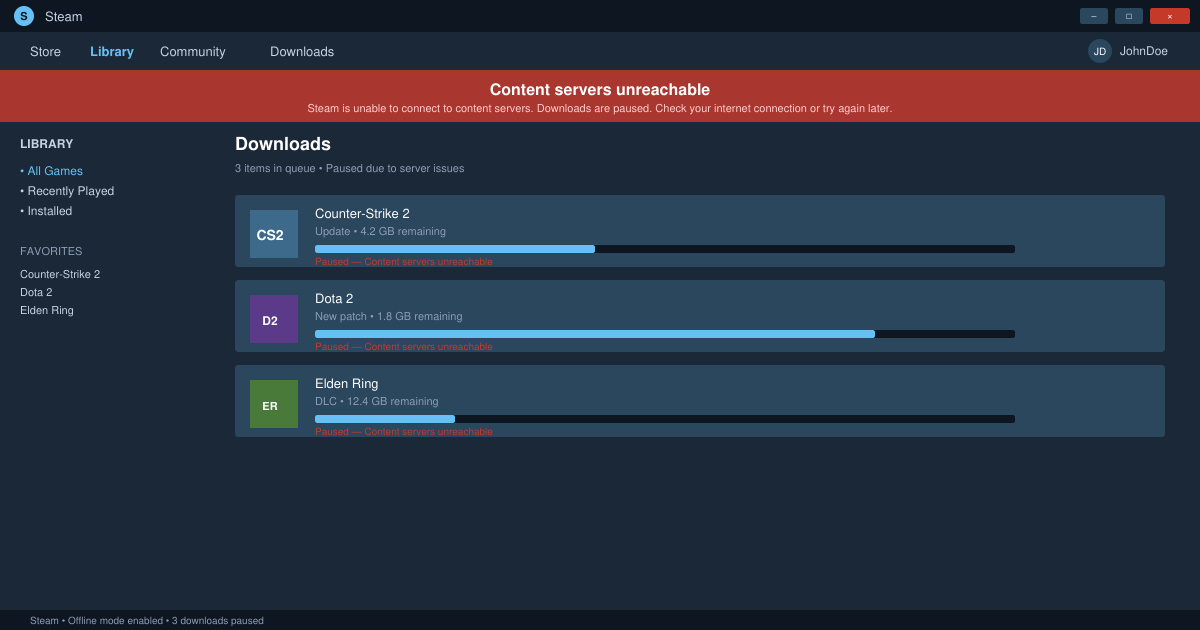
The Content Servers Unreachable Steam error blocks game downloads and updates for many users. It usually stems from connection problems, regional server issues, or corrupted cache files. This guide walks through the most effective fixes in order of success rate.
Understanding the Content Servers Unreachable Steam Error
Steam displays this message when its content delivery network cannot be reached from your client. The error often appears during large game installations or after a Steam client update. Before trying fixes, confirm your internet connection works in other apps and that Steam is not blocked by a firewall or VPN.
Restarting your router clears temporary routing problems that frequently trigger the Content Servers Unreachable Steam message. Close Steam completely through Task Manager, then reopen it to test.
Step-by-Step Fixes for Content Servers Unreachable Steam
-
Change your Steam download region
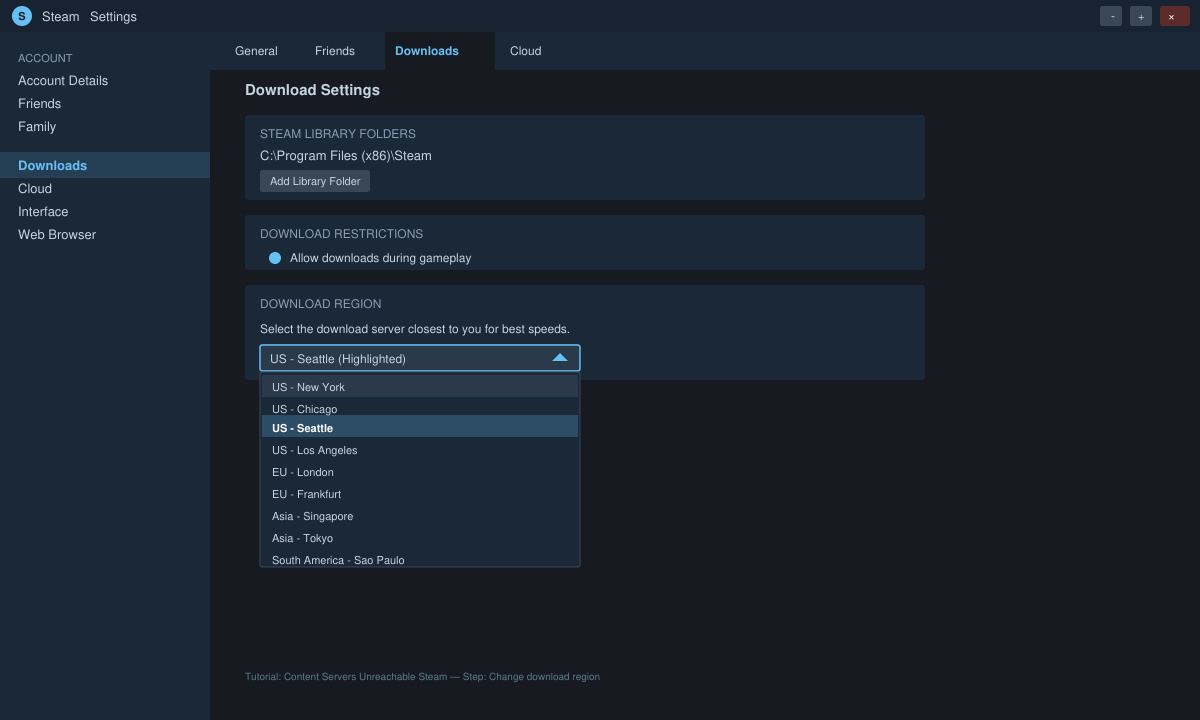
Open Steam and go to Steam > Settings > Downloads. Click the dropdown next to Download Region and select a different nearby server location. Click OK, then restart Steam and attempt a download again to see if the Content Servers Unreachable Steam error clears.
-
Clear Steam download cache
Return to Steam > Settings > Downloads. Click the Clear Download Cache button at the bottom. Confirm the action, then log back into Steam. The client will rebuild its cache, which resolves many server connection failures.
-
Verify integrity of Steam client files
Right-click Steam in your Windows Start menu and choose Run as administrator. Navigate to Help > System Information and scroll to the bottom to note your build version. If issues persist, reinstall Steam from the official site while keeping your game library intact.
-
Disable VPN or proxy temporarily
If you use a VPN, disconnect it completely. Steam routes traffic through specific ports that many VPN providers block. Test downloads directly on your ISP connection before re-enabling any proxy settings.
Additional Troubleshooting Tips
- Run Steam in compatibility mode for Windows 8 if you are on Windows 11 and still see the Content Servers Unreachable Steam error.
- Check your router's MTU setting and lower it to 1472 if packet fragmentation is suspected.
- Flush DNS by opening Command Prompt as administrator and running ipconfig /flushdns followed by netsh winsock reset.
- Ensure no antivirus software is actively scanning the Steam folder during downloads.
Frequently Asked Questions
Does changing regions always fix Content Servers Unreachable Steam?
Switching regions works in roughly 60 percent of cases because it routes you to a less congested server. If the first change fails, try two additional nearby regions before moving to cache clearing.
Will I lose my games by clearing the download cache?
No. Clearing the cache only removes temporary files. Your installed games and library remain untouched.
How long should I wait before trying another region?
Wait at least 30 seconds after selecting a new region, then restart Steam. Immediate testing without a restart often shows the old cached server list.
Conclusion
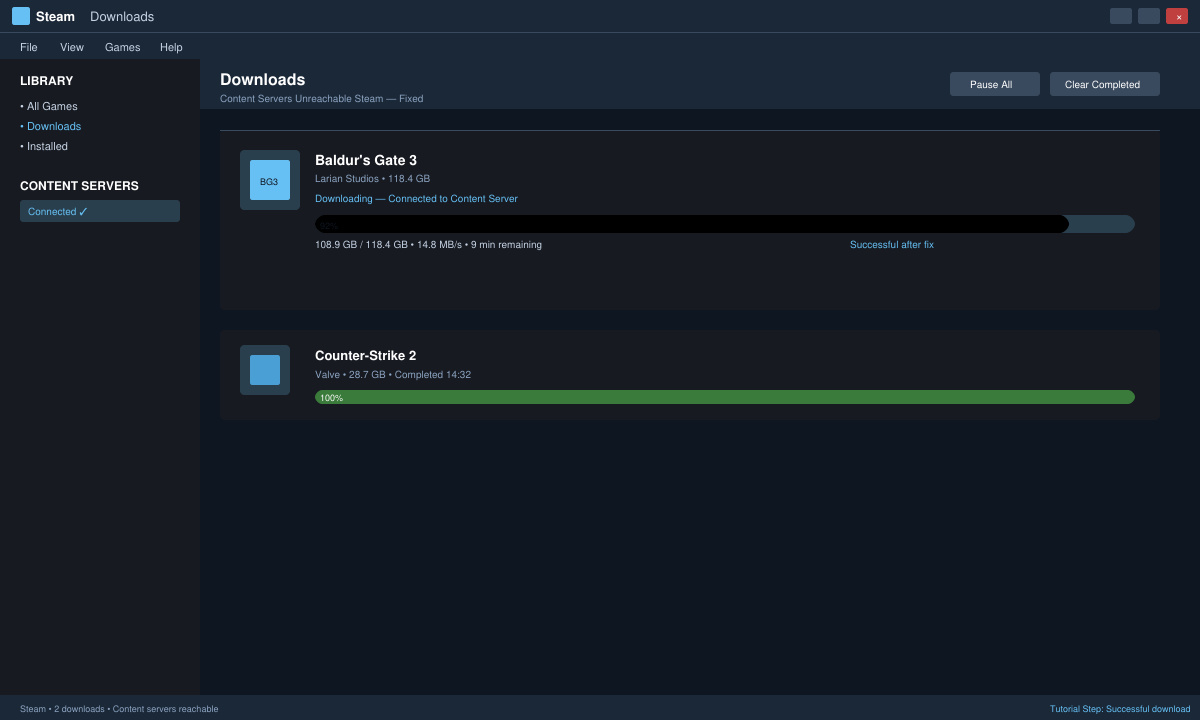
Following the region change and cache clear steps resolves the Content Servers Unreachable Steam error for most users. Reinstall Steam only as a final option if the above methods do not restore connectivity.