Pop Culture Costume Ideas That Will Dominate Halloween 2026

Plan a recognizable Halloween 2026 look with pop culture costumes inspired by Spider-Man, Supergirl, Toy Story 5, Moana, Mario, and Wednesday.
When you often have to process documents, draft contracts, or documents, creating dotted lines - to reserve space for handwriting - is no longer strange. To create dotted lines in Word properly, we use the Tab tool in Word .
This Tab tool has many different useful functions, such as using line and paragraph alignment to create more convenient and accurate text layout and creating dotted lines in text. Setting Tab in text, formatting Tab in text will create dotted lines or consecutive lines of lines in a straight line according to the rules you set up.
Instead of having to type the dots manually, users just need to press the Tab button and the 3 dots will appear, which is very convenient when having to present text. The article below will summarize the types of Tabs in Word and how to create dotted lines in Word.
Table of Contents
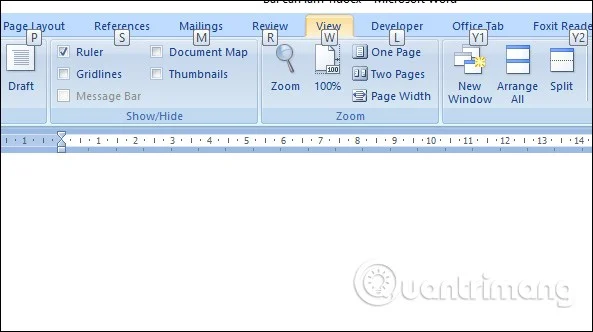
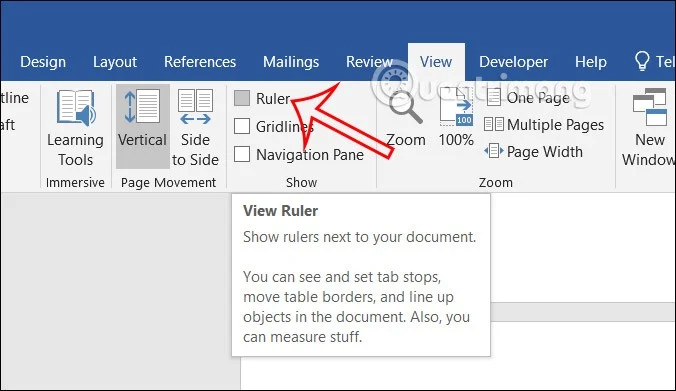
First, we need to turn on the ruler bar on Word to align the Tab in Word. Click on the View tab and then select Ruler.
There are 7 different types of Tabs in Word:
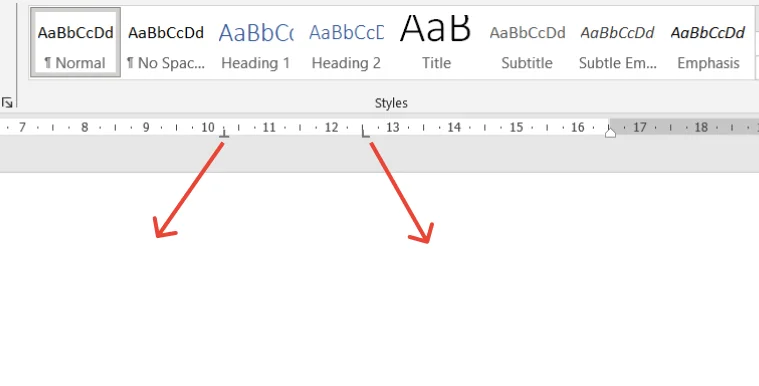
 Left Tab Left Tab |
Align text lines from left to right at the Tab position. |
 Middle Tab Middle Tab |
Center the two sides of the displayed Tab position. |
 Right Tab Right Tab |
Align text from right to left from the Tab position. |
 Decimal tab Decimal tab |
Align to the left Tab, do not use decimal Tab to align numbers with other characters, such as hyphens or ampersands. |
 Tab Bar Tab Bar |
Text will not use this type of Tab for alignment. The Tab Bar will change to a black vertical line that follows the Tab position to display as you type. |
 Indent first line Indent first line |
Indent the first line of a document. |
 Paragraph indentation Paragraph indentation |
Except for the first line, using this Tab will indent the following lines of the paragraph. |
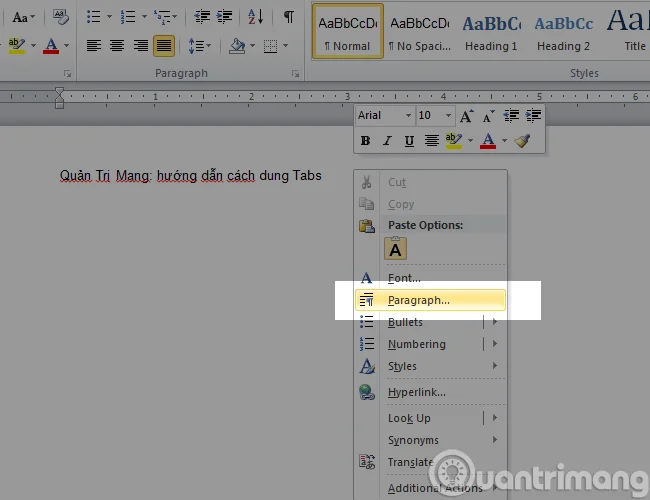
Open Microsoft Word , for older versions of Word (before 2010), the Tabs key control panel will appear when you go to Format > Tabs . For Word 2010 and above, we just need to right-click on the Word document and select Paragraph > Tabs :
There are 2 ways to access Tabs on Word 2010, 2013, 2016:
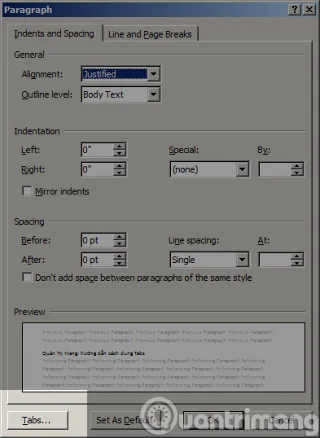
In the Tabs panel, we will see the following options:
Select the desired values and then press the Set button to change. As in the example above, I will specify in the image below for you to easily visualize:
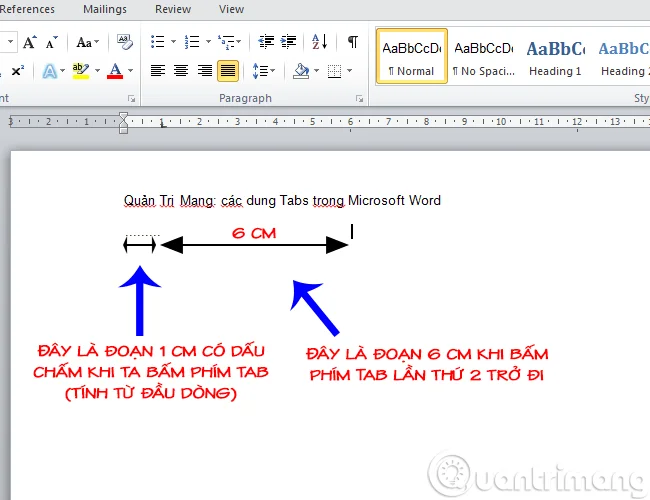

The Ruler bar in Word also has an option for you to quickly create dots (....) or any line style you want with a very simple implementation and similar to most versions of Word.
Step 1:
First, you need to display the ruler in Word if it is not displayed. Click on View and then check the Ruler box to display the ruler in Word.
Step 2:
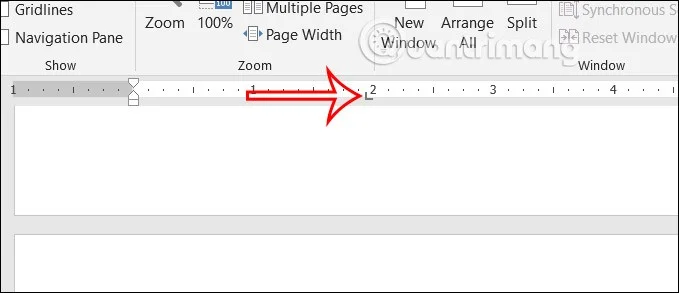
Next, you need to determine the position to create the dot (....) in Word, by aligning the left margin and the length by left-clicking on the Ruler bar to create a tab in Word.
If you want to create a line of dots (....) to the end of the page, left-click at the end of the ruler to create a tab at the bottom of the page.
Step 3:
Next, double-click on the tab icon on this ruler bar. Display the table to adjust the tab style in Word.
Now you check box number 2 to create a dot (....) in Word. Then click Set to set up and click OK to save.
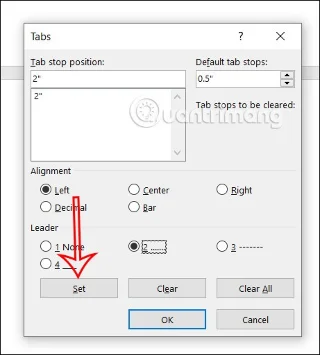
Step 4:
Then press the Tab key , immediately a line of dots (....) appears with a length corresponding to the tab position displayed on the Ruler bar as shown.
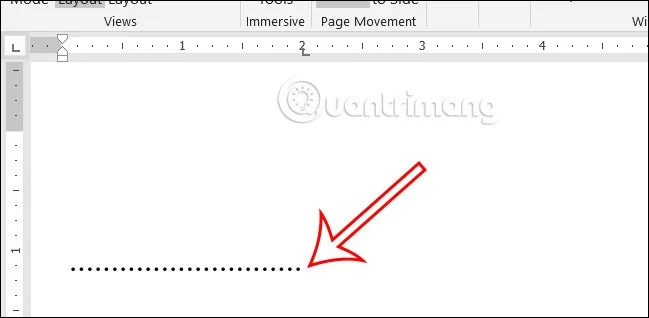
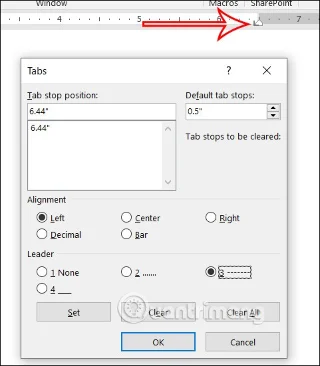
In case you want to change the dotted line style , it's also simple. Click on the tab position on the ruler bar to calculate the length of the dotted line and then double-click.
Then we will choose a pattern for the new dot line , for example number 3 and also press Set and OK to save.
As a result, we will see a dashed line displayed to the tab position as shown.
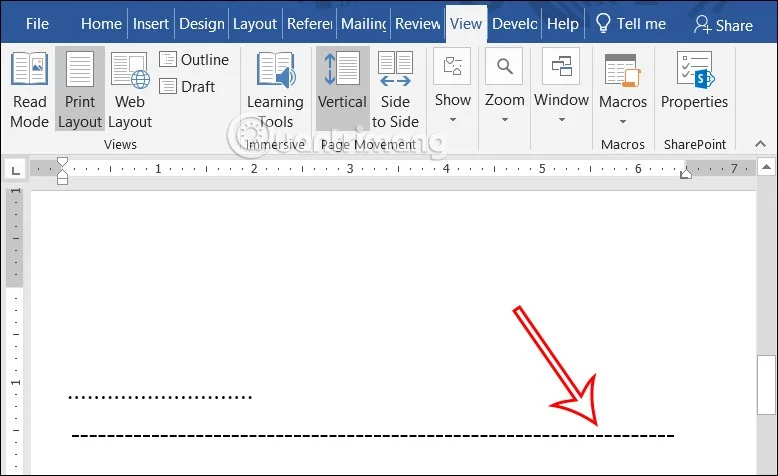
By creating a dotted line (....) through the ruler, you will immediately know how long the dotted line (....) is because you have already set the tab position on the ruler.
If you don't want to use the settings when you click tabs, open the Tabs control panel and click the Clear or Clear All button . Then click OK .
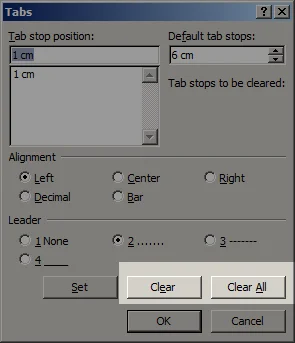
Or there is a faster way to remove Tabs while the Ruler is open : drag the unused Tabs icon from the Ruler to the Word working screen. That is equivalent to deleting the specific Tabs on the selected line.
So above are some common ways to Create and Delete Dotted Tabs in Word. If you have any better ways, please share with other users in the comments below!
Plan a recognizable Halloween 2026 look with pop culture costumes inspired by Spider-Man, Supergirl, Toy Story 5, Moana, Mario, and Wednesday.
Sort leftover Halloween candy safely, share or repurpose sealed treats, and choose food use or compost for pumpkins based on their condition.
Compare workplace Halloween costume choices by respect, dress code, mobility, and safety—and learn when a subtle accessory or a policy check is the better option.
Find a couples costume that fits your style, budget, and comfort level, from Addams Family classics to original inside-joke duos.
Need a last-minute high school Halloween costume? Compare 10 easy closet-based ideas by prep time, comfort, school-day practicality, and simple safety checks.
Use a simple 2026 Halloween decorating timeline for indoor décor, outdoor displays, and fresh pumpkins, with practical adjustments for weather and events.
Mix five vivid, approachable Halloween cocktails with measured recipes, simple prep tips, and an alcohol-free option for your party guests.
Find 15 office-friendly Halloween costume ideas for 2026, with practical checks for dress codes, respectful themes, comfort, and workplace safety.
Plan a fun elementary school Halloween party with easy crafts, games, inclusive treats, costume tips, and a sample 75-minute classroom schedule.
Compare realistic side hustles for 2026 by startup cost, fees, flexibility, and income control, with current tax and scam guidance from official sources.








