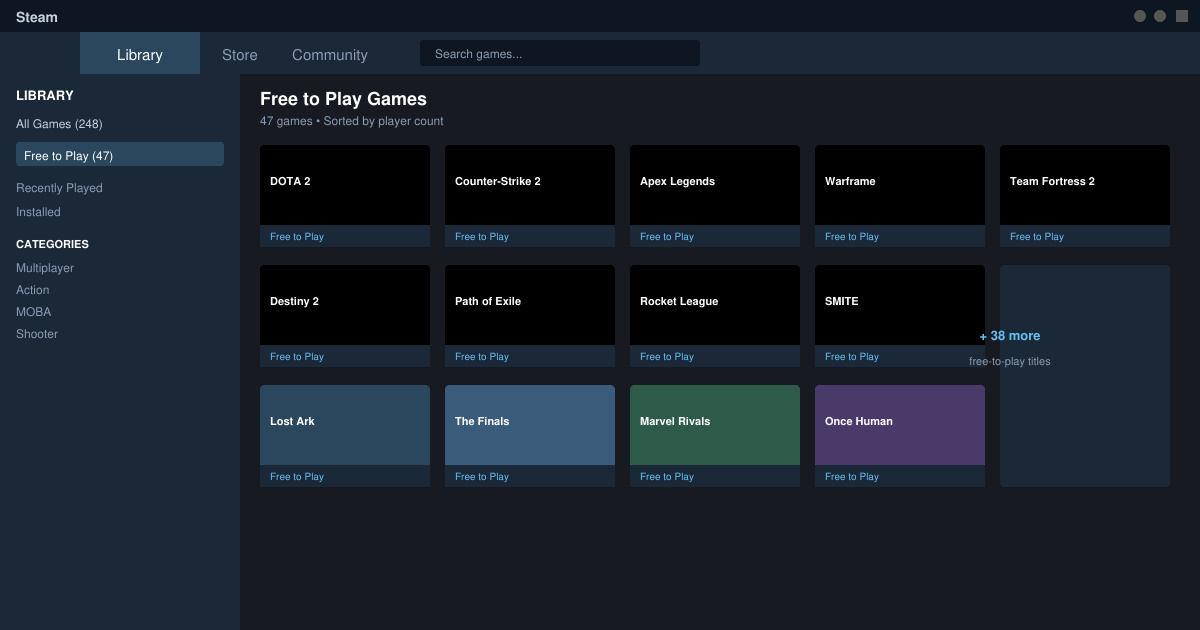
Free to Play Games on Steam give you access to hundreds of complete games across shooters, MOBAs, battle royales, and more without any purchase required. Steam's library of these titles keeps growing, and many receive regular updates and new content. This guide walks you through finding the right ones and getting into matches quickly.
Why Free to Play Games on Steam Are Worth Trying
These games use a free entry model funded by optional cosmetic purchases or battle passes. Top titles maintain large player bases and competitive scenes that stay active for years. You can test different genres risk-free and decide later if you want to spend on extras. Steam also handles all updates and anti-cheat through its client, so you avoid separate launchers in most cases.
How to Get Started with Free to Play Games on Steam
-
Create or sign into your Steam account
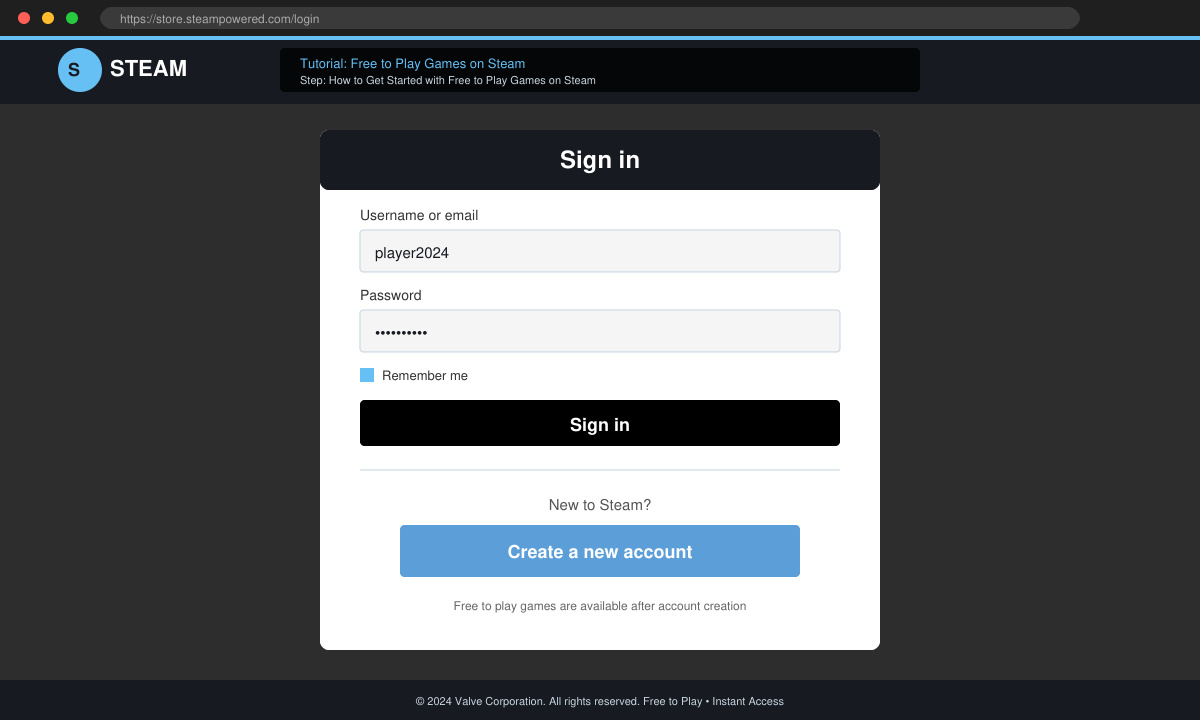
Open the Steam desktop app or go to store.steampowered.com. Click the Login button in the top right and enter your details, or select Create Account to set up a new profile with an email and password.
-
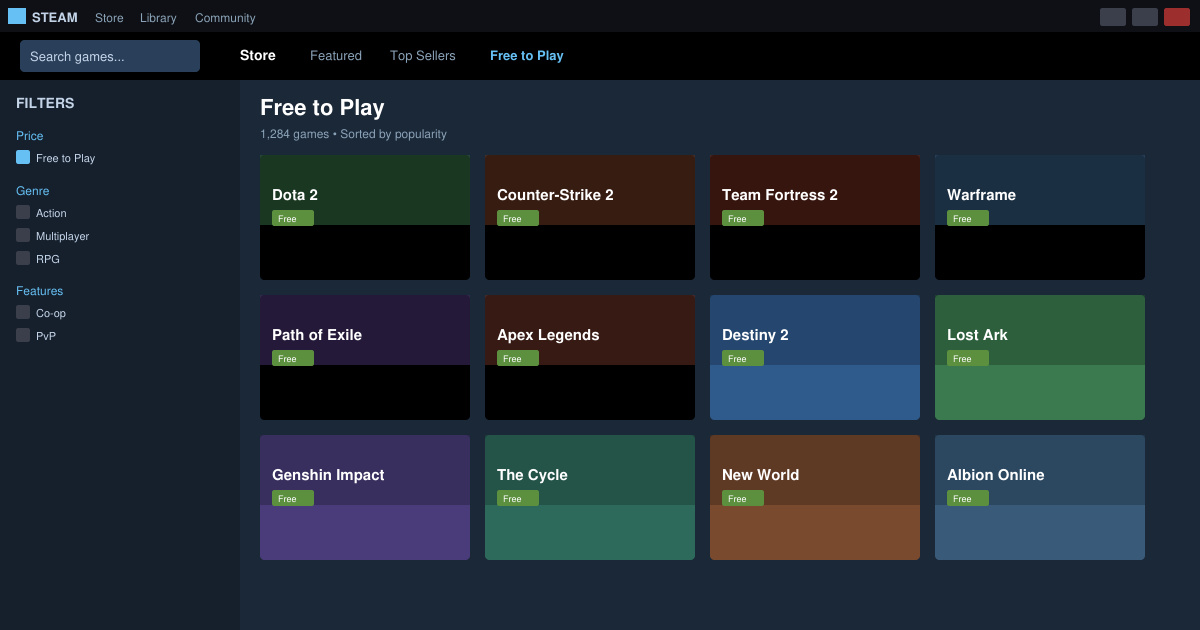
Browse the Free to Play section in the store
Once logged in, click Store in the top menu, then select the Free to Play category from the left sidebar or use the search bar and type "free to play". Apply the Free to Play filter under Price to narrow results instantly.
-
Choose and install a game
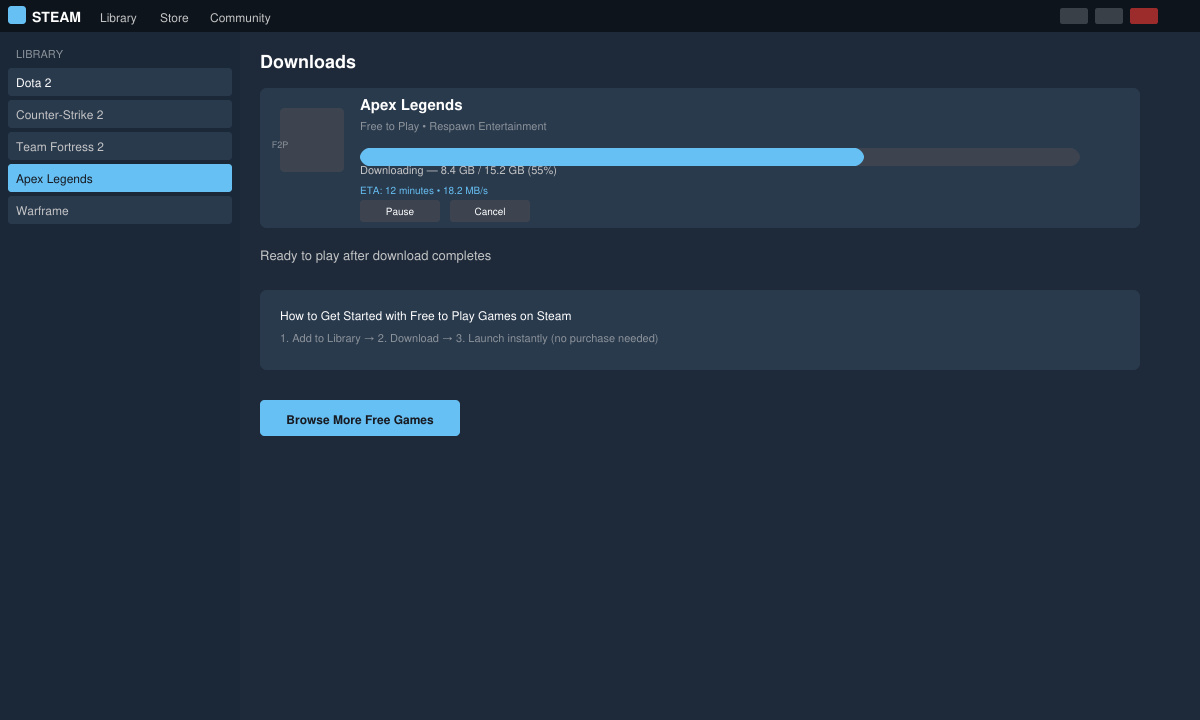
Click any title to open its store page. Press the big green Play Free button. Steam downloads the game files automatically through your library; monitor progress in the Downloads section at the bottom left of the client.
-
Launch the game and complete first-time setup
Return to your Library tab, locate the newly installed game, and click Play. Follow any in-game prompts for graphics settings, account linking, or tutorial matches before jumping into online play.
Tips for Enjoying Free to Play Games on Steam
Sort the store list by "Top Selling" or "Release Date" to see currently active communities rather than older titles with shrinking player counts. Check the recent reviews section on each game page before installing to spot current issues like server problems or balance complaints. Many free to play games on Steam run best with a wired connection; if you notice lag, switch from Wi-Fi in the Steam settings under Steam > Settings > In-Game.
Watch your hard drive space because some titles exceed 50 GB after patches. Disable automatic updates for games you play less often by right-clicking the title in your library and choosing Properties > Updates. If a game stops launching, verify files through the same Properties menu to fix corrupted downloads without reinstalling everything.
FAQ
Do free to play games on Steam require a credit card?
No. You can create an account and install every free title using only an email address. Payment details are needed only if you decide to buy optional items later.
Can I play free to play games on Steam offline?
Most require an internet connection for matchmaking and anti-cheat, though a few single-player modes or practice tools work offline after the first launch.
Are free to play games on Steam safe from malware?
Steam scans every upload and only hosts approved files. Stick to the official client and avoid clicking external links that promise cheats or skins.
Conclusion
Free to Play Games on Steam deliver high-quality experiences that update frequently and support millions of players worldwide. Follow the steps above to build your own collection in minutes.