Home
» Today
»
Freeview Guide 2026: How to Watch, Set Up, Retune, and Fix Common Problems
Freeview Guide 2026: How to Watch, Set Up, Retune, and Fix Common Problems
Freeview has a timely reason to be back on many viewers’ radar: on September 16, 2026, several channels launched, moved, or changed names, and Freeview advised viewers to retune so their channel list and TV Guide stay current. The changes included the launch of Lucky Cat TV on channel 63 and several channel-number moves. Because Freeview’s lineup changes periodically, a retune is not just a one-time setup task; it is also a useful maintenance step when channels move or disappear. You can verify the latest notices on the official Freeview September 16, 2026 channel update.
The basics have not changed: Freeview is the United Kingdom’s digital terrestrial television service. For live broadcast channels through the TV Guide, you normally need a compatible TV or set-top box plus a working TV aerial. Freeview Play adds internet-connected on-demand features when supported by your device. This guide explains how to check availability, set up a TV, retune after channel changes, and diagnose the most common reception problems without assuming that every fault means you need new equipment.
What is Freeview, and what do you need to watch it?
Freeview delivers television over terrestrial transmitters rather than through a satellite dish or a monthly cable-TV subscription. Freeview says its service carries more than 100 channels overall, although the exact lineup available to you depends on your location, transmitter, reception conditions, and equipment. You can check predicted availability for your address using the official Freeview Channel Checker.
For conventional live Freeview on a television, the essential pieces are straightforward:
A TV with Freeview built in, or a compatible Freeview set-top box or recorder.
A working TV aerial connected to the device.
An HDMI cable if you are using an external box or recorder and your equipment connects that way.
An internet connection if you want Freeview Play, on-demand apps, internet-delivered channels, or other connected features supported by your device.
Freeview states that an aerial is required to receive live Freeview through the traditional TV Guide. Some programs and channels can also be watched through internet-connected devices, but that is not the same as receiving the full terrestrial lineup through an aerial. See Freeview’s official aerial guidance for the distinction.
Step 1: Connect the aerial correctly
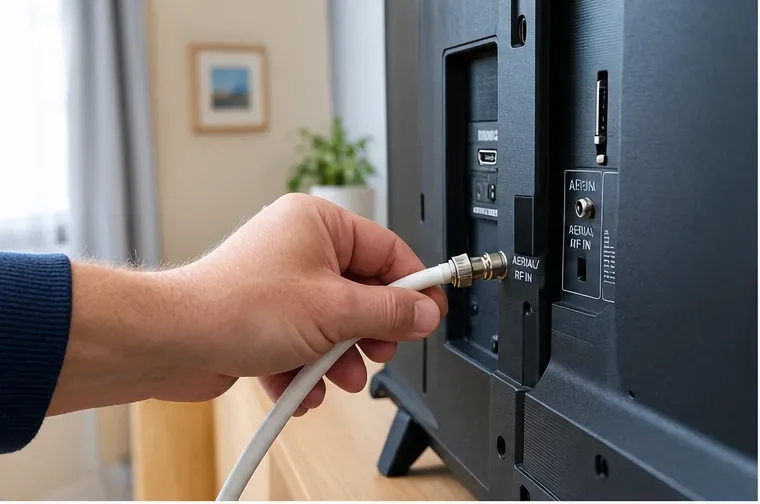
Before tuning anything, connect the aerial lead securely to the TV, recorder, or set-top box. The socket may be labeled RF In, Antenna, Aerial, or Ant In. If you use a separate Freeview box, connect that box to the TV as instructed by the manufacturer, typically with HDMI.
Inspect the visible cable and plugs while you are there. Bent pins, loose connectors, crushed cable, or corrosion can produce missing channels, intermittent reception, or blocky pictures that look like a tuning problem. Do not climb onto a roof to inspect an external aerial yourself; Freeview recommends using a qualified aerial installer for work that is not safely accessible.
Start with the physical connection: plug the aerial lead firmly into the TV or Freeview device’s aerial or RF input before beginning a channel scan.
Step 2: Run the initial channel scan
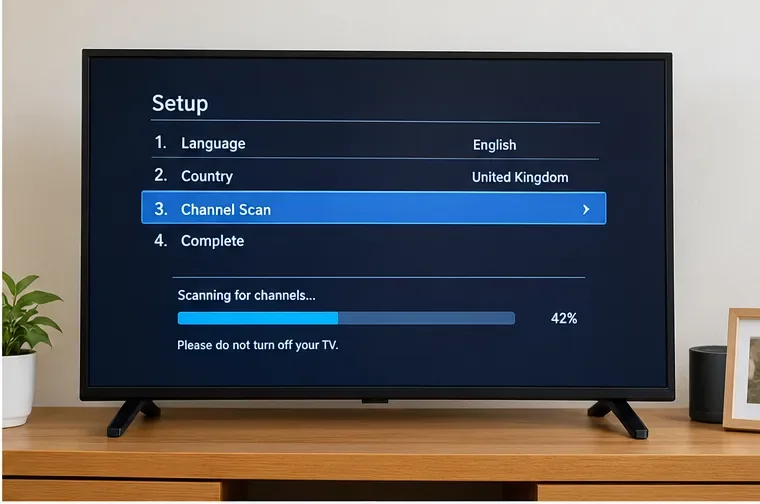
Turn on the TV or Freeview device and follow its setup screens. Menu names differ by brand, but the tuning option is commonly called Channel Scan, Auto Tuning, Installation, or a similar name. Freeview’s setup guidance says a normal initial tune usually takes only a few minutes.
When setup asks for your country or region, choose the correct UK option and your preferred TV region where applicable. Regional selection can affect which local versions of services such as BBC One or ITV appear in the main channel positions.
After the scan completes, save the channels if the device asks you to do so. If the number of channels looks surprisingly low, do not immediately buy a signal booster. First check which services are actually predicted at your address using the Channel Checker, because different transmitters carry different channel lineups.
During initial setup, run the TV’s automatic channel scan and allow it to finish before judging whether any services are missing.
Step 3: Connect Freeview Play to the internet
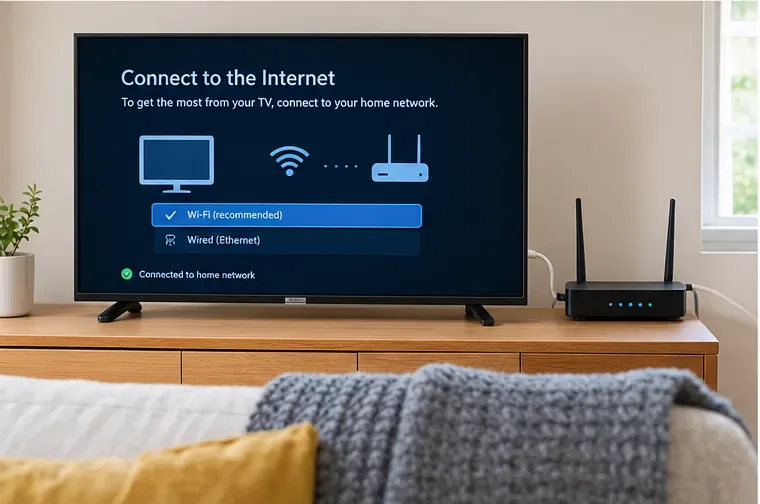
If your TV or recorder supports Freeview Play, connect it to broadband using Wi-Fi or Ethernet. Freeview Play combines terrestrial live TV with supported catch-up and on-demand services. Freeview currently states that a minimum broadband speed of 2 Mbps is required for catch-up and on-demand viewing, although a faster and more stable connection is preferable in a busy household.
The exact app selection can differ by product, and individual streaming services can change their own availability or account requirements. Freeview also notes that internet-delivered channels may depend on device support for technologies such as HbbTV. For the current platform requirements, use the official Freeview Play information.
Freeview Play features require a network connection; connect the supported TV or recorder by Wi-Fi or Ethernet after the broadcast channels are tuned.
Step 4: Retune when channels change or go missing
Retuning tells the TV or box to rebuild its stored channel list. This is especially relevant after an announced Freeview channel change, such as the September 16, 2026 update. Many devices prompt automatically, but you can also start a retune manually.
Freeview’s general retuning sequence is to open the device menu, choose a setup or installation option, and start a full or first-time tune. On some equipment, the wording may be first-time installation, factory reset, full retune, or default settings. If the device asks for a PIN and you never changed it, Freeview notes that common defaults are 1234 or 0000, but the manufacturer’s manual is the authority for your specific model.
Be aware that a full retune can remove favorite-channel lists and scheduled recordings, although existing recordings should normally remain stored. Freeview provides device-agnostic instructions in its official retuning guide.
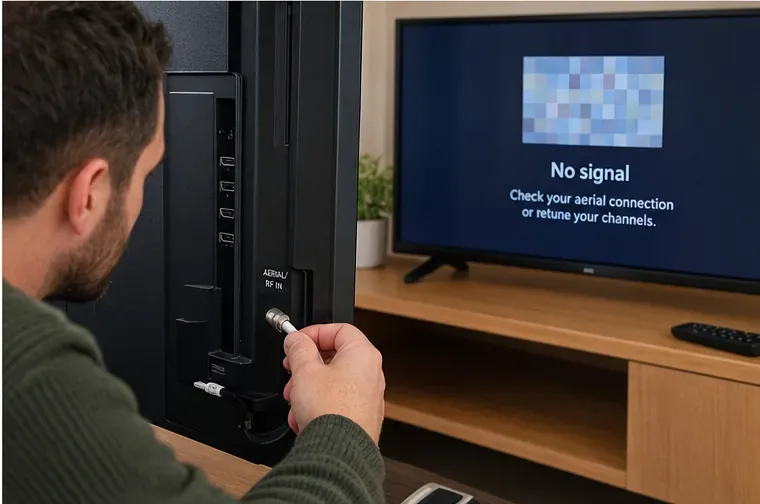
If channels disappear or the TV reports no signal, check the aerial lead and local service status before repeatedly retuning.
How to fix the most common Freeview problems
No signal on every channel
If every channel is gone, begin with the simplest checks. Make sure the aerial cable has not been pulled out of the TV or wall socket. If you use a recorder or set-top box, confirm that the aerial passes through the correct input and that the TV is on the correct HDMI or AV input.
Next, check the Freeview Channel Checker for transmitter faults, planned engineering work, or other local issues. If a known transmitter problem is listed, repeatedly retuning can make matters worse by deleting channels that were previously stored. Wait until service is restored and retune only if needed afterward.
Some channels are missing
Missing channels do not automatically indicate a broken aerial. First use the Channel Checker to see whether those channels are predicted at your exact address. Freeview explains that the result is a prediction and local buildings, trees, hills, and other geography can still affect reception.
If a channel recently moved or changed, perform an automatic retune. If automatic tuning stores the wrong regional services or fails to recover channels that the checker says should be available, a manual retune may help. Freeview’s troubleshooting guide can provide the transmitter channel numbers needed for a manual tune.
The picture is pixelated or keeps breaking up
Pixelation usually points to an unstable broadcast signal rather than an internet-speed problem. Check the aerial lead, plugs, wall socket, and any splitters or amplifiers. Freeview specifically recommends removing unnecessary amplifiers or splitters because too much amplification can overload equipment, while excessive splitting can leave too little signal.
Reception can also change because of weather, an aerial shifting position, new obstructions, electrical interference, or work at the transmitter. In some locations, mobile services can interfere with terrestrial TV reception. Freeview directs viewers to Restore TV for diagnosis where mobile-service interference is suspected.
Channels appear in the 800s or the wrong region is shown
This can happen where your aerial receives more than one transmitter. The receiver may store alternative regional versions in the 800 channel range. Check whether your preferred regional channel is there. If your equipment supports favorites, that may be the easiest workaround; otherwise, a manual retune using the preferred transmitter frequencies can put the intended services in the normal positions.
Freeview Play or on-demand apps are not working
If live aerial channels are fine but on-demand services fail, treat it as an internet or app problem first. Confirm that the TV or recorder is connected to the home network, restart the router if other devices also have trouble, and check whether the affected player itself is having an outage. Device software updates may also be required.
Freeview’s own setup advice recommends installing device software updates when prompted. If only one app is affected and the rest of Freeview Play works normally, consult that app provider or the TV manufacturer rather than retuning the terrestrial channels.
The TV or set-top box is frozen
Freeview recommends a simple power reset for a frozen device: switch it off at the wall, leave it off for about five minutes, then turn it back on. If problems continue, Freeview documents a more thorough clear-memory and retune procedure, but that should come after basic cable, transmitter, and coverage checks. See the official reset guidance.
When should you avoid retuning?
Retuning is useful after confirmed channel changes, when the device prompts you, or when your saved channel list is clearly out of date. It is not the first thing to do during a temporary transmitter outage or sudden severe reception loss. If the broadcast signal is absent during a scan, the TV may simply remove channels it cannot currently find.
A better order is: check the Freeview Channel Checker for local faults or engineering work, inspect the accessible aerial connections, restart affected equipment, and then retune once you know a usable signal is available.
When is an aerial installer worth calling?
Professional help makes sense when the Channel Checker predicts good coverage but your reception remains poor after basic checks, when an external aerial is visibly damaged or misaligned, or when a communal aerial system affects several apartments. Ofcom advises residents using communal aerial systems to contact the landlord or aerial contractor when reception problems appear to originate in that shared system. See Ofcom’s official TV and radio interference guidance.
Freeview recommends qualified installers and cautions viewers against working at height themselves. Before paying for a new aerial, show the installer your Channel Checker result and describe whether the problem affects all channels, only one multiplex or group of channels, or only certain times of day. That information can make diagnosis faster and reduce unnecessary equipment changes.
Quick Freeview troubleshooting checklist
Problem
Check first
Next action
No channels at all
Aerial lead, input selection, local transmitter status
Restart equipment; retune only when signal is available
One or several channels missing
Channel Checker and recent channel updates
Automatic retune, then manual retune if necessary
Pixelated or blocky picture
Cables, splitters, amplifiers, aerial condition
Check local faults/interference; use a qualified installer if persistent
Wrong regional news
Channels in the 800s and nearby transmitters
Choose the preferred service or manually retune
Freeview Play apps fail
Internet connection and service status
Restart network/device and update software
Frozen TV or box
Device power and connections
Power off at the wall for about five minutes, then restart
What to remember in 2026
The most useful current takeaway is that Freeview’s channel map is not static. The September 16, 2026 changes are a recent example of why a retune may be required even when nothing is wrong with your aerial. At the same time, reception problems are often caused by cables, local transmitter conditions, interference, geography, or the aerial system itself, so retuning should be one diagnostic tool rather than the default response to every fault.
For the most reliable result, start with your address in the Channel Checker, keep the aerial connection secure, connect supported Freeview Play equipment to the internet, and follow official update notices when broadcasters move or rename channels. That approach separates genuine service changes from equipment faults and usually gets you to the right fix with the least disruption.