Desk Decorating Ideas for a Spooky Office Cubicle

Create a spooky office cubicle with Halloween desk decor ideas that keep your workspace usable, tidy, and mindful of workplace safety.
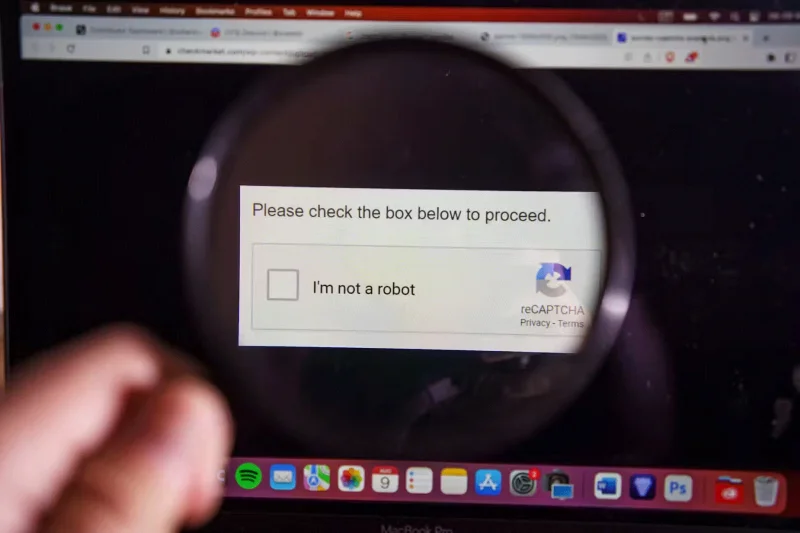
We are more likely to trust a website if it has a CAPTCHA, because it gives it a professional feel. Unfortunately, bad actors know this and have created fake CAPTCHAs that will infect your PC with malware.
How are malicious actors using CAPTCHAs in the real world?
According to a McAfee report, scammers are now using CAPTCHAs against people by adding them to malicious websites. When someone visits the website, a fake CAPTCHA appears, tricking the user into believing they have entered a safe and secure website.
In the example McAfee analyzed, the attack begins when someone is browsing Google to pirate a video game. They may be looking for a crack for a single game or an entire executable. Either way, the scammer sets up a website that claims to have what the user is looking for but is actually set up to download malware to the victim’s PC. This is one of the real security risks of downloading pirated games.
When the victim visits the malicious website, the site will show the user a fake CAPTCHA. This looks very similar to the CAPTCHAs you see on legitimate websites, so it is highly unlikely to raise any suspicion in people’s minds. When the user tries to verify themselves, the site will inform them that they have to take one more step to gain access to the site. The site simply asks people to press Win + R , followed by CTRL + V , and finally press Enter .
This may seem like a strange list of instructions, but there’s a good reason why the site is asking you to do this. When a user clicks the CAPTCHA’s “I’m not a robot” button, the site loads a malicious PowerShell script into their clipboard. This script can’t run on its own, so the site asks the user to press Win + R to open Run, CTRL + V to paste the malicious command, and then press Enter to run it.
By using PowerShell to download the malware, it can easily bypass any antivirus or security checks set up on your PC. The code downloads Lumma Stealer, which then begins stealing personal information from the target device.
How to Avoid This CAPTCHA Trick
The best way to avoid this trick is to never blindly trust a security measure. Always consider the website you are visiting and the context of the security tool before following any instructions; it may be trying to lead you astray.
At the very least, CAPTCHAs will never ask you to download a file or run a command on your PC. If they want further verification, they'll often ask you to complete a puzzle — you may have seen puzzles that ask you to identify an image with a bus on it or slide a puzzle piece into place. If a CAPTCHA asks you to do something on your PC, it's likely a sign of malware.
With scammers always looking for ways to sneak malware onto your system, there’s no end to the devious tactics they’ll use to trick you. Keep an eye out for suspicious CAPTCHAs and you’ll be safe from this nasty attack.
Create a spooky office cubicle with Halloween desk decor ideas that keep your workspace usable, tidy, and mindful of workplace safety.
Plan a recognizable Halloween 2026 look with pop culture costumes inspired by Spider-Man, Supergirl, Toy Story 5, Moana, Mario, and Wednesday.
Sort leftover Halloween candy safely, share or repurpose sealed treats, and choose food use or compost for pumpkins based on their condition.
Compare workplace Halloween costume choices by respect, dress code, mobility, and safety—and learn when a subtle accessory or a policy check is the better option.
Find a couples costume that fits your style, budget, and comfort level, from Addams Family classics to original inside-joke duos.
Need a last-minute high school Halloween costume? Compare 10 easy closet-based ideas by prep time, comfort, school-day practicality, and simple safety checks.
Use a simple 2026 Halloween decorating timeline for indoor décor, outdoor displays, and fresh pumpkins, with practical adjustments for weather and events.
Mix five vivid, approachable Halloween cocktails with measured recipes, simple prep tips, and an alcohol-free option for your party guests.
Find 15 office-friendly Halloween costume ideas for 2026, with practical checks for dress codes, respectful themes, comfort, and workplace safety.
Plan a fun elementary school Halloween party with easy crafts, games, inclusive treats, costume tips, and a sample 75-minute classroom schedule.








