Google has introduced a new feature in Google Gemini called Gemini Canvas. When you come up with an idea, Gemini Canva acts as a person in a group discussion, helping you improve your idea in a short time and make changes. When you write something on Gemini Canvas, you will see suggestions and improvements in real time. Here is a guide to using Gemini Canvas for free.
Instructions for activating Gemini Canvas for free
Step 1:
You access Gemini as usual, then select the 2.0 Flash or 2.5 Pro model to use .
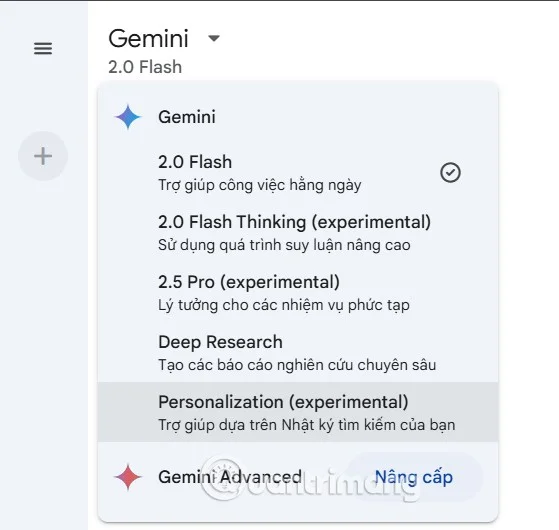
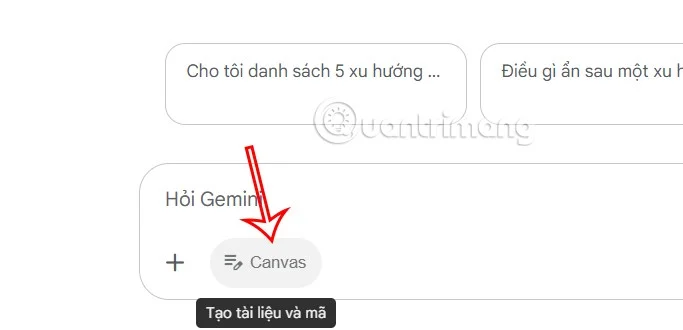
Then look down at the prompt input box, click on Canvas to select use .

Step 2:
Now you will use Gemini Canvas for your work.
Ask questions about uploaded files
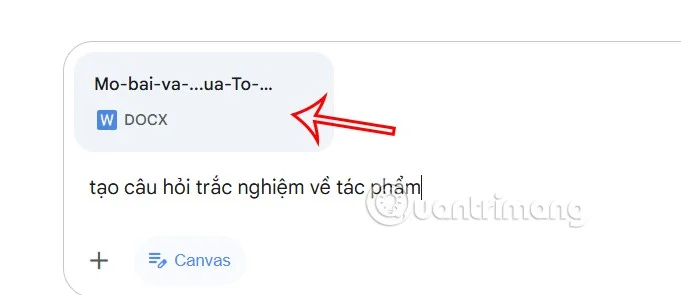
You can upload your documents to Gemini Canvas and ask questions related to the content.

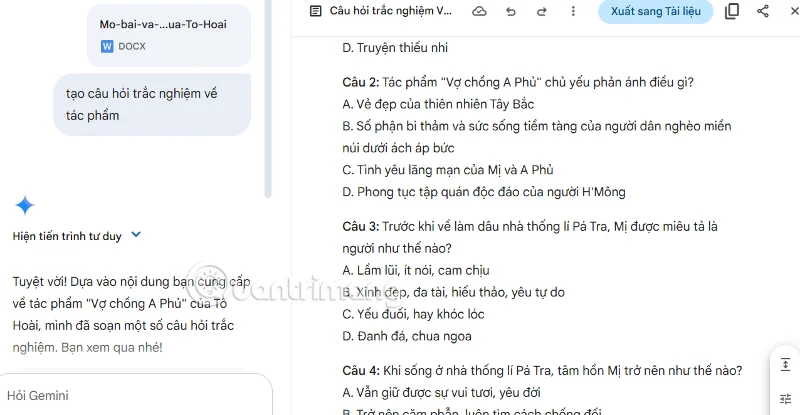
As a result you will get content from Gemini Canvas as shown below, for example from uploaded document create multiple choice question from this document.

As a result we also got feedback from Gemini Canvas.

Write code and explain content
Previously, you could only ask Gemini to write code for an app or feature in the language you wanted, without being able to preview and test the code. With Gemini Canvas, you can request what the code is for, preview and read through the code, and ask for explanations if you don't understand certain lines.
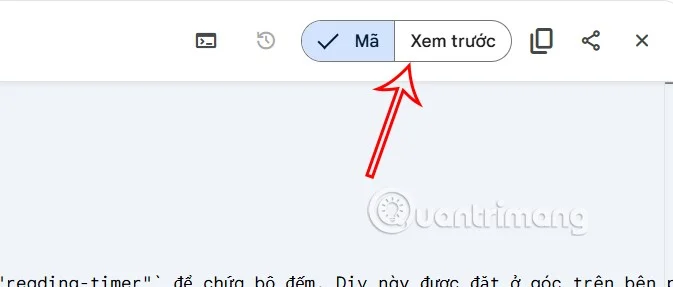
When displaying code, Gemini Canvas has a preview option to show how the code will look. To view the code, click on the Code section.