Home
» Wiki
»
How to Organize a Virtual Halloween Party for Remote Teams
How to Organize a Virtual Halloween Party for Remote Teams
A virtual Halloween party works best when the invitation makes participation feel easy, the agenda leaves room for conversation, and every activity can be enjoyed without buying a costume or staying on camera. Start by choosing a time that is reasonable across time zones, decide what “success” means for your team, and keep the event short enough to feel like a celebration rather than another work meeting.
There is no newly verified platform change that alters the basic planning advice for 2026. Meeting tools continue to vary by account, administrator settings, and device, so confirm the options in your organization’s actual account before promising features such as breakout rooms, live captions, or custom backgrounds.
1. Set a clear, low-pressure purpose
Decide whether the event is meant to help colleagues socialize, mark the season, or simply offer a playful break. That choice determines the format. A team of eight may prefer an informal video call with two games; a larger group may need a host, a co-host, and a structured run of show. Avoid making attendance, camera use, costumes, or personal spending feel compulsory.
A short checklist helps the host keep the event focused on connection rather than elaborate production.
In the invitation, state the length, time zone, platform, whether the event is optional, and what participants need to prepare. Add a no-cost alternative for every activity: a color or virtual background instead of a costume, a household object instead of a craft purchase, and chat responses instead of speaking aloud. If the event is during paid work time, coordinate with the manager responsible for coverage.
2. Choose a time and format that fits a distributed team
List the team’s main time zones and look for an overlapping window that does not place one group at an unreasonable hour. If no fair time exists, repeat the party in two sessions or share an asynchronous option, such as a costume photo thread or a trivia form open for a day. Keep the live session to about 45–60 minutes as a planning choice, then adjust it to your team’s calendars and attention span.
Pick the meeting platform your team already uses when possible; this reduces installation and account friction. Test the invite link, host permissions, audio, screen sharing, and any game materials with a colleague beforehand. If a platform supports a lobby or waiting room, screen sharing controls, or a meeting lock, review those settings in advance. Zoom documents controls such as the waiting room and locking a meeting in its meeting security guidance; Microsoft Teams describes organizer controls for participant permissions in its meeting controls guide.
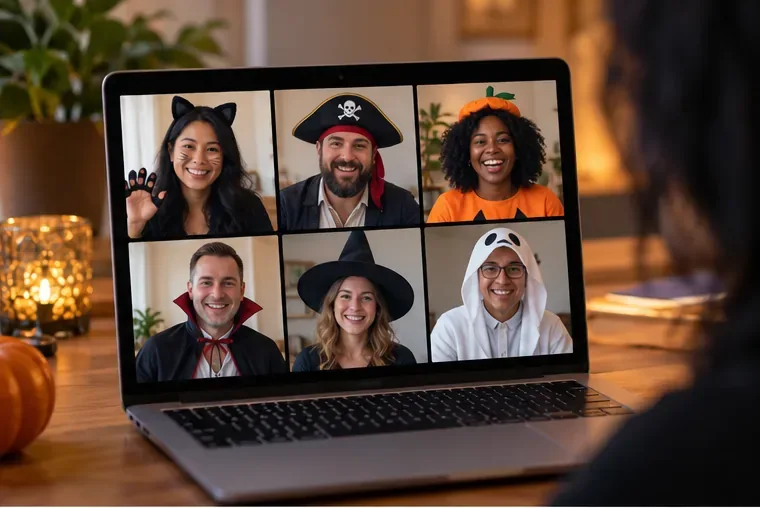
An easy-to-join video gathering gives remote coworkers a shared place to socialize.
3. Build a simple agenda with several ways to join in
Give the event a rhythm without filling every minute. For example:
0–5 minutes: welcome, audio check, and a reminder that camera use is optional.
5–15 minutes: quick icebreaker, such as “show an orange object” or a one-word chat prompt.
15–35 minutes: one main activity, such as team trivia, a themed guessing game, or a short show-and-tell.
35–50 minutes: optional small-group conversation or a low-key costume/accessory moment.
Final 5 minutes: announce any lighthearted winners, thank attendees, and share follow-up details.
Put the agenda and activity instructions in the calendar description or a shared document. This gives late arrivals and people who prefer reading a clear path into the event.
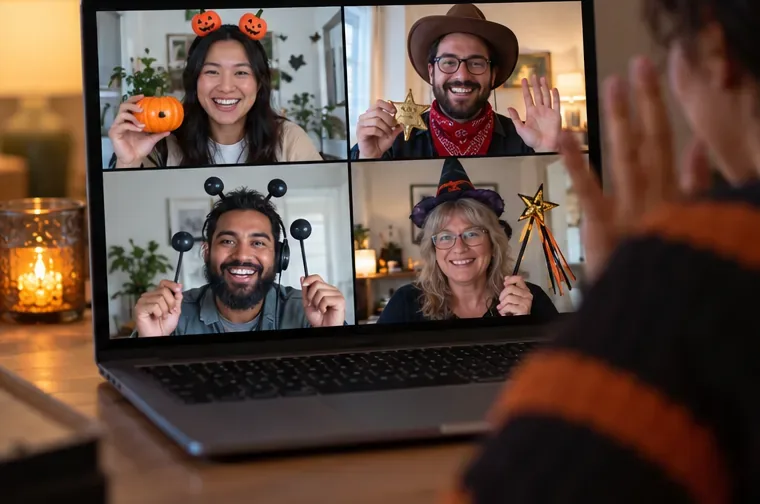
A small, optional background detail can set the mood without requiring a full costume or room makeover.
4. Choose activities that work across cameras and bandwidth
Good virtual party games are easy to explain, quick to join, and forgiving when someone has a weak connection. Try Halloween trivia with answers submitted in chat, a two-minute “guess the sound” round, a scavenger hunt for an everyday item, or a team story built one sentence at a time. Keep prompts workplace-appropriate and offer a pass option so no one has to reveal personal information or show their home.
For a large group, breakout rooms can create smaller conversations, but they are not essential. Microsoft’s current help page explains that Teams participants may be assigned to rooms or choose from open rooms depending on meeting setup; see how breakout rooms work in Teams. Availability and behavior can vary by account and meeting role. If the feature is unavailable, use pairs in the main call, a shared chat prompt, or separate short sessions instead.
If you send treats, make participation optional and plan for different locations, diets, and delivery constraints.
5. Make access, privacy, and logistics part of the plan
Send any materials early and keep them lightweight: a one-page agenda, a link to a trivia form, or a few prompts in chat. Tell attendees whether the session will be recorded; for a social event, recording is usually unnecessary. Do not share the meeting link publicly. Use the organization’s normal invitation practices, and restrict screen sharing or participant entry if that matches your team’s security policy.
Enable captions if your platform and account provide them, and say where participants can find the control. Google Meet’s official guidance covers live captions and host controls. Features can depend on account configuration, browser, device, and language, so avoid promising universal availability. Make instructions accessible in text, speak one person at a time during games, and allow chat participation.
If you mail snack kits or prizes, make them optional and avoid collecting home addresses unless there is a clear business need and an approved process. A digital certificate, team playlist, or bragging-rights award can be a simpler alternative. Do not assume dietary preferences, religious observance, or comfort with spooky themes; a seasonal autumn theme can include everyone who wants to join without leaning on gore or jump scares.
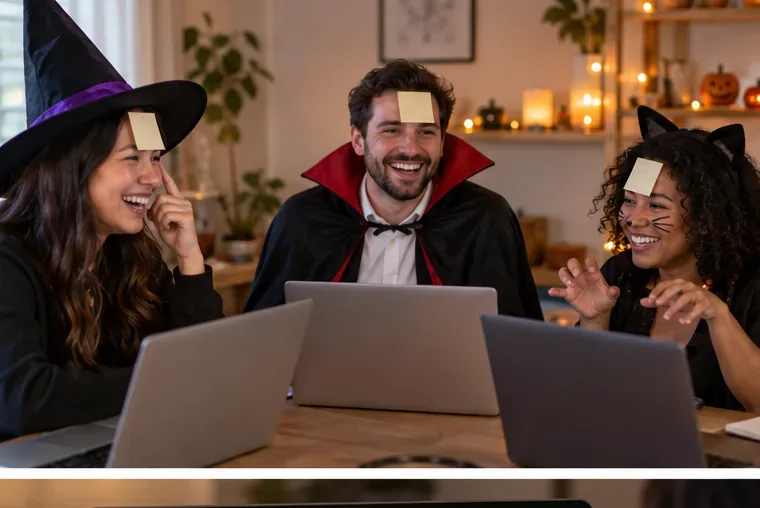
A shared activity gives people a reason to interact without turning the call into a formal presentation.
6. Assign roles and prepare a fallback
One host can welcome attendees and guide the agenda; a co-host can watch chat, admit participants, handle the music or slides, and troubleshoot. Have a backup activity that needs no screen sharing, such as a chat-based poll or a simple round of themed “this or that.” Send materials in advance so an unexpected audio or connection issue does not stop the event.
Keep music optional and low. If you use a soundtrack, choose a source your organization is allowed to use and check whether the meeting platform’s audio-sharing feature is available. Do not rely on copyrighted music as a required part of the activity. For a costume contest, set friendly categories in advance—such as “most creative use of a household item”—and let people submit a description or photo rather than appear on camera.
A co-host and a visible run of show make it easier to handle chat and keep the activities on time.
7. Host, observe, and adjust in the moment
Start with a brief welcome and restate the optional nature of costumes, cameras, and speaking. Explain how to use chat, reactions, or captions before the first game. Keep instructions on screen or in chat, then leave a pause for people to respond. If the group is quiet, switch to a lower-pressure format such as multiple-choice answers or reactions; if energy is high, shorten the next activity rather than extending the event beyond the promised end time.
Do not treat attendance, camera-on time, or the loudest participants as measures of success. Better signs include whether people understood how to join, whether activities ran without confusion, and whether attendees had a comfortable way to participate. A short anonymous feedback form can reveal if the event was too long, too late, or too dependent on video.
Offering a camera-free or chat-based option keeps the party welcoming for different comfort levels.
8. Close cleanly and reuse what worked
End on time, thank people for joining, and share any promised links or prize details. Afterward, write down what to repeat and what to change: the time-zone choice, activity length, accessibility setup, and any technical hiccups. If the team enjoyed the gathering, reuse the simple format next year rather than assuming a bigger production will be better.
A clear closing and brief follow-up help the gathering feel complete without creating more work.
Quick organizer checklist
Set an optional, inclusive purpose and event length.
Choose a time that respects the team’s time zones.
Send the platform link, agenda, and no-cost participation options.
Test host permissions, audio, screen sharing, and any breakout feature.
Prepare one main activity and one no-tech backup.
Offer captions and camera-free participation where available.
Finish on time and collect one or two useful feedback points.
The strongest virtual Halloween party is not the one with the most decorations. It is the one that lets remote coworkers join easily, contribute at their own comfort level, and leave feeling they shared a pleasant moment together.