Kawaii Halloween Decor Without Gore or Jump Scares

Create a gentle Halloween look with pastel colors, friendly ghosts, easy no-carve accents, and practical safety tips for your home.
We have been using drive letters C, D, E... since before the days of DOS, and surprisingly we are still using them today.
Everyone knows that C: is the drive that contains the Windows installation or at least the Windows boot drive. If you are wondering why the default drive on a Windows computer is C and not A or B? then read the other article of Quantrimang.com.
Although the default hard drive name is C, E, D, F, if you have admin rights (log in to the computer with an administrator account), you can completely rename the hard drive, more precisely, assign a different character to the hard drive. Below is the general implementation, applicable to all Windows operating systems with integrated Disk Management, from Windows XP to Windows 11.
How to Easily Label or Rename a Hard Drive in Windows
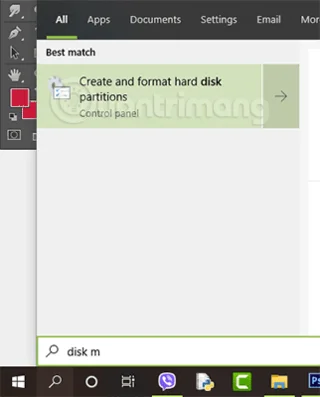
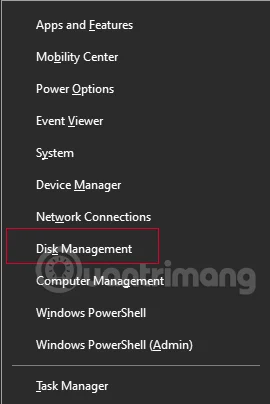
Type " Disk Management " into the search bar and click the first result, usually " Create and format hard disk partitions ". Or press Windows+ Xto select Disk Management .
The Disk Management window appears, and you'll see a graphical list of the drives on your computer, and the partitions on each drive. Remember, the drive letter is the partition, not the actual drive label. But if there's only one partition on the drive, then the correct drive letter is the actual drive label.
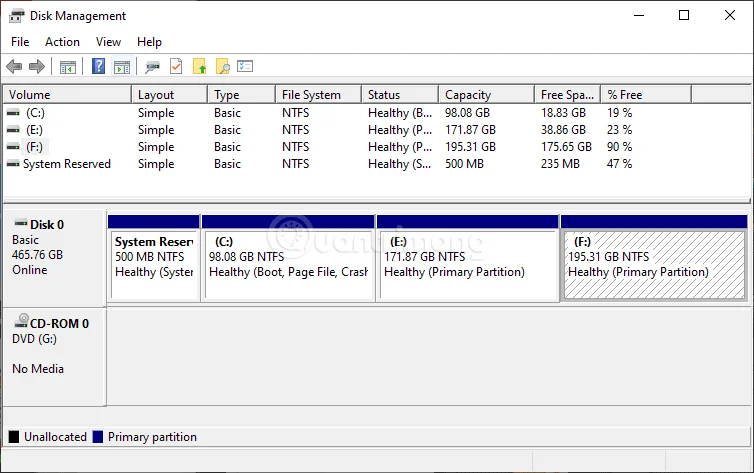
Make sure the drive containing the partition you want to change is listed. Also, check to see if any partitions or devices are already using the drive letter you want. If so, you'll have to change that drive letter first. For example, if you want your data partition to be T: but your optical drive is already T:, you'll have to change the optical drive to a different letter (for example, E: or O:). That will free up T: and allow you to make the change you originally wanted.
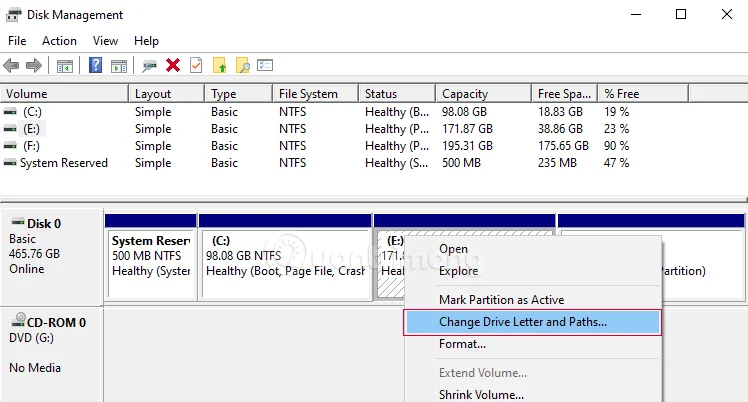
Select the hard drive you want to rename and right-click on it > select Change Drive Letter and Paths...
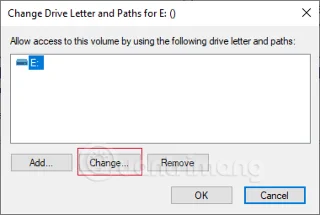
In the window that opens, select Change...
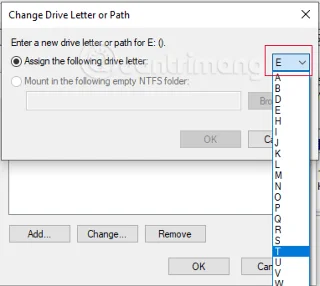
Click the down arrow next to the hard drive name, select the letter you want to assign to your hard drive > click OK to close the window.
A prompt appears saying: "Some programs that depend on the hard drive name may not run. Do you want to continue?" , click Yes to continue:
Note: If the drive you want to rename contains the installation files of software, these software may fail when running, and even need to be reinstalled. Initially, I intended to rename drive E, but because this drive contains many installation files of important software, I changed the name of drive F to drive T, the result after renaming is as follows:
1. Open File Explorer and select the drive you want to rename, then press F2, or right-click the drive and select Rename from the context menu.
2. Enter a new name and click Enterto apply changes.
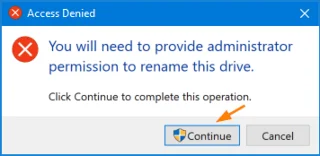
3. When you get a message that says: “ Access Denied – You will need to provide administrator permission to rename this drive”. Click Continue.
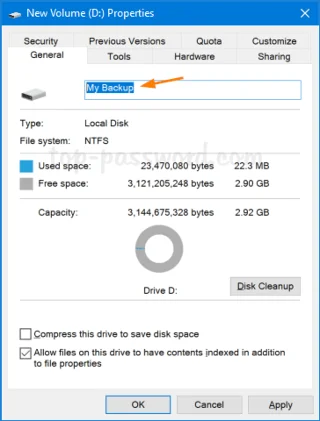
1. Right-click the destination drive in File Explorer and select Properties from the context menu.
2. When the Properties window opens, enter a new name in the text box and click OK.
1. Open Command Prompt with admin rights .
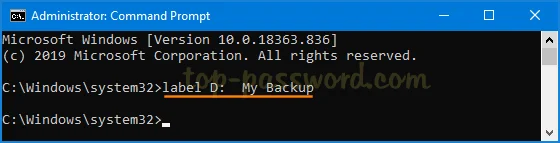
2. Type the following command and press Enter. Do not add quotation marks even if the new name for the drive contains spaces.
label drive_letter: new_name3. This step will change the label of the hard drive immediately.
1. Open a PowerShell window with admin rights and run the following command. Replace D with the actual drive letter and My Backup with the new drive letter.
Set-Volume -DriveLetter D -NewFileSystemLabel "My Backup"2. Once done, open File Explorer and you should see the drive with the new label.
First, enable the Disk Management tool on Windows 7 , 8/8.1. If you are using Windows 7, XP or Vista, click Start > right-click Computer (in Windows XP right-click My Computer) > select Manage . After the Computer Management program appears, click Disk Management in the left pane, under Storage.
You can't press Start in Windows 8 , so press the Windows+ key combination X> select Disk Management.
1. Right-click on the partition you want to change and select Change Drive Letter and Paths.
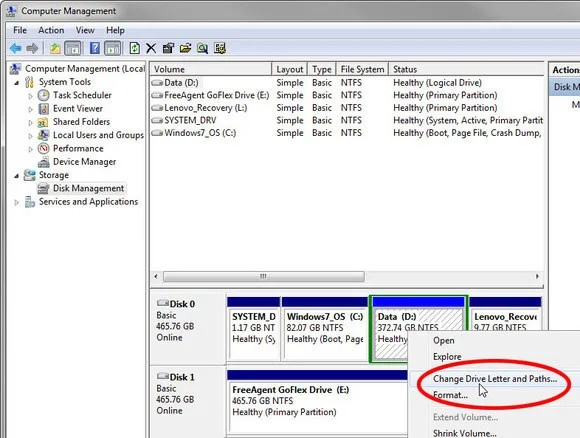
2. In the resulting dialog box select Change. In the next dialog box select the desired drive letter.
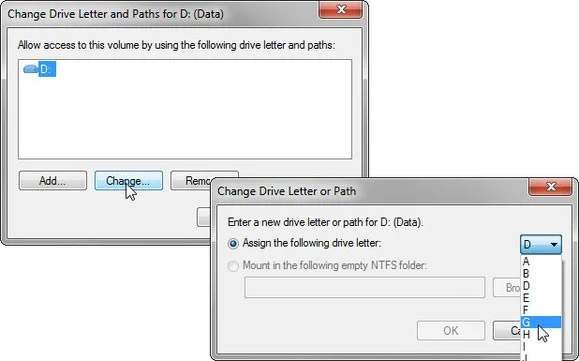
After clicking OK, a dialog box will warn you that some programs may not work. If problems arise, you can go back and change the letters again.
Open the This PC/Computer/My Computer window to see a list of available drives:
Open cmd with admin rights, enter the command diskpart > Enterto launch the Diskpart command line utility.
Next, enter the list volume command to list all the volumes on the computer.
Look back at the This PC/Computer/My Computer window and compare it with the list of volumes just listed in the results of the above command to select the correct volume/drive you want to rename, then enter the command select volume ###, select ### corresponding to the volume you need, suppose here I want to rename drive T, corresponding to volume 4, the command will be select volume 4 .
Enter the command assign letter=A . Replace the character after the mark =with the letter you want, but avoid characters that have been assigned to other drives.
The whole process of renaming hard drive using cmd
After receiving a message that the drive letter has been successfully assigned, enter the exit command to exit Diskpart and close the cmd window. The renamed hard drive will be rearranged in order a, b, c, as shown below:
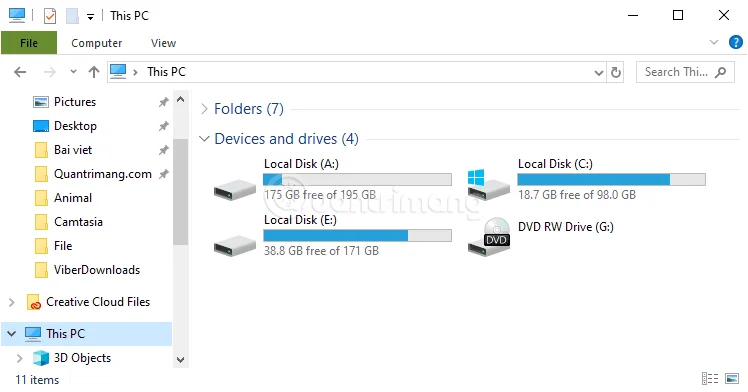
Note: You can change the letter of an external drive, but the change will not be permanent. Every time you plug a storage device into a USB port, Windows will assign it the first available drive letter.
Create a gentle Halloween look with pastel colors, friendly ghosts, easy no-carve accents, and practical safety tips for your home.
Create a spooky office cubicle with Halloween desk decor ideas that keep your workspace usable, tidy, and mindful of workplace safety.
Plan a recognizable Halloween 2026 look with pop culture costumes inspired by Spider-Man, Supergirl, Toy Story 5, Moana, Mario, and Wednesday.
Sort leftover Halloween candy safely, share or repurpose sealed treats, and choose food use or compost for pumpkins based on their condition.
Compare workplace Halloween costume choices by respect, dress code, mobility, and safety—and learn when a subtle accessory or a policy check is the better option.
Find a couples costume that fits your style, budget, and comfort level, from Addams Family classics to original inside-joke duos.
Need a last-minute high school Halloween costume? Compare 10 easy closet-based ideas by prep time, comfort, school-day practicality, and simple safety checks.
Use a simple 2026 Halloween decorating timeline for indoor décor, outdoor displays, and fresh pumpkins, with practical adjustments for weather and events.
Mix five vivid, approachable Halloween cocktails with measured recipes, simple prep tips, and an alcohol-free option for your party guests.
Find 15 office-friendly Halloween costume ideas for 2026, with practical checks for dress codes, respectful themes, comfort, and workplace safety.








