Desk Decorating Ideas for a Spooky Office Cubicle

Create a spooky office cubicle with Halloween desk decor ideas that keep your workspace usable, tidy, and mindful of workplace safety.
Microphones were not very popular in the past, but things have changed. In today's era, microphones have become an important accessory. Nowadays, people use microphones to connect with friends, record audio, recognize voices, etc.
Nowadays, most laptops have built-in microphone support, so there is no need to connect additional external microphone devices. However, many users have encountered the problem of the microphone not working . By keeping the microphone driver updated, you can solve this problem.
If you are wondering how to download the most suitable driver for your microphone, then don't worry. Refer to the following guide from Quantrimang.con, which lists simple methods to update the microphone driver Win 10.
Method 1: Automatically update microphone driver via Bit Driver Updater
Installing drivers requires some technical knowledge, especially for drivers. Therefore, many non-technical users will have difficulty installing drivers manually. To help such people, driver updaters have been created, but not all of them are worth trying.
The article uses Bit Driver Updater to update the latest driver. The biggest advantage of this driver updater is that it is a completely automatic solution. So, there is no chance of any kind of error or wrong driver installation. Moreover, Bit Driver Updater is very easy to use.
Users need to follow certain steps to update drivers through Bit Driver Updater as follows:
Step 1 : First, download Bit Driver Updater .
Step 2 : Next, run the program and follow the on-screen instructions to install the software.
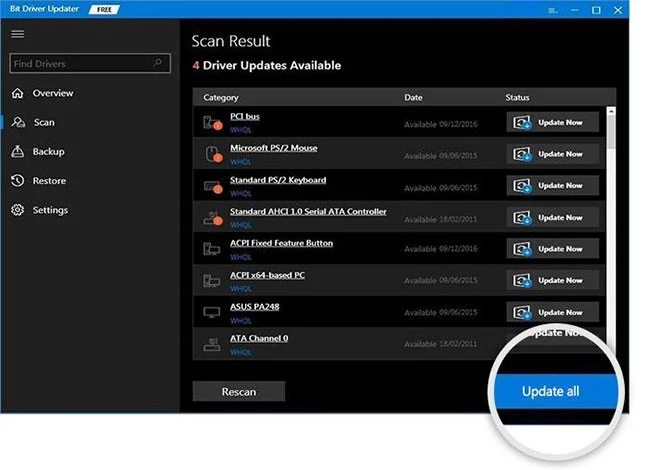
Step 3 : Then, click on the Scan button from the left.
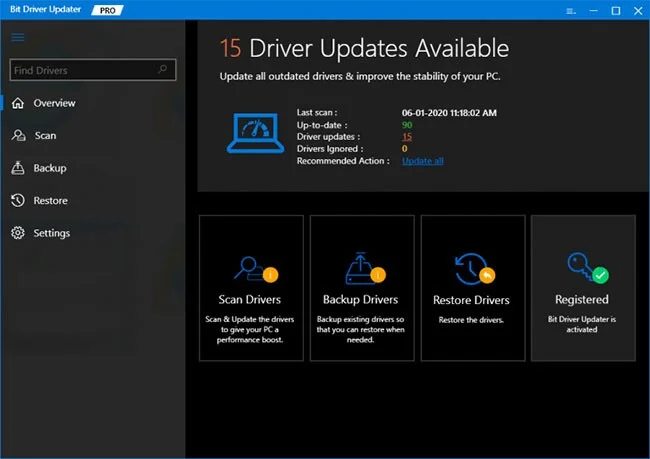
Step 4 : Wait until the driver update program scans the PC.
Step 5 : Now, find the problematic driver and click on the Update Now button located next to it.
Additionally, you can also update other outdated drivers, along with the micro driver. To do so, users need to click on the Update All button . However, to have access to this particular feature, users need to use the full version of Bit Driver Updater.
Method 2: Download and update microphone driver using Device Manager
If you don’t want to seek help from driver updaters, you can use Windows’ built-in feature, Device Manager , to update outdated drivers. This is an essential program designed specifically for managing Windows drivers. With this program, users can uninstall, restore, disable and enable drivers as well as update them.
Here are the steps to consider to update the microphone driver via Device Manager:
Step 1 : Press Windows + X to open Device Manager .
Step 2 : Once you are in the Device Manager window , go to the Sound, game, and Video controllers category and double-click to expand it.
Step 3 : Then, find the problematic audio driver and right-click on it.
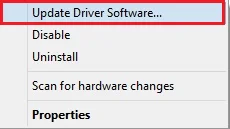
Step 4 : Next, select the Update Driver Software... option from the quick menu access list.
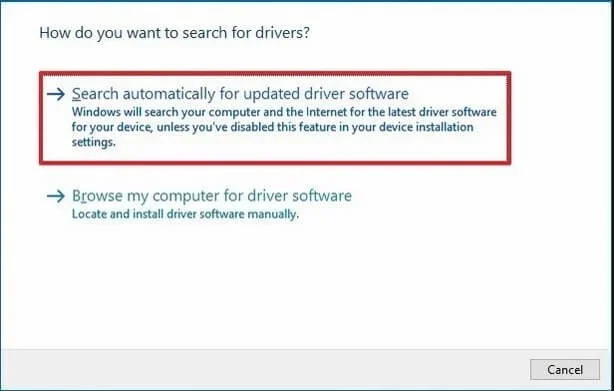
Step 5 : The next screen will show you two options, you need to select the first option i.e. Search Automatically for Updated Driver Software .
You have downloaded the latest Win 10 microphone driver and installed it on your PC.
Important Note : If the USB headset device is not working properly, then by updating the microphone driver you can also solve the problem.
Method 3: Manually download the microphone driver from the manufacturer's website
If you have enough technical knowledge and time, you can use the manufacturer's official website to download the microphone driver. However, keep in mind that this method takes quite a bit of time to find the most compatible and genuine microphone driver.
Method 4: Use Windows Update to download and install the microphone driver
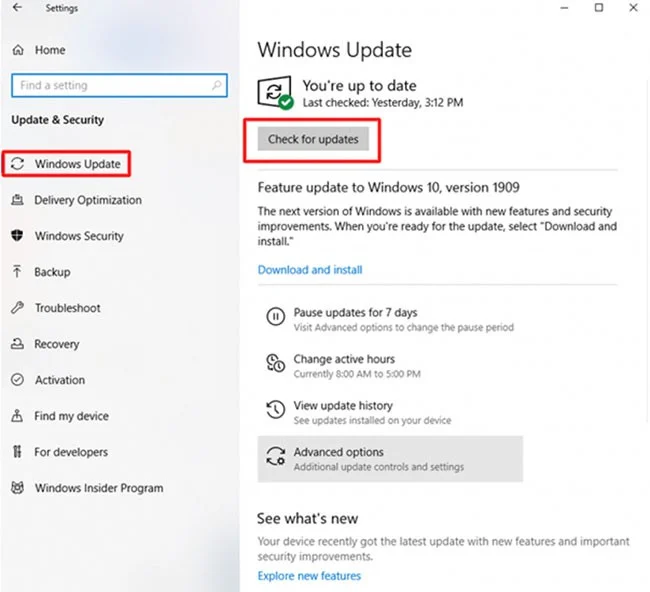
Windows Update is another way to download drivers. It not only updates the Windows operating system to the latest version, but also installs the latest drivers and patches, including the microphone driver. However, it should be noted that this method is only suitable when the driver is officially released by the manufacturer before a certain time.
Refer to part 3 of the article: 5 basic ways to update drivers for your computer for detailed instructions.
Create a spooky office cubicle with Halloween desk decor ideas that keep your workspace usable, tidy, and mindful of workplace safety.
Plan a recognizable Halloween 2026 look with pop culture costumes inspired by Spider-Man, Supergirl, Toy Story 5, Moana, Mario, and Wednesday.
Sort leftover Halloween candy safely, share or repurpose sealed treats, and choose food use or compost for pumpkins based on their condition.
Compare workplace Halloween costume choices by respect, dress code, mobility, and safety—and learn when a subtle accessory or a policy check is the better option.
Find a couples costume that fits your style, budget, and comfort level, from Addams Family classics to original inside-joke duos.
Need a last-minute high school Halloween costume? Compare 10 easy closet-based ideas by prep time, comfort, school-day practicality, and simple safety checks.
Use a simple 2026 Halloween decorating timeline for indoor décor, outdoor displays, and fresh pumpkins, with practical adjustments for weather and events.
Mix five vivid, approachable Halloween cocktails with measured recipes, simple prep tips, and an alcohol-free option for your party guests.
Find 15 office-friendly Halloween costume ideas for 2026, with practical checks for dress codes, respectful themes, comfort, and workplace safety.
Plan a fun elementary school Halloween party with easy crafts, games, inclusive treats, costume tips, and a sample 75-minute classroom schedule.








