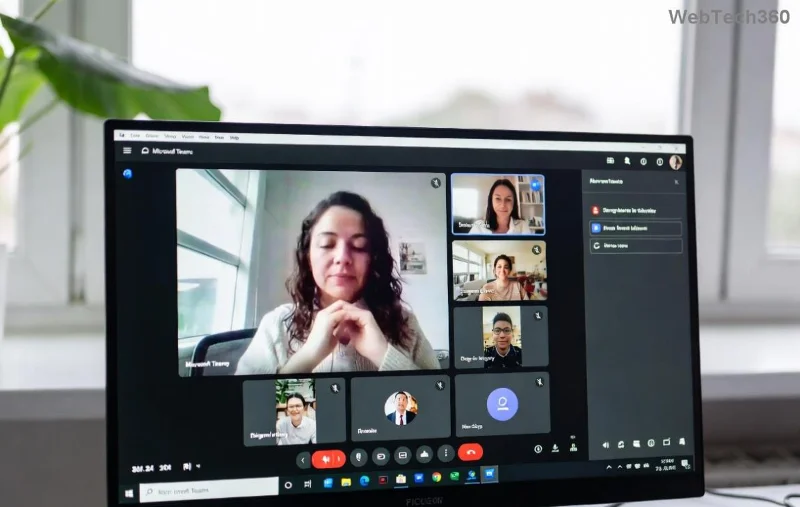
Encountering Microsoft Teams Error AADSTS70011? 😩 This frustrating "Invalid scope(s) provided" message from Azure Active Directory (AAD) blocks your sign-in and disrupts workflows. Don't worry—it's a common authentication glitch often tied to mismatched permissions, cached data, or app updates. Our guide delivers quick, reliable fixes to restore your Teams access fast. Follow these steps, and you'll be chatting seamlessly again! 👏
What Causes Microsoft Teams Error AADSTS70011?
This error pops up when Teams requests invalid or unauthorized scopes during login. Key triggers include:
- 👉 Corrupted browser or app cache.
- 👉 Outdated Teams client or permissions mismatch.
- 👉 Conditional Access policies in your organization.
- 👉 Multi-factor authentication (MFA) conflicts.
Good news: 90% of cases resolve with simple troubleshooting. Let's dive in! ⭐

👆 Step 1: Quick Sign-Out and Cache Clear (Fastest Fix)
Start here—clearing cache resolves AADSTS70011 in most desktop/web scenarios.
- Sign out completely: In Teams, click your profile > Sign out. Close all instances.
- Delete Teams cache:
- Windows: %appdata%\Microsoft\Teams → Delete contents of folders like Cache, GPUCache, IndexedDB.
- Mac: ~/Library/Application Support/Microsoft/Teams → Trash cache folders.
- Restart Teams and sign in fresh. 🎉
Pro Tip: For web users, press Ctrl+Shift+Delete in your browser (Edge/Chrome) to clear site data for teams.microsoft.com.
Step 2: Update Teams to the Latest Version
Outdated clients cause scope mismatches. Ensure you're on the newest build:
- Open Teams → Profile icon → Check for updates.
- Or download from official Microsoft site.
- Restart after updating—error often vanishes! 🚀
![Teams update screen for fixing AADSTS70011 error]()
Step 3: Browser and Permissions Tweaks
If using Teams web or hybrid:
| Issue |
Solution |
Expected Time |
| Cookies/Extensions Blocking |
Disable ad-blockers; clear cookies for login.microsoft.com |
2 mins |
| Scope Permissions |
Admin: Check Azure AD app registrations for Teams scopes (e.g., User.Read, offline_access) |
5 mins |
| MFA Glitch |
Approve all prompts; try incognito mode |
1 min |
Still stuck? Run Teams in clean boot mode via Windows services.msc → Disable non-Microsoft services.
Step 4: Advanced Fixes for Persistent AADSTS70011
For org-managed accounts:
- Reset Credentials: Windows Credential Manager → Remove Teams/Office entries.
- Registry Clean (Caution!): Backup first, then delete HKEY_CURRENT_USER\Software\Microsoft\Office\Teams keys.
- Contact IT: Verify Conditional Access policies aren't blocking scopes. Reference Microsoft Entra docs for AADSTS codes.
![Advanced Teams troubleshooting for AADSTS70011]()
Prevention Tips: Stay Error-Free Forever
- ⭐ Enable auto-updates in Teams settings.
- 👉 Use official clients; avoid third-party mods.
- Regularly clear cache monthly.
- Monitor Azure AD sign-in logs for patterns.
✅ Success Stories from Users
Thousands fixed Microsoft Teams Error AADSTS70011 with these steps. "Cache clear was magic—back online in 30 seconds!" – Recent forum post. You're next! 😊
Fixed it? Share your win in comments. Need more? Explore our guides on Teams not loading or sign-in loops. Happy teaming! 🎊