Getting Discord running on Xbox lets you join voice channels directly from your console while playing with friends. This article explains exactly how to get Discord on Xbox through the official account linking process. You will finish the setup in under ten minutes and avoid common connection issues.
Why Link Discord to Your Xbox Console
Discord and Xbox share an official integration that removes the need for a separate headset or second device. Once linked, your Xbox profile appears in Discord and you can join servers or direct calls using the Xbox party overlay. The feature works on Xbox Series X, Series S, and Xbox One consoles running the latest system software.
Before starting, make sure both your Discord and Xbox accounts are active and you have the latest console update installed through Settings > System > Updates.
How to Get Discord on Xbox Using the Mobile App
-
Install or open the Discord app on your phone
Download Discord from the Apple App Store or Google Play Store if you do not already have it. Open the app and log in with the Discord account you want to connect to Xbox.
-
Navigate to connected accounts in Discord settings
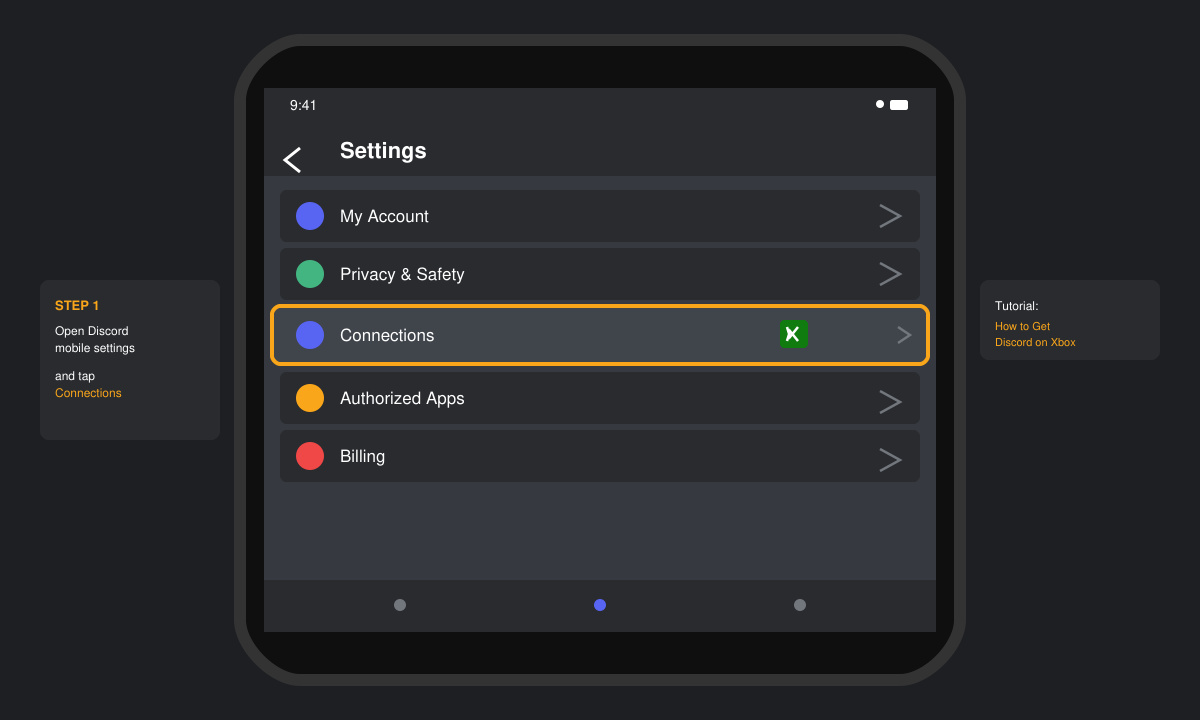
Tap your profile picture in the bottom right, then select Connections. Scroll down and tap the Xbox logo to begin the linking process.
-
Sign in with your Microsoft account
A browser window opens inside the app. Enter the email and password tied to your Xbox Gamertag. Approve the permission request that allows Discord to read your Xbox profile and friends list.
-
Confirm the link on your Xbox console
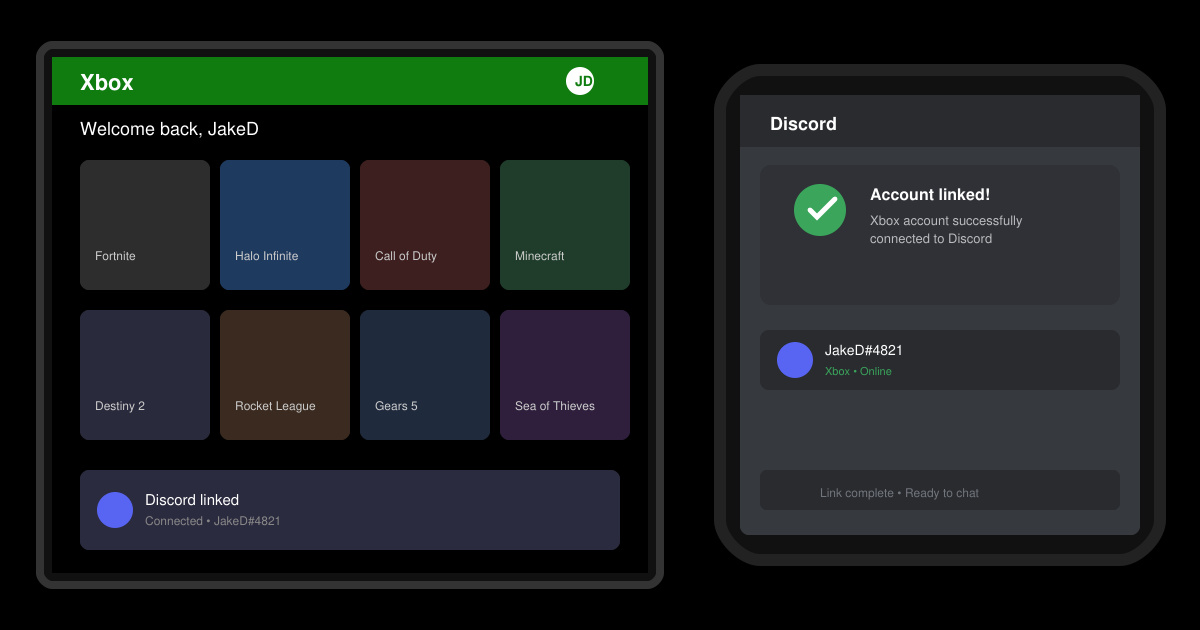
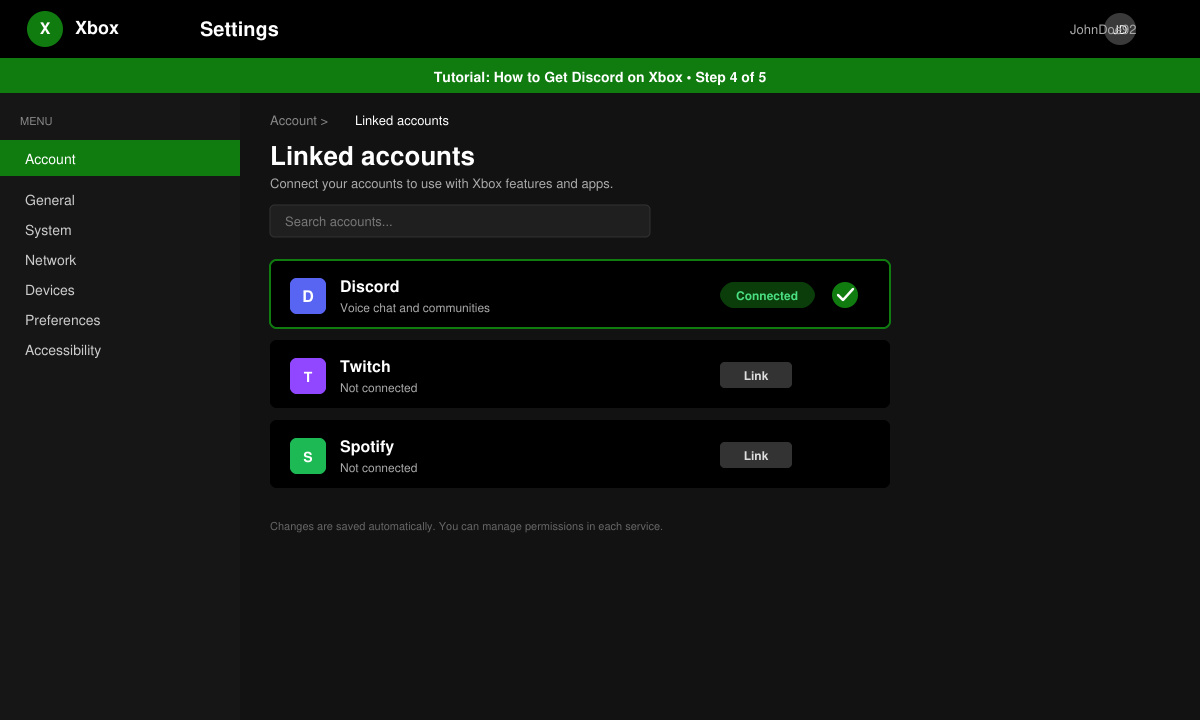
Turn on your Xbox and go to Profile & system > Settings > Account > Linked accounts. You should see Discord listed as connected. Select it and choose Allow to finish the handshake.
-
Test voice chat in a game
Join any multiplayer title and press the Xbox button to open the guide. Select Parties & chats, then choose the Discord option to join an active voice channel from your linked account.
Fixing Common Problems When Setting Up Discord on Xbox
- If the link fails, sign out of Discord on all devices and clear the console cache by holding the power button for ten seconds before restarting.
- Voice not appearing in the Xbox overlay usually means the Discord app needs an update; check for updates in your phone's app store.
- Privacy settings on Xbox can block the connection. Go to Settings > Account > Privacy & online safety > Xbox privacy and set Communicate with voice and text to Allow.
- Two-factor authentication on Discord must be enabled before the Xbox link will complete successfully.
Frequently Asked Questions About Discord on Xbox
Can I use Discord on Xbox without a mobile device?
No. The current integration requires you to start the link through the Discord mobile or desktop app before confirming on the console.
Does getting Discord on Xbox cost anything?
The basic linking and voice features are free. Nitro subscriptions on Discord are optional and only add cosmetic perks.
Will my Xbox friends see my Discord username?
Your Gamertag stays visible to Xbox users. Discord shows your chosen display name only to people inside the Discord server.
Final Steps After You Get Discord on Xbox
Once the accounts are linked you can switch between game chat and Discord channels instantly from the Xbox guide. Keep both apps updated to maintain a stable connection during long sessions.