Pop Culture Costume Ideas That Will Dominate Halloween 2026

Plan a recognizable Halloween 2026 look with pop culture costumes inspired by Spider-Man, Supergirl, Toy Story 5, Moana, Mario, and Wednesday.
LG TVs are popular in the market today because of their designs and prices that match the quality of the products. However, not all users understand the words and characters that appear in the name of LG TVs when buying a product. Let's decode these characters with Quantrimang!
Table of Contents
On the back of the TV there is a sticker containing basic information about the TV. You can see information about the TV name here.
If your TV is wall-mounted and not convenient to see the information on the back, you can read the name of your LG TV in the device's settings.
Step 1: Press the Settings button (gear icon) on the TV remote -> select All settings.
Step 2: Go to the settings screen, select General Settings -> select About TV -> information related to the TV such as name, model, origin is displayed.
In this article, Quantrimang takes the LG 4K 43-inch Smart TV model 43LK5700PTA for illustration.
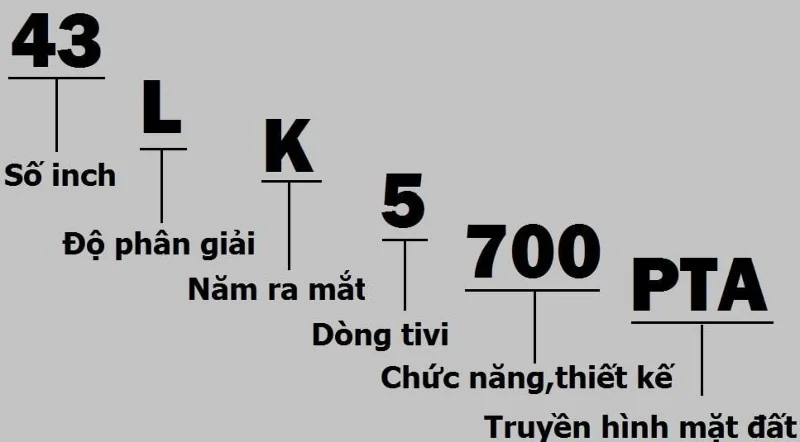
43: Describes the inches of the product
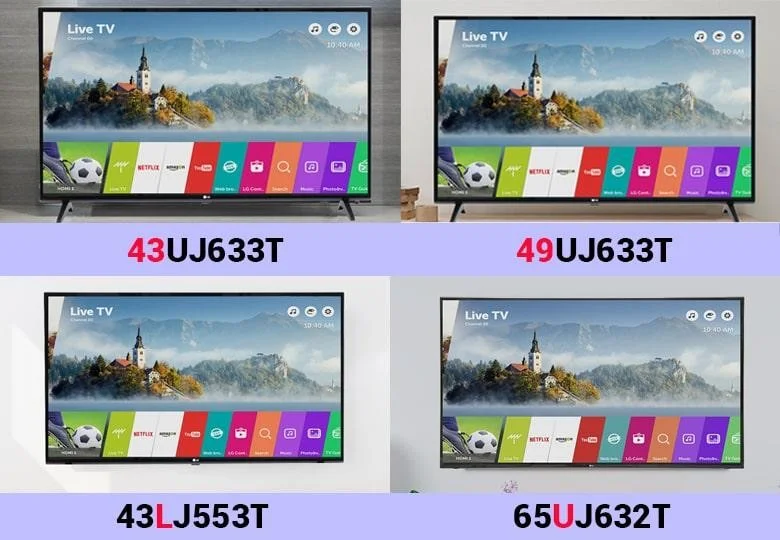
L: Describes Full HD resolution
Note: On other LG TV models, the word
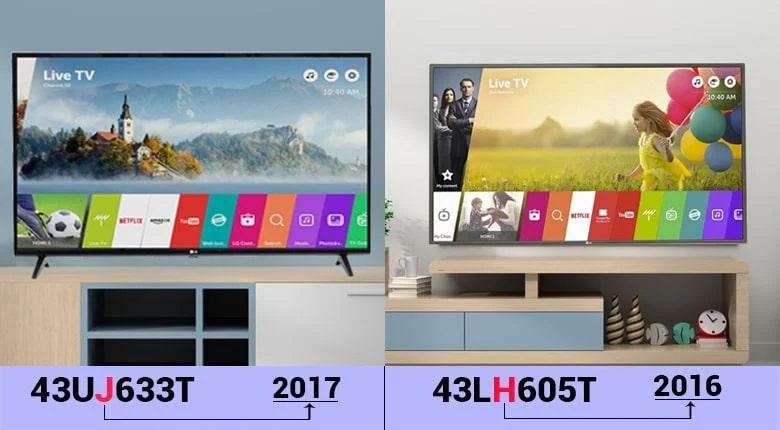
K: Product launched in 2018
Note: On other LG TV models, the word
5: TV line with Full HD resolution
Note: On other LG TV models, the number may appear
700: Function, design. The higher these three numbers are, the higher quality the function, design, and materials are.
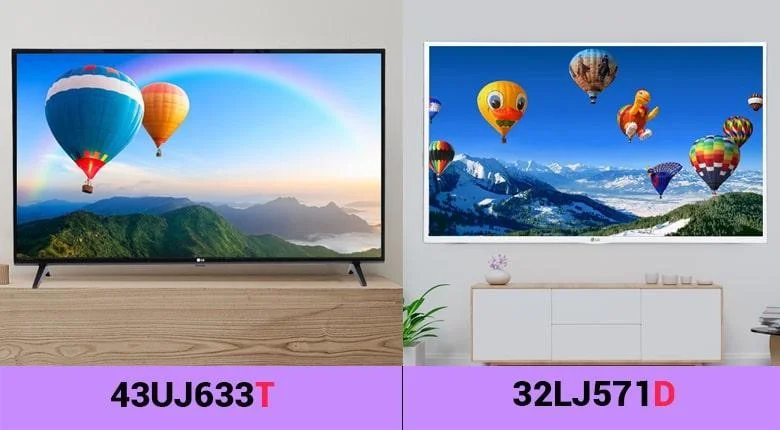
PTA: TV series supporting DVB-T2 digital terrestrial television
Note: If the TV shows the letter D at the end, instead of PTA, it means the TV does not support the DVB-T2 standard.
In this article, Quantrimang takes the LG 55 inch 55C7T OLED Smart TV model as an illustration.
55: Describes the number of inches of the TV
C: High-end design language and technology
Note: On some TV models, the word
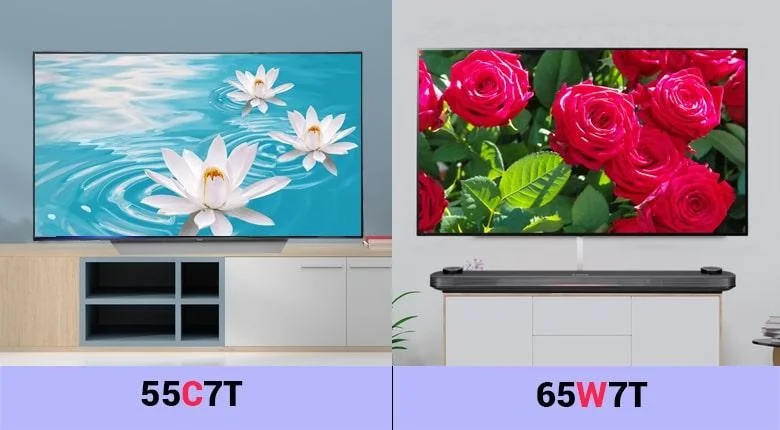
7: Products launched in 2017
Note: On some other TV models, the number may appear
T: TV series supporting DVB-T2
Note: The LG 55EG9A7T OLED TV line is not included in the naming instructions in the article because this TV line has a Full HD screen.
In this section, Quantrimang.com invites you to refer to the NanoCell TV model name: NanoCell TV 75NANO99UQA.
Depending on the product distribution area, this character can be a letter or a number, specifically as follows:
The characters indicating the year of manufacture of the TV include:
So, with the decoding of LG TV characters that we provide, you will certainly no longer be confused when buying a TV.
Plan a recognizable Halloween 2026 look with pop culture costumes inspired by Spider-Man, Supergirl, Toy Story 5, Moana, Mario, and Wednesday.
Sort leftover Halloween candy safely, share or repurpose sealed treats, and choose food use or compost for pumpkins based on their condition.
Compare workplace Halloween costume choices by respect, dress code, mobility, and safety—and learn when a subtle accessory or a policy check is the better option.
Find a couples costume that fits your style, budget, and comfort level, from Addams Family classics to original inside-joke duos.
Need a last-minute high school Halloween costume? Compare 10 easy closet-based ideas by prep time, comfort, school-day practicality, and simple safety checks.
Use a simple 2026 Halloween decorating timeline for indoor décor, outdoor displays, and fresh pumpkins, with practical adjustments for weather and events.
Mix five vivid, approachable Halloween cocktails with measured recipes, simple prep tips, and an alcohol-free option for your party guests.
Find 15 office-friendly Halloween costume ideas for 2026, with practical checks for dress codes, respectful themes, comfort, and workplace safety.
Plan a fun elementary school Halloween party with easy crafts, games, inclusive treats, costume tips, and a sample 75-minute classroom schedule.
Compare realistic side hustles for 2026 by startup cost, fees, flexibility, and income control, with current tax and scam guidance from official sources.








