Desk Decorating Ideas for a Spooky Office Cubicle

Create a spooky office cubicle with Halloween desk decor ideas that keep your workspace usable, tidy, and mindful of workplace safety.
There are many good reasons to reset your operating system. Maybe you want to erase all of your personal data on your Windows computer before selling it, your computer has been infected with a harmful virus while browsing the web and there's no other way to remove it, or your PC's performance has deteriorated after years of use.
If you want to solve problems in Microsoft operating systems, improve performance and delete files, you should reset Windows 7. Quantrimang will guide you how to do it in the following article.
What options do you have to reset Windows 7?
If you want to reset Windows 7 to factory settings, you have a few options. Deciding which option is best for you will depend on what you are looking for. Windows allows you to reset without losing your personal data to factory settings or reset using the download manager.
When you perform a reset, you have the option to simply reset your system files or roll Windows back to a predefined system restore point. These options are useful if you want to restore your system to an earlier state. Finally, you can also restore your system to a state that was just as it was when it was new (factory condition). However, this also means you will lose all your files and programs unless you have backed them up. In the following sections, we will go through each of these options in detail.
Note:
Microsoft ended official support for Windows 7 on January 14, 2020. Technical support and security updates are no longer available for this product. Professional support for businesses, which comes at a separate cost, is an exception and will remain in effect until 2023.
If you are not in this group, you should move to a newer version of Windows. You can learn more about this in the article: What to do to “survive” on Windows 7 after the operating system is discontinued .
Reset Windows 7 from a previously created restore point
Advantages : Fast operation, can retain data before creating restore point.
Disadvantage : Must create restore point first.
The only way to truly reset Windows 7 is to reinstall it. Sometimes reinstallation is unavoidable. Malicious software, hardware failures, or performance issues often require a complete reset. At the same time, important files need to be saved. In this case, system and personal files can be backed up very easily using the tools provided by Windows.
It is best to perform regular backups so that your desired files are secure and you can refresh your operating system whenever you need to. Resetting using this backup tool works as follows:
1. How to create a Restore point to restore Windows 7
Normally, your Windows computer will automatically create restore points if you enable the System Restore feature. However, if you disable this feature, you will have to manually create a restore point every time you make changes that could cause problems with the operating system.
To create a restore point, follow these steps:
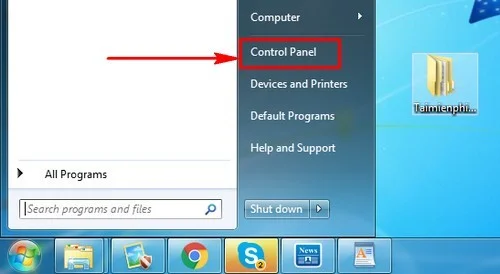
Step 1 : Click Start then select Control Panel.
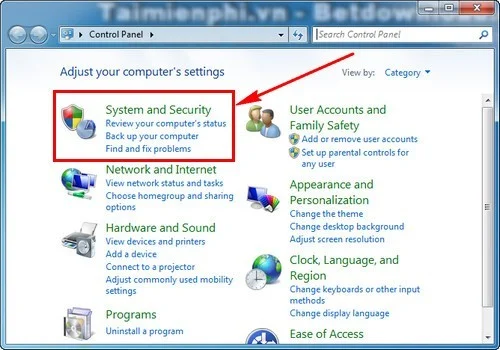
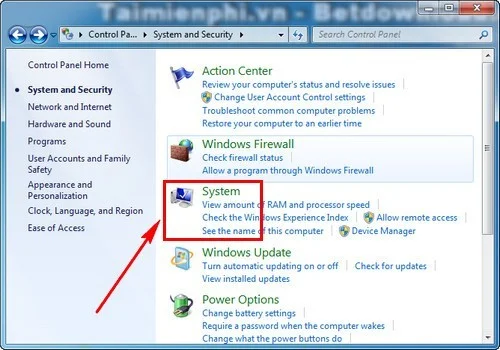
Step 2 : Access System and Security.
Step 3 : Click on System.
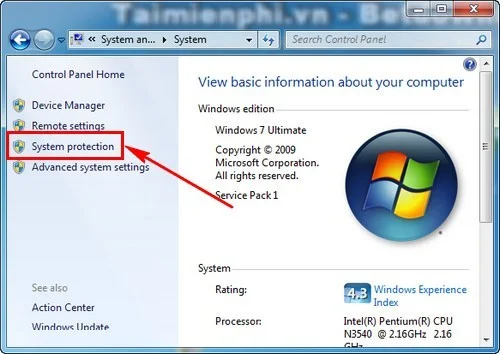
Step 4 : Select System Protection on the left sidebar of the window.
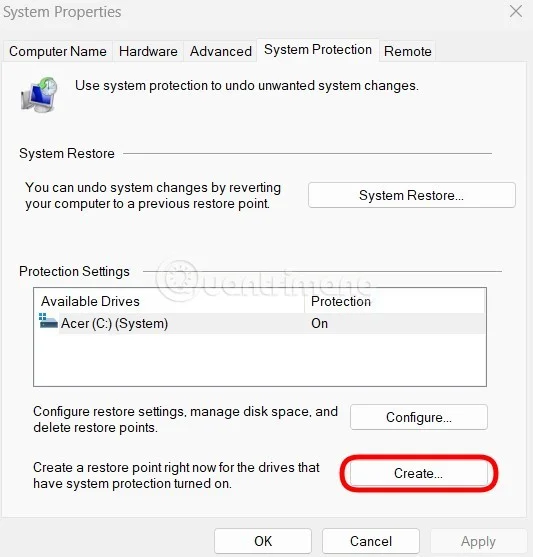
Step 5a : In the System Properties window , select drive C then click Create in the " Create a restore point right now... " section.
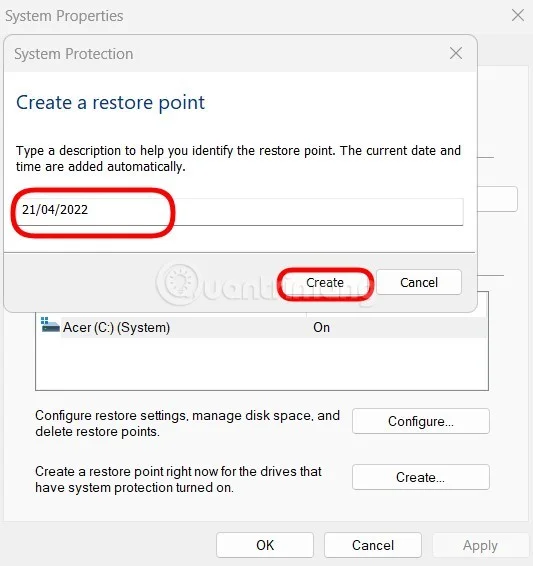
Step 6a : Name the restore point (remember to fill in the date for easy tracking) and then click Create. Wait a moment for the system to complete creating the restore point.
2. Restore Windows 7 from a restore point
You follow steps 1 to 4 in part 1. Next, from step 5 you do the following:
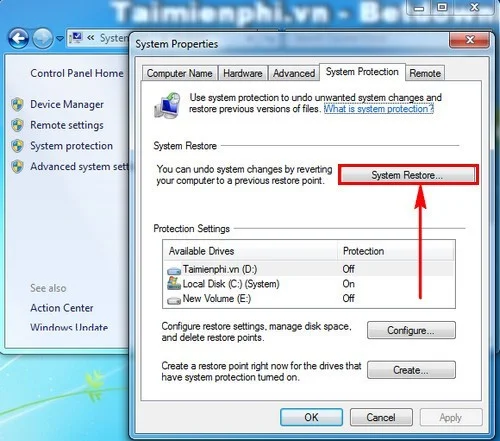
Step 5b : In the System Properties window , click the System Restore button.
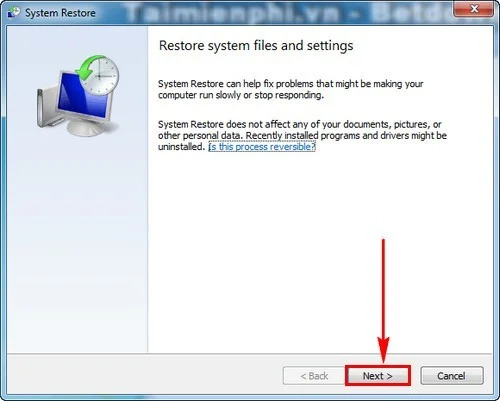
Step 6b : Click Next to continue.
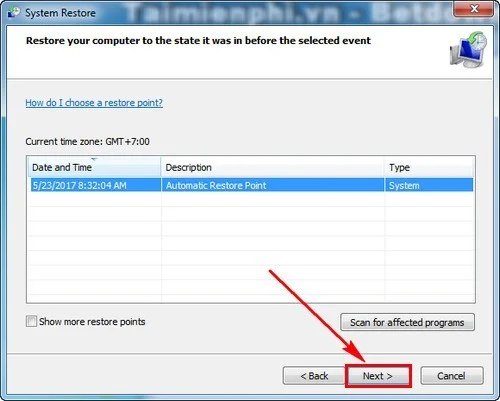
Step 7 : In this window, choose the restore point that you feel is best and then click Next.
Step 8 : Click Finish then wait for the system to automatically restore to the previous point in time.
Reset Windows 7 using download manager
The Windows Media Creation Tool lets you reset your operating system , but it's currently only available for Windows 10 and Windows 8.1. If Windows 7 needs to be reset, you'll need a download manager that works like the Windows ISO Downloader.
The program may not be developed by Microsoft itself, but it still uses officially licensed downloads from Microsoft. With the help of this tool, you will create a copy of Windows 7 that can be transferred to a data provider or opened using the VirtualBox installation.
Instructions to reset Win 7 using ISO Downloader
1. Install Windows ISO Downloader .
2. On the Microsoft website, you can select the operating system version to download the ISO tool.
3. Download links will now be generated for both 32-bit and 64-bit versions.
4. Start downloading.
5. Note that you need to have a license to use it, as it is a legal download through Microsoft.
To reset Windows 7, you still need to download and install the Windows 7 USB/DVD Download Tool. Now you have everything you need to create installation/recovery media for Windows 7. To do this, follow these steps:
1. Open the Windows 7 USB/DVD Download Tool program .
2. Then you can select the ISO file you downloaded in the first step and click Next to continue.
3. Now, select a medium where you want to save the ISO file . To do this, click on “USB device” or “DVD” .
4. Connect the corresponding storage media to the device and select “Begin copying”.
5. The storage media will now become bootable recovery media (insert before turning on the computer). When booted, you can access the recreated version of Windows 7 on the media and begin restoring the system. This is especially useful if the operating system is so damaged that you can no longer boot Windows normally from the hard drive.
Factory reset Windows 7 - with or without installation disc
If you still have the original Windows 7 installation CD, just boot from it as follows:
1. Open the boot menu when the computer starts - depending on the computer or BIOS version , use the F12, F8, DEL or ESC keys .
2. In the boot options, select the CD/DVD drive where the disc is stored.
3. Now, proceed to reinstall Windows completely. To do this, follow the instructions on the installation CD.
4. The installation process may take a while.
If the factory-saved Windows 7 settings are stored on your computer, it is also possible to restore to factory settings without a CD using the following instructions.
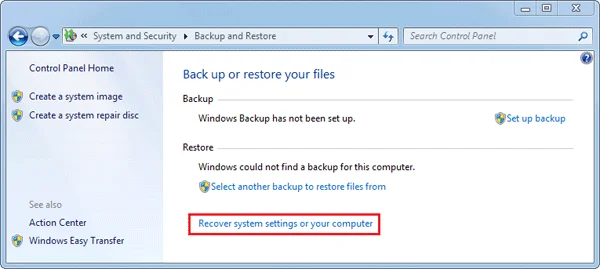
1. Select the “System and Security” category in Control Panel.
2. In the “Backup and restore” section , you can find “Recover system settings on your computer” .
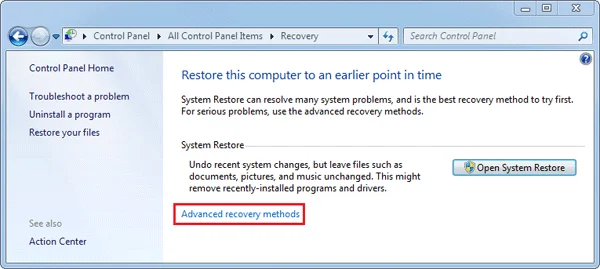
Then click on “Advanced recovery settings” .
3. Then you need to click on “Return your computer to factory condition” .
4. Reset your computer as instructed.
Note:
If you restore Windows 7 to factory settings, all personal files will be lost.
This method will not work if the “Return your computer to factory condition” option does not appear. In this case, you can reset in recovery mode. The following steps are also necessary:
1. Reboot into recovery mode: When you reboot, you'll get information on how to access the mode at the bottom of the screen - usually using an F- key like F11 or F9.
2. In recovery mode, use the arrow buttons to select the “Recovery” option.
3. Now, click “Next” , confirm by clicking “Next” again and if possible, disconnect the keyboard and mouse from the computer.
4. Then the factory settings will start to be restored.
Restore factory settings from recovery partition
Some computers may have a recovery partition that allows users to restore the system to its default factory settings. Follow the instructions below to learn how to do this:
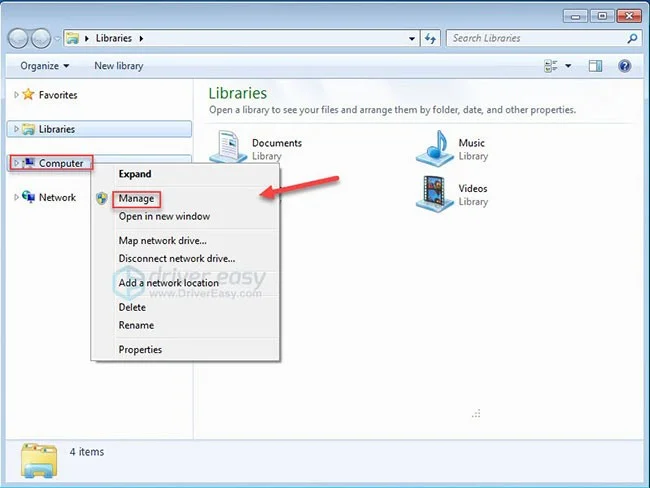
1. On your keyboard, press the Windows logo key and the E key at the same time to open File Explorer.
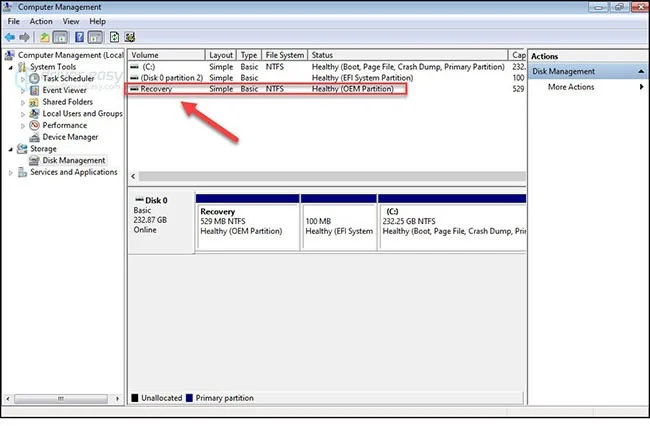
2. Right-click Computer , then select Manage.
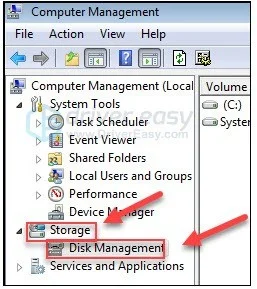
3. Click Storage , then select Disk Management.
4. Check if you have a recovery partition on your computer.
Note : If you find a recovery partition, follow the instructions below. If you don't have a recovery partition, move on to another method.
5. Turn off the computer, then disconnect all peripherals from the computer (except the monitor, keyboard, and mouse).
6. Press the power button to turn on the computer, then, before the Windows logo appears, repeatedly press the recovery key on the keyboard.
Note : The recovery key may vary from machine to machine. Here's how to access the recovery partition for the most popular brands:
| Trademark | Command |
| Acer | F10 or Alt + F10 or Ctrl + F |
| Advent | F10 |
| Asus | F9 |
| Dell | Ctrl + F11 |
| HP/Compaq | F11 |
| IBM – Lenovo | F11 |
| LG | F11 |
| MSI | F3 |
| Samsung | F4 |
| Sony Vaio | F8 or F10 |
| Toshiba | F8 or F0 |
Note : If you cannot find the corresponding function key for your computer, refer to the computer manufacturer's website for more information.
7. Follow the on-screen instructions to reset your computer.
Restore factory settings for Dell Windows 7 laptop
Follow the steps below:
1. First, back up your computer, save all important files and documents to an external hard drive. If you restore your Windows 7 laptop to factory settings, all personal data will be deleted from your computer.
2. Turn off your laptop properly and disconnect all peripherals such as printers, scanners, network cables and USBs, etc.
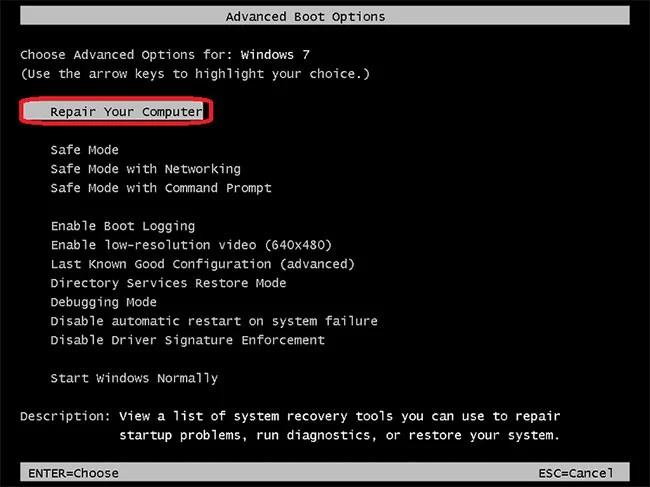
3. Turn on the laptop by pressing the power button and continuously pressing F8 until the Dell logo appears on the screen. Now, you will see the Advanced Boot Options menu . If the Advanced Boot Options menu does not appear, restart the computer and repeat the above process.
4. After opening the Advanced Boot Options menu , use the arrow keys on your keyboard to select the "Repair Your Computer" option , and then press the Enter button. This will open the System Recovery Options menu .
5. After clicking on the "Repair your Computer" option , select the keyboard layout and click on the Next button.
6. Now, login with admin or local user rights and click on OK button.
7. You will see two options. Now, select “Dell Factory Image Restore” or “Dell Factory Tools” and then click on the Next button.
8. This is the Confirm Data Deletion menu . Select the Yes, reformat the hard drive and restore system software to factory condition option and click the Next button.
9. Windows 7 is now restoring its factory settings. The process will take a while to complete. Once setup is complete, you will see a message that your computer has been restored to its factory settings.
10. Click the Finish button and the laptop will restart.
Restore factory settings for HP laptop running Windows 7
Follow the steps below:
1. Repeat the above two steps of the method to factory reset Dell laptop running Windows 7 above. Backup your computer, shut down your laptop properly and disconnect all peripherals like printers, scanners, network cables, USBs, etc.
2. Now, turn on your laptop by clicking on the power button. Click on the Start menu. If you find any problem while booting Windows and are unable to click on the Start menu, restart your computer and immediately press the F11 key continuously. Now, your computer is opening the Recovery Manager window.
3. After clicking the Start menu, click the All Programs button and then select Recovery Manager.
4. Now click on Recovery Manager option , you will be asked to enter admin password. Enter admin password and continue.
5. Now, the User Account Control window will ask you if you want the program to make changes to your computer, select Yes. The Recovery Manager window will appear on the screen.
6. On the Recovery Manager window , select the System Recovery option under I need help immediately .
7. After clicking System Recovery , a new window will appear and ask you if you want to restore your computer to its original factory state. Select Yes , then click the Next button. Now, your computer will restart and you will see the Recovery Manager window on your screen again.
8. Click the System Recovery button and then click Recover without backing up your files .
9. Now, click on the OK button to confirm that you want to restore the factory settings and then click on the Finish button.
10. Now, the process of restoring factory settings for HP Windows 7 laptop is complete.
Good luck!
Create a spooky office cubicle with Halloween desk decor ideas that keep your workspace usable, tidy, and mindful of workplace safety.
Plan a recognizable Halloween 2026 look with pop culture costumes inspired by Spider-Man, Supergirl, Toy Story 5, Moana, Mario, and Wednesday.
Sort leftover Halloween candy safely, share or repurpose sealed treats, and choose food use or compost for pumpkins based on their condition.
Compare workplace Halloween costume choices by respect, dress code, mobility, and safety—and learn when a subtle accessory or a policy check is the better option.
Find a couples costume that fits your style, budget, and comfort level, from Addams Family classics to original inside-joke duos.
Need a last-minute high school Halloween costume? Compare 10 easy closet-based ideas by prep time, comfort, school-day practicality, and simple safety checks.
Use a simple 2026 Halloween decorating timeline for indoor décor, outdoor displays, and fresh pumpkins, with practical adjustments for weather and events.
Mix five vivid, approachable Halloween cocktails with measured recipes, simple prep tips, and an alcohol-free option for your party guests.
Find 15 office-friendly Halloween costume ideas for 2026, with practical checks for dress codes, respectful themes, comfort, and workplace safety.
Plan a fun elementary school Halloween party with easy crafts, games, inclusive treats, costume tips, and a sample 75-minute classroom schedule.








