If the apps on your phone don't turn off properly, they still run in the background and cause the device to run out of battery quickly. In this article, I will guide you how to quickly and simply turn off applications running in the background on iPhone , iPad .
Why should you turn off background apps on iPhone, iPad?
- Save battery .
- Helps to free up RAM memory . For frequently used applications (such as Facebook, Zalo) should not be turned off because the background shutdown makes the application restart when you need to access it, which takes more time.
- Save space: In case you are playing Wifi or using 4G, applications running in the background can also use your data to operate, making fast data run out.
1. Method 1: Delete by multitasking window (each app individually)
- Step 1: Open the multitasking window
To open the multitasking window you can do the following depending on the model of iPhone you are using:
+ iPhone, iPad with Home button ( iPhone 6 , iPhone 6 Plus , iPhone 6s , iPhone 6s Plus , iPhone 7 , iPhone 7 Plus , iPhone SE (2020) , iPad Mini , iPad Air , iPad 10.2 " , ...): Press the Home button twice continuously.
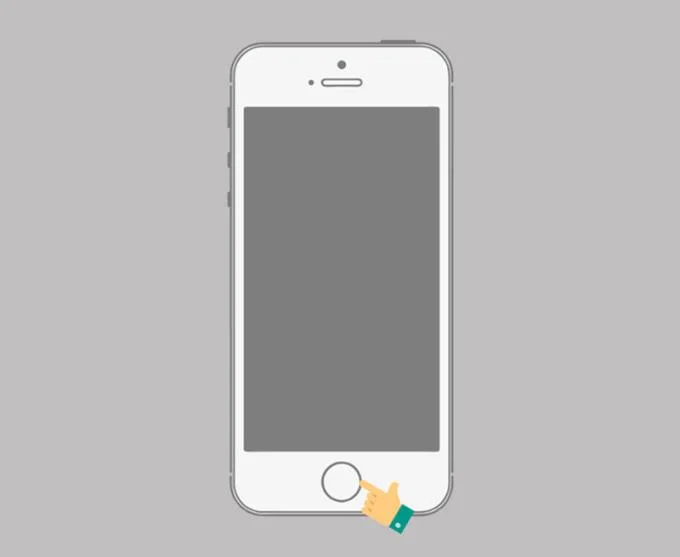
Press the Home button twice
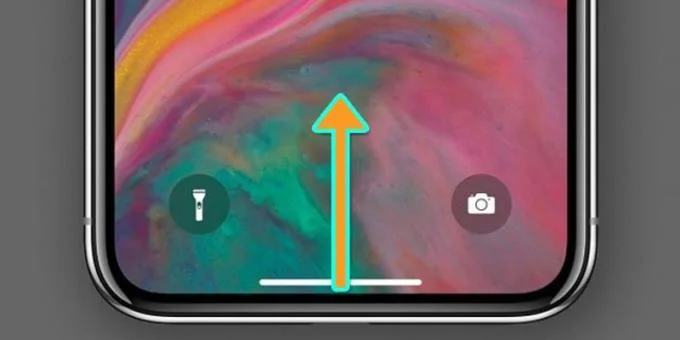
iPhone with Face ID, iPad without Home button ( iPhone X , iPhone Xr , iPhone Xs , iPhone Xs Max , iPhone 11 , iPhone 11 Pro , iPhone 11 Pro Max , iPad Pro 11 " , iPad Pro 12.9"): Swipe from below the screen to the middle and then release.

Swipe up from the bottom
- Step 2: Turn off applications running in the background
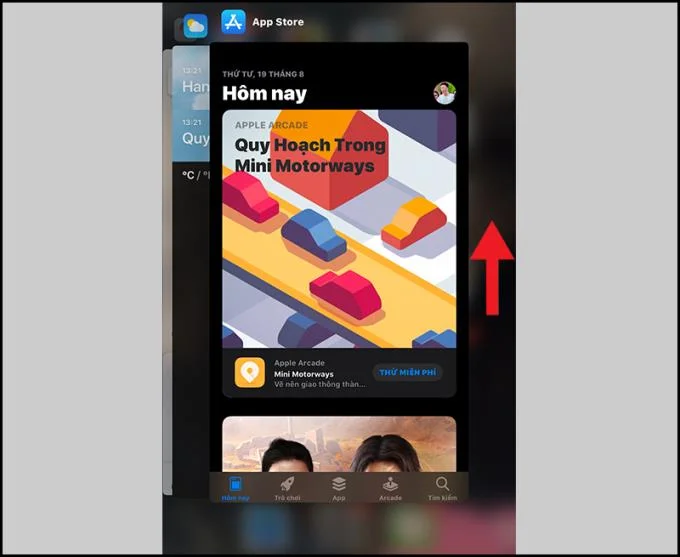
You drag to the right to find the application you want to turn off in the background> Swipe up to turn off the application .

Swipe up to turn off the application
2. Method 2: Turn off by Settings (can turn off all or more apps)
- Step 1: Open Settings
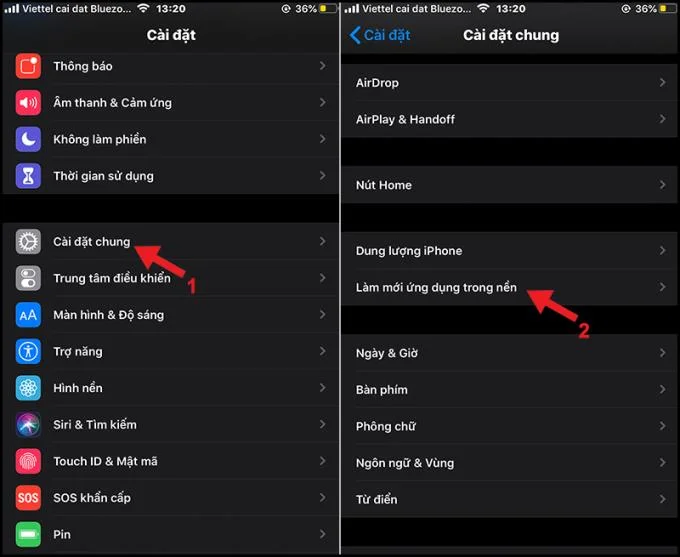
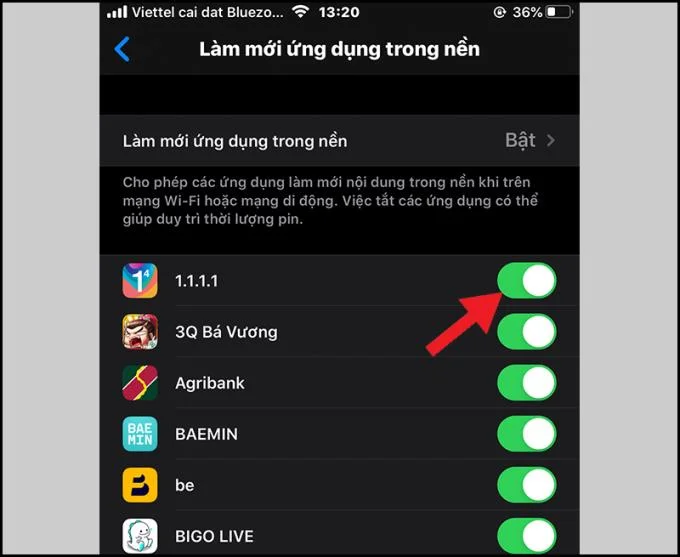
You open Settings > General > Background App Refresh .

Refresh the application in the background
- Step 2: Turn off how the application runs in the background
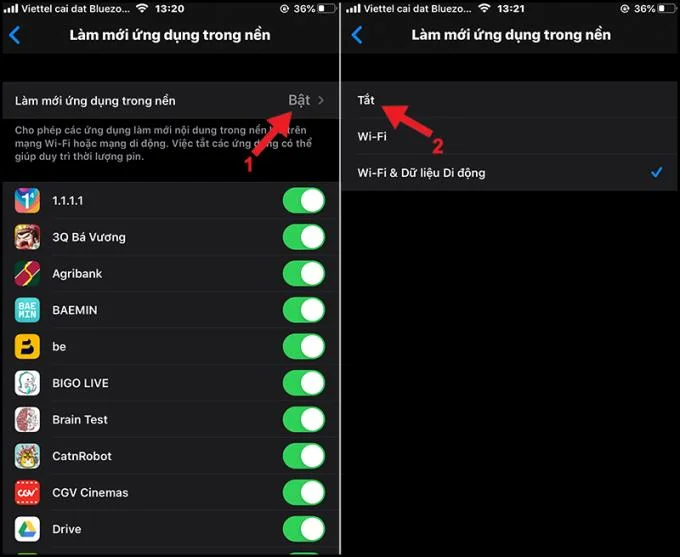
You click on Refresh applications in the background > Select Off to turn off background applications running off.

Press the Off button
In addition, you can switch the button on each app to turn off each application individually .

Toggle the shortcut button for each application individually
Thank you for watching and see you in the following articles.